Overview
Campaign & Promotion Engine main page: product introduction and navigation to Campaigns, Promotions, Coupons screens.
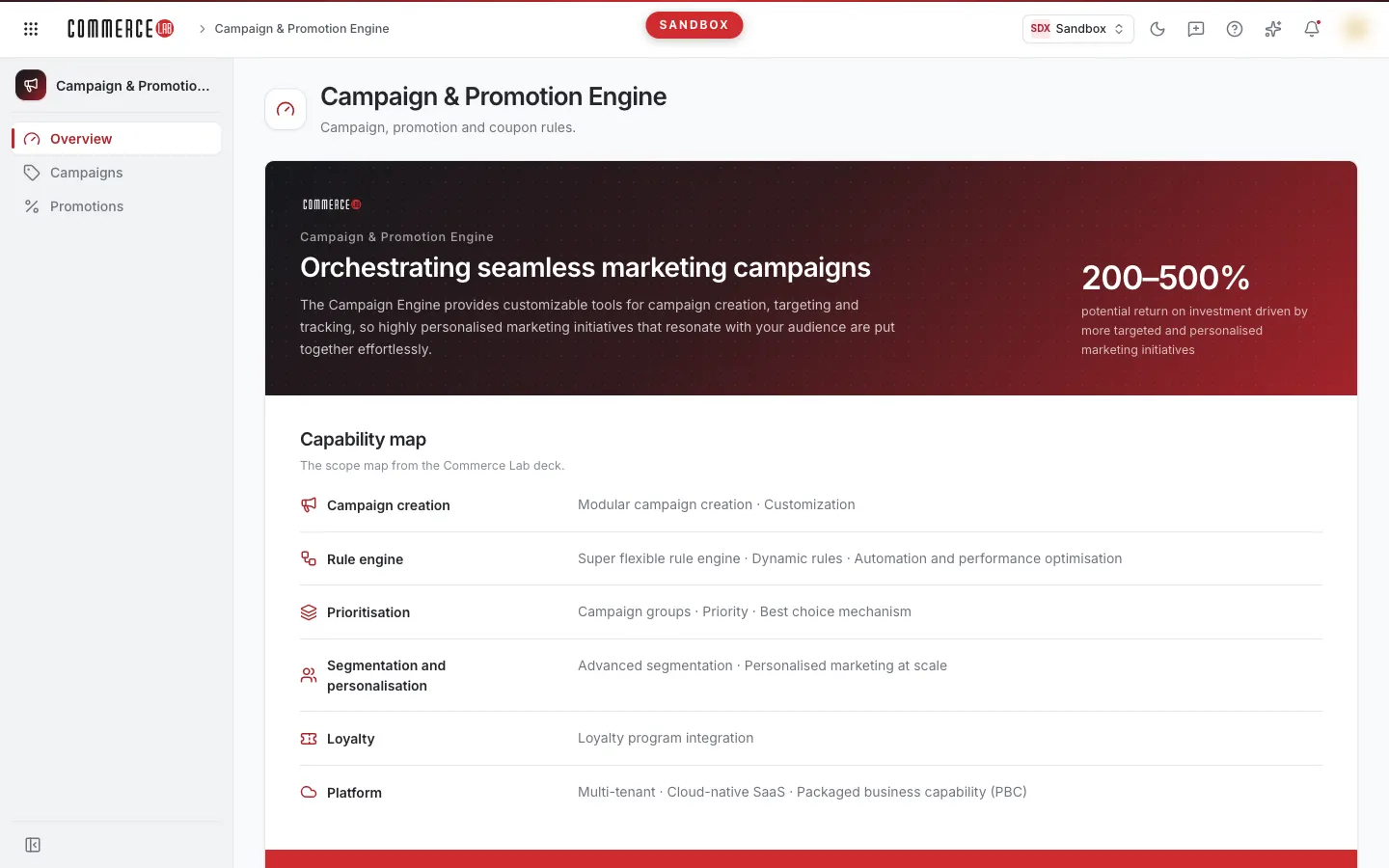
Campaign & Promotion Engine main page is where marketing and price campaign tasks begin. Two separate tasks are carried out in this product: price campaigns calculated over product prices and Promotions applying conditional discounts in the cart (including coupon codes). The overview page does not show counters related to your data; it explains the product scope and you navigate to the main working screens from the left menu.
Accessing the screen
- In the left menu, Campaign & Promotion Engine › Overview.
- In the Items window opened by the All products button in the top bar, click on the Campaign & Promotion Engine card. Under the same card, shortcuts for Campaigns, Promotions, and Coupons are also available.
- Clicking the product name at the very top of the left menu also returns you to this page.
If you do not see it in the menu, your account does not have permission for this screen.
Screen sections
The page title is Campaign & Promotion Engine, with the subtitle Campaign, promotion and coupon rules. Below the title is a single introduction section:
- Intro strip — On a red background, the heading Orchestrating seamless marketing campaigns, a brief description of the campaign engine, and the measured business impact (200–500% ROI increase).
- Capability map — Areas covered by the product: Campaign creation, Rule engine, Prioritisation, Segmentation and personalisation, Loyalty, Platform. Each area lists the capabilities within it.
- Why is it different? strip — A short text explaining the product’s modular approach.
- Capabilities in detail — Under the headings Creation, Management, Targeting, and Platform, each capability’s name and a one-sentence description.
- At the bottom, a Source: line and a commercelab.com.tr link; the link opens in a new tab.
The introduction section explains the overall scope of the product; it does not show which screens are open in your account. The screens you can use are listed in the left menu.
Screens in the menu
| Menu item | Purpose |
|---|---|
| Overview | This page: product introduction. |
| Campaigns | List and definition of price campaigns. A campaign defines the campaign price calculated by applying a certain rate or amount discount from the product’s active or list price; you see the products in the campaign and can remove products from it. |
| Promotions | List of cart discounts (promotions), creating new promotions, and managing campaign groups. The rule conditions, coupon codes, and usage history of a promotion are managed on the promotion detail page. |
| Coupons | Not yet available. Appears dimmed in the menu; hovering shows Coupons · Soon. Clicking opens an empty page titled Coupons. |
To define coupon codes, upload coupons from Excel, or export coupons, use the Coupon codes tab on the related promotion’s detail page.
Operations
Opening a campaign screen
- Click Campaigns or Promotions in the left menu.
- You can add frequently used screens to your favorites by clicking the star that appears on hover (Add to favorites); favorites are listed in the Favorites section of the Items window. Clicking the star again (Remove from favorites) removes the screen from favorites.
Which screen should I use?
- If you want to set a fixed campaign price (third price) over the catalog price for products, use Campaigns.
- If you want to set a discount based on cart total, products in the cart, customer segment, time, or coupon code, use Promotions.
Common situations
Clicking the Coupons menu opens an empty page. This screen is not yet available (Soon). The opened page states This product’s screens will move after the first phase. The left menu shows planned screens. The Campaign & Promotion Engine button below returns you to this overview page. Manage coupons on the Coupon codes tab of the promotion detail page.
Campaigns or Promotions do not appear in the menu. Your account does not have permission for that screen. Contact your system administrator for access.
No campaign count or chart on the page. The overview page currently only shows product introduction; it does not contain counters or charts. Use the Filter result counter in the campaign and promotion lists.