Site cookies
Define cookies by linking them to specific sites; filter, add, edit, and delete by site and field name.
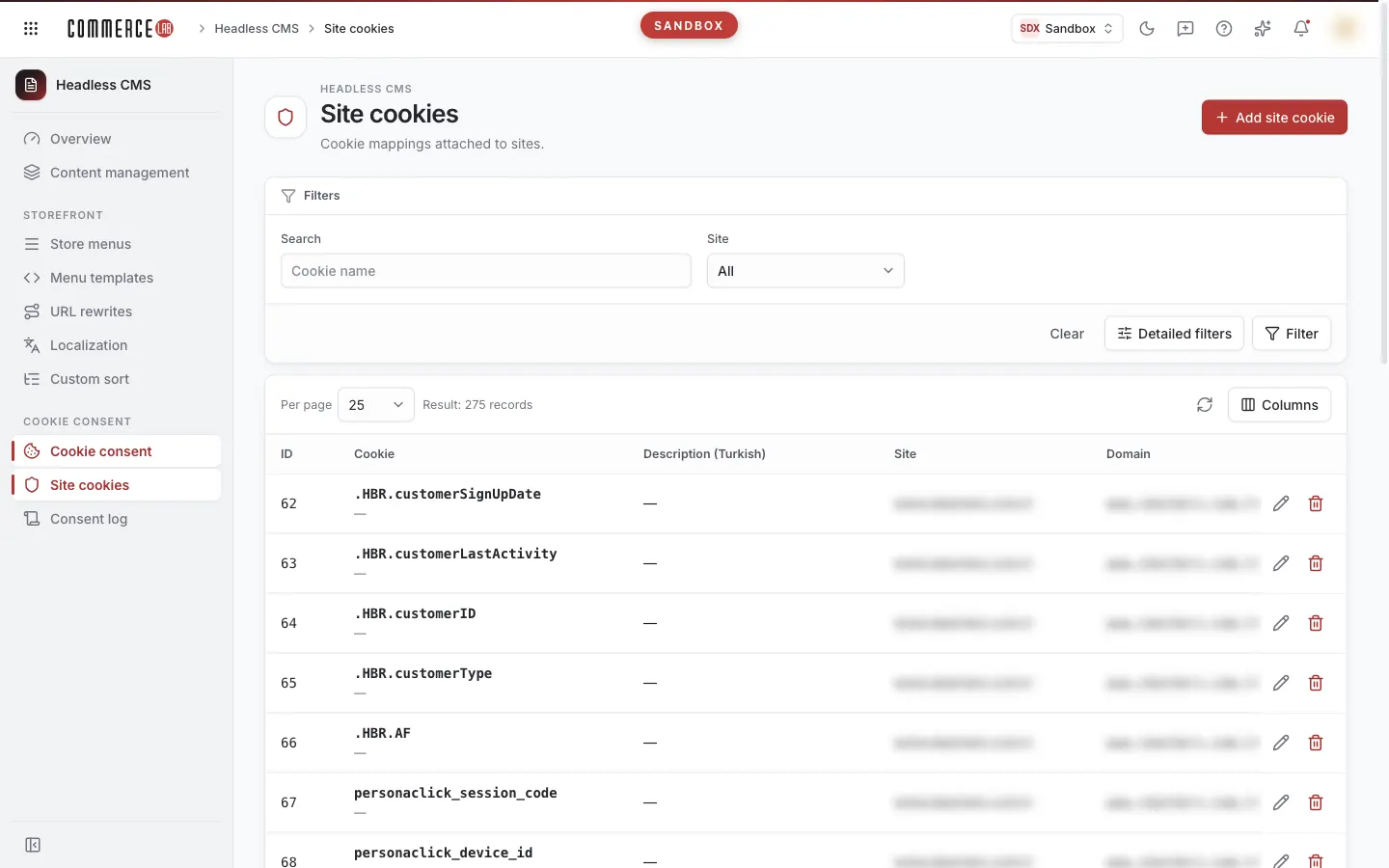
The Site cookies screen is where you define cookies by linking them to a specific site. Unlike the general cookie catalog, each record here belongs to one site: if the same cookie is used on multiple sites, a separate record is kept for each site. It is intended for content, e-commerce, and compliance teams managing multiple sites (e.g., different domain names) who need to keep each site's cookie list updated separately.
Accessing the screen
Follow the menu path CMS – Headless Content › Cookie consent › Site cookies. If you do not see it in the menu, your account does not have permission for this screen.
The Add site cookie, edit, and delete buttons only appear for accounts with permission to modify cookie definitions. If you do not see them, you can only view the list.
Screen sections
- Page title Site cookies, with the description "Cookie matches linked to sites." below; Add site cookie button on the right.
- Filter area: Search box, Select a site dropdown, and Detailed filters opening Field name and Group filters; below are Clear and Filter buttons.
- List: above it, Per page selection, Filter result: … records counter, refresh icon, and Columns menu; below is pagination.
If the cookie consent service is not configured in this environment, the title, filter, and list do not appear; only a card titled Cookie consent service not configured is shown on the page (see Common scenarios).
Filtering and searching
| Field | Purpose | Tip |
|---|---|---|
| Search | Returns cookies whose name contains the text you enter. | Placeholder text: "Cookie name". Case insensitive. |
| Site | Returns cookies linked only to the selected site. | Always visible. Default is All. Options are listed by the site's domain name (or name if no domain). |
| Field name | Returns cookies whose domain contains the text you enter. | Opened from the Detailed filters menu. Case insensitive. |
| Group | Visible in the Detailed filters menu but currently does not narrow the list on this screen. | Even if selected, all groups are listed. To view by group, use the Group column or the Group filter in the general catalog's Cookie consent screen. |
Filters are applied when you press the Filter button (or Enter while in a field). If Search, Site, and Field name are all filled, records matching all criteria are listed. Clear empties all filters and search. If you share the filtered page URL, the recipient sees the list with the same site and filters.
List
| Column | Meaning |
|---|---|
| Identity | Record number. The list is sorted ascending by this number. |
| Cookie | The cookie's name in the browser; its general description is shown below in small text. This column cannot be hidden. |
| Description (Turkish) | The Turkish translation of the description. If none exists, the first language translation in the record is shown. |
| Site | The site the cookie is linked to; shown by domain name (or name if no domain). For records linked to a site no longer in the site list, the site number is shown. |
| Field name | The domain where the cookie is valid. |
| Path | The path where the cookie is valid. Hidden by default; can be enabled from the Columns menu. |
| Group | The cookie's group, as stored (necessary, targeting, performance, analytics, personalization). For Turkish translations, see the group table in Cookie consent. |
| Pattern | Blue Yes if the cookie name is a regular expression pattern, gray No if not. |
| Created | The date and time the record was created. |
| Icons at the end of the row | Edit (pencil) and Delete (trash can). Visible only to accounts with modification permission. |
Empty values appear as "—". Page size can be 25, 50, or 100; default is 25. Clicking column headers does not sort. Clicking a row does nothing; use the pencil icon to edit.
Actions
Adding a site cookie
- Press the Add site cookie button. The New cookie window opens.
- Select the site to link the cookie to from the Site list (required; shows Select a site if none selected).
- Enter the cookie's browser name in the Cookie field (required).
- Enter the cookie's purpose in Description and Description (Turkish) fields.
- If needed, fill in Field name and Path, and select Group.
- If the name is a regular expression pattern, check the Pattern box.
- Press Save. The button is disabled if Site is not selected or Cookie is empty.
If successful, a "Saved" notification appears, the window closes, and the list refreshes. On error, a red "Something went wrong" notification with explanation appears and the window remains open. Cancel closes without saving changes.
To link the same cookie to multiple sites, add separate records for each site.
Editing a site cookie
- Press the Edit (pencil) icon on the row. The Edit cookie window opens; the record's Identity number is shown locked at the top.
- The Site field is locked with the note "Site cannot be changed during update; add a new record for another site."
- Update other fields and press Save.
Only the fields in the window change during editing; translations other than Turkish, site, and creation date remain unchanged. If you clear the Description (Turkish) field and save, only the Turkish translation is removed. Clearing Field name, Path, or Group and saving deletes that information from the record. Unsaved changes are not confirmed before closing the window.
Deleting a site cookie
- Press the Delete (trash can) icon on the row.
- Read the warning: "The “...” cookie will be deleted. This action cannot be undone."
- Confirm with the red Delete button or exit with Cancel.
If successful, a "Deleted" notification appears and the list refreshes. Only the selected record is deleted; records for the same cookie linked to other sites and the general catalog definition in the Cookie consent screen remain intact. Deleted records cannot be restored.
Form fields
| Field | Required | Description / rule |
|---|---|---|
| Identity | — | Visible only during editing; cannot be changed. |
| Site | Yes | The site the cookie is linked to. Selected only during addition; locked during editing. |
| Cookie | Yes | Cookie name in the browser (e.g., _ga); max 200 characters. Leading and trailing spaces are trimmed. |
| Description | No | General (default) description; shown under the name in the list. |
| Description (Turkish) | No | Turkish translation of the description. |
| Field name | No | E.g., .example.com; max 300 characters. |
| Path | No | E.g., /; max 300 characters. |
| Group | No | One of five fixed groups, listed as necessary — Zorunlu. If an old value in the record is not in the list, it is preserved as an option. |
| Pattern | No | Check if the name is a regular expression pattern. |
Common scenarios
- The screen shows "Cookie consent service not configured." The cookie consent service is not defined for this environment; no requests have been sent. This is not a malfunction and retrying will not fix it; contact your administrator.
- I want to move a record to another site. The site cannot be changed during editing. Add a new record for the correct site and delete the old one if needed.
- The site list is empty. No sites are defined in the cookie consent service or the site list failed to load. Refresh the page; if it persists, contact your administrator.
- The list is empty, showing "No records found." No records match the selected site or filters. Select All for Site or press Clear.
- I selected a group but the list did not change. The Group filter currently does not narrow the list on this screen. Read the groups from the Group column.
- I see a "Something went wrong" error instead of the list. The service was unreachable at that moment. Retry with Retry; if it persists, notify your system administrator.
- I do not see the Add site cookie button. Your account does not have permission to modify cookie definitions.