Agreements
List, add, copy, and edit membership, distance sales, and KVKK texts by type, list, version, and language.
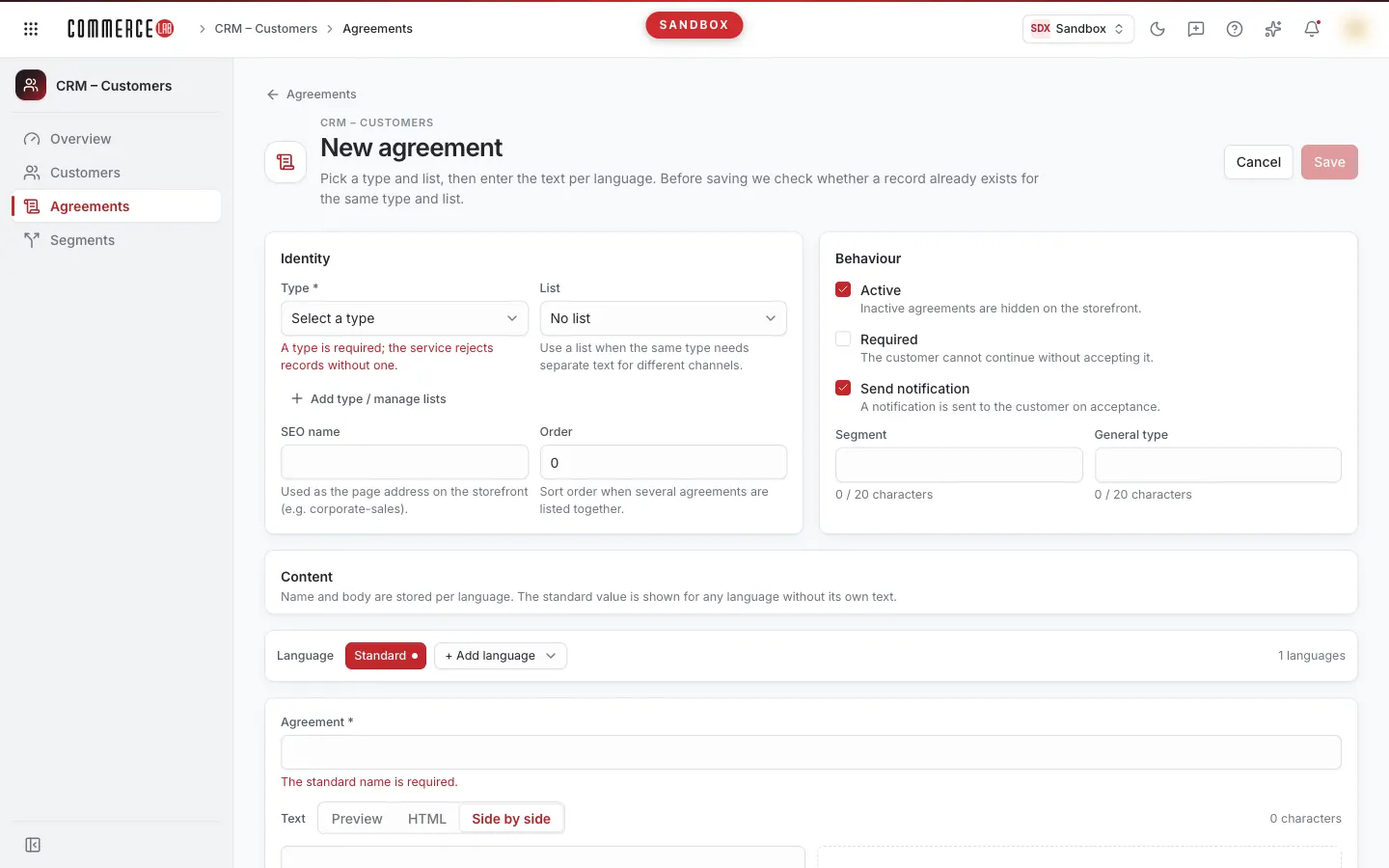
Agreements screen is where the texts shown to and approved by customers on your store site (such as membership agreement, distance sales agreement, KVKK disclosure text) are managed. Each agreement has a type, an optional list, a version, and a name and HTML text per language. Legal, e-commerce, and content teams use this screen to publish a new text, update an existing text, or translate it into another language.
This document describes three pages together: agreement list, agreement record (view and edit), and new agreement page.
Accessing the screen
Follow the path from the left menu CRM – Customers › Agreements. The agreement record opens from the list, and the new agreement page opens from the New agreement button in the list.
If you do not see it in the menu, your account does not have permission for this screen. Accounts that can view but not modify agreements do not see the New agreement, Types and lists, Copy, Delete, Edit, and Add attribute buttons, nor the edit and delete icons in attributes; the new agreement page also does not open.
Screen sections
- Title — Agreements and the description "Membership, distance sales and KVKK texts; by version and language." If you have permission, the Types and lists and New agreement buttons appear on the right.
- Filter card — Search field, Language selection, Clear, Detailed filters, and Filter buttons.
- List card — Per page selection, "Filter result: … records" counter, refresh icon, Columns menu, agreement table, and page navigation buttons.
Key concepts
| Concept | Meaning |
|---|---|
| Type | Defines what the agreement is; the store site calls the agreement by the type name. Every agreement must have a type. |
| List | Used if different texts are needed for different channels of the same type. An agreement can also be without a list (No list). |
| Version | Customer approvals are stored with the version number. It is recommended to increase the version when the text meaningfully changes. |
| Standard | The default name and text of the agreement. The standard text is shown in every language without a specific counterpart. |
| Template variables | Fields in the text in the form …; filled with real values at order time. |
When you add a "new" agreement to a type and list that already has an agreement, a new record is not opened; the existing record is replaced with a new version. The new agreement page shows this before saving and asks for your confirmation.
Filtering and searching
Values apply when you press Filter or the Enter key. Clear empties all fields and refreshes the list.
| Field | Purpose | Tip |
|---|---|---|
| Search | Searches within agreement name or SEO name. | Always visible. |
| Language | Filters agreements by language. | Always visible. Defaults to Turkish if empty. Language name and code are shown together (e.g. "English (en)"); all 16 languages available in the content editor are also here. |
| Type | Shows agreements of a specific type. | Opens from Detailed filters. Defaults to All if empty. |
| Status | Shows Yes active or No passive agreements. | Opens from Detailed filters. Defaults to All if empty. |
List
| Column | Meaning |
|---|---|
| Agreement | Agreement name on the top row (link; click to open record), SEO name on the bottom row. Cannot be hidden. |
| Type | Agreement type. |
| Attributes | Number of extra fields linked to the agreement. Hidden by default. |
| Segment | Agreement segment. Hidden by default. |
| Version | Version number. |
| Required | If Yes, the customer cannot complete the process without approval. |
| Status | Live or Frozen. Frozen agreements are not shown on the site. |
| Created | Creation date. Hidden by default; may be empty in the list, visible in the agreement record. |
Page size can be 25 (default), 50, or 100. Sorting by column headers is not supported.
On the right of each row are these buttons:
- Eye icon (Preview) — Shows the agreement text in a box. The title shows the agreement name, below it the SEO name. Template variables in the text appear marked but not filled. If no text, shows No text.
- Copy (if authorized) — Opens the new agreement page with a copy of the agreement.
- Delete (if authorized) — Deletes the agreement (explained below).
- Three-dot menu › Open detail — Opens the agreement record.
Actions
Deleting an agreement
- Press the trash icon in the row (or the Delete button in the record).
- The Delete "agreement name"? box shows the warning: "The agreement, its attributes, and approval records will be permanently deleted. The service only keeps a copy of the last state in the past; it cannot be restored from the screen."
- Confirm with Delete.
A Deleted notification appears and the list refreshes. If deleted from the record page, it returns to the list. If you only want to hide the agreement on the site, set it to passive instead of deleting.
Managing types and lists
The Types and lists button (called Add type / manage lists on the new agreement page) opens dictionaries grouping agreements. You switch between Types and Lists with the selector at the top of the box.
In Types view, the table shows First name, Description, Record no, and Usage (how many agreements of this type). Types cannot be deleted or renamed here: deleting a type deletes all agreements of that type.
To add a new type:
- Press Add type.
- Enter First name (max 50 characters) and optional Description (max 100 characters). The box warns: "The storefront calls the agreement by the TYPE NAME (e.g. sales_contract). Determine the name together with the storefront team."
- Press Save.
In Lists view, the table shows First name, Description, and Record no columns. Each row has edit (Edit) and trash (Delete) icons.
- Use Add list to open a new list; fields are the same as for type.
- Edit the list name and description with the pencil icon.
- Delete the list with the trash icon. Deletion is refused if agreements are linked to the list.
If a type or list with the same name already exists, a "A record with this name already exists." warning appears and Save remains disabled (case insensitive).
Adding a new agreement
- Press New agreement in the list. The page description: "Select type and list, enter text per language. Before saving, it checks if a record already exists for the same type and list."
- In the Identity section, select Type and, if needed, List. If the type is not in the list, add it via Add type / manage lists.
- An info box appears depending on your selection:
- "No other agreement exists for this type and list; a new record will be opened." — A new record opens.
- There are N agreements for this type and list (in red) — No new record opens; the existing record is replaced with a new version and the old state is archived. If multiple matches exist, which one changes is unclear. Matching records are listed as links (open in new tab). To create a separate agreement, select a different type or list or add a new type. If you continue this way, check the I understand the existing record will be replaced box.
- Fill other definition fields (see table below).
- In the Content section, enter the standard name and text, add other languages if needed (see "Content editor").
- Press Save. If an existing record will be changed, the button label is Save as new version. To cancel saving, press Cancel or the Agreements button at top left; both return to the previous page.
Save is disabled if type is not selected, standard name is empty, a field limit is exceeded, conflict check is running, or conflict exists but the confirmation box is unchecked. Changing type or list resets the confirmation box.
Result: a notification "Agreement added" or "Existing agreement updated with new version" appears and the saved agreement page opens; if no record is found, returns to the list. If you try to leave without saving, a "Unsaved changes will be lost. Leave the page?" prompt appears.
Copying an agreement
Used to prepare a new text similar to an existing agreement.
- Press the Copy icon in the list row or the Copy button in the agreement record.
- The new agreement page opens with the title "Copy: agreement name". Texts, languages, and settings are copied; version is 0;
-copyis appended to the SEO name. - Change type or list to open a separate record; if left the same, a conflict warning appears and the original agreement is changed.
- Press Save.
If the agreement to copy cannot be read, the page opens with an empty form and the New agreement title.
Definition fields
The same fields are used on the new agreement page and in record edit mode.
| Field | Required | Description / rule |
|---|---|---|
| Type | Yes | Options show type name and number (two types can have the same name). If empty, "Type must be selected; service rejects records without type." |
| List | No | If empty, No list. |
| SEO name | No | Used as page address on site (e.g. corporate-sales). Cannot be changed in edit mode; copy the agreement for a different address. |
| Order | No | Sorting when multiple agreements are listed on the same page. Integer 0 or greater. |
| Live | No | Passive agreements are not shown on the site. Checked by default on new agreement. |
| Required | No | Customer cannot complete process without approval. |
| Send notification | No | Sends notification to customer upon approval. Checked by default on new agreement. |
| Segment | No | Max 20 characters; character counter below. |
| General type | No | Max 20 characters; character counter below. |
Content editor
The agreement name and text are stored per language. The editor is used both on the new agreement page and in the Content tab of the record.
- Language bar — Buttons for Standard and added languages; clicking shows the name and text of the selected language. A yellow dot ("Missing: name or body empty") appears next to languages with empty name or text. The total number of languages ("N lang") is shown on the right.
- Add language — Select a language from the "+ Add language" selector at the end of the language bar; the language is added to both name and text and becomes selected. 16 languages are available; Turkish is standard and not added separately.
- Missing language warning — If the selected language’s name or text is empty, a "… missing" warning and Copy from standard button appear. The button fills only the empty field with the standard text.
- Agreement field — Name in the selected language. Standard name is required ("Standard name is required.").
- Remove language — Removes a non-standard language from the draft; confirmation is asked. The agreement does not change until saved.
- Text view — Preview, HTML, or Side by side. Default editing mode is Side by side: HTML source on the left, preview on the right. Character count of the text is shown on the right.
- Preview note — "Preview is a safe view: scripts, styles, and data-* attributes are not shown. Saved HTML is not modified." So elements hidden in preview are not removed from saved text.
- Template variables — If variables exist in the text, they are listed in a separate card. You can enter a value in the Sample value field next to each variable to test preview; variables without values remain marked in preview. The copy icon copies the variable in
…form to the clipboard ("Copied"). Sample values are not saved.
Agreement record
Opens when you click the agreement name or Open detail. The header shows the agreement name, below it the SEO name and version (e.g. v3). The Agreements button returns to the previous page.
On the right of the header are Live / Frozen badge, Required badge if applicable, and if authorized, Copy, Delete, Edit buttons.
Tabs
- Definition — In the Identity section: Type, List, SEO name, Record no, Created, Version; in the Behaviour section: Status, Required, Send notification, Order, Segment, General type.
- Content — Content editor; opens read-only and in Preview view when not in edit mode. The tab name shows the number of languages (including standard).
- Attributes — Extra fields of the agreement; the tab name shows the count.
Editing the agreement
- Press Edit. The Definition tab becomes a form, the Content tab becomes editable. The header shows Editing or "N changes not saved" badge.
- Change fields and texts. The form is the same as on the new agreement page; Type and List can also be changed. SEO name is locked in this mode. Version number is not in the form; it can only be increased upon save confirmation.
- Press Save. The button is disabled if no changes or if any field is invalid.
- The Save changes? box lists changed fields as badges; if name or text changed, it also shows which languages changed. The note says: "The service does not keep a history record for this update."
- If the text meaning changed, check Increase version (vX → vY). If unchecked, version remains the same.
- If setting the agreement to passive, a warning "Agreement is being set to passive: it will not be shown on the storefront when saved." appears.
- Confirm with Save. A Saved notification appears and the page returns to view mode.
Pressing Cancel in edit mode discards changes without asking. If you try to navigate away with unsaved changes, a confirmation prompt appears.
Updates do not archive the old text. To keep the old version, copy the agreement first or save the text elsewhere.
Attributes
Attributes are extra fields linked to the agreement, such as checkbox texts on the site (TEXT, GROUPTEXT…). Values can be HTML fragments and are stored per language. The table shows Key, Value (first two lines of the standard value), and Language (codes of languages with counterparts). If none exist, shows No attributes.
Attributes are independent of the agreement edit mode: they are written to the agreement as soon as saved.
- Add attribute — Enter Key (max 20 characters) and Standard value, add language counterparts if needed via "+ Add language" selector, press Save. Save is disabled if key is empty. If the key already exists for this agreement, a "This key already exists for this agreement." warning appears. You can remove a language you added by clicking the trash icon (Remove language) next to it; this step does not ask for confirmation and does not change the attribute until saved.
- Edit (pencil icon) — Change values and languages. The key cannot be changed; if a different key is needed, add a new attribute and delete the old one.
- Delete (trash icon) — Confirm in the Delete "key" attribute? box. The attribute is permanently deleted with all languages.
Common situations
- "No agreements in this workspace" appears. This message also appears if no agreements match the search or filter. Press Clear first; if the list is still empty, no agreements exist in the workspace yet and you can add with New agreement.
- "Agreement service not configured" message appears. The agreement service is not defined in this environment. This is not an error; retrying does not fix it. Contact your administrator.
- Trying to add a new agreement shows "already exists" warning. A record exists for the selected type and list; saving will change that record. Select a different type or list or add a new type for a separate agreement.
- Cannot change SEO name. SEO name cannot be changed on update. Copy the existing agreement and change the SEO name in the copy for a different address.
- "Agreement not found" appears. The agreement you tried to open may have been deleted. Return to the Agreements list and search again.
- "Something went wrong" box appears. Agreement or attributes could not be retrieved. Press Retry; if it persists, report to your system administrator with the text in the Technical detail section.
- Want to delete a type. Types cannot be deleted from the screen; deleting a type deletes all agreements of that type. To remove an agreement from publication, set it to passive.
- Empty text appears on site in another language. The name or text for that language is empty. Select the yellow-dotted language in the language bar and fill it by Copy from standard and translate.