Setup wizard
Complete the sourcing setup step by step. The setup dashboard shows the status of each step; the Algorithm wizard creates a draft algorithm, and the Order fulfilment costs wizard inputs roles, cost breakdown, shipping costs, and daily target through Q&A.
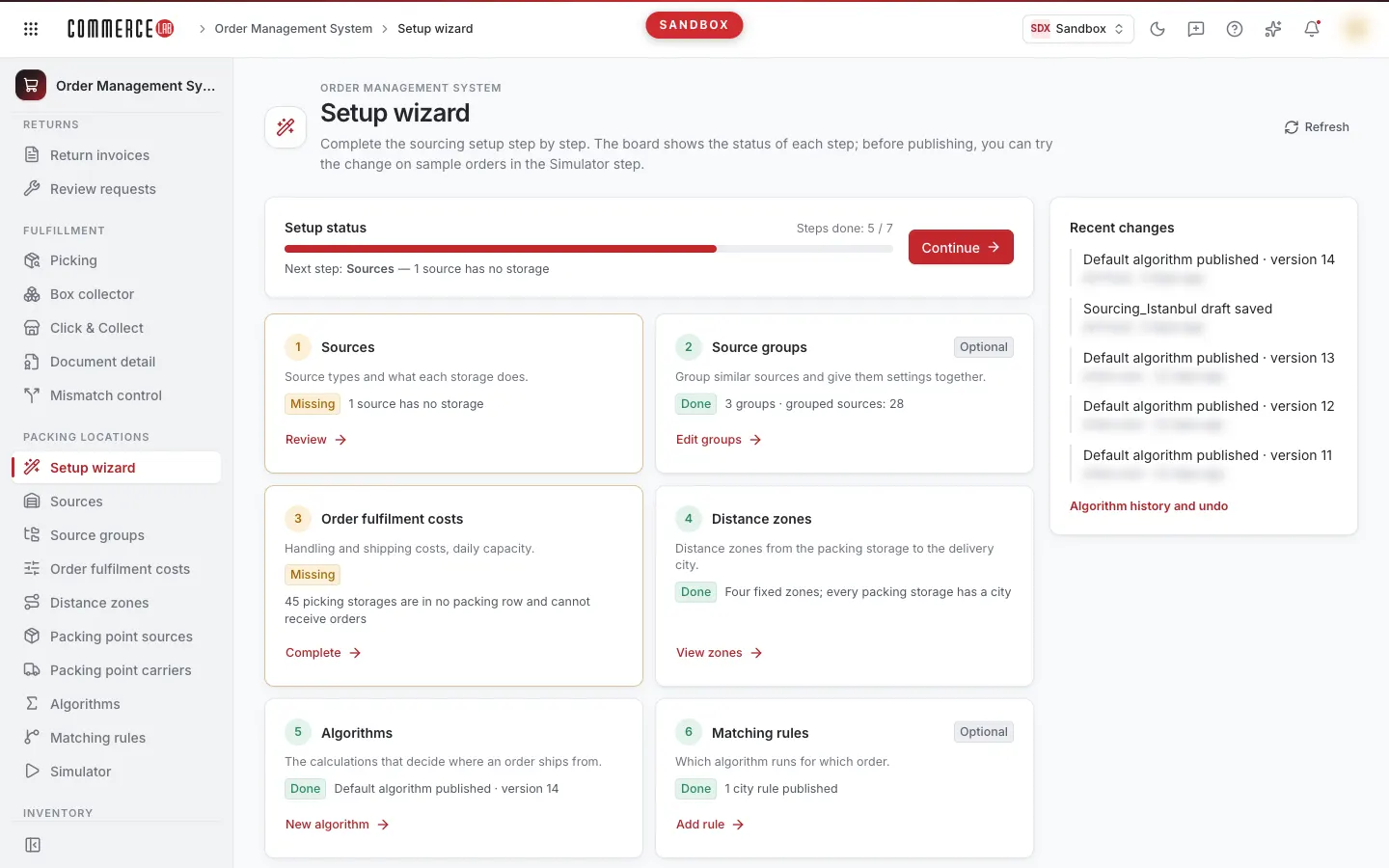
Setup wizard (OMS › Packing locations › Setup wizard) allows you to complete the sourcing setup step by step. It has three sections: setup dashboard, Algorithm wizard, and Order fulfilment costs wizard.
- The Algorithm wizard does not publish anything: the algorithm and city rule are saved as drafts; publishing is done on the Algorithms or Matching rules screen.
- The Order fulfilment costs wizard saves values; with Preview and apply, it also writes to OMS tables.
Setup dashboard
The dashboard shows seven cards. Each card's status (Complete, Incomplete, Not started, Unknown) is calculated from your data. The card button leads to the related screen or wizard.
| Card | When incomplete | Button |
|---|---|---|
| Sources | There is a source without an assigned type (shown only to OwnerAdmin and TenantAdmin); there is a source without a warehouse. | Review; if there is a source without a type, Assign types (opens Sources with untyped sources). |
| Source groups (Optional) | A source matches rules of more than one group (Conflict; a source can only be in one group); there is a group without members (shown only to OwnerAdmin and TenantAdmin). | Edit groups |
| Order fulfilment costs | A warehouse that picks orders is not in any packing line; a packing warehouse that ships has no shipping cost; a warehouse with "Sends to packing centres" enabled has no packing point with a customer shipping line (no transfer is written to these warehouses). | Complete (opens wizard); if the card is complete, View values. |
| Distance zones | A packing warehouse that ships has no city (Zone 1 does not match). | View zones |
| Algorithms | The default algorithm is not usable in the engine or its draft is awaiting publishing. | If no algorithm, Create with the wizard; if draft is pending, Prepare to publish; if unusable, Open algorithms; if complete, New algorithm. |
| Matching rules (Optional) | There is an issue preventing rule publishing or there are saved but unpublished rule changes. | Add rule; if unpublished changes exist, Prepare the rules for publishing. |
| Simulator | There are unpublished changes (algorithm draft or rule). | Open the simulator |
- Optional cards are not counted as incomplete if not started.
- The "N / M steps complete" bar and Next step show: the first Incomplete card or the first not started mandatory card; Continue goes to the same place as that card's button.
- If a card's status cannot be read, the card becomes Unknown, does not count towards progress, and its button leads to the step screen. Use Refresh at the top of the page to retry; if refresh fails, the dashboard remains and a "Dashboard could not be refreshed" warning appears.
- Recent changes (up to 5): algorithm publications and drafts made from the console, source group, Order fulfilment costs profile, and matching rule records. Each row opens its screen. Below it, Algorithm history and undo (or Algorithm history for users without write permission) opens the history tab of Algorithms.
- If you lack location write permission or OwnerAdmin or TenantAdmin role, an info bar appears at the top and card buttons show view-only labels (Review, View groups, View rules, Open algorithms).
Algorithm wizard
Builds an algorithm in six steps: Name, Priority, Sales speed, Workload, Scope, Summary. Answers are converted into four weight levels on the Algorithms screen (Operation, Sales speed, Workload, Delivery time; Missing, Low, Medium, High, Very high). Each option writes the value into the formula.
- For Operation, Workload, and Delivery time, values are 2.00, 1.75, 1.50, 1.25, 1.00: as the level increases, the impact of that item on the score decreases.
- For Sales speed, values are 0, 0.50, 1.00, 1.50, 2.00: as the level increases, sources with excess stock relative to sales (slow sellers) are prioritized, preserving stock of fast-selling sources.
Steps:
- Name: algorithm name and short description, then start:
- Copy the default starts with the default algorithm's weights. If the default algorithm's formula does not fit the template (custom formula), the formula is preserved as is; Priority, Sales speed, and Workload questions are disabled and the summary notes "Custom formula preserved". To build with answers, select Start empty.
- Start empty starts with recommended answers: Balanced, Sales speed Medium, Workload Medium.
- Priority: sets weights for Operation and Delivery time. Balanced (recommended): Operation Very high, Delivery time Low. Fastest delivery: Operation Medium, Delivery time Very high. Lowest cost: Operation Very high, Delivery time Missing.
- Sales speed and Workload: level selected directly (recommended Medium).
- Scope:
- All orders: creates a draft of the default algorithm. The default algorithm's city conditions are preserved: if city rules are saved, they are rewritten from those; otherwise, conditions in the formula remain unchanged. If conditions exceed 4000 characters, none are transferred. Situations where a condition will be dropped, unpublished rules will be written, or the order formula will change are noted as warnings in the summary.
- Specific delivery cities: creates a new city algorithm and a matching rule at the end of the list. If some selected cities are already covered by a previous rule, the summary notes this and suggests Move this rule to the top (Undo returns it to the end). The city algorithm does not use the order formula. If the matching rule limit is full, the step notifies and saving is not possible.
- Specific sales channels and Customer segment are "Coming soon"; reasons are explained below.
- Summary: answers, generated formula, As it will be written into the default algorithm, and OMS validation. Edit formula opens the Advanced formula step: you can edit the formula manually, revert with Back to the formula from the wizard, or return with Back to the summary. Changing Priority, Sales speed, or Workload answers or entering/exiting specific delivery cities scope clears manual edits.
- Try in simulator: no sample order preview in the wizard. The Try in simulator in the summary opens the Simulator in a new tab; your answers remain in the wizard.
Save draft
Save draft does not publish. Requires location write permission and OwnerAdmin or TenantAdmin role.
- If saving is disabled, the reason is shown next to the button: no write permission or admin role, preview mode, cannot read rule list or version history, matching rule limit full, formula error or validation in progress.
- Just before saving, rules and algorithm history are reread. If different from the summary, nothing is saved and the summary refreshes.
- If the default algorithm has an unpublished draft with different content (including yours), saving stops and shows who saved it and when. To overwrite, use Save over the draft.
- If you started with "Copy the default" and the default algorithm was published meanwhile, saving stops: continue with Copy the current version again (if current version cannot be read, Start empty).
- Sales speed weight in the formula is a divisor and must be at least 1. If copied custom formula has 0, saving notifies; set it to 1 or greater in the Advanced formula step (if left empty, engine uses 1).
- Maximum 20 algorithms can be stored; if limit reached or no empty algorithm number, saving is not possible and reason is shown.
- Description entered in the default algorithm is written to the draft note, not the algorithm description (max 200 characters).
Completion screen
- Prepare to publish goes to the formula editor of Algorithms (default algorithm) or Matching rules (city algorithm); publishing is done there.
- Try in simulator opens Simulator with draft selected: the draft saved in the default algorithm or unpublished matching rules in city algorithm.
- If some selected cities are covered by a previous rule, the completion screen warns with "Attention".
- If city algorithm is saved as draft and rule cannot be added, the completion screen notifies: Retry the rule adds only the rule (second algorithm does not open); you can also add the rule manually with Open matching rules.
Order fulfilment costs wizard
The Order fulfilment costs wizard inputs Order fulfilment costs values through Q&A. It has six steps: Group, Roles, Base costs, Transport, Capacity, Summary.
The entered value becomes the own value of the selected group (or General). Values not entered in the group come from General; source- and warehouse-specific values are preserved. Input rules are the same as on the Order fulfilment costs screen: 0 or greater, up to 4 decimals; ambiguous thousands are rejected. Continue does not proceed if there are invalid fields.
Group
- "For which group are you setting?": General (all sources and warehouses) or a source group. The number of sources (and warehouses in General) is shown on cards. Manage source groups goes to the Source groups screen.
- Changing the group deletes values entered for that group.
- If source groups cannot be read, only General values can be entered.
- Below, sales channel scope is shown (All sales channels or Selected sales channels). This is a single setting for all groups; users with save permission can change it with Change scope.
Roles
"What can sources in this group do?":
- Can pick orders; two dependent, indented roles: Can pack and ship itself and Sends to packing centres (both can be enabled).
- Pickup point for customer collection.
- Dependent roles are only used when "Can pick orders" is enabled. When disabled, they are locked ("Enable “Can pick orders” first"). If previously saved as enabled, it shows Not applied because picking is off; Apply does not write this role.
- Next to each role, the source of the value is shown: General value, Specific to this group, From General, or Not set. You can remove the group's specific value with Back to the general value, or remove the general value with Remove value.
- Sends to packing centres is off by default; when off, Apply does not write transfer lines.
- In an old profile, this role shows the value from the old rule ("picks but does not ship itself"), marked with Old profile — converted to an explicit value on the first save and cannot be changed until the first save.
Packing centres (visible when "Sends to packing centres" is enabled):
- Up to 3 packing points for the group, in DC → HUB → Store order.
- If the role is enabled and the list is empty, the default distribution centre is added automatically (Added automatically). If you immediately disable the role, this addition is undone.
- Add packing centre lets you select source and warehouse from a searchable list (DCs, HUBs, Stores); Remove removes from the list. If the last point is removed, the list becomes empty and a warning appears: orders cannot be sent to any point.
- Groups without their own list use General's list ("Using General list"). Define a separate list for this group starts with a copy of that list; Use the General list removes the group's specific list.
- If a point has no shipping line in the sales channel, or "Can pick orders" is off at the point, or the automatically added point is no longer the default distribution centre, it is noted in the line (in the last case Replace with the new default).
- The list is written identically for all selected sales channels. The list and warnings are the same as on the Order fulfilment costs screen's Packing points tab.
Base costs
Unit costs per order, in four sections:
| Section | Items | Subtotal |
|---|---|---|
| Warehouse | Storage, Goods receipt | Ownership cost in the warehouse |
| Handling | Picking, Sorting, Packing | Handling total in the warehouse; below, Warehouse total cost (sum of two subtotals) |
| Store | Warehouse–store transfer cost, Store picking cost | — |
| Packing | Packaging (consumables) costs | — (added on top of shipping costs, not included in totals) |
- Subtotals are calculated as you enter values. Each item has a short description below.
- When saving, two totals are calculated and written (same calculation as on Order fulfilment costs screen):
- If it packs itself = Warehouse total + Transfer × 2 + Store picking
- Sending to a packing point = Warehouse total + Transfer × 3 + Store picking
- Items not entered are counted as 0. Items not entered in the group are taken from General.
- In groups consisting only of DC-type sources, Transfer and Store picking are 0 and cannot be changed (DC group · fixed).
- Back to General values removes all items for this group.
- Mode of totals (manual / automatic): totals of a group or General are not changed by breakdown if manually entered on the Order fulfilment costs screen; the step warns about this. Automatic calculation is enabled on that screen's Handling cost tab with Calculate automatically. A group without its own item or mode takes totals from General; DC group totals are always calculated from breakdown.
- Every save recalculates all automatic totals; a change in General affects groups that take totals from General.
- If a calculated total exceeds 1,000,000, saving and applying are disabled until corrected.
Transport
- Cargo table: for each selected cargo, five costs from the Packing points cargoes screen — Zone 1 · same city, Zone 2 · 100 km, Zone 3 · 500 km, Zone 4 · 500+ km, and Fallback · if the zone is empty.
- Values not entered in the group appear grey from General. Values you enter are saved specifically for that group and cargo; clearing the box reverts to the inherited value.
- If the group has a common zone value for all cargos, it appears grey with "Common value for all cargos in this group" on hover. The wizard does not change the common value; values entered in boxes go only to that cargo.
- If a zone is empty or 0, the engine uses Fallback. Therefore, if you enter 0 for a zone (and no consumables), 0.0001 is written to the table; a note below the table explains this.
- Store delivery cost is not asked; store delivery cargo lines are untouched.
- Cargo selection is common for General and all groups. If no previous selection exists, cargos used by the tenant are selected. You can remove cargos and add them back from the Removed cargos list; at least one cargo must remain selected. Removing a cargo does not delete its existing lines.
Capacity
- Only Daily target (units) is entered: number of products a warehouse can prepare in one day.
- Below, four statistics are read-only: Statistical sales quantity, Statistical stock quantity, Delivery time to cargo, and Defective product rate. These are warehouse-based, read from OMS; the wizard does not write them.
- Each statistic shows how many warehouses have values ("Data in 3 / 5 warehouses"; 0 values do not count). If no data, shows "No data"; if OMS cannot be read, "Unavailable"; if no permission, "No permission". For groups with more than 25 sources, only "Warehouse-based" is shown.
- You update values with Upload statistics on the Sources screen (Sources link). The link opens in a new tab preserving your answers if changes exist in the wizard; the link is disabled during saving or applying.
Summary
- Shows only values entered in the wizard, section by section: Group and sales channels, Roles (number and names of packing points if "Sends to packing centres" is enabled; automatically added "(auto)"), Base costs (eight items), Transport (selected cargos and each cargo's zone and fallback costs), Capacity and performance.
- Values entered in this group are bold; values inherited from upper layer are grey with "↳". Values different from the saved profile are marked Changed.
- Then an impact line shows how many warehouses use this value and how many keep their own. For users other than OwnerAdmin and TenantAdmin, it notes that sources they cannot see will only get this value when OwnerAdmin or TenantAdmin applies.
- Result table opens order cost per cargo: first a row for the group packing itself (If it packs itself total), then one row per packing point (Sending to packing point total). Cargo cell shows the engine's value for that zone: zone + consumables; if zone is empty, fallback + consumables. The cargo of the point row is calculated from the point's own zone values and consumables. If the group does not ship itself, its row is absent; if it does not ship to points, point rows are absent.
- Download as Excel exports the profile; the file format is the same as Export to Excel on the Order fulfilment costs screen.
Save only and Preview and apply
- Save only saves only the value profile, does not touch OMS tables. Disabled if no changes.
- Preview and apply is the same preview and apply as on the Order fulfilment costs screen. Preview saves nothing; it shows the smallest difference between profile and tables. Closing preview saves nothing.
- Preview also shows:
- how many sales channels and cargos will be written (Change scope lets you change scope without leaving the wizard);
- if apply scope is empty, a warning "Apply scope not selected…" and Choose scope;
- a warning if all sales channels or cargos exceed 20; Apply is disabled until scope is narrowed (Save only remains enabled);
- number of layers with outdated calculated preparation total (fixed with Recalculate on Order fulfilment costs screen; no such button in wizard);
- packing lines outside scope despite disabling a flag;
- if the default distribution centre is a source you cannot see, transfer lines to it are skipped; if undefined or not found, OMS setting must be fixed.
- When you press Apply, if rows will be deleted, a confirmation window opens showing the number and details of rows to be deleted. You must check "I saw N rows will be deleted in the preview table, I confirm." for Apply to work. If no deletion, apply proceeds without confirmation.
- Just before applying, tables and source list are reread. If different from preview, nothing is written and preview refreshes. If same, profile is saved first (only if changed), then differences are written to tables.
- Large applies proceed in parts. If a part fails, previous parts remain written; continue with Retry remaining.
- Finish: "Values applied" (N records written), "Profile saved", or if nothing changes in OMS, "Tables already up to date". Then Open order fulfilment costs or Back to the dashboard.
Who can do what
- Saving, applying, and changing scope require location write permission and OwnerAdmin or TenantAdmin role.
- Without these, an info bar appears at the top. You can answer, download Excel, and see differences with Preview the difference; Save only is hidden, Apply is disabled.
- In preview mode, saving, applying, and Excel are disabled.
- If value profile cannot be read, a "Value profile cannot be displayed" warning appears; preview and Excel are unavailable.
When source groups cannot be read
If source groups cannot be read but group values exist in the profile, preview and apply are disabled in this wizard (group values would be written to tables without considering groups); the reason is shown in the Group step and summary. Save only is enabled and group values in the profile are preserved; you can apply when groups become readable.
If the selected group is deleted meanwhile, a warning appears: values for that group are not saved or applied. Choose the level again returns to Group step with General.
Links to the wizard
- New algorithm and New algorithm with the wizard in Algorithms, and Create city-specific algorithm in Setup wizard in Matching rules editor open the algorithm wizard with "Specific delivery cities" scope.
- Edit with the wizard in Algorithms (default algorithm only) opens with "All orders" scope.
- Set up with the wizard in Order fulfilment costs and Edit with the wizard on the Handling cost card open the Order fulfilment costs wizard.
Notes
- Algorithm history and undo opens only algorithm history; there is no history screen for group, value profile, or rule changes.
- OwnerAdmin and TenantAdmin see all source types (including DC, HUB, and Vendor) and see them counted on the dashboard. For other roles, if all warehouses they can see pack only in packing points of types they cannot see, the Order fulfilment costs and Distance zones cards show "Not started".
- Warnings about "untyped" and "group without members" are not shown to users other than OwnerAdmin and TenantAdmin.
- Transfer lines are written only for warehouses with "Sends to packing centres" enabled.
- If saving the city algorithm times out without response and you change name or formula before resaving, the first algorithm may remain as a rule-less draft (visible and deletable in Algorithms) and counts towards the 20 algorithm limit. If name and values are the same, new save links to that draft.
- Every save on this screen is backed up on the Commercelab side.
Video tutorials
- Watch sourcing setup with the Setup wizard: Read the status of seven steps on the Setup wizard dashboard and navigate the six steps of the Order fulfilment costs wizard without saving; step-by-step explanation and video.