Editing Category Information and SEO Fields
Find the category in the Category tree; edit its name, description, meta title, meta description, and URL; learn the difference between menu and tree; step-by-step guide and video.
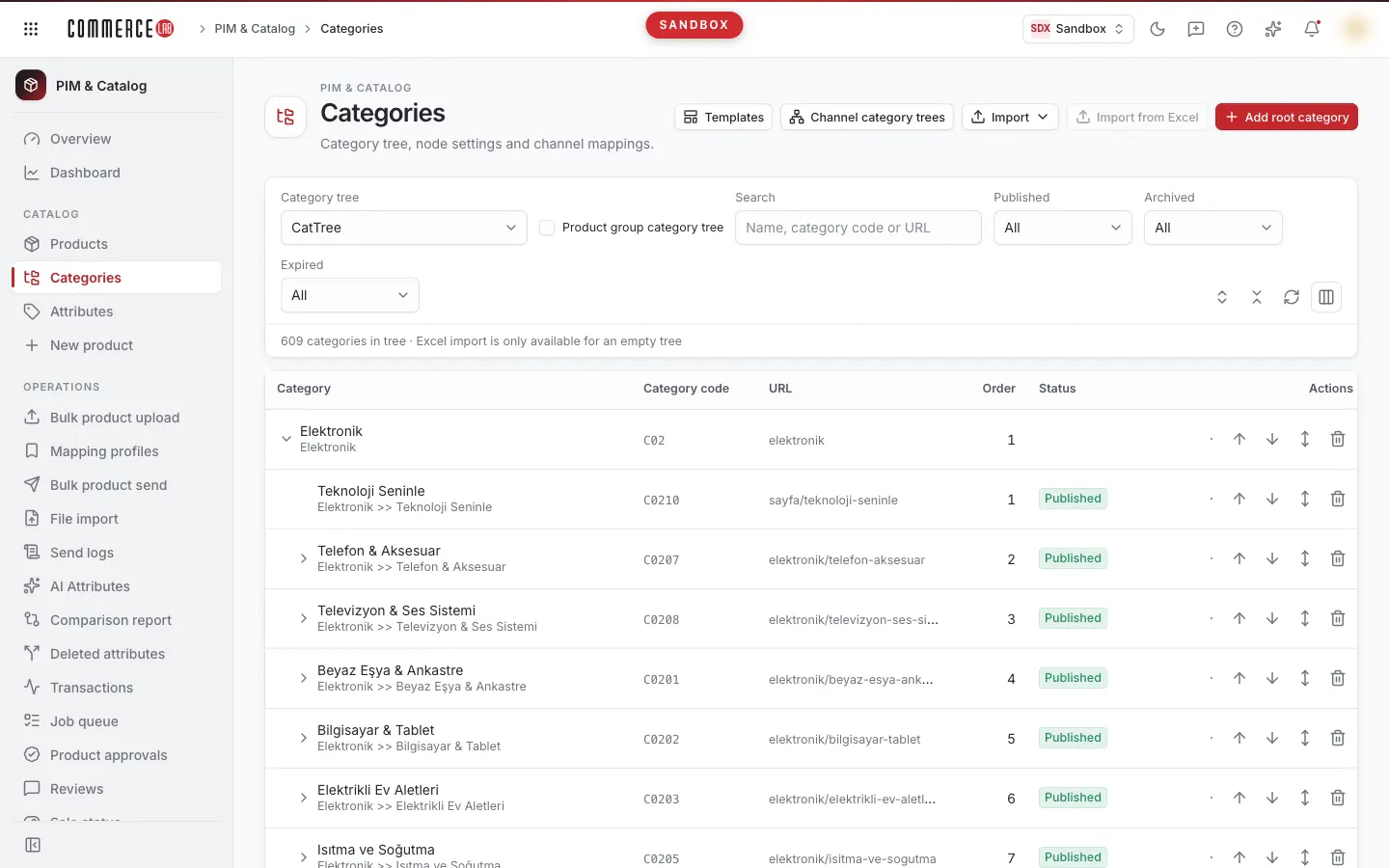
You edit a category's name, description, meta title, meta description, and URL on the PIM & Catalog › Categories screen by locating the category in the Category tree. This page explains the category tree and these fields step-by-step; the same explanation is available as a video below.
<video controls preload="metadata" playsinline width="1920" height="1080" poster="https://files.docs.hebiar.com/videos/console/pim/categories/kategori-bilgileri.en.jpg" src="https://files.docs.hebiar.com/videos/console/pim/categories/kategori-bilgileri.en.mp4"><a href="https://files.docs.hebiar.com/videos/console/pim/categories/kategori-bilgileri.en.mp4">Open the video</a></video>
For other tabs of the category screen, see Category details. To link products to a category, see Linking products to category, and for sorting, see Sorting products in category.
Before you start
- The Category tree is not the site menu. Products are linked to the Category tree; the menu you see on the site is managed separately: CMS › Store menus.
- There can be multiple trees: besides the main category tree, there may be collection or brand trees. Select the tree you want to work on from the Category tree list at the top of the screen.
- Moving a category under a different parent category is disabled in the console. Since category codes and URLs are affected, request support for moving. The Parent category field is locked in the edit screen for this reason.
- Meta title and meta description are automatically filled with a template when the category is first created. You usually do not need to change them; modify only for important SEO categories.
- The URL is generated once when the category is first created; changing the category name does not automatically change the URL. If you manually change the URL, the old address permanently redirects to the new one with a 301 status. To preserve search engine value, avoid changing category URLs whenever possible.
Navigating the Category tree
- Open the PIM & Catalog › Categories screen.
- Select the tree from the Category tree list.
- Enter the category name, code, or URL in the Search box. The tree shows only the matching category and its parent categories.
- Buttons on the right of the row: Add subcategory (plus) opens a new subcategory; Move up and Move down arrows change the category's order at the same level; Move to position places the category at a specific order.
Editing category information
- Click the category name. The detail page opens with the Definition tab.
- Click Edit at the top right.
- In the Localized names tab, edit the Category (name) and Description fields. The description is the text shown below the category page on the site. If the site has multiple languages, select the language from Add language and enter the name and description in that language as well.
- In the SEO tab, edit the Meta title, Meta description, and if necessary, the URL field.
- Click Save at the top right.
To exit without saving, click Cancel. If there are unsaved changes, the console will ask "Changes not saved"; you can exit with Discard changes.
Checking the result
The record is first written to PIM; it appears on the site when the scheduled transfer task runs and the cache is refreshed. To send immediately, you can trigger the transfer task from the Tasks screen. For the category's history, check the History tab.
Common situations
- Category does not appear in the site menu: The menu comes from CMS › Store menus, not the Category tree; add it there.
- Parent category field cannot be changed: Moving is disabled in the console; open a support request.
- I changed the name but the URL stayed the same: This is expected behavior; the category URL does not change automatically.