Algorithms
View algorithms that determine the source of an order; edit weights and formulas, save as drafts, compare on sample orders, and publish.
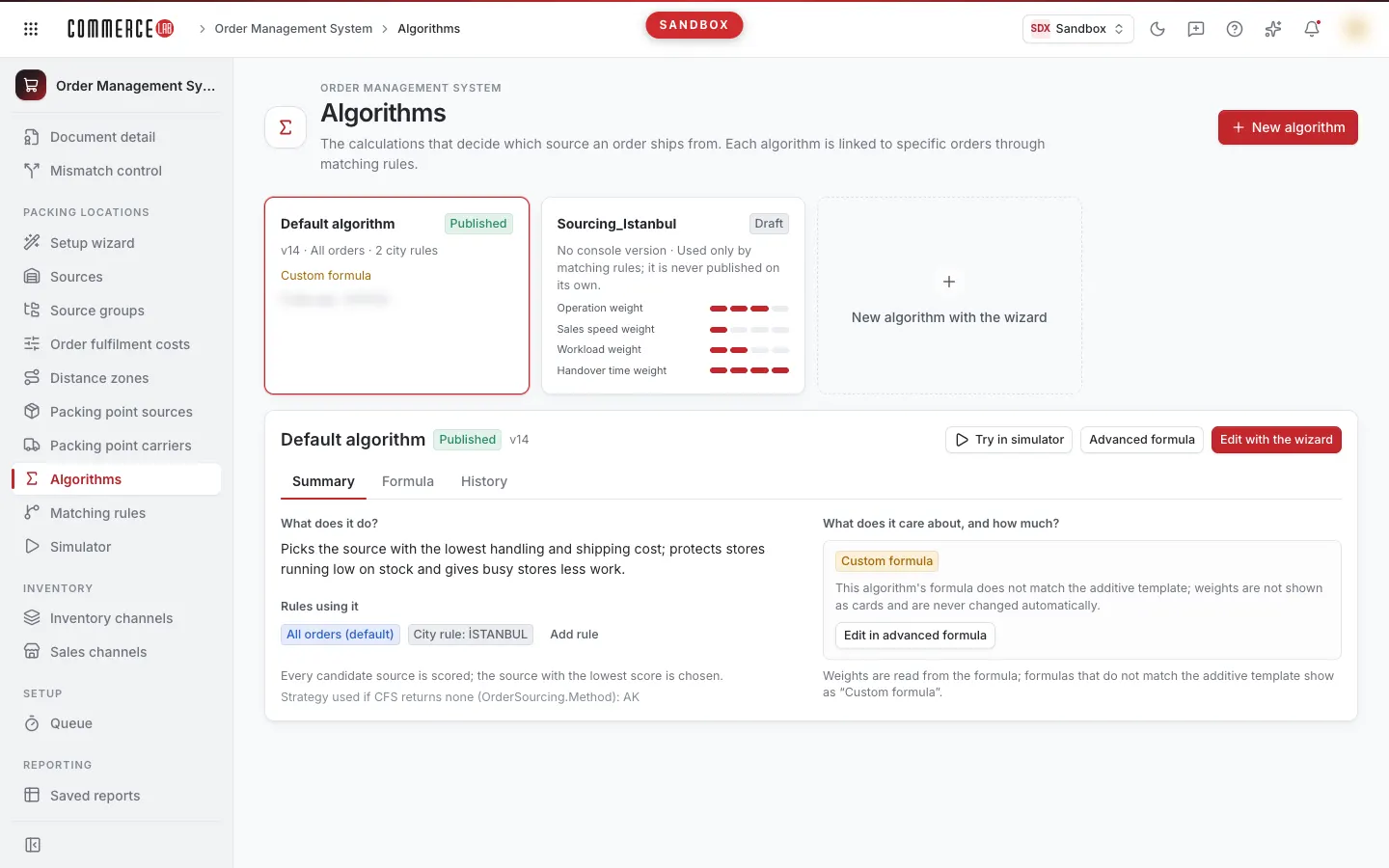
Algorithms (OMS › Packing locations › Algorithms) display calculations that decide from which source an order will be fulfilled. Each candidate source is scored; the source with the lowest score is selected. Each algorithm consists of three formulas: Line formula, Package formula, and Order formula.
The Default algorithm runs on all orders. City-specific algorithms do not run alone; they activate when linked to a delivery city rule on the Matching rules screen and the rules are published.
List
Algorithms are listed as cards. Each card shows:
- Name and status: Published, Has draft, Draft, Not in OMS, or Unreadable.
- Version and usage: e.g., "v4 · All orders · 2 city rules". For city-specific algorithms, it says "Runs only in matching rules; not published alone." If never published from the console, it shows "No console version" instead of a version.
- Four weight progress bars. If the formula does not match the template, Custom formula is shown instead of bars.
- Time and user of the last change.
Clicking a card opens the algorithm details below the cards; the screen initially shows the default algorithm.
New algorithm (top of the page) and New algorithm with the wizard (at the end of the cards) start a city-specific algorithm in the Settings wizard.
Algorithm details
The header shows the algorithm's name, status, and published version. Buttons:
- Try in simulator: Opens the simulator screen.
- Advanced formula: Opens the advanced formula editor (below).
- Edit with wizard: Visible only for the default algorithm; rebuilds the algorithm in the Settings wizard via Q&A.
There are three tabs: Summary, Formula, and History.
Summary
- What does it do? A brief description of the algorithm.
- Rules used: places where this algorithm runs. For the default algorithm, All orders (default) and city rules in the formula are shown. Matching rules selecting this algorithm are listed like "Matching rule 2: Ankara"; rules not yet active are marked "(soon)". Clicking rules opens the Matching rules screen. If not linked to any rule, a warning "Not linked to any rule yet" appears. Add rule opens the Matching rules screen.
- Method line: "Each candidate source is scored; the source with the lowest score is selected." Below is backup strategy info from the strategy matching service, not editable here. Formulas work only in AK strategy.
- What does it care about, and how much? Four weights, their levels, and formula values (below). The Parameter values box lists each weight's level and value. Weights are not shown in custom formulas; instead, the Edit in advanced formula button appears.
Warnings appear at the top if the algorithm is not in OMS, the engine cannot read it, the CfsSettings in OMS is missing, the new publish has not propagated to all servers yet (remaining minutes shown), or version history cannot be read.
Weights
There are four weights: Operation weight, Sales speed weight, Workload weight, and Delivery time weight. Each has levels: None, Low, Medium, High, Very high.
| Level | Operation, Workload, Delivery time | Sales speed |
|---|---|---|
| None | 2.00 | 0.00 |
| Low | 1.75 | 0.50 |
| Medium | 1.50 | 1.00 |
| High | 1.25 | 1.50 |
| Very high | 1.00 | 2.00 |
- Operation, Workload, Delivery time: as level increases, the impact of this term on the score decreases.
- Sales speed: as level increases, sources with excess stock relative to sales (slow sellers) are favored; fast-selling sources preserve stock. "Medium" is the engine's current effect; "None" ignores sales speed.
If your company has no sales statistics in any warehouse, the Sales speed card shows No data — only the scale effect applies for now; similarly for Delivery time if no lead time statistics exist. That weight currently does not affect ranking. Statistics are entered via Sources › Load statistics. If the statistics summary is incomplete, a note "Summary may be incomplete" appears and this warning is suppressed.
Changing weight in Summary: click a segment of the bar; each segment is a level. Clicking the last filled segment again lowers the level. When changed, a bar appears below: Save draft writes levels to the draft, Cancel reverts. This affects only the draft; publishing is done by comparing and clicking Publish in the Advanced formula editor. If the formula with city rules exceeds 4000 characters, levels are not saved. Editing with the bar is disabled if you lack write permission, the algorithm is a Custom formula, version history cannot be read, or the default algorithm has a saved draft (that draft is edited in Advanced formula).
Formula
Line, package, and order formulas are listed with variable names shown in Turkish for readability. Technical view shows the raw formula as written to OMS. If a formula is empty at a level, Engine default is shown. The Parameter values box appears below for template-matching algorithms; multipliers row appears for Custom formulas. City-specific algorithms show saved drafts and indicate this.
History
- Draft row: if a saved draft exists, a Draft row appears at the top. It shows the difference from the published value ("Draft not published yet" if none, "Same as published value" if identical), user, time, note, and a Not published badge. Open draft opens the editor with this draft.
- Versions: each published version (v1, v2, …) is listed with changes, time, user, and note. The published version has a Published badge. Values written outside the console show an External badge and "Outside console".
- Revert to this version: opens the old version in the editor without saving. To keep it, click Save draft or compare and publish.
If no versions or drafts exist, "No versions yet" is shown. Each algorithm keeps up to 30 versions; oldest versions are dropped when exceeded.
Advanced formula editor
Opened via the Advanced formula button. The header has Save draft, Delete draft (if a draft exists), Publish, and Close buttons.
- The top selector edits Line formula, Package formula, or Order formula. You can add variables from the Insert variable list by tapping.
- The formula is validated live in OMS: "Formula valid" or errors appear. If the formula does not start with 1.0 *, an option Add 1.0 * at start appears.
- Back to published resets edits to the published value (for city-specific algorithms, Back to saved draft).
- Insert template writes the weight template to all three formulas (algorithm levels or default levels if none). City rule branches are preserved. A confirmation window lists formulas to be changed under "If you confirm". Confirmation changes only the editor's formula; saving is via Save draft. The button is disabled if formulas already match the template. If any formula with city branches exceeds 4000 characters, the template is not applied.
- Insert a weighted term, Multipliers (ScoreMul), and Variables sections assist manual formula construction. Multipliers are not used in template-matching algorithms; the screen states this. The sales speed multiplier must be at least 1.
- Editing the template manually converts the algorithm to a Custom formula and hides the weight bars.
When the editor opens, if a saved draft exists, it opens and shows "Draft saved by … opened." Open published opens the published value. If the published value changes while editing, a warning "Published value changed while you edited" appears and Publish is disabled until Load current value is clicked; your edits are preserved.
Draft, comparison, and publishing
- Change the formula or weights and click Save draft. Drafts are not published and do not affect orders.
- In the Results on sample orders panel, enter up to 20 open order numbers in Order numbers and click Compare. For each order, the source chosen by the published algorithm and the draft are shown side by side; results are estimates. As you edit, the draft is rescored with the same orders; for expired orders, click Resimulate.
- Click Publish. The popup shows changes under When you save, a summary of sample orders, and activation time. Optionally enter a Version note (max 200 characters; visible in History) and confirm.
If Publish is disabled, the Before publishing box in the editor explains why: formula errors, OMS validation incomplete, no comparison done, draft is old, no changes, etc.
First publish and repair: if the algorithm is not in OMS or the engine cannot read it, comparison is unavailable. In this case, confirm by clicking PUBLISH in the publish window. If the default algorithm is missing in OMS and CfsSettings is missing, a warning appears: publishing alone will not run planning; that setting must be defined separately in OMS.
Only the default algorithm is published. For other algorithms, the Publish button is replaced by an explanation and no comparison is offered:
- City-specific algorithm: activates when city rules are published in Matching rules. Notification appears when draft is saved.
- Other parameter sets in OMS: matching rules use the OMS value of this set; drafts here do not publish initially.
Uncertain publish result
If OMS does not respond in time, a bar appears at the top: "Publish result uncertain; refresh the page to check, do not republish." Refresh reloads:
- If publishing completed, a warning "Published value changed while you edited" appears. Check the version in History with your name and Published badge; do not republish.
- If the same value is republished, it is not written twice but missing version history is added. To publish a different value, click Load current value and compare again.
If version history cannot be written during publishing, publishing still occurs but the version may appear as External in History.
Who can do what?
- Anyone who can see the screen can view cards, Summary, Formula, History tabs, and the editor. Formula validation works for all.
- Saving and deleting drafts, editing with the weight bar, comparing, publishing, New algorithm, New algorithm with the wizard, Edit with wizard, Revert to this version, Open draft, and Add rule require location write permission and OwnerAdmin or TenantAdmin role. Without permission, these buttons are hidden.
- Users with location write permission but missing role see "OwnerAdmin or TenantAdmin role required for this action." Users without write permission see "You are in view-only mode" in the editor.
- Previewing with another user's permissions disables editing.
Notes
- Comparison is user-specific and valid for 30 minutes. If another publishes meanwhile or time expires, compare again; the screen shows a "Recompare" button.
- Comparison may be partial: orders not completed within time appear as timeout; publish confirmation relies only on completed orders.
- To protect OMS, at most 2 simulations run simultaneously in the company. Timed-out orders are not resimulated for 60 seconds. Orders waiting in queue appear as timeout; try again shortly.
- If the compared order ran with a strategy other than AK, formulas do not affect its result; the publish window warns.
- OMS may return warnings after publishing (e.g., cache notification failed); these are shown separately. If OMS rejects the value, the reason is displayed.
- Each formula can be at most 4000 characters; with values inserted, up to 8000 characters are accepted.
- Up to 20 algorithms are kept. If history grows too large, oldest versions are deleted automatically (last publish and draft are preserved); if still insufficient, saving is rejected and you are asked to delete old drafts.
- Published settings activate on each server within 60 minutes at latest; some orders may be scored with old settings during this time.
- Sourcing algorithms are edited only on this screen; general OMS settings do not change these.
- Each record here is backed up on the Commercelab side.
Video tutorials
- Setting sourcing algorithm: weights, multipliers, and draft: Understand the four weights and 1–2 multipliers on the Algorithms screen, edit the advanced formula, save changes as draft, track in version history; step-by-step guide and video.