Source groups
Group similar sources to set order fulfilment costs and capacity settings together; groups update automatically as sources change according to the rule.
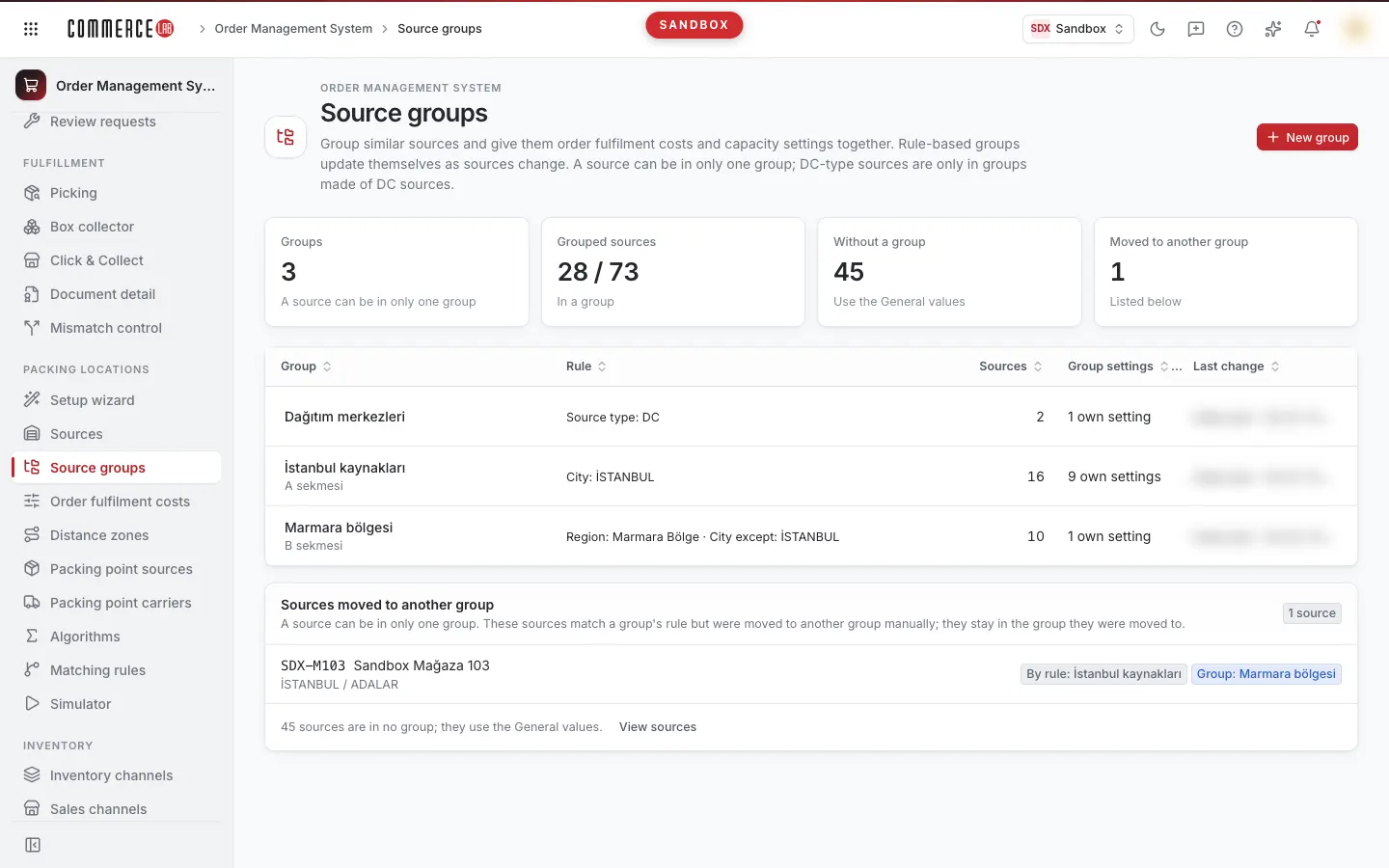
Source groups (OMS › Packing locations › Source groups) bring similar sources together. You enter the order fulfilment costs and capacity settings of the group on the Order fulfilment costs screen; sources in the group use the group's value instead of the General value.
- A source can belong to only one group. There is no priority order between groups.
- Sources of type DC can only be in a DC group (a group consisting only of DC sources). HUB is not considered DC.
- Saving or deleting a group does not write anything to the tables. Changes are applied to the tables with Preview and apply on the Order fulfilment costs screen.
List
- Numbers at the top: Group, Grouped sources (in a group / total), Without a group (uses General values), and Moved to another group.
- Columns: Group (name and description), Rule, Source (number of sources in the group), Group settings ("N custom settings"), and Last updated (who · when). The list is sorted by name; click the column header to change sorting.
- The Rule column summarizes conditions (e.g. "City: Izmir · Source type except: Outlet"). A group without conditions shows "Manual only: N sources", and if no manually added sources, "No condition — no members".
- Groups with overlapping rules covering the same sources show a Conflict · (other group) badge under the name, and a warning appears at the top of the list (see Conflicts below).
- The Sources moved to another group card shows sources that match a group's rule but have been manually moved to another group: According to rule: (group) and Group: (group). They remain in the group they were moved to. Sources matching both groups' rules and not excluded in either show a Conflict badge; such a source is used in the group that appears first during saving. The card shows the number of sources without a group; if any, the View sources button opens the Sources screen.
- Click a group name to open it. Without edit permission, the group is view-only.
- The New group button and pencil (edit) and trash (delete) icons in rows are visible only to users with permission to modify groups (see Who can do what? below).
Deleting a group
The trash icon (or Delete in the editor) opens a confirmation window explaining the effect:
- Sources in the group become ungrouped and use General values. Sources matching another group's rule and not excluded there move to that group; the window shows their count.
- Sources moved from another group do not return to their old groups (they were excluded there). You can later assign them to another group.
- The group's custom settings remain in the profile but are no longer used.
- Values in the tables do not change.
If you delete a group containing sources from the list, a banner appears: "Values of N sources may change…"; use Go to order fulfilment costs to preview and apply changes on that screen.
Creating and editing a group
Open a new group with New group or open an existing group from the list. At the top are Delete (for saved groups), Cancel, and Save. The left column contains Group details and Which sources belong to the group?; the right column contains Members, Sources excluded because in another group, Sources almost matching the rule (only if any), and Settings of this group. On narrow screens, sections stack vertically in this order.
Group details: Group name (duplicate names not allowed) and optional Description.
Which sources belong to the group? The group works based on a rule. You can also manually include or exclude sources.
- Rule: first select Sources must meet either all conditions or any condition, then add conditions with Add condition. Each condition has a field (City, District, Source type, Status, Storage role, Region) and either is one of or is not one of; add values with Add value.
- Conditions without selected values are ignored ("Select values; empty conditions are ignored.").
- District options are limited to districts of cities selected in a "is one of" city condition.
- Status values are Active / Passive; Storage role values are Picking, Packing, and Store pickup.
- Region is the OMS region name of the source (case and Turkish character insensitive). Sources with empty region do not match "is one of" region conditions but do match "is not one of". If no sources have region info, the Region option indicates this.
- Sources matching the rule automatically join the group. Sources added later or whose city, type, or region info changes also join—if not in another group.
- A group without conditions only includes manually added sources ("No rule: only manually added sources are members.").
- Always include in addition to the rule: sources that will be included even if they do not match the rule. Search by code, name, city, or district and select from the list. Sources already matching the rule have a "According to rule" badge; sources in another group show "Currently: (group)" below. Selecting a source from another group moves it to this group on save.
- Sources incompatible with the group type appear faded and cannot be selected (see DC group below).
- Exclude even if matching the rule: sources that match the rule but are excluded. You move a source here from the Members list using Remove.
- The first 20 sources show in long lists; the rest open with "+N more sources".
- Rule: first select Sources must meet either all conditions or any condition, then add conditions with Add condition. Each condition has a field (City, District, Source type, Status, Storage role, Region) and either is one of or is not one of; add values with Add value.
Members (Calculated live): shows the number of sources that will be in the group while editing (N / total), how many by rule, manually added, and excluded, plus type distribution. Manually added sources have "Manually added" badge; sources moved from another group have "Will be moved from (group)" badge. Use Remove to remove a source: if manually added, it is removed from "always include"; if by rule, it is excluded.
Sources excluded because in another group: sources matching the rule but in another group ("Currently in … group"). If you do nothing, these remain in their old groups (excluded in this group); this does not block saving. Move to this group opens a confirmation window: the source is removed from the old group and excluded there. The move is recorded when you save the group.
Sources almost matching the rule: sources excluded due to a single condition and the reason (e.g. "City: Manisa"). Use Include to add them to the group. Sources incompatible with the group type or in another group are not suggested here.
Settings of this group: summary of the group's custom values entered in Order fulfilment costs; Edit order fulfilment costs opens that screen. Each custom value is a row; values marked Use backup appear as "Backup". Also:
- Cost breakdown: whether the group packs itself and whether sending totals to the packing point is automatic or manual.
- Packing points: number of the group's own packing points.
- Special cost for cargo: number of cargos with entered values.
If no custom settings exist, it says "No custom settings yet; sources in the group use General values." The "N custom settings" count in the list counts these rows (one per cargo).
DC group
A group with a Source type condition "is one of: DC" is a DC group and only accepts DC type sources. Other groups do not accept DC sources. Under Members in a DC group, a note says "DC group: only DC type sources can be added to this group."
Rules mixing DC type with other types (e.g. "DC, HUB") or using DC condition with others in an any condition match are invalid: they show a red warning and cannot be saved. Manually adding a source incompatible with the group type (non-DC to DC group or DC to other groups) also triggers a red warning; you cannot save without removing that source.
Saving
- Without a group name or if no sources belong to the group, Save does not save and shows the reason ("Enter group name.", "A group with this name already exists.", "No sources belong to this group; check conditions or selection.").
- Save is disabled if there is a red conflict or DC warning.
- After saving, the list opens and a "(group) saved · N sources" notification appears. The notification explains what to do:
- Existing group: "To write values to tables, preview and apply on the Order fulfilment costs screen."
- New group: "You can enter the group's values on the Order fulfilment costs screen."
- If moved sources: how many were removed from old groups and a reminder to preview and apply.
- If saving is incomplete due to sources you cannot see, it says "Change not applied; list refreshed, try again." and shows the saved state.
Conflicts
Since a source can only be in one group, two groups' rules cannot cover the same sources. Even if no source currently matches both rules, future sources might, so this is checked. The editor checks while you type: if conflict exists, a red The rules conflict — cannot be saved box shows the two groups and overlapping conditions (e.g. "City: Izmir · Source type: Outlet"); Save is disabled. Narrow a rule (e.g. "Izmir" and "type not Outlet") or move the source to a single group. There is no strict link between region and city: a region condition like "Outside Aegean" is considered conflicting with a city condition.
Conflicts already saved in existing groups do not block saving unless the rules change. The editor shows a yellow Saved conflict box, the list shows a Conflict badge, and it is reported after saving. You can change the group's name, description, or other groups, but:
- Saving that introduces a new conflict is rejected.
- Changing the rule of one of two conflicting groups (either expanding or narrowing) cannot save until the conflict is fully resolved.
- Old conflicts where the same sources are manually in two groups cannot add new sources; sources can only be removed.
- Rejected saves show the conflicting groups by name.
If a saved group's rule is invalid (see DC group above) or contains manually added sources incompatible with the group type, this also appears in a yellow box and does not block saving. Such a group accepts no sources; fix the rule.
If rules are too complex to check (many groups, conditions, and values; e.g. dozens of conditions with hundreds of districts), saving is also blocked. Combine values in the same field into one condition; use city or region instead of long district lists.
Who can do what?
- OMS location read permission is enough to view the screen. If group info cannot be read, it says "Group information cannot be displayed."
- Creating, editing, and deleting groups requires OMS location write permission plus OwnerAdmin or TenantAdmin role. Without this, New group, pencil and trash icons, Delete, and Save are hidden; the editor opens in view-only mode.
- Users with location write permission but without these roles see "OwnerAdmin or TenantAdmin role required for this operation." at the top.
- Preview mode shows the screen view-only.
OwnerAdmin and TenantAdmin see all source types (including DC, HUB, and Supplier), can select these types in source type conditions, and add or remove such sources from groups.
Other users cannot see DC, HUB, and Supplier sources:
- These types do not appear in Source type conditions; if present in a saved group, those conditions are locked and cannot be changed.
- Region options come only from sources visible to the user; region values of sources not visible are locked.
- Saves that would add or remove invisible sources (e.g. a region condition including a hidden warehouse) are rejected. Narrow the rule—e.g. add Source type "is one of: Store, Outlet, Franchise"—or have an OwnerAdmin or TenantAdmin make the change.
Simultaneous editing: if someone else changes the group while you edit, Save is disabled and options to Load current version or Keep my edits appear. If only other groups changed, your edits remain and you can save again.
Additional information
- Group creation and deletion do not write to tables; all changes are applied with Preview and apply on the Order fulfilment costs screen.
- Groups have no priority order.
- If a group was edited with a newer Console version ("This group was edited with a newer version…"), it is view-only in this version. No groups can be saved or deleted while such a group exists. Unknown fields or condition types appear by name in the editor.
- Every record on this screen is backed up by CommerceLab.
Video tutorials
- Grouping sources and group capabilities: Explore source group rules, exceptions, and capabilities (order picking, packing, delivery point) and learn how the system uses groups; step-by-step explanation with video.