Adding and Removing Categories to a Product
Add a category to a product, remove manually added categories, and recognize the default (breadcrumb) category from the Categories tab in product details; step-by-step instructions and video.
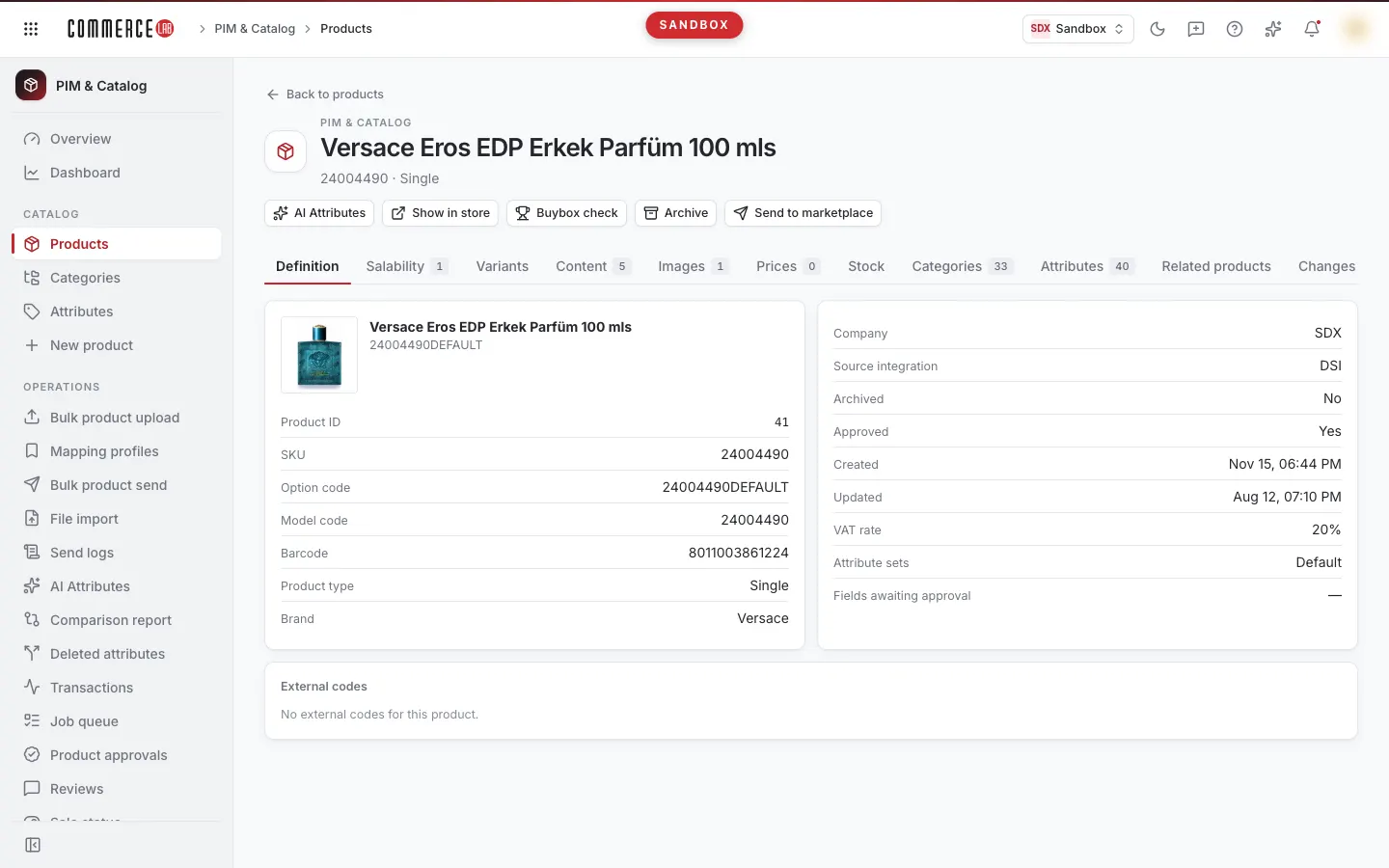
To add a product individually to a category or remove it from a manually added category, use the Categories tab in the product details. This page explains the process step-by-step; the same explanation is available as a video below.
<video controls preload="metadata" playsinline width="1920" height="1080" poster="https://files.docs.hebiar.com/videos/console/pim/products/detail/urun-kategorileri.en.jpg" src="https://files.docs.hebiar.com/videos/console/pim/products/detail/urun-kategorileri.en.mp4"><a href="https://files.docs.hebiar.com/videos/console/pim/products/detail/urun-kategorileri.en.mp4">Open the video</a></video>
To link many products to a category, use the category screen: Linking products to a category (code list, Excel, relation rule). For other tabs in product details, see Product details.
Before you start
- The tab lists all categories the product is linked to: besides the main category tree, it also shows those in collection and brand trees.
- Each row shows the category path, tree, Node type (e.g., Breadcrumb Node), and Source. Categories labeled Manual are added from the console; labels like ERP indicate the category comes from the source system or a rule.
- The product's default category, i.e., the category shown in the site's navigation path (breadcrumb), usually comes from the source. Manually added categories list the product in additional categories.
- Bulk operations (linking many products to a category) are done from the category screen; product details are for single products.
Adding a category to a product
- In the PIM & Catalog › Products screen, find the product using the Search all codes box and click its name.
- Switch to the Categories tab. If the list is long, filter by typing the category name or ID in the Search box.
- Select the tree from the Category tree list where you want to add the category (e.g., main category tree).
- Click Add category.
- In the window, search for the category by name or code. Categories already linked to the product are marked Linked and cannot be selected again. Click one or more categories to select them.
- Click Add. A "Category change queued" notification appears; the new category shows in the list with the Manual label.
Removing a manually added category
- Click the trash can icon (Remove) on the row. The category is not deleted immediately; it is marked To be removed and a "category pending removal" warning appears at the top. You can undo this with the same button (Undo removal) or the Cancel button in the warning.
- Click Save changes in the warning.
- A window opens listing the categories to be removed from the product again. Confirm with Save changes. A "Category change queued" notification appears.
Removing a category from source or rule
For these rows, the button is Remove rule/source category. You can remove the category, but if the relation rule runs again or the source system resends the product, the category may return. For a permanent solution, fix the rule or the data in the source.
Checking the result
The record is first written to PIM; it appears on the site when the scheduled transfer task runs. To send immediately, trigger the transfer task from the Tasks screen. The product's category list updates in the tab after saving.
Common situations
- Category cannot be selected in the window: the product is already linked to that category (Linked).
- The category I searched for is not in the window: another tree is selected in the Category tree list; select the correct tree and reopen.
- I clicked the trash can but the category remains: removal is pending until confirmed with Save changes.
- The removed category came back: the category comes from a relation rule or source; fix the rule or source.
- The new category does not appear on the site: the transfer task has not run yet; it will reflect when the task runs.