Languages
Add, edit, publish, or delete storefront languages; access each language's string resources.
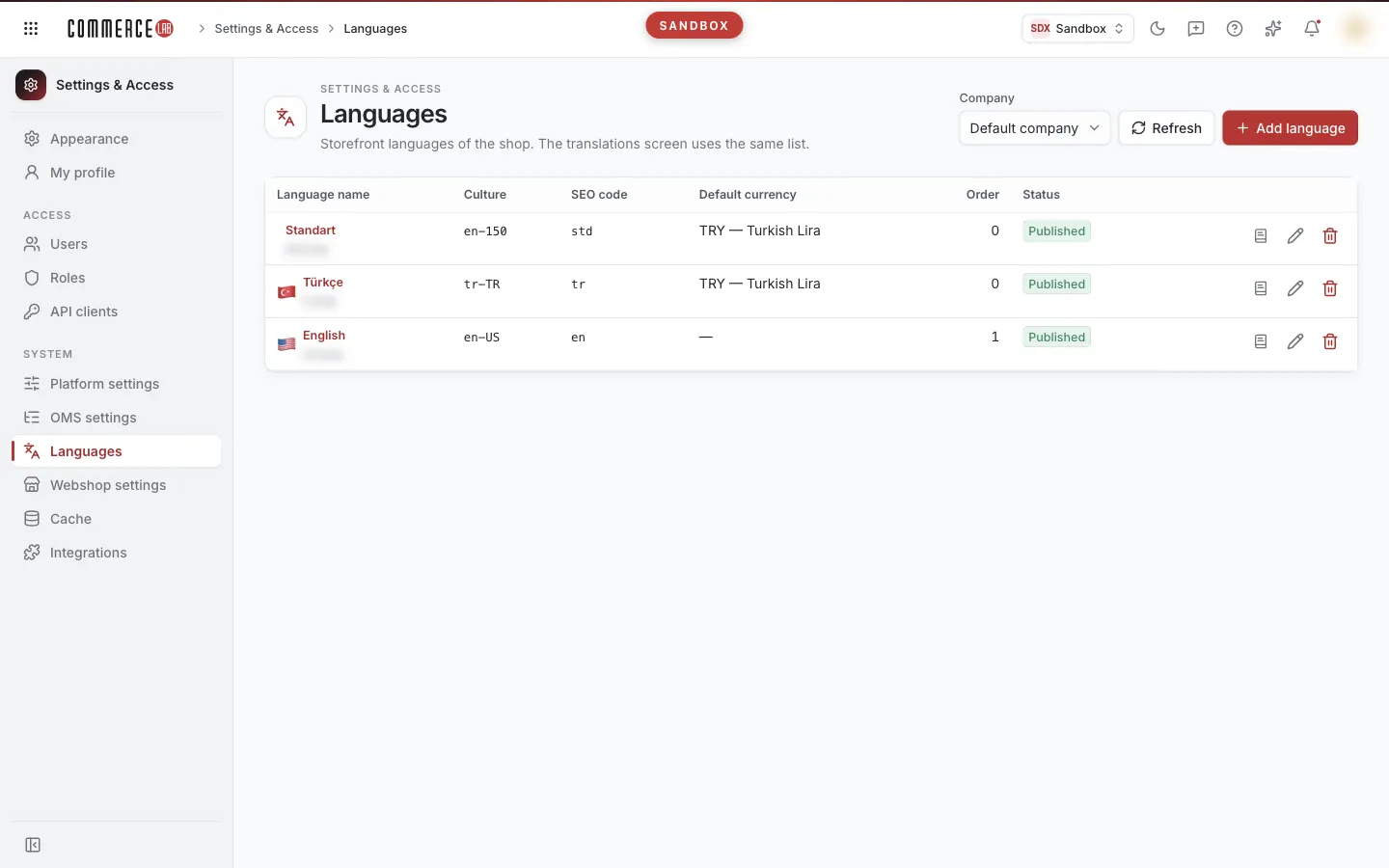
The Languages screen is where you define and manage the languages that visitors can select on the storefront. Each language's culture code, SEO code, default currency, order, and publication status are set here. As noted in the screen description, Storefront languages. The translation screen uses the same list. Therefore, adding a new language is the first step in preparing translations for that language. This screen is typically used by the team responsible for store content and localization.
Accessing the screen
Follow the menu path Settings & Permissions › System › Languages. If you do not see it in the menu, your account lacks permission for this screen.
If you have view permission but not edit permission, you can see the list; the Add language button and edit/delete icons will not be visible.
Screen sections
- Header — Languages and description. On the right:
- Company selection — Visible if your workspace has multiple companies. If left empty, the Default company is used. The selection applies immediately and the list shows the languages of that company's store.
- Refresh — Reloads the list from the server.
- Add language — Visible if you have edit permission.
- Language list — All defined languages.
This screen has no pagination, filtering, or column selection; all languages are listed in a single table.
List
| Column | Meaning |
|---|---|
| Language name | The language name shown in the store; flag on the left, flag file name below (if defined). If you have edit permission, clicking the name opens the edit window. |
| Culture | The language's culture code, e.g., tr-TR. |
| SEO code | The language's two- or three-letter short code, e.g., tr. |
| Default currency | The currency used when this language is selected (code and name). If not selected, — is shown. |
| Order | The display order of the language. |
| Status | Published (green) or Not published (gray). If the language is right-to-left, an RTL badge also appears. |
| (action icons) | String resources, Edit, Delete. |
If the list is empty, the message No languages defined for this shop and the hint Start by adding a language. appear.
Actions
Adding a language
Use this to add a new storefront language.
- Click the Add language button.
- Read the warning at the top of the window: Changes go live on the storefront immediately.
- Fill in the fields (rules in the table below).
- Click one of the save buttons:
- Save — Saves the language and closes the window.
- Save and continue — Saves the language, keeps the window open, and switches to edit mode. You can make additional changes and save again; the second save does not create a new copy. In this mode, a link to string resources also appears in the window.
Result: The Saved notification appears and the list refreshes. Both save buttons are disabled if required fields are empty or invalid. While saving, the Save button shows Saving….
If you do not want to immediately make the new language available to visitors, uncheck the Published box before saving; publish it after completing translations. This box is checked by default when adding a new language.
Language fields
| Field | Required | Description / rule |
|---|---|---|
| Language name | Yes | The language name shown in the store. Maximum 100 characters. If empty, the warning Please enter a name. appears. |
| Culture | Yes | The language's culture code. Example: tr-TR, en-US A 2–3 letter lowercase language code optionally followed by a hyphen and region code (e.g., tr-TR, sr-Latn-RS). Common cultures are suggested while typing; you can enter codes not in the list. |
| SEO code | Yes | Two or three letters: tr, en Letters only; maximum 3 characters. Uppercase letters are converted to lowercase on save. |
| Default currency | No | Currency used when this language is selected. If empty, the display order of currencies applies. If not selected, Not selected is shown. The list is from the selected company's currencies. |
| Order | Yes | Display order; 1 is top of the list. Must be an integer (up to 6 digits, negative values allowed); if invalid, the warning Enter a whole number appears. New languages start at 0. |
| Flag file | No | Flag image file name (must be in the store's images/flags folder). Maximum 100 characters, e.g., tr.png. |
| Published | — | Visitors can select this language. |
| Right-to-left (RTL) | — | Affects only the storefront; the theme must support RTL. Check for languages like Arabic or Hebrew. |
For a new language, the note String resources can be edited after the language is saved. appears at the bottom of the window. When editing a saved language, instead the link Open this language’s string resources appears.
Editing a language
- Click the pencil icon (Edit) or the language name in the row.
- Modify fields in the Edit language window (rules same as above).
- Click Save or Save and continue.
Result: The Saved notification appears and the list refreshes. Changes go live immediately without confirmation.
Deleting a language
- Click the trash icon (Delete) in the row.
- Read the prompt Delete the "{language name}" language? Translations for this language will not be deleted.
- Confirm with Delete or cancel with Cancel.
Result: The Deleted notification appears and the language is removed from the list. Deletion is irreversible; you must add the language again if needed. Translations of the deleted language are not removed.
To temporarily hide a language from visitors, edit it and uncheck Published instead of deleting.
Accessing string resources
To view or edit interface text translations for a language, click the book icon (String resources) in the row. The Localization screen opens with that language selected. This icon is visible even without edit permission; however, you must have permission for the Localization screen to open it.
If you selected a company other than the default at the top, the company selection does not carry over when switching. Re-select the same company in the Localization screen; otherwise, the language may not be found there.
Statuses
| Status (text on screen) | Meaning | Next step |
|---|---|---|
| Published | Visitors can select this language on the storefront. | — |
| Not published | Language is defined but hidden from visitors. | Edit and check Published when translations are ready. |
| RTL | Language is marked as right-to-left. | Verify the theme supports right-to-left display. |
Common issues
- Save buttons disabled. The Language name may be empty, or the Culture code (e.g.,
tr-TR) or SEO code (2–3 letters) may be invalid, or Order is not an integer. Correct the highlighted fields; saving is not possible if Culture or SEO code are empty. - "Language could not be saved: conflict" message. The server rejected the operation due to a conflict; for example, another language has the same culture or SEO code, or the language you want to delete is the store's last or default language. Change the code when saving; check if the language is the last or default when deleting.
- "No store connection defined for this installation" message. Languages cannot be managed from the console because no store connection is defined for this installation; contact your system administrator.
- "You do not have permission for this operation" message. Your account lacks permission to modify languages.
- "Something went wrong" box instead of the list. Languages could not be loaded. Click Retry; if the problem persists, provide the Technical detail text to your system administrator.
- Newly added language does not appear on the storefront. Ensure Published is checked and verify you added it for the correct Company.
- Flag appears incorrect in the list. The flag is determined by the Flag file name (e.g.,
tr.png) or, if missing, by the region part of the culture code. Correct the file name.
Related screens
- Localization — To edit a language's string resources.
- Store settings — Other settings related to the storefront.
- Cache — To manage the store cache.