Mapping Marketplace Categories with AI
Bulk map your PIM categories to marketplace categories with AI suggestions; scope, confidence rate, alternative suggestions, writing selected mappings, attribute matching, step-by-step instructions, and video.
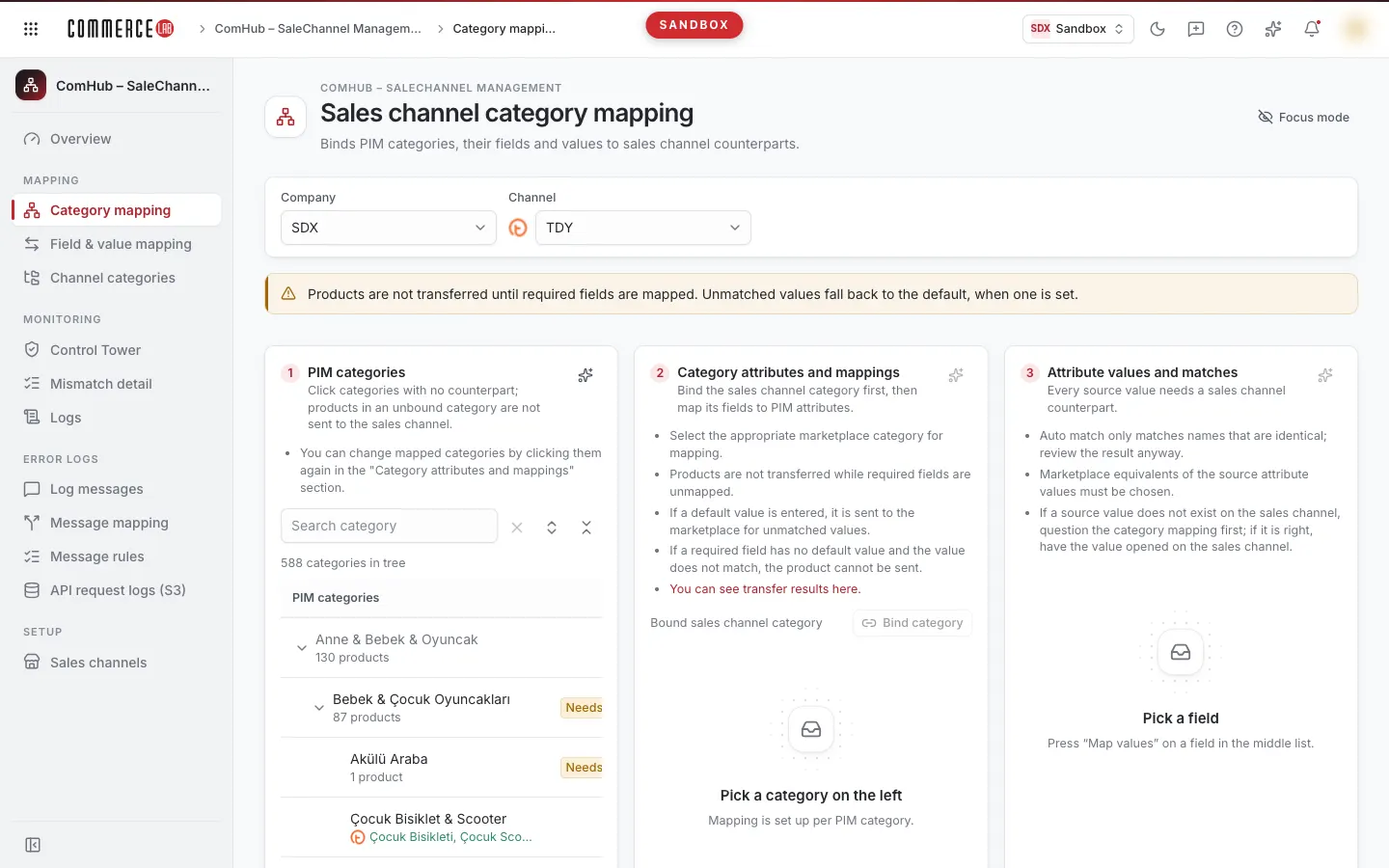
You establish the correspondence of your PIM categories to marketplace (e.g., Trendyol) categories on the ComHub – Channel Management › Category Mapping screen. This page explains step-by-step how to find matches in bulk with AI suggestions, evaluate the suggestions, and write the selected ones; the same explanation is available in the video below.
<video controls preload="metadata" playsinline width="1920" height="1080" poster="https://files.docs.hebiar.com/videos/console/comhub/category-mapping/ai-kategori-esleme.en.jpg" src="https://files.docs.hebiar.com/videos/console/comhub/category-mapping/ai-kategori-esleme.en.mp4"><a href="https://files.docs.hebiar.com/videos/console/comhub/category-mapping/ai-kategori-esleme.en.mp4">Open the video</a></video>
For all fields on the screen including manual mapping, see Category Mapping. For the AI feature extraction itself, see the AI Feature Extraction page.
Before you start
- AI feature extraction first places a product into the marketplace category and fills that category’s attributes from the photo. If the marketplace category’s counterpart is mapped here, the result is directly linked to your category.
- Mapping is done once. After mapping, the "unmapped category" warning no longer appears for that category.
- Mapping is per sales channel: Company and Channel (e.g., TDY) must be selected at the top.
- Categories labeled Needs binding in the tree do not yet have a marketplace counterpart. The mapped categories show their marketplace counterpart below.
- Products cannot be transferred to the marketplace without mapping required fields.
- AI only generates suggestions; nothing is written without your approval.
Manually binding a single category
- Click a category in the PIM categories tree on the left.
- In the middle section, press Bind category, search for and select the marketplace category.
Bulk category mapping with AI
- Select the starting category in the tree (e.g., a parent category).
- Press the Map with AI button in the PIM categories section.
- Select the Scope: Selected category and below, Selected category and its level, Parent level and below, or Whole tree.
- If the scope is the whole tree, keep Unmapped records only checked; this prevents touching already mapped categories.
- Select the Model. The fast Gemini model suffices for most catalogs; try a stronger model for complex trees.
- Press Generate suggestions. Each row lists your category, the suggested marketplace category, and a brief model explanation. Unmapped categories are checked; already mapped ones show Mapped and are unchecked.
Evaluating suggestions
- Scroll the table right and check the Confidence column. You can accept suggestions with high confidence such as 100% or 95% directly; check the low confidence ones.
- The High confidence only box filters the list to high confidence suggestions.
- If you dislike a suggestion, press Suggest another in that row. The model excludes the previous suggestion and proposes a new match; you can request up to three times per category. The new suggestion usually has lower confidence. If no other candidates exist, it notifies you.
Writing selected mappings
- Uncheck rows you do not want to write. The Select all box selects or clears all.
- Press Write selected N mappings. Below, you see how many mappings were written and how many failed; the written selections are cleared.
- Close the window. The mapped category now shows the marketplace counterpart below.
Matching attributes and values
- Click the mapped category. The middle section lists the marketplace’s Required fields and other fields for this category.
- For each field, you can select the PIM attribute yourself with Pick a source attribute or get suggestions by pressing the Map with AI button in this section.
- Use Match values to link attribute values to their marketplace counterparts; there is also a Map with AI button for this in the Attribute values and matches section.
Checking the result
- The Needs binding label disappears from the category in the tree and the marketplace counterpart appears below.
- When you click the category, the Bound sales channel category field in the middle lists the counterpart.
- The "unmapped category" warning no longer appears in AI feature extraction for products in this category.
Common situations
- Wrong category bound: click the category, remove the binding with the trash icon next to the bound category in the middle, then bind again.
- First suggestion takes long: the model may take one or two minutes to load the marketplace catalog for the first time; subsequent suggestions come in seconds.
- Suggest another button inactive: three suggestions have been requested for that category or no other candidates remain; select the counterpart manually with Bind category.
- Unmapped records only cannot be selected: the filter is disabled when the scope is a single category and below; suggestions are generated even if the category is already mapped because it was deliberately selected.
- "Company not found" or empty tree: the PIM company list did not return at that moment; refresh the page after a while.