Category mapping
Link PIM categories to marketplace categories, map category fields to PIM attributes, and map values to marketplace equivalents.
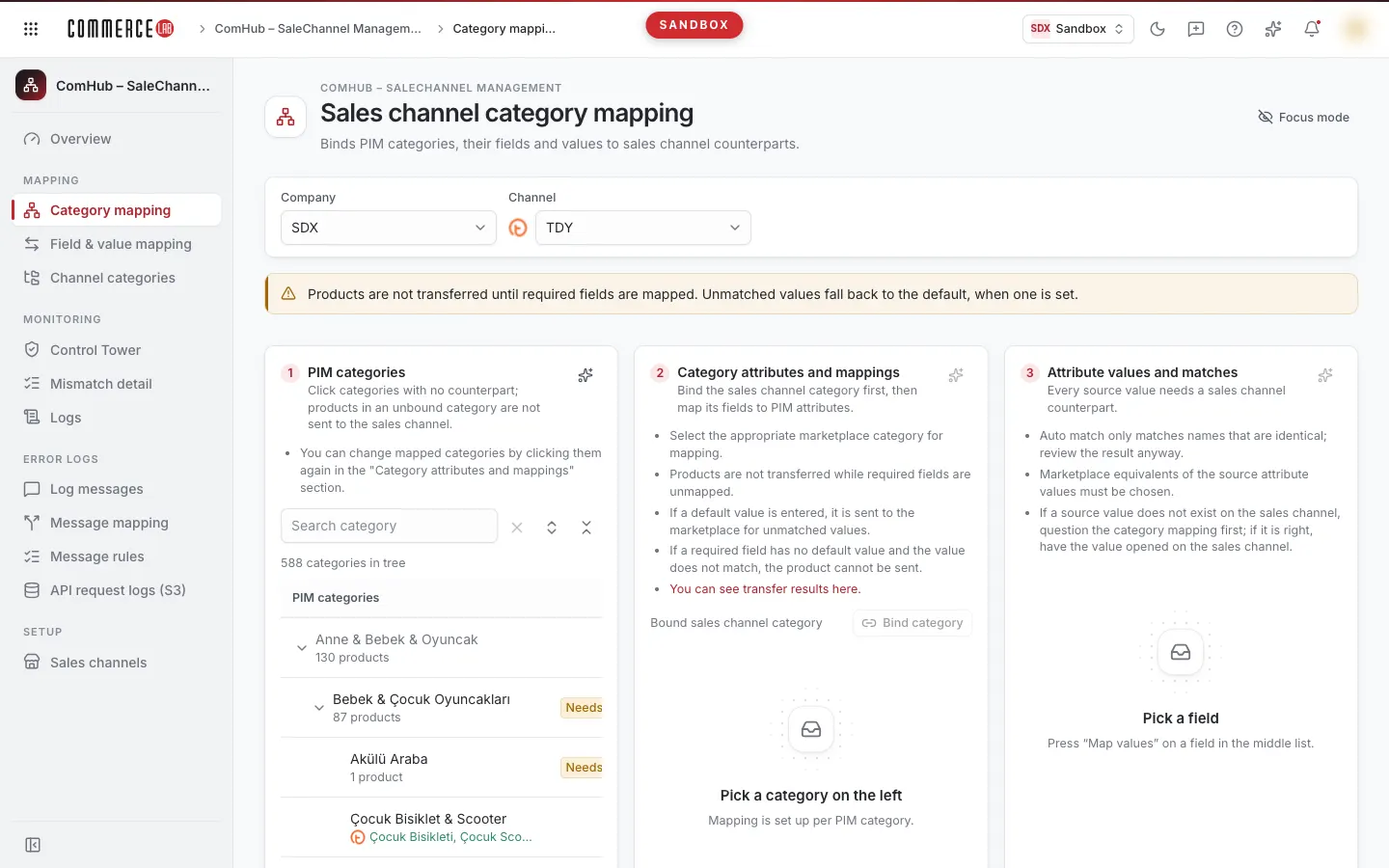
The Category mapping screen is where you establish the mappings necessary for your products to be sent to the marketplace with the correct category and complete information. You select a PIM category, link it to the marketplace's own category, map the fields required by the marketplace in that category (such as color, size, material) to PIM attributes, and finally select the marketplace equivalents of attribute values. Products in categories with incomplete mappings cannot be transferred to the marketplace; therefore, this screen is the main workspace for catalog and marketplace teams especially during new marketplace launches and when new categories are added.
Accessing the screen
- Open the ComHub – Marketplace Integration › Mapping › Category mapping menu.
- The Category-based mapping link in the header of the Field and value mapping screen opens this screen.
- The Open the category mapping screen and Edit the mapping links in the AI Feature Extraction screen open this screen in a new tab with the relevant company and channel selected; if the PIM category is known, that category is also selected in the tree and scrolled into view.
- This screen’s tile is also found in the Related screens section of the PIM & Catalog Overview page.
If you do not see it in the menu, your account does not have permission for this screen. Users who can view but not write mappings see mappings as read-only: Bind category, unlink, save and delete buttons, Auto map, Save all, and AI buttons are hidden; selection fields are disabled.
The page URL preserves your selected company, channel, category, marketplace category, field, category search, Only values used in this category selection, Focus mode, and the page and sorting of the value table. Reloading the page or sharing the link with a colleague opens with the same selections.
Screen sections
- Title: Marketplace category mapping and the Focus mode button on the right.
- Company and channel selection: Defines which company and marketplace channel you are working with.
- Information ribbon: "Products cannot be transferred without mapping required fields. If a default is entered for unmatched values, that value is sent."
- Card 3, left to right workflow:
- 1 · PIM categories: Category tree; select the category to map here.
- 2 · Category features and mappings: The linked marketplace category of the selected category and its fields.
- 3 · Field values and mappings: PIM values of the selected field and their marketplace equivalents.
On wide screens, cards are side by side; on narrow screens, stacked vertically. Each card remains empty until a selection is made in the previous card. Each card’s header contains that card’s AI button (see Map with AI).
Focus mode
The Focus mode button in the header hides explanatory texts, rule lists, and the information ribbon; more rows become visible for experienced users. Press the same button (Show guidance) to restore explanations. The selection is saved in the page URL.
Company and channel selection
| Field | Purpose | Tip |
|---|---|---|
| Company | The company for which the mapping is done. | The first company in the list is selected at startup. Changing the company resets channel, category, and field selections. |
| Channel | The marketplace channel for the mapping. The selected channel’s logo appears to the left of the list. | Only channels of the selected company with marketplace type are listed. The first channel is selected at startup. Changing the channel resets category and field selections. |
Selections apply immediately; no button press is needed. If the company list is empty, "Company not found" is shown; if no marketplace channel exists for the selected company, "No marketplace channel" is shown.
1. PIM categories
The PIM category tree of the selected company is listed here. The tree is fully expanded at startup so categories needing linking are visible at a glance.
Search and tree buttons
| Item | Purpose |
|---|---|
| Search category | Searches category name or code; applies as you type. Matching categories are highlighted and their parent categories expanded. |
| Clear search (cross icon) | Clears the search box. |
| Expand all / Collapse all | Opens or closes all branches of the tree. |
Above the tree, it shows "{number} categories in tree" or during search "Matching: {number} categories". "Loading" appears while loading. If no category tree exists for the selected channel, "No category tree found for this channel." is shown.
Tree columns
| Column | Meaning |
|---|---|
| PIM categories | Category name. Below it, the linked marketplace category name is shown in green; if none, the product count in the category ("{number} products") is shown. Intermediate categories not sent to the marketplace are shown in faded text. |
| Status | A green badge with a number shows how many marketplace categories the category is linked to; the number below is the product count. An orange Needs binding badge indicates a category sent to the marketplace but not yet linked. |
What is a leaf category? Only leaf (final level) categories are sent to the marketplace. Mapping is only done for these categories. Clicking a row in the tree:
- If it is a leaf category, it is selected and card 2 is filled with that category.
- If it is an intermediate category with subcategories, it expands or collapses.
- If it has no subcategories but is not a leaf, a warning "Only leaf (final level) categories are mapped; this node is not sent to the marketplace." appears.
It is not a problem if intermediate categories are unlinked; the Needs binding badge only appears on leaf categories.
Selecting a category resets the marketplace category and field selection in card 2.
2. Category features and mappings
The full path of the selected category is shown in the Selected PIM category box. If no category is selected, the card shows "Select a category from the left."
Linked marketplace category
This section shows which marketplace category the category will be sent to.
- If the category is not yet linked, a red box says "Select a suitable marketplace category for mapping."
- If linked, each linked marketplace category is listed in a row. A PIM category can be linked to multiple marketplace categories; you select which one to work with by clicking its row. The selected link is highlighted. The first link is selected at startup.
- The trash icon on the right removes that link (see Removing a category link below).
Category fields
When a linked marketplace category is selected, the fields required by the marketplace in that category are listed in two tables:
- Required fields: Fields the marketplace requires to be filled. If these are not mapped, product transfer will not occur. If none, "No required fields in this category." is shown.
- Other fields: Optional fields. If none, "No other fields in this category." is shown.
| Column | Meaning |
|---|---|
| Marketplace field | The marketplace field name. If a required field has no source selected, a red No source badge appears; if there are unsaved changes in the row, an orange Unsaved badge appears. |
| Source attribute / default | The top selection (Pick a source attribute) is the PIM attribute feeding this marketplace field. The Default value below is sent if the product value does not match: if the marketplace allows free text, a text box appears; otherwise, a selection from the marketplace’s own value list appears. |
| Actions | The Save icon writes changes in the row; active only if changes exist. The Match values icon opens the values in card 3. Free-text fields do not show Match values. |
The row of the field whose values you are mapping is highlighted in the table.
Selection fields: Clicking the field opens a search box and initial results; if the desired value is not among the first results, type its name. The cross (Clear selection) clears the selection. Selection is only saved when you press Save.
Refresh from marketplace
The Refresh from marketplace button next to the Required fields heading pulls the field list and marketplace values directly from the marketplace. The on-screen list may be outdated; if the marketplace added a new field or value and you don’t see it, use this button. The operation may take time. The refresh state is saved in the page URL and remains after reload.
Card rules
With Focus mode off, rules for this section are reminded above the card. The You can see transfer results here. link at the end of the list opens the Comparison report screen.
3. Field values and mappings
Clicking the Match values button on a field row changes the card header to "{field name} values" and lists the PIM values for that field. If no field is selected, it shows "Select a field."
| Item | Purpose |
|---|---|
| Only values used in this category | Checked by default; lists only values used in products of the selected category. Unchecking shows all values of the attribute (which can be hundreds for fields like size or color). |
| Auto map | Maps values whose names exactly match the marketplace value. See below for details. |
| Save all ({number}) | Saves all rows with a selected marketplace value at once. |
Value table
| Column | Meaning |
|---|---|
| PIM value | Value used in products. If there is an unsaved selection in the row, an orange Unsaved badge appears. |
| Marketplace value | The marketplace equivalent. If empty, it shows Pick a marketplace value; clicking opens a search among accepted marketplace values for this field. |
| Actions | Save writes the new selection for that row. Delete removes the saved mapping; disabled if none saved. |
The table shows 20 rows per page; if more values exist, pagination controls appear below. Clicking the PIM value or Marketplace value headers sorts the table ascending, descending, or unsorted. The Marketplace value column sorts by saved mapping (rows with no mapping appear last in both directions).
Actions
Linking a category to a marketplace category
Determines which marketplace category the products of a leaf category are sent to.
- Select a leaf category in card 1 (rows with Needs binding badge are categories awaiting linking).
- Press the Bind category button in card 2. The button is active only when a leaf category is selected.
- In the popup, the PIM category path is shown. If a name similarity suggestion exists, the top line shows Did you mean: with the suggested category and a "%{score} similarity" badge. Clicking the suggestion only selects it.
- Navigate the marketplace category tree:
- Clicking a category with subcategories enters it. You can go back via the path above (Root or intermediate levels).
- Clicking a category without subcategories selects it.
- To select the parent category of the current level, use the Pick this category button; the Parent category badge on the button reminds you that you are selecting a non-leaf category.
- The search box searches by name or path (Search marketplace category (name or path)) if the full tree is loaded; if loaded level by level, it searches only the current level (Search this level).
- If the list looks outdated, use Refresh from marketplace to pull the current tree; a message "This operation may take a while, please wait." appears during loading.
- If the list is empty, "Marketplace category not found." appears; if outdated, try Refresh from marketplace again.
- Check the "Will be linked: {path}" text at the bottom and press Bind category.
Result: "Category linked." notification appears; badges in the tree and card 2 refresh. Selection alone does not save; the link is established only after pressing the last button. Cancel closes the popup without saving.
The list shows a maximum of 300 categories at once. If more exist, "Showing first 300 of {total} results; narrow your search." is shown.
Removing a category link
- In card 2’s linked marketplace categories list, press the trash icon on the relevant row.
- In the Remove the category link? popup, read the warning "Products in this category will not be sent to that category." and press Delete.
Result: "Link removed." notification appears; marketplace category and field selection are cleared. There is no undo; re-link the category if needed.
Changing a linked marketplace category
Bind category does not remove existing links; it adds a new link to the category. Therefore, a PIM category may appear linked to multiple marketplace categories. To change the link:
- Use Bind category to link the correct marketplace category.
- In the linked marketplace categories list, delete the old link by pressing its trash icon and confirming.
- Click the new link’s row and check field mappings for that category; fields vary by marketplace category.
Mapping a marketplace field to a PIM attribute
- In card 2, click the Pick a source attribute field in the row and search/select the PIM attribute.
- Optionally enter or select a Default value. The default is sent if the product value does not match.
- Press the Save icon in the row.
The red No source badge on a required field disappears as soon as an attribute is selected; an orange Unsaved badge appears instead. Saving occurs only when pressing the Save icon.
Result: "Field mapping saved." notification appears and the Unsaved badge disappears. Each row is saved separately; if multiple rows are changed, press each row’s Save icon.
Unsaved changes in field rows do not clear automatically when switching categories. If the same marketplace field exists in another category, the draft may appear there with an Unsaved badge. Save or revert changes before switching categories.
Mapping field values
- Press the Match values icon on the field’s row.
- If the field has no source attribute, a warning "Cannot map values without selecting a source attribute." appears; select the source attribute first.
- If unsaved changes exist in the row, the screen saves the row first, then opens values.
- In card 3, select the marketplace equivalent for each PIM value from the Pick a marketplace value field.
- Press the Save icon row by row or use Save all to write all at once.
Result: Single row save shows "Value mapping saved."; bulk save shows "{number} mappings saved." notification.
The number on the Save all button includes all rows with a marketplace value selected (including previously saved ones on all pages). Clearing a row’s selection does not delete the saved mapping; use the Delete button to remove it.
Unsaved value selections are lost when switching category, marketplace category, or field. Save before switching.
Auto mapping
- Press the Auto map button in card 3.
- The notification shows how many matches were found, how many PIM and channel values were compared.
- Matches found are placed as drafts in rows with empty marketplace values, and a "{number} matches placed as drafts" notification appears. These rows show the Unsaved badge.
- Review drafts, correct any errors, and save all with Save all.
Auto mapping only matches values with exactly the same name; it does not overwrite rows with existing mappings.
Deleting a value mapping
- In card 3, press the Delete icon on a row with a saved mapping.
- In the Delete the match? popup, read the warning "This value will no longer be sent to the marketplace with this mapping." and press Delete.
Result: "Value mapping removed." notification appears and the table refreshes. This action cannot be undone.
Map with AI
Each card header has a spark icon Map with AI button. The button is visible only if you have write permission for mappings. When disabled, hovering shows instructions (e.g., Pick a category mapping first, Pick a field to map values for). AI only generates suggestions: results appear in a confirmation table and only rows you select are saved. No mapping is saved without your approval.
The three AI dialogs follow the same flow:
- Setup: Select scope and model, then press Generate suggestions.
- Progress: A progress indicator appears while the model runs.
- Confirm: Suggestions are listed in a table. Suggestions with confidence ≥80% are preselected. The High confidence only checkbox and search box filter the table; "{selected} / {total} selected" is shown on the right. The model cost is shown below. The Save selected {number} mappings button saves the checked rows; each row’s Confidence column shows Written or Failed badge.
Confidence badges are green for ≥80%, orange for 50–79%, and gray below 50%. Rows without suggestions show "No suggestions" and cannot be selected.
Common setup fields
| Field | Description |
|---|---|
| Which records › Unmapped records only | Checked by default. Unchecking generates suggestions also for existing mappings; saving still requires your approval. |
| Model | The AI model generating suggestions. The default fast model suffices for most catalogs; a stronger model can be tried for complex trees. |
1. AI category mapping card
Suggests marketplace categories for PIM categories without links. The button is active when company and channel are selected.
Scope options:
| Option | What is scanned |
|---|---|
| Selected category and below | The selected category and its descendants. The Unmapped records only box is disabled here: since you deliberately selected the category, suggestions are generated even if already mapped. |
| Selected category and its level | Categories under the parent of the selected category. |
| Parent level and below | Branches at the parent category level and below. |
| Whole tree | All categories in the tree. |
If a category is selected in the tree, the dialog opens with Selected category and below; if none selected, only Whole tree is available. The description below the scope explains exactly what the selected scope covers by category name.
Category mapping can take time. The progress screen shows stages, a progress bar, counters for Total, Processed, Idea, Unmatched, Cost, and a live list of suggestions. The Stop button or closing the window stops the process.
The confirmation table shows PIM category and path, suggested marketplace category and reason, and confidence (columns labeled PIM value and Marketplace value). Categories already linked appear with a gray Mapped badge and are not preselected. Selecting and saving such a row adds a second link; existing links are not removed (see Changing a linked marketplace category).
If you dislike a suggestion, press Suggest another; the model excludes previous suggestions and proposes a new category. Up to 3 tries per row; if none found, the current suggestion remains.
If no suggestions appear or the process fails, the progress screen remains with an error message (e.g., "No categories to process.", "No suitable category in selected scope.", "Process failed.", "Job not found or expired."). Selected suggestions are saved one by one; no separate notification appears, results are shown in each row’s Confidence column.
2. AI field mapping card
Suggests PIM attributes for fields of the selected linked marketplace category. The button is active when the category is linked and the field list is loaded. Setup shows "{total} marketplace features, {empty} empty" and how many PIM attributes will be given to the model. If the PIM attribute list is unreadable or empty, Generate suggestions is disabled with an explanation.
The confirmation table has Marketplace field, Source attribute, and Confidence columns. AI only suggests source attributes; it does not modify Default value fields. If the model errors, the dialog proceeds to confirmation with an error message and No suggestions shown.
If you uncheck Unmapped records only, suggestions also appear for fields with existing source attributes; those with confidence ≥80% are preselected. Saving these rows replaces existing source attributes. Review preselected rows before saving.
3. AI value mapping card
Suggests marketplace equivalents for PIM values of the selected field. The button is active when a field with a source attribute is selected and the value list is loaded. Setup shows "{total} values, {empty} empty" and how many marketplace values will be given to the model. If the marketplace value list is loading, unreadable, or empty, Generate suggestions is disabled with an explanation and a Retry button appears if unreadable.
The confirmation table has PIM value, Marketplace value, and Confidence columns. If the model errors, the dialog proceeds to confirmation with an error message.
If you uncheck Unmapped records only, suggestions also appear for values with existing mappings; those with high confidence are preselected. Saving these rows replaces existing mappings.
Selected suggestions are saved at once with a "{number} mappings saved" notification. PIM values with empty codes cannot be saved; these are skipped with a "{number} rows skipped due to empty code" warning. If all selected rows have empty codes, "Selected values have empty codes; cannot save." appears and nothing is saved.
Common issues
- "No marketplace channel" is shown. No marketplace-type channel is installed for the selected company. Select another company or contact your administrator about channel setup.
- Clicking a category does not select it. Only leaf (final level) categories are mapped. Intermediate categories expand or collapse; clicking a non-leaf category without subcategories shows a warning.
- "Cannot map values without selecting a source attribute." warning. The field’s Source attribute is empty. Select a PIM attribute and save the row before pressing Match values.
- Marketplace field or value not in the list. The list may be outdated. Use Refresh from marketplace to update. If the value truly does not exist, verify the category link is correct; if so, request the marketplace to add the value.
- Value table empty ("No values to map."). No values exist for this attribute in products of the selected category. Uncheck Only values used in this category to see all attribute values.
- A category appears linked to two marketplace categories. Bind category adds a new link; it does not replace existing ones. Remove the incorrect link using the trash icon.
- Products still not sent to marketplace. Required fields may still show No source badge or a value may lack a mapping or default value. Check transfer results in the Comparison report screen.
Related screens
Video tutorials
- Mapping marketplace categories with AI: Map your PIM categories to marketplace categories with AI suggestions; includes scope, confidence, alternative suggestions, saving selected mappings, attribute mapping, step-by-step explanation, and video.