Apply level
Determine at which levels of source/storage, rule group, and cumulative total inventory rules will be applied.
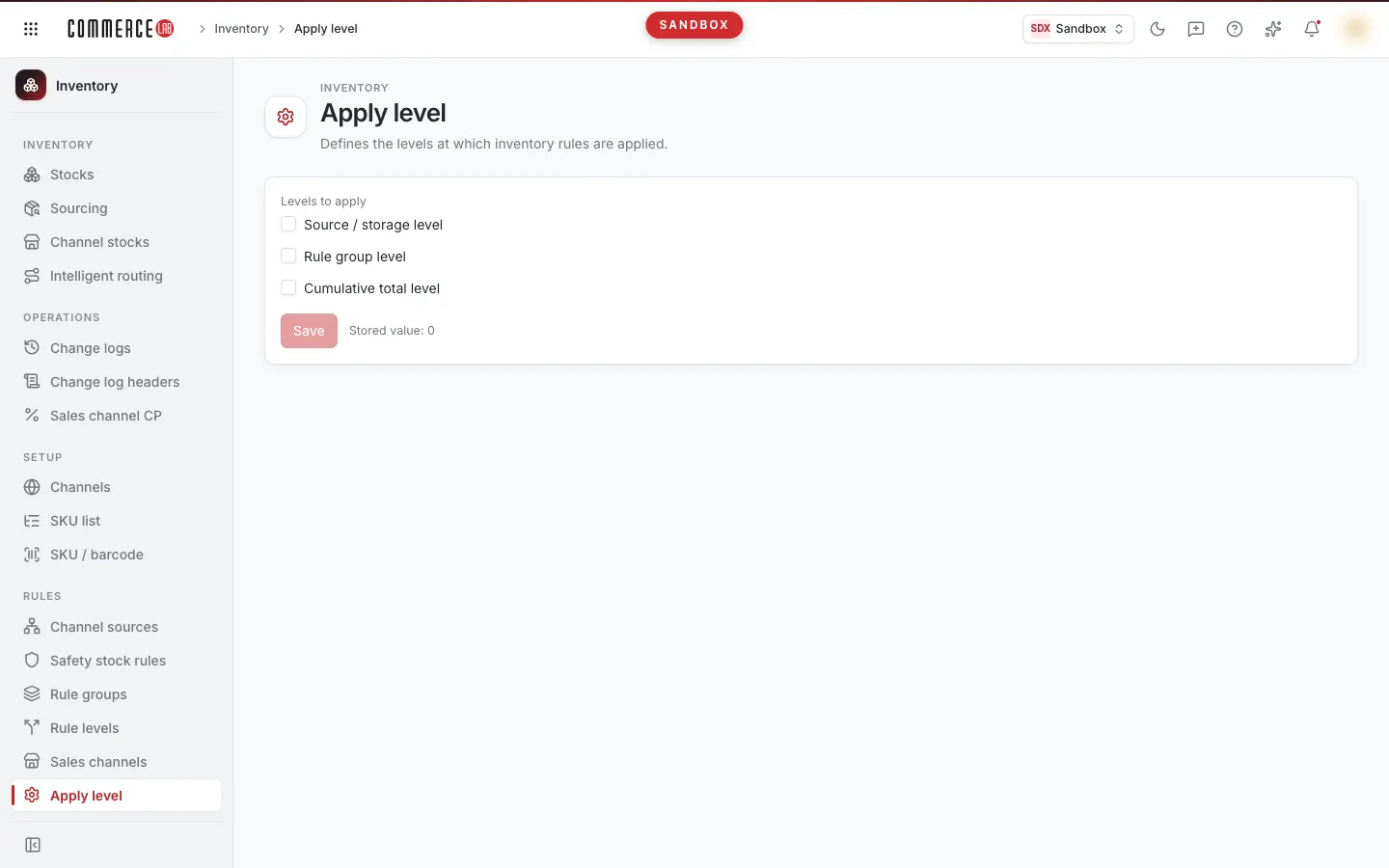
The Apply level screen is an organization-wide setting that determines at which levels inventory rules will be applied. The screen has three levels, and you can enable any one, several, or all of them simultaneously. The setting is a single value and affects all inventory rules; therefore, it is usually updated by the person responsible for inventory setup during installation or when the rule structure changes.
Accessing the screen
Navigate via the menu: Inventory › Rules › Apply level. If you do not see it in the menu, your account does not have permission for this screen.
Anyone who can open the screen can view the current setting; write permission is required to change the checkboxes and save. If you do not have write permission, the checkboxes appear disabled and the Save button is never visible.
Screen sections
- Header area: The title Apply level with the description "Determines at which levels inventory rules will be applied." below it.
- Settings card: Under the heading Levels to apply, three checkboxes, below them the Save button, and a brief note showing the saved value.
While the setting loads when the screen opens, a loading indicator appears over the card.
Levels
| Option | Description |
|---|---|
| Source / storage level | Enables applying rules at the source and storage level. |
| Rule group level | Enables applying rules at the rule group level. |
| Cumulative total level | Enables applying rules at the cumulative total level. |
The checkboxes are independent: you can select one level, two levels, or all three together. You can also save without selecting any.
Operations
Changing levels
- Check the boxes for the levels you want to enable, uncheck those you want to disable.
- Press the Save button.
The Save button becomes active when the selections differ from the saved setting. If you revert the checkboxes to the saved state, the button becomes inactive again.
If saving is successful, the Saved notification appears and the screen reloads the current setting from the server. If there is an error, the Something went wrong notification appears with an explanation; your selections remain on screen and you can try again.
No confirmation is requested for this operation, and there is no separate undo button. To revert to the previous setting, restore the checkboxes to the old state and save again.
Unsaved selections remain on screen until you save; however, if you leave the page, they are lost without warning.
The setting applies organization-wide and affects all inventory rules. Before changing, note the current setting and saved value.
Reading the saved value
Next to the Save button, a note Saved value: N is shown. This number corresponds to the saved setting as a single number representing the sum of the values of the selected levels:
| Level | Value |
|---|---|
| Source / storage level | 1 |
| Rule group level | 2 |
| Cumulative total level | 4 |
For example, if only Source / storage level and Cumulative total level are enabled, the saved value is 5; if all three are enabled, it is 7; if none are enabled, it is 0. The note shows the last saved setting, not unsaved changes in the checkboxes. Sharing this number with support helps quickly understand the setting. The note is visible only to accounts with write permission.
Common situations
I cannot check the boxes. Your account does not have write permission on this screen; you can only view the current setting.
The Save button is inactive. The checkbox selections match the saved setting, so there is nothing to save. Changing a checkbox activates the button. The button is also temporarily inactive while the setting is loading or a save operation is in progress.
The screen shows "Something went wrong." The setting could not be loaded; in this case, the checkboxes and Save button are not visible. The technical explanation of the error is shown in the section revealed by the small dropdown arrow below the error box. There is no retry button on the screen. Refresh the page; if the problem persists, contact support with this explanation.
No boxes are checked. The saved value is 0; no apply levels are enabled. Your setup may not have been configured yet, or the levels may have been deliberately disabled. If unsure, consult the person responsible for inventory setup before changing.
Related screens
- Safety stock rules — rules defining the safety quantity to be deducted from stock sent to the channel at channel, rule group, source/storage, and SKU levels.
- Rule groups — groups used to manage rules by grouping them.
- Rule levels — definitions of the dimensions at which rules are applied.
- Channel sources — definitions of which channel is supplied from which source and storage.