Channel sources
Define which sales channel is supplied from which source and storage, add new matches or delete safely.
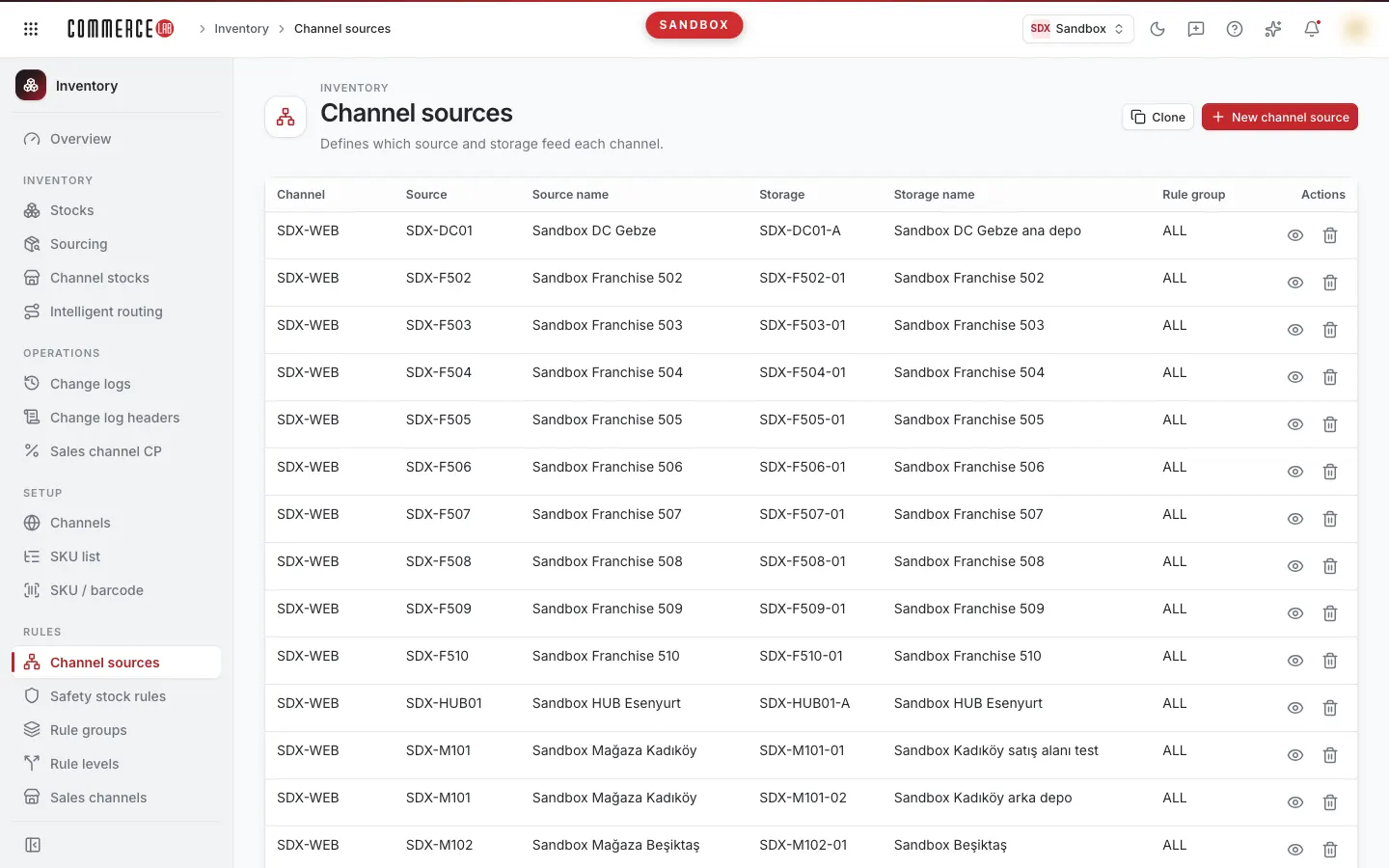
The Channel sources screen defines which sales channel is supplied from the stock in which source and storage. Each record consists of a channel, a source, a storage belonging to that source, and a rule group. Since these matches determine which storages' stock will go to a channel, this screen is generally used during setup or when a new storage or channel is activated.
Changes on this screen directly affect the stock sent to channels. Especially read carefully the stock reset option that appears during deletion.
Accessing the screen
Follow Inventory › Rules › Channel sources from the left menu. If you do not see it in the menu, your account does not have permission for this screen.
Screen sections
- Title: Channel sources with the description "Defines which channel is supplied from which source and storage." below it. If you have write permission, the New channel source button is located at the top right.
- Table: All defined channel sources are shown in a single list. There is no filter, search, or pagination on this screen; all records are listed together. A loading indicator appears above the table while loading.
List
| Column | Meaning |
|---|---|
| Channel | Name of the sales channel to which stock is sent. If the name is not found, the channel number is shown. |
| Source | Code of the source from which stock is taken. |
| Source name | Description of the source; if none, "—". |
| Storage | Code of the storage belonging to the source. |
| Storage name | Description of the storage; if none, "—". |
| Rule group | Name of the rule group linked to the match. If the name is not found, the group number is shown. |
| Actions | Delete icon. Visible only if you have write permission. |
Records cannot be edited. If you need to change a match, add a new one and delete the old one; do not forget to read the warnings during deletion.
Actions
Adding a new channel source
Use when you want a channel to be supplied from a new storage.
- Click the New channel source button at the top right.
- Fill in all four fields in the popup (all start with Select):
| Field | Required | Description / rule |
|---|---|---|
| Channel | Yes | The sales channel to which stock will be sent. |
| Source | Yes | The source from which stock will be taken. Options are shown as "code — name". Changing the source clears the selected storage. |
| Storage | Yes | All storages are listed if no source is selected; when a source is selected, the list is limited to storages belonging to that source. Options are shown as "code — name". To avoid confusion, select the source first. |
| Rule group | Yes | The rule group to which the match will be linked. Options are shown as "number — name". |
- Click the Save button. If any of the four fields is empty, Save remains inactive.
Result: A Saved notification appears, the popup closes, and the list refreshes. If saving fails, a Something went wrong notification appears together, and the popup remains open; you can correct your selections and try again. Use Cancel to close the popup without saving.
Deleting a channel source
Use when a channel should no longer be supplied from a specific storage. Deletion completes in one or three steps depending on the system response.
- Click the trash can icon (Delete) on the row you want to delete.
- In the Delete channel source popup, you see the warning "This channel source will be deleted." Click Delete.
- In most cases, the record is deleted immediately, a Deleted notification appears, and the list refreshes.
If the record to be deleted might be the last channel source in this workspace, the system does not delete it immediately and opens the Stock operation confirmation popup. The popup states: "This channel source may be the last record in this workspace. Choose whether to proceed by resetting stock or by deleting only the record." At this point, nothing has been deleted yet. You have three options:
| Button | Effect |
|---|---|
| Cancel | Nothing is deleted, the popup closes. |
| Delete without resetting stock | Only the channel source record is deleted; stock quantities remain unchanged. |
| Reset stock and delete | Proceeds to the final confirmation step. |
Selecting Reset stock and delete opens the Stock reset confirmation popup:
- Read the warning: "This operation will reset stock quantities linked to this channel source and cannot be undone."
- In the "To confirm, type STOKSIFIRLA" field, type
STOKSIFIRLA. Case and leading/trailing spaces do not matter; the confirm button remains inactive until the word is fully entered. - Click the Reset stock and delete button.
The Cancel button in this popup returns you to the previous selection step.
Result: If successful, a Deleted notification appears, the popup closes, and the list refreshes; if an error occurs, a Something went wrong notification appears together, the popup remains open, and the record stays in the list.
There is no undo step for deletion. If you chose to reset stock, the reset quantities cannot be restored; if unsure, prefer Delete without resetting stock.
Hidden buttons
If your account lacks write permission in inventory setup, the New channel source button and the Actions column are not visible; you can only read the list.
Common situations
- The list is empty, No channel sources is displayed. No channel source has been defined in this workspace yet. If you have permission, add one with New channel source.
- Storage list is empty or the storage I want is missing. The storage list narrows according to the selected source. Select the correct Source first. If the storage still does not appear, check on the Sources screen whether the storage is assigned to that source.
- Cannot click the Save button. All four fields are required. Changing the source clears the storage selection; select the storage again.
- Clicked Delete but got a stock question. The record you want to delete may be the last channel source in this workspace. If you want to keep stock quantities, select Delete without resetting stock.
- Something went wrong warning appears. If the list failed to load, the warning appears in place of the list and there is no retry button; refresh the page. If an operation failed, the warning appears as a notification; read the details and try again. If the problem persists, report the details to your system administrator.
Related screens
Video tutorials
- Determining sources supplying sellable stock: See which sources and storages supply sellable stock in inventory channels, add and remove channel sources, and check the result on the Channel stocks screen; step-by-step explanation and video.