Order fulfilment costs
Enter warehouses' roles, preparation and shipping costs, packing points, and daily targets in layers; preview the difference and apply to OMS tables.
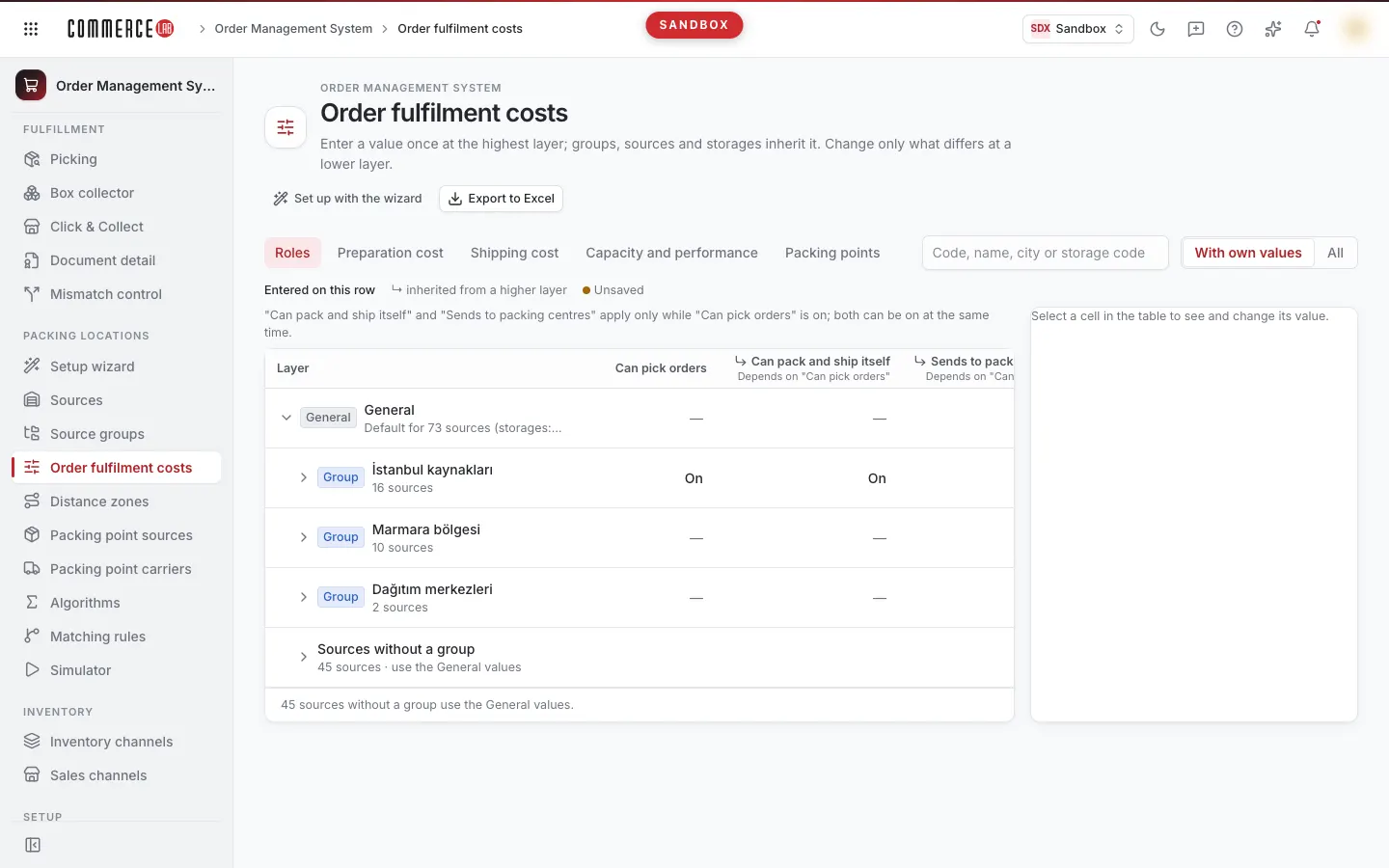
Order fulfilment costs (OMS › Packing locations › Order fulfilment costs) allows you to enter all values used by the order fulfilment engine in one place: warehouse roles, preparation cost, shipping cost, packing points, and daily target. You enter a value once at the top layer; groups, sources, and warehouses inherit it. You only change the different value at a lower layer. Entered values are first stored in a value profile; they are written to OMS tables only with Preview and apply.
Layers and value origin
Values are kept in four layers: General → Group → Source → Storage. For each field in a storage, the most specific layer wins: first storage-specific value, then source-specific value, then the source's group, and finally General. A source can belong to only one group; there is no priority between groups. Sources without a group use General values. If a value is not defined in any layer, the table value is not touched.
You edit groups and their members on the Source groups screen; this screen does not change groups.
Screen layout
- At the top are Set up with the wizard (opens the Order fulfilment costs wizard that enters the same values by Q&A) and Export to Excel buttons.
- The search box next to the tabs searches by source code, name, city, or storage code. In List selection, With own values shows only sources and storages with their own values, All shows all sources under groups. For hidden sources, a line "N more sources use this group's values" and a Show all button appear.
- In the table, values entered on that row are bold ("Entered on this row"), values from upper layers are faded and shown with a "↳" sign. Unsaved values have an orange dot next to them.
- When a cell is selected, the right Selected cell panel shows the value, the badge of the value's origin (General, Group, Source-specific, Storage-specific), field description, and Value chain (which layer's value is effective, which inherits). In the Change on this row section, you enter a new value; below it shows the effect of the change: how many storages will take this value, how many will keep their own.
- Inherit from the higher layer removes the cell's own value. On the General row, this button is named Remove value; if the field is undefined in all layers, the table value is not touched.
Tabs
Roles
There are four columns: Can pick orders, dependent Can pack and ship itself and Sends to packing centres, and Pickup point for customer collection. Each cell toggles between Light or Off.
- Can pick orders: the warehouse picks orders.
- Can pack and ship itself: the warehouse packs and ships the order itself. This role determines the delivery type of the warehouse's shipping rows (see "What Apply changes" below).
- Sends to packing centres: the warehouse sends the picked order to points listed in the Packing points tab. If not entered in any layer, it is considered off. Both dependent roles can be on simultaneously: the warehouse can both ship itself and send to packing points.
- Pickup point for customer collection: the store can be selected as a pickup point in web payment. It does not change the delivery type of shipping rows; when on, the warehouse's packing row is kept even if the warehouse does not ship itself.
Roles dependent on Can pick orders. The two dependent roles' column headers are indented and say "Dependent on Can pick orders" below. If Can pick orders is off on a row, these two roles are not applied or changeable on that row: previously entered on values appear faded with "not applied" note, and the panel says "Not applied because picking is off." If Can pick orders is not entered in any layer on a warehouse row, the OMS value is effective; if that value is off, dependent roles are also not applied.
Warehouse with packing points. If other warehouses send to a warehouse (i.e., it is a packing point), Can pack and ship itself and Can pick orders are applied and changeable even if off; the cell says "shipping rows kept as point." The packing point's own shipments (Sends to packing centres) still depend on Can pick orders.
Automatic point when role is turned on. When you turn on Sends to packing centres on a row, if the list of packing points at that row's level (source's group or General if no group) is empty or missing, the default distribution center is added to the list as Automatically added and a notification appears. If you undo the role before saving, the automatically added point is removed from the draft. If the default distribution center is undefined, unreadable, or a source you cannot see, it is not added; a notification appears and no transfer rows are written until a point is defined at that level.
Old profile. If the value profile was saved before this version, a bar appears at the top saying so. In this case, Sends to packing centres is shown according to the old rule (picks orders but does not ship itself), carries an "old profile" note, and cannot be changed; the Packing points tab is read-only. The Convert to the new format button saves the profile without changes; values remain the same, and the role can be edited afterwards. If one of the calculated preparation totals is outdated, the button is hidden; use Recalculate first. Drafts convert every saved profile to the new format.
Preparation cost
The table has two columns: If it packs itself (if the warehouse packs the order itself) and Sending to a packing point (if the warehouse picks and sends to a packing point). When a row is selected, the Base costs box of that row's level opens below the table (see "How preparation cost is calculated" below).
Shipping cost
The table has five columns: Zone 1 · same city, Zone 2 · 100 km, Zone 3 · 500 km, Zone 4 · 500+ km, and Fallback · if the zone is empty. Zones are fixed based on the distance between the packing warehouse and the delivery city; details are in the Distance groups screen. Below the table are the Carriers card and a consumables note (see "Shipping cost and Carriers card" below).
Capacity and performance
- Daily target: the warehouse's daily order target, in units. Entered on this screen.
- Statistical sales quantity, Statistical stock quantity, Time to carrier handover (e.g., "1 hr 30 min"), and Defective product rate are warehouse-based and read-only. They are not entered on this screen or saved to the profile; updated via Upload statistics on the Sources screen (the Sources button below the table opens that screen).
- Warehouse rows show the current OMS value; General, group, and source rows say "Warehouse-based."
- If no value exists for a warehouse, No data is shown (0 is also considered no data for sales quantity and handover time).
- For DC-type sources' warehouses, "Not used in DC" is shown: the engine does not use these statistics in DC.
- If you lack permission to see statistics or they are not yet available in OMS, Unavailable is shown; the rest of the tab works.
Packing points
Packing points are where orders are sent with Sending to a packing point cost. This tab has no search or side panel.
- The list is defined per level: select Layer as General or a group. There can be up to 3 points per level; when full, "Maximum 3 points" is shown and adding is disabled. The list is written identically for all selected sales channels.
- The row shows the point's type (DC, HUB, Store), source, storage code, and name. Remove removes the point from the list. When the last point is removed, the list is empty and a "No packing points yet" warning appears; no transfer rows are written at that level.
- Add packing point opens source and storage selectors. Search by source name or storage code; storages are listed under DCs, HUBs, and Stores headings, added with Add. If a point has no shipping row in a channel, a warning "This point has no shipping row in … channel; no transfer will be written" appears on its row.
- Groups without their own list show "Using General list." Define a separate list for this group copies General's list to the group; Use the General list deletes the group's own list. If General also has no list, "No list defined; default distribution center (…) is used" is shown.
- If Can pick orders is off but Can pack and ship itself is on at a point, a warning "shipping rows kept as point" appears.
- If the automatically added point is no longer the default distribution center, "Default distribution center changed" and Change to new default appear.
- If a user who cannot see the default distribution center adds the first point to a level without a list, the default distribution center is removed from that level's list and cannot be re-added; the tab warns this in advance.
- Changes are drafts like other tabs; saved with Save only or Preview and apply.
How preparation cost is calculated
Preparation cost is calculated from its own items. Items are stored in the value profile; only two totals (If it packs itself and Sending to a packing point) are written to OMS tables. Items are kept at General and group levels.
Base costs box. When a row is selected in the preparation cost tab, the Base costs · <level> box opens below the table; the level is the selected row's group (for source or storage rows, the source's group), or General if no group. The box is read-only here: items are entered in the wizard (button Edit with wizard in the box). Sections in the box:
| Section | Items | Subtotal |
|---|---|---|
| Storage | Storage, Product entry | Ownership cost in the warehouse |
| Handling | Picking, Sorting, Packing | Handling total in the warehouse |
| Warehouse total cost = ownership + handling | ||
| Store | Store to Warehouse Transfer Cost, Store picking cost | |
| Packing | Packing (consumables) costs | not included in totals |
Formulas:
- If it packs itself = Warehouse total cost + Store to Warehouse Transfer Cost × 2 + Store picking cost
- Sending to a packing point = Warehouse total cost + Store to Warehouse Transfer Cost × 3 + Store picking cost
- Packing (consumables) cost is not included in totals; it is added on top of shipping cost.
- Example (General): Storage 1, Product entry 1, Picking 2, Sorting 2, Packing 2 → Warehouse total 8. Transfer 25, Store picking 20 → If it packs itself 8 + 50 + 20 = 78; Sending to a packing point 8 + 75 + 20 = 103.
Rules:
- Empty item counts as 0. A group inherits undefined items from General; the item is faded and marked "From General" in the box.
- DC group (group consisting only of DC-type sources): Transfer and Store picking are 0 and unchangeable; the box says "DC group · fixed."
- Auto / manual mode: On General and group rows, the total is calculated from items until manually entered; shown with "· auto" in the table. If you enter a number in the total cell on these rows, that total is manual and calculation stops. The side panel shows the mode (auto, manual, or From General); for manual totals, it shows the "Calculated: …" value and Calculate automatically button. Calculate automatically recalculates the total from items. The box shows both if the manual value differs from calculated.
- Groups without their own item or total use General's totals ("From General").
- Total entered on source or storage row is only for that row; not calculated from items.
- When saving, all automatic totals are recalculated: if an item changes in General, totals of groups inheriting it are updated. The screen, preview, and save use the same values. If no items remain at a level, that level's automatic total is deleted on save.
- If a saved automatic total does not match current items (e.g., saved elsewhere), a bar appears at the top saying "N preparation totals calculated at layers do not match base costs." Recalculate writes new values to draft; the screen does not change automatically. Preview also shows how many layers are outdated.
- Each calculated amount is rounded to at most 4 decimals. Totals exceeding 1,000,000 are not written; shown as error and saving/applying is disabled until fixed.
Shipping cost and Carriers card
- Common values for all carriers are entered in the table (Zone 1–4 and Fallback).
- Use fallback: if you select a zone cell (Zone 1–4) and press Use fallback in the side panel, the fallback cost applies in that zone. The cell shows "Fallback." Apply sets the OMS zone value to 0 if it is not already 0 (the engine uses fallback at 0); if already 0, it does nothing. A number entered at a lower layer overrides this setting for that layer. Remove value (or Inherit from the higher layer) removes this setting too.
- If you enter 0 for a zone, a hint appears below the grid: "0 entered; 0.0001 is written to prevent engine falling back to general cost." The cell still shows 0. If packing (consumables) cost is entered, 0 is written with consumables added and no hint appears.
- Note at the bottom of the Shipping tab: If packing (consumables) costs are specified, they are added on top of shipping cost.
Carriers · <level> card. Below the table and side panel, full width; shows the selected row's level (General or group).
- The checkbox next to each carrier determines whether the carrier is used: values are written only for checked carriers' packing shipping rows. Carriers used by the tenant are checked by default; the counter above shows how many are used (e.g., "4 / 5 carriers used"). At least one carrier must be used; the last checked carrier cannot be unchecked.
- If Own cost is selected for a checked carrier, the five costs (Zone 1–4 and Fallback) for that carrier at this level are entered; boxes start with the level's current values. Below Zone 1–4 boxes is a carrier-specific Use fallback option. The carrier's own cost overrides the common value at the same level; a value entered at a more specific level still takes precedence. Empty boxes use the common value. Removing Own cost deletes the carrier's own values at this level.
- Unchecked carriers appear faded with "Not used." If the carrier has address delivery rows in OMS, "Not managed · N rows in OMS" is shown (only in scope sales channels and visible points; store pickup rows are excluded). These rows are not deleted automatically.
- Remove rows opens a confirmation window: address delivery rows are removed, the "both" row is replaced with a store pickup row at current costs; if a point loses its last address delivery carrier, transfer rows to that point are also removed. All are listed in the window and written after confirmation; tables are re-read just before confirmation, and if the list changed, nothing is written. The button is disabled with reasons: carrier selection changed but not saved, scope exceeds 20, preview open, or an application is not finished. If removal is interrupted, the window stays open for retry.
- If a carrier-specific value is saved at source or storage layer, a note with count appears below the card: these values are not shown on screen but used in Apply (visible in wizard and Excel).
Sales channels and carriers (application scope)
Above the Preparation and Shipping tabs' tables, the Sales channels bar shows which sales channels the values are written for: All sales channels ("Valid for all sales channels."), Selected sales channels ("Selected sales channels: Web and Mobile (2 / 5)"), or if none selected, "No sales channel selected: preparation and shipping costs will not be written to tables." This setting is unique for all groups. If no scope is selected, a bar "Application scope not selected…" and Choose scope button appear at the top.
Change scope opens the Apply scope window:
- For sales channels, select All sales channels (including newly added channels later) or Selected sales channels; at least one channel must be selected in the latter. If none selected, the window suggests channels used in tables; if tables are empty (and tenant has up to 20 channels), All sales channels is suggested.
- For carriers, if no carrier was previously selected, all carriers used by the tenant are selected by default (with "In use" badge). You can remove a carrier, re-add from Removed carriers list, or add another carrier with Add carrier; Back to carriers in use resets selection. At least one carrier must remain selected. Carrier selection can also be changed with checkboxes in the Carriers card.
- Removed carriers' existing packing rows are not deleted.
- Save writes selection to draft; selection becomes effective when saved with Save only or Preview and apply.
- Up to 20 sales channels and 20 carriers can be applied. If the tenant has more than 20 sales channels (or more than 20 carriers in use), "all" selection is not possible; Apply is disabled until switching to selected channels (carriers). The reason is shown at the top. The window does not suggest all channels in this case.
The tenant's carrier list is read from OMS and refreshed at least every 10 minutes; a newly added carrier appears within 10 minutes. If the list cannot be read (due to lack of permission or OMS not responding), the saved list is used and "Tenant's carriers could not be read; select carriers manually" is shown.
How to use
- Open the tab you want to change and select a cell in the table.
- In the side panel under Change on this row, enter a new value or select Light / Off. A value entered in General applies to all groups and sources; enter values on lower rows only for different group, source, or storage.
- For preparation and shipping costs, check that the application scope (sales channels and carriers) is selected.
- In the bar at the bottom "N changes pending · up to M storages affected":
- Save only saves the profile without touching tables.
- Preview and apply opens the preview panel.
- Cancel discards unsaved changes.
- In the preview panel, check changes and press Apply. If rows will be deleted, check the box in the confirmation window and confirm.
Saving and applying
- Preview and apply does not save anything; it opens the Changes to apply panel below the table. The panel shows the smallest difference between the profile (including unsaved values) and OMS tables: how many rows will be added, changed, or deleted for storage fields, packing source, and shipping rows.
- When you press Apply, if unsaved values exist, the profile is saved first, then only this difference is written. Just before applying, tables and source list are re-read; if previewed rows changed meanwhile, nothing is written and preview refreshes.
- Closing preview saves nothing; your values remain on screen. Unsaved values are lost if you leave the page.
- If nothing will change in tables, preview says so and Apply is disabled; use Save only to save the profile.
- If a difference exists between profile and tables when idle, a bar "There are N differences between profile and tables" appears; the bar's Preview and apply opens the panel.
- In the panel, Change scope opens the sales channel and carrier window (visible only to users with write permission).
- Confirmation window: if rows will be deleted or replaced, all are listed at the top of preview. Pressing Apply opens "Apply changes?" window; Apply is disabled until you check "I have seen N rows will be deleted in preview and confirm." The first 200 changed rows are shown. Transfer rows to packing points are summarized per point in preview ("… transfer to point: N added · N changed · N deleted").
- Preview shows an approximate count of options the engine will evaluate for a product today and after applying (assuming 60 warehouses with stock).
- If more than 5,000 changes, preview shows counts per sales channel and type instead of rows; Show details opens rows.
- Limits: at most 30,000 changes can be written in one apply, and at most 20,000 packing source rows can exist after applying. If exceeded, preview shows the value and limit, and Apply is disabled; reduce sales channel or carrier scope or number of packing points.
- In warehouses where Can pack and ship itself or Can pick orders is off, packing rows for out-of-scope channels and carriers are separately shown in preview: the engine still uses these rows.
- A very large apply sends changes in parts sequentially without splitting a warehouse's changes; the panel shows part count and progress. If a part fails, previous parts remain written.
- Retry remaining: if a part's result is uncertain (OMS did not respond in time), remaining parts are resent with the same content; already written changes are not duplicated.
- Refresh preview: if tables changed after preview or previous attempt was uncertain, recalculates difference with current tables; you can check and reapply.
- If apply was interrupted and profile was saved before, the panel says so.
- If no changes are found during writing, "Tables already up to date" appears (if profile saved, "Profile saved; tables already up to date").
- If writing succeeds but CommHub cannot be notified, a warning appears; changes are written.
- Pending change count counts entered values; calculated totals are not counted separately.
When Apply is disabled (reason shown on screen):
- Source groups cannot be read and profile has group values: a bar "Apply disabled because source groups cannot be read" appears; Preview and apply is disabled (General values would be written ignoring group values). Save only remains enabled; you can apply when groups are readable.
- If the side panel box contains unreadable, uncertain, or empty value ("Cannot save or apply until side panel box is fixed") or a calculated total exceeds 1,000,000, saving and applying are disabled.
- Application scope exceeds 20 limit.
- In permission preview (viewing with another user's permissions), saving, applying, and exporting to Excel are disabled.
What Apply changes
- Storage fields: Can pick orders, Can pack and ship itself, Pickup point for customer collection, and Daily target. In warehouses where Can pick orders is off, Can pack and ship itself is set off (except packing point warehouses). Fields undefined in any layer are not written.
- Warehouse's own packing row (with If it packs itself cost): exists if Can pack and ship itself or Pickup point for customer collection is on; removed if both off. No new row is added for warehouses where Can pick orders is off.
- Transfer rows to packing points (with Sending to a packing point cost):
- Rows are written from warehouses with Sends to packing centres and Can pick orders on to each point in the list at that warehouse's level. The list is the group's own list, or General's list, or the default distribution center; warehouse does not transfer to itself.
- If the point has no address delivery carrier row in that sales channel, no transfer is written and existing ones are deleted.
- If the role is off or the point is removed from the list, transfer rows are deleted.
- If no list and default distribution center is undefined, not found, or unreadable, transfer rows are not touched; reason shown in preview. If the default distribution center is a source you cannot see, these rows are skipped in your apply; OwnerAdmin or TenantAdmin applies them.
- Packing point carriers: Apply manages only address delivery carrier rows; store pickup rows' price and existence are not changed.
- When Can pack and ship itself is on: address delivery rows missing for a carrier are added, existing rows' cost updated with profile values. Packing (consumables) cost is added to shipping cost.
- Existing "both" rows (address and store pickup) are automatically split in Apply: address delivery row takes the new profile price, store pickup row keeps current price. This split is not counted as deletion and requires no confirmation; preview shows how many rows will be split.
- When Can pack and ship itself is off: address delivery rows are deleted; the "both" row is replaced with a store pickup row at current costs (if the carrier already has a store pickup row, only deletion occurs). These deletions are listed in preview and require confirmation.
- In warehouses where Can pick orders is off, shipping rows are removed as if Can pack and ship itself were off. Packing point warehouses are excepted: shipping rows remain according to Can pack and ship itself to keep shipments to the point.
- If Can pack and ship itself is undefined in all layers, only the cost of existing address delivery rows is updated.
- Carrier-specific costs entered are written to that carrier's rows.
- If any cost to write or copy is negative or too precise (more than 4 decimals), that carrier's rows are not touched and shown in skipped reasons.
- Rows for unused (out-of-scope) carriers are not touched.
- Application scope: packing rows are added, changed, or deleted only for selected sales channels and carriers; out-of-scope rows are not touched. Without scope selection, preparation and shipping costs are not written, only storage fields are written. Passive warehouses are included in scope.
Excel
- Export to Excel downloads the profile (including unsaved changes) as an Excel file (up to 10,000 rows).
- Rows: General, each group, and only sources and storages with own values. Sources you cannot see are not included.
- The Layer column shows General, Group, Source, or Storage. Group rows have the group's name in Name column (Code empty); source and storage rows have code and name.
- Each value field is a column: four roles, two totals, Zone 1–4 and Fallback, Daily target, and base cost items. Cells with Use fallback selected show "Fallback."
- If it packs itself mode and Sending to a packing point mode columns show whether the total is "auto" or "manual" on General and group rows.
- Carrier-specific costs are in separate rows with Carrier column filled below their level.
- Packing point lists are not included in the file.
- There is no upload from Excel. To enter values in bulk, use the Order fulfilment costs wizard; the wizard also shows preview first.
Cost entry rules
These rules apply to Order fulfilment costs cells, the Order fulfilment costs wizard, and Packing point sources/carriers cost boxes:
- Empty boxes are not saved; enter 0 for zero. Exceptions: empty base cost items count as 0; empty boxes in Carriers card and wizard mean the value comes from the upper layer.
- Maximum 1,000,000 and up to 4 decimals.
- Decimal separator can be comma ("8,50") or dot ("8.50"). Thousand separator is accepted only with comma decimals ("1.500,00"). Ambiguous notation like "1.500" is rejected; write "1500".
- Cost must be 0 or positive. Old negative costs remaining in the table are shown as is and not touched unless edited.
- If you enter 0 for a zone, 0 is shown on screen; OMS writes 0.0001 to prevent the engine falling back to fallback cost. Preview separately shows how many shipping rows will get 0.0001. 0 entered in Fallback is written as 0.
Permissions and visibility
- Anyone with OMS location read permission can see the screen. If you lack permission to read the value profile, "Value profile cannot be displayed; no read permission." is shown.
- Cell editing, Save only, Apply, changing scope, and Remove rows require OMS location write permission and OwnerAdmin or TenantAdmin role. Without role, a message "OwnerAdmin or TenantAdmin role required for this operation." appears at the top and these operations are disabled; you can still view the screen. Side panel says "No permission to change."
- OwnerAdmin and TenantAdmin see and edit all source types (DC, HUB, Vendor, Store); default distribution center is shown by name and code.
- Other roles do not see DC, HUB, and Vendor sources. Profile values of sources you cannot see are not shown but preserved on save; their rows are not applied. These sources get General and group values only when applied by an OwnerAdmin or TenantAdmin; the panel on General or group cells notes this.
Notes
- No cost is entered for store pickup rows; Apply does not touch these rows.
- Profile can be up to 900,000 characters; saving fails if exceeded.
- If you edit the profile while someone else saves, your save is rejected; the current profile is loaded, your edits applied on top, and you are asked to check and retry.
- If an old-format profile contains group values, source groups must be readable on first save; otherwise saving fails with reason.
- Rows manually edited on packing screens are overwritten by the profile on next apply unless Keep as a storage-specific value is selected.
- In partial apply, a part with no response is likely applied; refreshing preview shows remaining difference.
- If you enter 0 for a zone and apply, then delete that zone's value, Apply does not touch OMS value. To revert a zone to fallback, select Use fallback instead of deleting.
- Changes written by Apply are logged in OMS audit.
- Every record on this screen is backed up on the CommerceLab side.
Video tutorials
- Entering preparation and shipping costs in layers: Learn the layering logic in order fulfilment costs, preparation cost formula, shipping zones, daily target, and packing points; step-by-step explanation and video.