Entering Handling and Shipping Costs in Layers
Learn the layering logic in order fulfilment costs, the handling cost formula, shipping zones, daily targets, and packing points; step-by-step explanation and video.
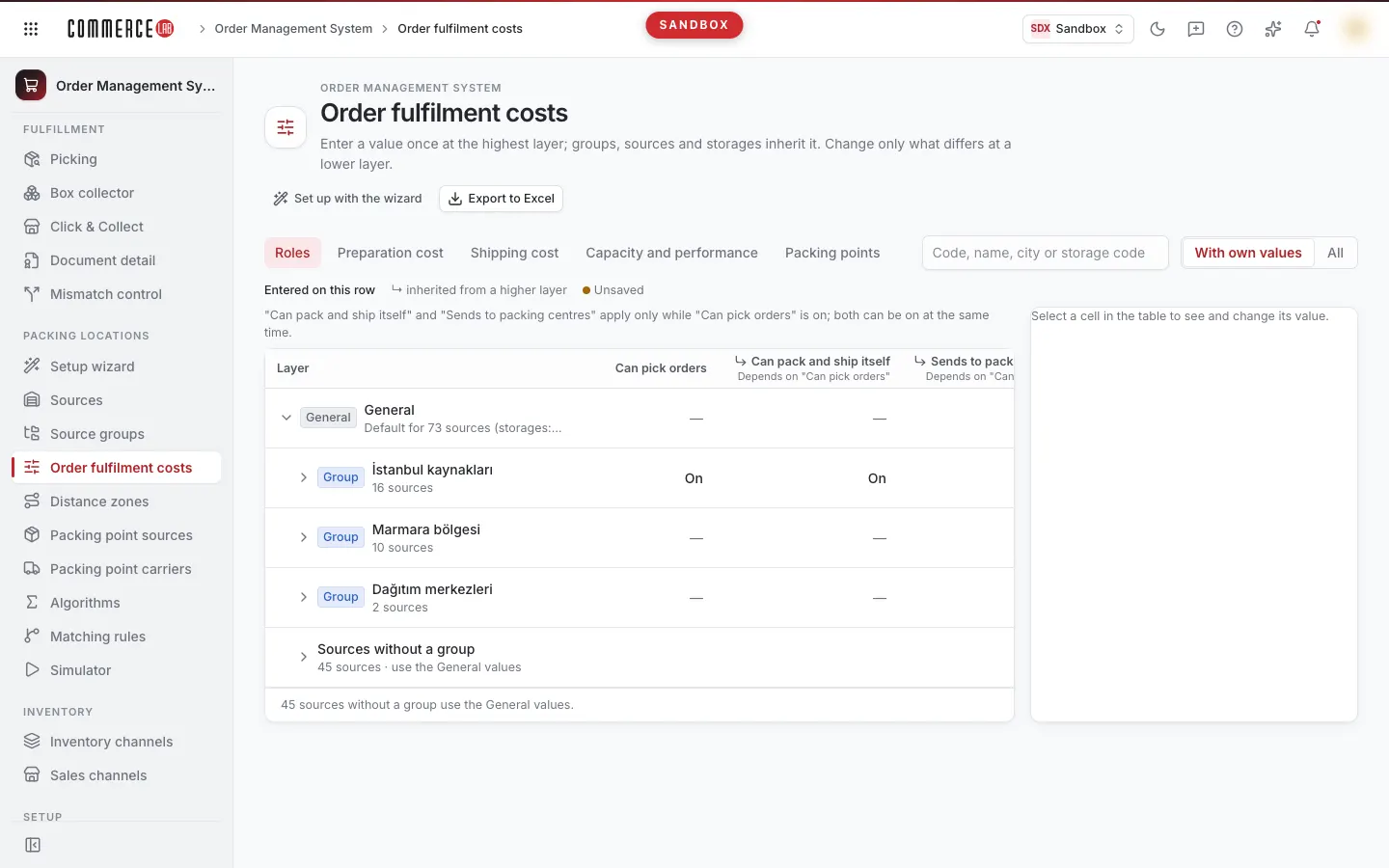
Order fulfilment costs screen allows you to enter roles used by the system when selecting sources, handling and shipping costs, capacity, and packing points all in one place. This page explains the layering logic and what is entered in each tab; the same explanation is available in the video below.
<video controls preload="metadata" playsinline width="1920" height="1080" poster="https://files.docs.hebiar.com/videos/console/oms/cost-capacity/karsilama-maliyetleri.en.jpg" src="https://files.docs.hebiar.com/videos/console/oms/cost-capacity/karsilama-maliyetleri.en.mp4"><a href="https://files.docs.hebiar.com/videos/console/oms/cost-capacity/karsilama-maliyetleri.en.mp4">Open the video</a></video>
For what saving, preview, and Apply change and input rules, see the Order fulfilment costs document. For regions and packing tables see Reading distance zones and packing point costs, and for entering values step by step see Following sourcing setup with the Setup wizard.
Before you start
- Screen: OMS – Order Management › Packing locations › Order fulfilment costs.
- Screen rule: enter the value once at the top layer, in the General row; groups, sources, and warehouses inherit it. Only change what is different at the lower layer.
- Although named "cost", you can think of values as a score; the system compares sources using these values.
- In the table, values entered in that row appear bold ("Entered in this row"), values inherited from upper layers appear faint with a "↳" sign.
- Selecting a cell does not change anything. Values are saved with Save only or Preview and apply.
Roles
The Roles tab shows the capabilities of groups: Can pick orders, dependent Can pack and ship itself, and Sends to packing centres (both can be enabled simultaneously), and Pickup point for customer collection.
Handling cost
Handling cost is entered for two scenarios:
- If it packs itself: the source picks and packs the order itself.
- Sending to a packing point: the source picks the order and sends it to a packing point (e.g., distribution centre).
Example: a store in a group charges 250 if it ships itself, 290 if it sends to the distribution centre.
- Open the Handling cost tab.
- Select a cell for a group. The Selected cell panel on the right shows the value and Value chain: the group's value overrides the General value.
- Expand the group row with the arrow; press Show all for hidden sources. Each source inherits the group's value with "↳". Enter a special value only for a store that differs in its own row.
Base costs and formula
The auto next to a value indicates it is calculated from base costs. When a row is selected, the Base costs box opens below the table:
- Warehouse: Storage and Goods receipt → Ownership cost in the warehouse.
- Handling: Picking, Sorting, Packing → Handling total in the warehouse; their sum is Warehouse total cost.
- Store: Warehouse–store transfer cost and Store picking cost.
- Packaging: Packaging (consumables) costs.
Products fulfilled from the store have been transferred once from warehouse to store. If shipped from there to the customer, transfer cost counts twice; if returned to the warehouse for packing, three times:
- If it packs itself = Warehouse total cost + Warehouse–store transfer cost × 2 + Store picking cost
- Sending to a packing point = Warehouse total cost + Warehouse–store transfer cost × 3 + Store picking cost
These calculations are only guidelines. If you have your own calculated values, enter them directly; manually entered values stop automatic calculation. Items are entered in the wizard (Edit with the wizard).
Handling to pack cost is separate and per package; the above items are per product. An order can be split into multiple packages. Consumable costs are not included in handling totals but added on top of shipping cost.
Shipping cost
Shipping cost is entered in five groups: Zone 1 · same city (same province as packing point), Zone 2 · 100 km, Zone 3 · 500 km, Zone 4 · 500+ km, and Fallback · if the zone is empty. The system instantly selects the correct zone by checking the packing point and delivery province.
At the bottom, in the Cargo card, you mark which carriers will be used. If a carrier's price differs, assign a separate value with Own cost.
Capacity and performance
- Daily target: daily quantity for a source or group. For example, you can assign 25 to a small or low-staffed store. This value is used in the workload multiplier in the algorithm.
- Statistical sales quantity (30 days), Statistical stock quantity, Time to carrier handover, and Faulty item rate accumulate over time and can be used in scoring. They are warehouse-based and read-only; updated via Upload statistics on the Sources screen.
Packing points
The Packing points tab specifies to which points the "Sending to a packing point" cost applies. The list is defined for General or group; if undefined, the default distribution centre is used. There can be up to 3 points at one level.
Sales channel scope
Values can be entered for all sales channels or only selected channels. You set this with Change scope in the Handling cost and Shipping cost tabs; the current scope is shown on the bar (e.g., "Valid for all sales channels.").
For step-by-step entry, use Set up with the wizard at the top right.
Checking the result
- Select a cell and check which layer's value is effective in the Value chain.
- Unsaved values have an orange dot next to them.
- Applied values appear row by row in the Packing point sources and Packing point carriers tables.
Common situations
- I entered a value but tables did not change: Save only saves only the profile; use Preview and apply to write to tables.
- The "auto" sign disappeared: total was entered manually; calculation stops. Use Calculate automatically to recalculate from items.
- Sources do not appear when expanding a group: the list is in With own values view; press Show all or select All.
- Shipping price in the table is higher than expected: packaging consumable cost is added on top of shipping cost.