Orders
Search, filter, export to Excel, import package statuses, and view details for orders by package or order.
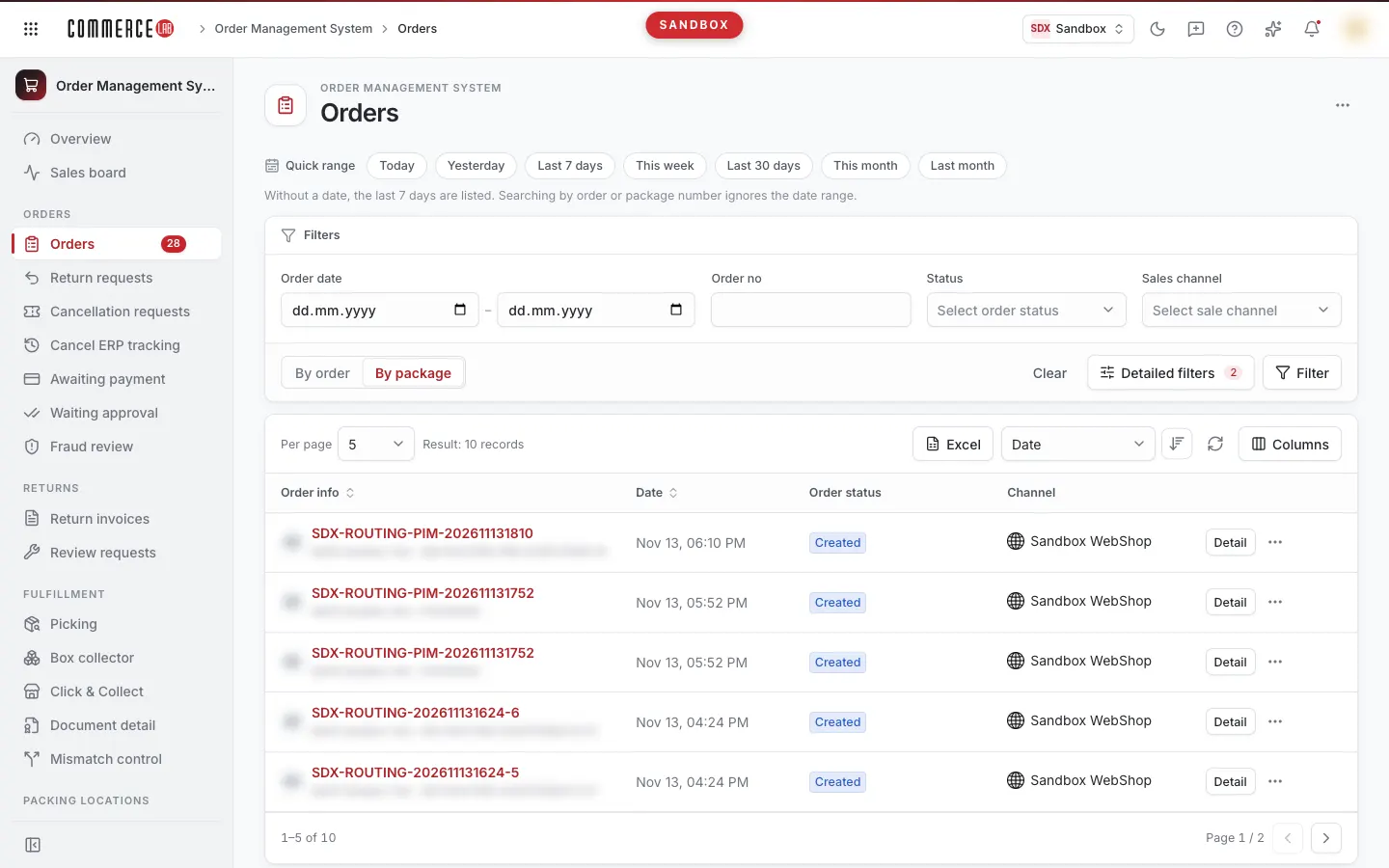
The Orders screen is where you search and track all orders coming from your website, marketplaces, and stores in a single list. You can view the list by shipping package or by order, narrow it down with nearly 30 filters, export the results to Excel, and bulk update package statuses from Excel. You can access the order details from the row for every detail of an order. This screen is most frequently used by customer service, operations, and e-commerce teams.
Accessing the screen
- Navigate from the left menu: Order Management System › Orders › Orders. The number in the menu shows the count of orders pending processing (in Created status).
- It can also be opened from the Quick access section on the OMS Overview page.
If you do not see it in the menu, your account does not have order read permissions.
Screen sections
- Title — Orders; on the right, the Tools menu (three dots) for authorized accounts.
- Quick range buttons — frequently used date ranges.
- Filter card — always visible Order date and Order no, plus additional filters you select; below are the By order / By package view selector, Clear, Detailed filters, and Filter buttons.
- List toolbar — Per page, result count ("Filter result: … records"), Excel, sorting field and direction, refresh button, Columns.
- List — orders or packages.
View: By package or By order?
Switch between two views using the selector below the filter card:
- By package: each row is a shipping package. Orders with multiple packages appear in multiple rows. The Due column and Vendor and Active state filters are only available in this view.
- By order: each row is an order; you can expand the order’s packages under the row.
The default view on first entry is By package. On subsequent visits, the last used view is remembered; the view in a shared link always takes precedence.
When you change the view, the list does not refresh immediately; instead, a View changed warning appears. Press Filter to see results in the new view. When switching to By order view, the Vendor and Active state filters are hidden and their values cleared.
Filtering and searching
Filters apply when you press the Filter button or Enter while in a field. The Filter button remains highlighted until you apply changes. Clear resets all filters and refreshes the list immediately.
Quick range
The Quick range buttons above the filter card: Today, Yesterday, Last 7 days, This week (starting Monday), Last 30 days, This month, Last month. The button fills the date fields; the range applies when you press Filter together with other filters.
If no date is selected, orders from recent days are listed; the number of days is shown next to the buttons ("If no date is selected, the last … days are listed."). Searching by Order no or Package no ignores the date range; you can find an old order directly by its number.
Detailed filters
The Detailed filters button opens a list of available filters; checked filters appear as fields on the card. Unchecking removes the field and clears its value; if the value was applied before, the Filter button highlights to apply the new list. The number next to the button shows how many filters are active. By default, Status and Sales channel are active. Your selection is remembered in your browser. If you open a shared link with a filter value filled but unchecked, the filter still appears on the card.
| Field | Purpose | Tip |
|---|---|---|
| Order date | Order date range. | Always visible. |
| Order no | Search by order number. | Always visible; ignores date range. |
| Status | One or more order statuses. | Multi-select. |
| Customer first name / Customer last name | Customer’s first or last name. | |
| Click&Collect | Orders for store pickup. | Yes / no. |
| Virtual POS transaction | Payment transaction number. | For matching bank records. |
| Email / Phone | Customer’s email or phone. | |
| Product name / model code | Product name or model code in the order. | |
| Package no | Shipping package number. | Ignores date range. |
| Package Id | Package system ID. | Numbers only. |
| Barcode | Product barcode in the order. | |
| Carrier code | Carrier ID. | |
| Single / Multiple | Single or multiple orders. | |
| Vendor | One or more vendors; Operator (no vendor) selects your own packages. | Only in By package view and if vendors are defined. |
| Payment type | Credit card, Card, Digital, Bank transfer, Cash on delivery, Cash, Credit voucher. | |
| Sales channel | One or more channels. | Multi-select. |
| Device type | Mobile app or Browser. | |
| Order source | E-commerce or Store. | |
| POS type | Credit card, Klarna, Google Pay, Apple Pay, Stripe. | |
| Country | Delivery country. | Selecting a country other than Turkey hides and clears city/district/neighbourhood. |
| City / District / Neighbourhood | Delivery address region. | Visible if no country or Turkey is selected; selecting city fills district list, selecting district fills neighbourhood list. |
| ERP number is empty | Orders without ERP order number. | |
| Payment status | Defaults to only paid orders (Paid (default)). You can select Unpaid or All (paid and unpaid). | If you cannot find an unpaid order, enable this filter. |
| ERP error source | No error, Internal, ERP, Unknown. | For troubleshooting ERP transfer issues. |
| Guest customer | Orders placed without registration. | |
| In-store app | Orders from the store app. | |
| Active state | Live or Frozen packages. | Only in By package view. |
List
Fixed columns cannot be hidden; others can be toggled from the Columns menu. Your selection is remembered in your browser.
| Column | Meaning |
|---|---|
| Order info | Order number (click to open details), customer name below, and package number in package view. Badges explained below. Fixed. |
| Date | Order date. Fixed. |
| Order status | Status of the order or package. Fixed. |
| Channel | Sales channel. Fixed. |
| Due | Deadline for package preparation; e.g., "in 3 hours", "2 days ago". Yellow if past, green if not; full date on hover. Only in By package view and for Created, Picked, Packed, Invoiced statuses. |
| Qty | Product quantity. |
| Total | Order or package total amount. |
| Vendor | Vendor code and name. |
| Click&Collect | Whether the order is for store pickup (Yes / No). |
| Carrier | Carrier company, Tracking link, tracking number, carrier ID, and shipping cost. |
| Payment type | POS name and payment type. |
| ERP | ERP transfer status: Synced (green), Pending (yellow), Not synced (red). Shows — if unknown. |
| Country | Delivery country code. |
| Note | Number of notes written on the order; clicking opens the Notes tab in details. |
The Due, Qty, Total, Vendor, Click&Collect, Carrier, Payment type, ERP, Country, and Note columns are off by default.
Badges next to order number
| Badge | Meaning |
|---|---|
| Frozen (red) | Package is frozen. |
| ⊘ and number (red) | Number of pending cancellation requests. Clicking opens the Cancellation requests screen filtered by this order number. |
| ↩ and number (green) | Number of pending return requests. Clicking opens the Return requests screen filtered by this order number. |
| ⊘✓ / ↩✓ and number | Number of approved cancellation / return requests; not clickable. |
Hovering over a badge shows its description ("… cancellation requests — open list"). If you lack permission to view the list, the badge is not clickable.
Page size and sorting
The list initially shows 5 records per page; you can select 5, 15, 50, or 100 from Per page. Sort by Date or Order no using the toolbar field and direction buttons, then press Filter, or click the Date or Order info column header (which applies sorting immediately). Sorting applies to all results, not just the current page.
Actions
Opening order details
Click the order number. In By package view, the Detail button at the row end also opens details; in By order view, use Open order in the row menu. Returning from details with Back to orders preserves your filters and page.
Row menu
The three-dot (Actions) menu at the row end:
- Product details — shows products, barcodes, and quantities in a window. Products may have badges: Returned, Cancelled, Cancellation requested, or Return requested; rejected return items show Rejection reason.
- Status history — lists package status changes, user who performed the action (User), and Time.
- Open order (only in By order view) — opens order details.
- Order detail (only in By order view) — expands the order’s packages below the row as a Package details table: Id, Package Id, Date, Order status, Channel, and a Package detail button for each package (shows products in the package). To close, select Close in the same menu. If no package records exist, the table shows "No package records for this order."
Viewing ERP error logs
In some setups, the Not synced badge in the ERP column is clickable ("Click to see error details"). The opened External system error logs window shows errors encountered during external system transfers with system name, time, and error message. If no records exist, it shows "No known external system errors for this order."
Downloading Excel
- Apply desired filters and press Filter.
- Select Excel › Download Excel.
- Read the warnings in the popup and press Queue export.
The file is always prepared by package with applied filters. The job is queued; a "Job queued" notification appears, and the file appears in notifications when ready.
Some filters are ignored during export: Package Id, POS type, Active state, In-store app, Click&Collect, Payment status, ERP error source, and Single / Multiple. If any are selected, the popup lists which are ignored. Payment status is special: if All (paid and unpaid) is not selected, unpaid orders are included in the file, so the file may differ from the on-screen list.
Importing statuses
Used to bulk update package statuses via an Excel file. Visible only to accounts with order update permission.
- Select Excel › Import statuses.
- Choose your .xlsx or .xls file (max 10 MB) in the File field.
- Press Send.
The file is queued and package statuses are updated according to the rows; results appear in notifications. Sending without a file shows "Please select a file." There is no undo; verify before sending.
Fetch single order
Used to re-fetch an order from a sales channel (e.g., an order existing in the channel but not shown in the list). Visible only to authorized accounts in the Tools menu in the header.
- Click the three dots (Tools) in the top right and select Fetch single order.
- Select Sales channel and enter Order no; both are required.
- Press Fetch order.
A "Order fetch request sent." notification appears. After processing, the order appears in the list; refresh the list to check.
Statuses
| Status (on screen) | Meaning | Next step |
|---|---|---|
| Created | Order created, not yet processed. | Awaiting picking and packing. |
| Picked | Products picked from shelf. | Packing. |
| Packed | Package prepared. | Invoicing / handover to carrier. |
| Ready to ship | Package ready for shipment. | Handover to carrier. |
| Invoiced | Invoice issued. | Handover to carrier. |
| Processing / Pending | Process ongoing. | Updates as status progresses. |
| Mixed | Order items in different statuses. | Check item statuses in the Items tab in details. |
| Shipped | Sent to carrier. | Await delivery result. |
| Delivered | Delivered to customer. | — |
| Undelivered / Undelivered and returned | Delivery failed. | Contact customer or carrier. |
| Cancelled | Order cancelled. | — |
| Returned | Order returned. | Check return payment. |
| In warehouse | Package in warehouse. | — |
| Unpacked | Package unpacked. | Check package status in details. |
| Awaiting payment | Awaiting payment confirmation. | Monitor in Awaiting payment screen. |
| Fraud review | Order under fraud check. | Approve via Fraud check screen or details. |
All statuses except Fraud review can be selected in the Status filter; for orders under fraud review, use the Fraud check screen.
The following statuses may appear in lists and Status history but cannot be selected in filters: Return requested, Return denied, Return pending, Cancel pending, Cancel denied, Partial return, Delivered to store, Received by store. If you see a status code not in these lists, it is shown as received from the system.
Common issues
- Order I’m looking for is not in the list. When date is empty, only recent days are searched; search by Order no or widen the date range. Unpaid orders are hidden by default; select All (paid and unpaid) in the Payment status filter.
- Changed view, list is empty: "View changed". Press Filter.
- Vendor or Active state filter missing. These filters appear only in By package view; vendor filter also only if vendors are defined.
- City/district filter disappeared. A non-Turkey country is selected in Country filter.
- Error searching by Package Id. Package Id must be numeric; use Package no for package number.
- Excel file differs from on-screen list. Export ignores some filters and is always by package; see Download Excel section for details.
- Due column is empty. Due only fills in By package view and for open packages (Created, Picked, Packed, Invoiced).