Reading Distance Zones and Packing Point Costs
Read shipping zones in Distance zones, shipping and preparation costs in Packing point sources, and zone prices in Packing point carriers; step-by-step explanation and video.
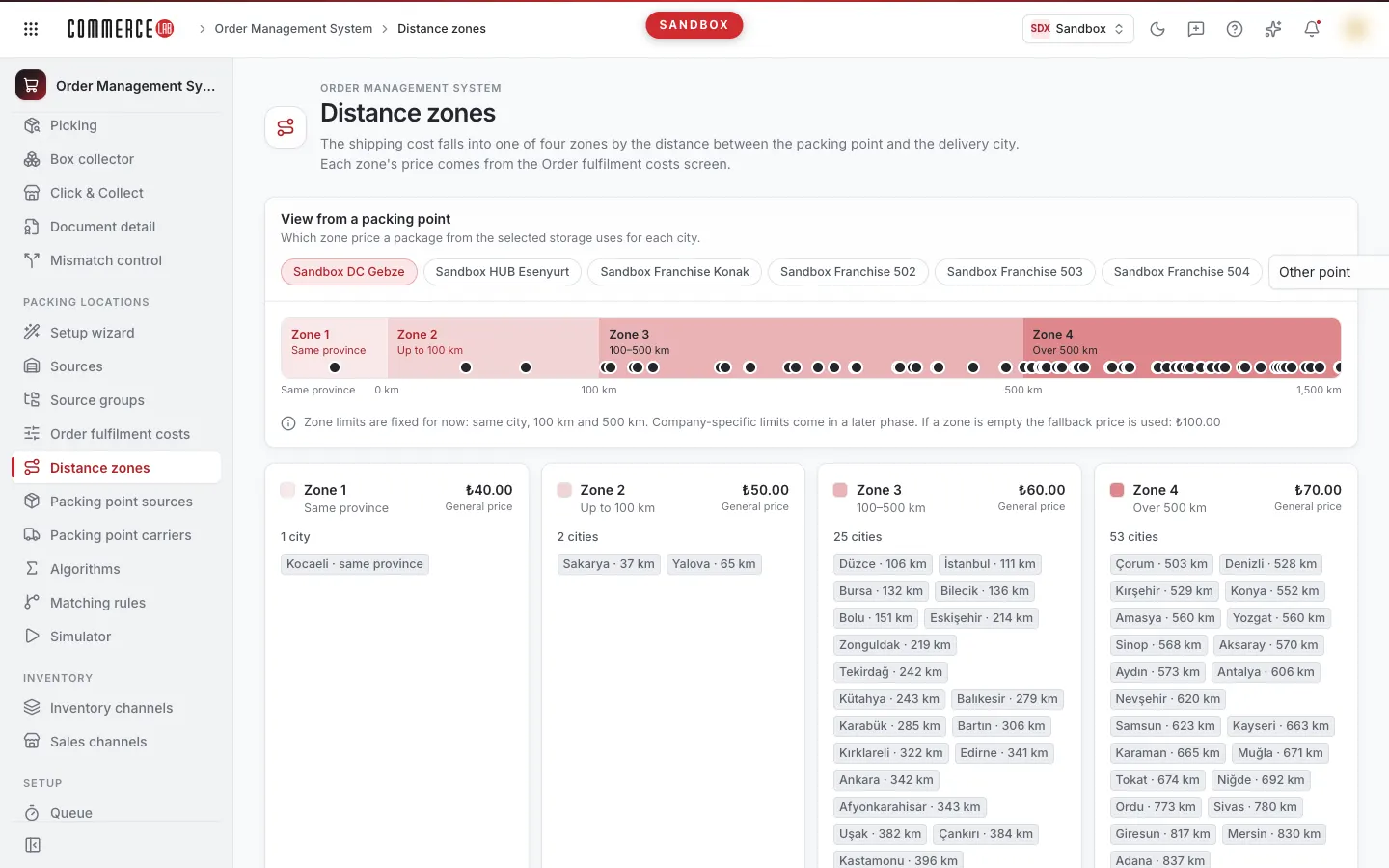
Shipping cost is divided into zones based on the distance between the packing point and the delivery city; which source sends to which packing point and its cost are also kept in separate tables. This page explains the Distance zones, Packing point sources, and Packing point carriers screens together; the video of the same explanation is below.
<video controls preload="metadata" playsinline width="1920" height="1080" poster="https://files.docs.hebiar.com/videos/console/oms/pack-sources/packing-points.en.jpg" src="https://files.docs.hebiar.com/videos/console/oms/pack-sources/packing-points.en.mp4"><a href="https://files.docs.hebiar.com/videos/console/oms/pack-sources/packing-points.en.mp4">Open the video</a></video>
For all fields of the table, see the Packing point sources document. The values filling these tables are entered layered in Entering preparation and shipping costs, and how costs are combined is on the Algorithms page.
Before you start
- Screens are under OMS – Order Management › Packing locations.
- Distance zones determine the zone, the Order fulfilment costs screen determines the price of the zone.
- Packing point sources and carriers tables are filled from values in the Order fulfilment costs screen. It is recommended to make changes there: a row manually changed in these tables will be overwritten on the next Apply.
Distance zones
- Open the Distance zones screen.
- In the View from a packing point section, select a packing point (if not in the list, select Other point). The screen shows which city the package from the selected warehouse will go to and with which zone price.
- Read the four zones:
- Zone 1: same city.
- Zone 2: up to 100 km.
- Zone 3: 100–500 km.
- Zone 4: over 500 km.
- Change the point; zones also change. For example, looking from a distribution center in Kocaeli, Kocaeli is Zone 1 and Istanbul is Zone 3; looking from a hub in Istanbul, Istanbul is Zone 1 and Kocaeli is Zone 3.
- In the Distance table below, type a city in the Search city box to see which zone it falls into.
Example: if you send an order from a distribution center in Kocaeli to Izmir, the distance is 453 km; the order falls into Zone 3 and the Zone 3 price is used.
Zone boundaries are currently fixed: same city, 100 km, and 500 km. If the zone value is empty, the Fail-over price is used. The distance table is common for all companies; editing is only open to the CommerceLab team.
Packing point sources
This screen lists which source sends to which packing point and the preparation cost for each sales channel.
- Source determination can be independent of sellable stock. A source may be defined here even if it is not included in sellable stock; for example, if three stores exist but only two are included in sellable stock, all three can still be used as sources.
- Open the Packing point sources screen.
- Type a store name or code in the search box in the Source column header.
- Read the rows: usually two rows per sales channel. The row where Packing point is Itself is the cost if it packs itself; the row with a distribution center is the cost if it sends to the packing point (e.g., 250 and 290 lira).
- The Value source column shows whether the value comes from General settings or a group.
- You can also change a row’s cost here with Edit cost; however, it is recommended to make changes in the Order fulfilment costs screen. Press Cancel to exit without saving.
Packing point carriers
This screen shows which carrier each packing point works with and the shipping cost by zone: Zone 1 (same city), Zone 2 (100 km), Zone 3 (500 km), Zone 4 (500+ km), and Fail-over (if zone is empty).
- Open the Packing point carriers screen.
- Narrow down using the Sales channel and Carrier filters.
- Read the zone values. If packing consumable cost is defined, it is added to the shipping price; for example, if the zone price is 40 lira and consumable cost is 25 lira, the table shows 65 lira.
If your shipping prices are defined in TMS, you can generate the table from there with Generate from TMS. If a zone is left empty, the fail-over value is used.
Checking the result
- If a packing point has no carrier record, orders will not be assigned to that point; check rows in Packing point carriers.
- The Only manually changed filter shows rows different from the value in Order fulfilment costs.
- The Go to order fulfilment costs button opens the screen where the values originate.
Common situations
- The manually changed cost reverted: the table is filled from Order fulfilment costs; a manually changed row will be overwritten on the next Apply. Change the value in that screen.
- A city is not in the expected zone: the zone is calculated based on the selected packing point; check that you are viewing from the correct point.
- Shipping cost is higher than zone price: packing consumable cost has been added.
- Source is not in sellable stock but has a row here: this is expected; source determination is independent of sellable stock.