Sources
View and manage stores, warehouses, and distribution centers where orders are picked and shipped in a single list.
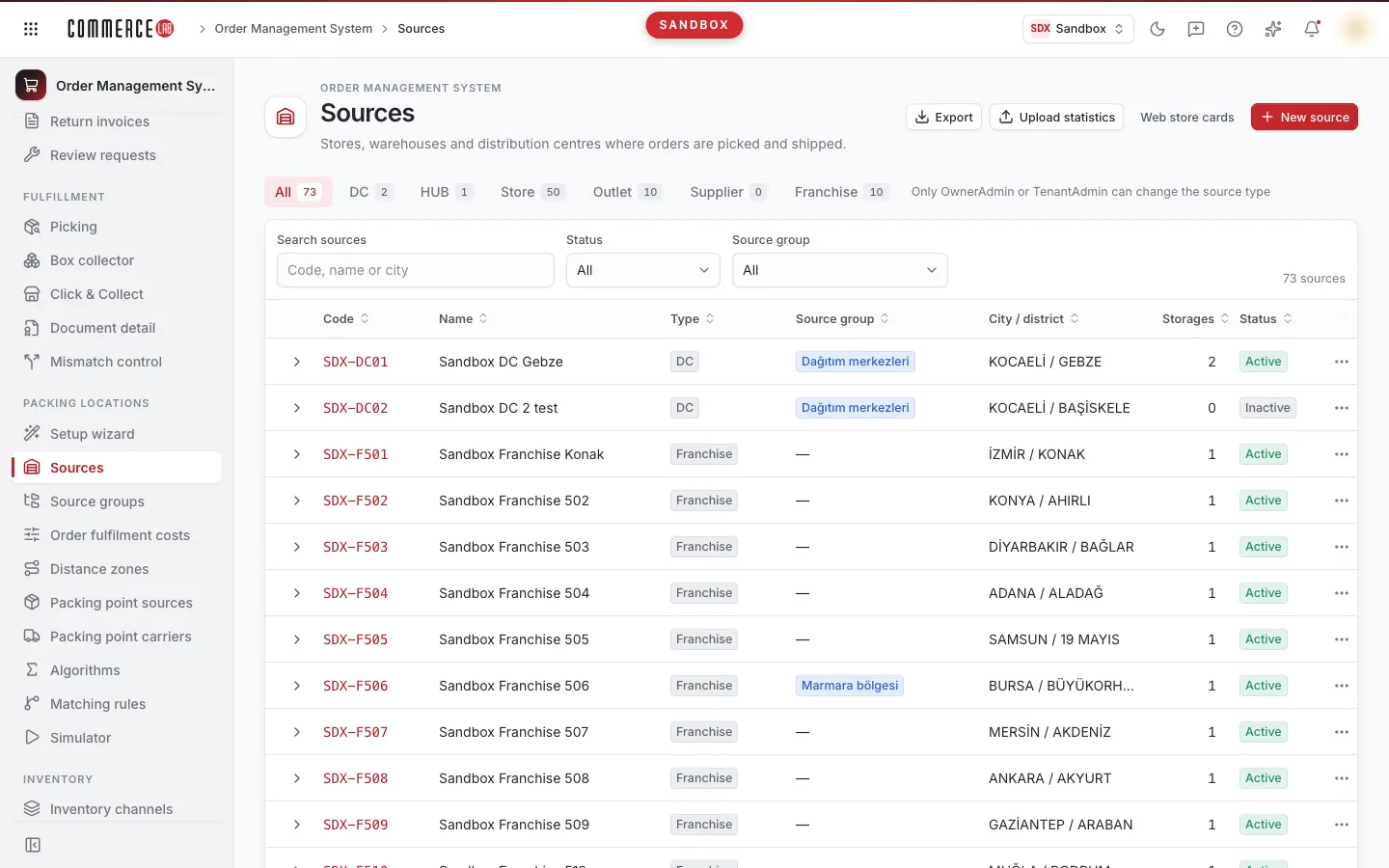
Sources screen (OMS › Packing locations › Sources) displays stores, warehouses, and distribution centers where orders are picked and shipped in a single list. Sources and storages can be added and edited; packing, inventory, and group information of the source is shown in the source detail.
Who sees what
- OwnerAdmin and TenantAdmin see and edit all source types: DC, HUB, Store, Outlet, Supplier, Franchise. Type tabs, Type column, untyped source warning, and Source type selection are visible only to these two roles; only they assign and change the source type.
- Other users see only Store, Outlet, Franchise, and untyped sources. Sources of types DC, HUB, and Supplier are not shown to them. In packing tabs, points of these types are shown only by their type ("Distribution center", "HUB", "Supplier warehouse") with the note "You do not have permission to view details."; only the count of unseen records is displayed.
- To add, change, or delete sources and storages, OMS location write permission is required. Without this permission, information opens read-only ("You do not have permission to change this source; information is read-only.") and edit buttons are hidden.
List
- Search source: search by code, first name, sub code, city, district, or storage code/name (case and Turkish character insensitive). Narrow down with Status (All, Live, Frozen) and Source group filters; Without a group shows sources not in any group.
- Columns: Code, First name, Type (only OwnerAdmin and TenantAdmin), Source group, City / district, Storage (number of storages), and Status. Click column headers to sort.
- Source group column shows the single group of the source; "—" if no group. Yellow "… · conflict" badge indicates the source is requested by another group; hover to see which group. Open the source and use Change group to assign to a single group or narrow the rule of one of the groups.
- Type tabs (only OwnerAdmin and TenantAdmin): All, DC, HUB, Store, Outlet, Supplier, Franchise, and if any, Show untyped sources. If untyped sources exist, a warning appears (untyped sources are visible to all and counted as stores in sourcing); Show untyped sources opens that tab.
- Expand the source’s storages with the arrow at the start of the row: Storage code, First name, Roles, and Daily capacity. Only the Click & Collect chip appears in the Roles column; stock, picking, and packing info is in source detail. Manage storages opens the Storages tab in source detail.
- Page size can be 25, 50 (default), 100, or 200. Changing page size returns to the first page; tab and filters are preserved.
Top buttons: Export (downloads filtered list to Excel), Upload statistics (only OwnerAdmin and TenantAdmin with location write permission), Web store cards (below), and New source (only for users with OMS location write permission).
Upload statistics
Updates statistical sales, stock, picking time, and error rate values of storages via Excel file (usually every six months).
- Download template: visible storages come with today’s values. Empty cells remain unchanged; write 0 to reset. Picking time in minutes (max 240; warning if over 120), error rate in percent (0–100).
- Select or drop file: only .xlsx, max 2 MB and 5,000 rows.
- Validate: nothing is written; errors, warnings, and values to change (old → new) are listed. If you modify the file, revalidate; validation is valid for 10 minutes.
- Upload: opens only for error-free validated files with changes. After confirmation "Statistics of N storages will be updated", values are written to OMS and used immediately in new sourcing decisions.
Statistics are not used for DC type sources; these rows are not written. If writing statistics is temporarily disabled by Commercelab, the file is only validated. If another upload is running, nothing is written; try again later.
New source
What to create selection:
- Source + storage: source and its first storage are created together. OwnerAdmin and TenantAdmin can select Source type in the form; if left blank, the source opens as Store (if storage is franchise, then Franchise). ERP approval is off by default. If source and storage are created but type cannot be saved, the screen notifies; open the source and check its type.
- Storage to existing source: adds a new storage to the selected source.
- Source only: opens a source record without storage; storage is added later. OwnerAdmin and TenantAdmin see the Source type card here as well. If source is created but type, ERP, and company code cannot be written, source detail opens with a warning; check and save the information.
Records are written directly to OMS and immediately affect new sourcing decisions; confirmation is requested before saving. Storage form fields are below, in Storages section.
Source detail
Title shows source name; code, city, and district; type badge (only OwnerAdmin and TenantAdmin) and status (Live / Frozen). Tabs: General, Storages, Packing point sources, Packing point carriers, Inventory channels, Source groups, Storage relations (only if you have permission to view packing screens), and Web / App Shop view.
General
Cancel and Save are at the top.
- Identity: Source code cannot be changed after creation. Sub code, Source name, and Company code (optional ERP company code) are editable.
- Source type (card says "Only OwnerAdmin and TenantAdmin"; other roles do not see the card): type determines how the source is calculated in sourcing and who can see it. Stock, workload, and sales speed are not considered for DC; store users do not see sources of types DC, HUB, and Supplier. Changing and saving the type opens the Change source type window showing the effect (will store users see it, will it be calculated as DC); confirm with Change type and save. Previously sourced orders do not change; changes apply to new decisions.
- Status and approval: closing Live makes the source inactive (temporary closure). If ERP approval required is on, work orders created at this source wait for ERP approval. If the source uses tenant default, it is shown; changing writes a source-specific value and it cannot revert to default.
- Address and location: address, city/district, latitude, and longitude. If coordinates are valid, Show on map opens location on map.
- Contact: phone and email.
- Delete source: source with storages cannot be deleted; delete storages first or set source to inactive. If storages not visible in Storages tab but still registered in OMS as "deleted-looking" exist, source cannot be deleted. Deletion requires confirmation, is irreversible, and deletes related packing point source and packing point carrier rows.
Storages
Storages of the source (also called warehouses; sub-storages in DC and stores; stores and warehouses in suppliers). Columns: Code, First name, Click & Collect, Daily capacity, four statistical columns, and Status. Click header to sort.
- Statistical columns are read-only: Statistical sales (30-day sales covering the same period for all sales points), Statistical stock (sellable stock taken simultaneously for all sources), Statistical picking time ("45 min", "1 hr 30 min"), and Statistical error rate ("1.25% error"). Values are updated with Upload statistics. If no record or sales or picking time is 0, No data is shown. For DC type source, Not used for DC is shown; if you lack permission to see this info, No access; if feature is not available in this environment, Unavailable is shown. Missing statistics filter shows storages missing at least one of the four values.
- New storage, Edit, and Delete appear with location write permission; without permission, only View is in row menu. Deleting storage also deletes related packing point source and packing point carrier rows; inventory stock records are unaffected. Deletion is irreversible.
- Merge storages (if source has at least two storages): recalculates channel stocks of stocked products in these storages. Stock is not moved, storage is not deleted. May take several minutes depending on product count; confirmation requires typing "MERGE". If process runs in background, screen notifies and button disables; do not restart.
Storage form opens on the right; tabs are General, Operations, Permissions, Location, and Carrier.
- Operations: enter Maximum open order quantity. Sender code and Invoicing code are read-only; OMS writes both with source code (if different in record, form warns it will change on save). Picking order and daily max order count are not shown here; stored values are preserved.
- Permissions: options like Uses stock, Click & Collect, Show on website, In-store shipment, Franchise, Returnable. Picking and packing/shipping roles are managed in Operations › Roles screen; Click & Collect can also be named Click & Collect point there and applying changes this value. Turning off Uses stock removes storage from sourcing (new orders won’t be picked from this storage); this is notified on save.
- Carrier: Label format (ZPL or PNG) is mandatory. If no label format in record, field opens empty; form requires filling Carrier tab before saving.
- Storage record is written in two steps. If open order limit, franchise, return, new, and location fields cannot be written, storage is saved but these fields keep old values and a yellow warning appears. Save remaining fields again rewrites only fields you changed. If you reopen storage in the same browser tab within 8 hours, warning reappears.
Packing point sources
This tab is read-only. Packing points are consolidation centers: a source can be a packing point itself and/or send products to a packing point; selections are per sales channel.
- Record direction: All, Sent by itself (orders in this source’s storages packed by whom), and Coming to it (records where this source packs orders from other sources).
- Columns: Direction, Sales channel, Shipping source, Packing point (if packed in own storage, Itself), Cost, and Where the value comes from (which layer of Order fulfillment costs the value comes from).
- If a storage sends to another point in a channel, a note appears: if storage does not pack in that channel, how many points orders go to; if it also packs itself, "orders may also go to this point".
- Packing point list: points to which this source’s storages write transfer rows (source’s group list; if none, General; if none, default distribution center). "Automatically added" and "Default distribution center changed" badges and list warnings match Order fulfillment costs › Packing points. If Can pick orders is off and Can pack and ship itself is on for a point in the list, a warning "cargo rows are preserved as point" appears. Change list opens Order fulfillment costs screen.
- The second line of Where the value comes from cell lists the transfer row list ("Packing point list: General"). If point is not in list, yellow "Out-of-list point" is shown; next Apply removes this row. If "Can pack and ship itself" is off at point, Apply removes the point’s cargo rows and this row; final result is in Apply preview.
- Note: removing a packing point source record of a storage removes the storage from sourcing.
- Expand all (with packing screen view permission) and Add record (also if inventory manager) open Packing point sources screen; add, edit, and delete are done there.
Packing point carriers
This tab is read-only. Shows carriers supported by the packing point: orders can only be assigned to packing points supporting the carrier.
- Columns: Sales channel, Packing storage, Carrier, Delivery (To address / Click & Collect / Both), Band fees (lowest–highest regional fees; empty region falls to Fail-over fee), and Where the value comes from.
- Order fulfillment costs add packing (consumables) cost to address delivery rows; cell shows "Consumables … included". Click & Collect rows are not changed.
- For a non-packing storage, "… no carrier record because it does not pack; orders are packed by …" is shown.
- If this source’s storage is a packing point and Can pick orders is off, Can pack and ship itself is on, a Packing points that do not pick orders warning appears: storage keeps cargo rows as a point.
- Expand all and Add carrier (with same permissions) open Packing point carriers screen.
Storage relations
Visible and read-only only if you have packing screen view permission. Shows packing records of this source’s storages with codes and cost columns in three views:
- Packing point carriers: carrier records where packing storage is in this source; Region 1–4 and Fail-over fees separately (shows Fail-over if 0 in region).
- Picking relations: records where storage is in this source (which point packs this source’s orders).
- Packing relations: records where packing storage is in this source (those sending orders to this source).
Use Open packing point sources and Open packing point carriers links for changes.
Inventory channels
This tab is read-only. Shows inventory channels linked to the source for sellable stock and the channel group used in safety stock (rule group). Each row is a storage and one linked inventory channel: Channel, Channel group ("—" if none), and Storage.
- Hover, focus with keyboard, or tap channel to see linked sales channels.
- Below the table, channels with no linked storages are listed ("Inventory channels not linked: …"). If no storage is linked, this text appears instead of the table.
- When an order comes from a sales channel, storages in the linked inventory channel participate in sourcing. Exception: sales channels allowed for off-channel fulfillment.
- Open channel sources, Add channel, and Safety stock rules open related inventory screens and appear according to your permissions (Add channel also requires inventory manager role).
Source groups
A source can belong to only one group. The tab shows the group name, membership reason (By rule or Added manually), and Sources in group count; group name opens the group screen. If source is in no group, it says Without a group — General values are used.
- Change group: assigns source to selected group; source leaves old group and uses new group’s settings. DC sources can only join DC groups; others only non-DC groups. If no group available, it says "No other group available for this source."
- Remove: removes source from this group. If source entered group by rule, it is excluded from group. If it matches another group’s rule, it moves there; notification shows new group.
- Conflict badge: another group also requests the source. Currently, manually added group prevails; if manually added in both or none, the first group in list prevails. New conflicting records are rejected; screen shows two group names.
- Change group and Remove require OMS location write permission and OwnerAdmin or TenantAdmin role; otherwise buttons are hidden. Users with write permission but without these roles see "OwnerAdmin or TenantAdmin role required for this operation." If one group was edited in a newer version, tab is view-only.
- Manage groups opens Source groups screen.
Group changes do not immediately update tables: values are written to tables after preview and apply in Order fulfillment costs screen.
Web / App Shop view
Store locator view on website and app: working hours, images, and store groups. Uses today’s card editor.
Web store cards
The Web store cards button in the list opens legacy store cards (store locator on website). Search by code or name, use Live filter; clicking a row edits the card on the right. New card (with location write permission) creates a card independent of OMS source. Sources button returns to list.
Notes
- Changes in Packing point sources and carriers screens reflect in detail tabs in about 30 seconds. Adding/removing sales channels reflects in Inventory channels tab in about 75 seconds; changes in channel sources screen reflect in at most 15 seconds. Source and storage changes (including merging) appear immediately.
- Deleting a record in Packing point sources screen requires confirmation but does not notify that storage will be removed from sourcing.
- No simultaneous edit control in source and storage records: if two users edit the same record, last save wins without warning.
- Inventory channels tab does not show stock broadcast, safety stock, published stock, or last sync; use Safety stock rules screen for safety stock.
- Every record on this screen is backed up by Commercelab.
Video tutorials
- Reading source storages and packing relations: Read storages, packing point sources and carriers, inventory channel, source group, and shipping cost in source detail; step-by-step guide and video.
- Understanding source types and stock layers: Learn DC, hub, store, outlet, supplier, and franchise types, difference between sellable and supply stock, and filtering list in Sources screen; step-by-step guide and video.