Understanding Source Types and Stock Layers
Learn about DC, hub, store, outlet, supplier, and franchise types on the Sources screen, the difference between sellable stock and supply stock, and how to filter the list; step-by-step explanation and video.
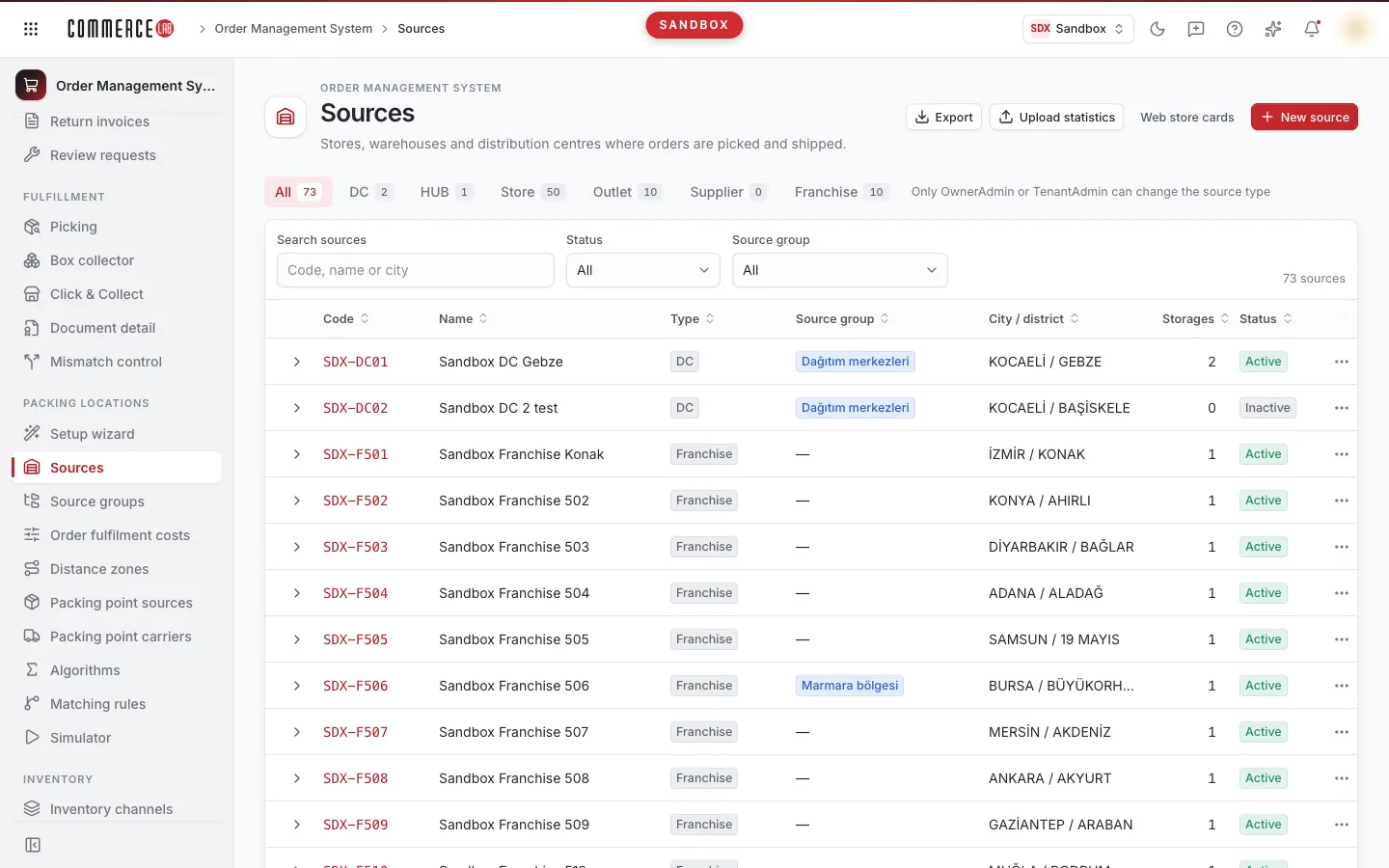
Every location where stock is held and orders can be picked is a source in the OMS. This page explains the source types on the Sources screen, how to filter the list, and the difference between sellable stock and supply stock; the same explanation is available in the video below.
<video controls preload="metadata" playsinline width="1920" height="1080" poster="https://files.docs.hebiar.com/videos/console/oms/sources/kaynaklar-ve-tipler.en.jpg" src="https://files.docs.hebiar.com/videos/console/oms/sources/kaynaklar-ve-tipler.en.mp4"><a href="https://files.docs.hebiar.com/videos/console/oms/sources/kaynaklar-ve-tipler.en.mp4">Open the video</a></video>
For all areas of the screen, see the Sources document. The warehouses, packing points, and shipments of a source are explained on the Source detail page.
Before you start
- Screen: Order Management System › Packing locations › Sources.
- Distribution center (DC), hub, store, outlet, supplier, and franchise (dealer) stores are all sources in the system. Each source has one or more warehouses beneath it.
- Source type determines how the source is calculated in sourcing. Only users with the OwnerAdmin or TenantAdmin role can change the type; a note next to the tabs reminds this.
Source types
The tabs at the top of the list (All, DC, HUB, Store, Outlet, Supplier, Franchise) count and filter sources by type.
- DC (distribution center): your main warehouse. Stock, workload, and sales velocity effects are not considered in DCs.
- HUB: a collection center. For example, stores in a city send their products to the hub; instead of sending three separate packages from three stores to the customer, a single package is sent from the hub.
- Store: picks the order from its own shelf. Depending on your settings, it can pack and ship itself or send the product to a packing point (e.g., distribution center).
- Outlet: kept separate because outlet stock is often returned or defective products and is generally not intended for e-commerce sales. Usually not included in sellable stock but can be used for supply if necessary.
- Supplier: not a marketplace seller. This is the company you purchase from and can directly issue work orders to when your stock runs out. When your own stock is depleted, the system can create a work order to the supplier.
- Franchise: dealer stores; they are a separate type due to different dealership agreements. Usually not included in sellable stock but can be sourced from if you run out of products.
Sellable stock vs. supply stock
Stock is managed in two separate layers:
- Sellable stock is the stock sent to the site. It is calculated from the stock of sources in inventory channels.
- Supply stock is a broader set of sources that can be used when picking an order.
Example: you exclude a store you do not trust from sellable stock and give it a very low picking score in sourcing. If the product is nowhere else, the order falls to that store as a last resort. This way, you do not need to manually issue a transfer order.
Using the list
- Open Order Management System menu, then Packing locations › Sources.
- Select a tab at the top to view by type.
- Enter code, name, or city in the Search sources box; narrow down with Status and Source group filters. For example, selecting a source group lists only sources in that group.
- Click the arrow at the start of the row to open the source's warehouses. Manage storages goes to the Warehouses tab of the source detail.
- Click the source name to open the detail page.
Buttons at the top right:
- Export: downloads the filtered list.
- Load statistics: updates sales and stock statistics of warehouses; these statistics are used in sourcing scores.
- New source: opens a new source.
Checking the result
- The number on the tab is the count of sources of that type; the top right of the list shows the number of sources matching the filter.
- The Source group column shows the single group the source belongs to; if none, it shows "—".
- The Storage column shows the number of warehouses of the source.
Common situations
- I don't see the type tabs: type tabs and the Type column are visible only to OwnerAdmin and TenantAdmin roles.
- No DC, HUB, or supplier sources in the list: these types are visible only to OwnerAdmin and TenantAdmin; not shown to other users.
- No records in the Supplier tab: no sources of supplier type have been defined yet.
- Source does not appear in sellable stock but orders fall to it: this may be expected behavior; a source used for supply does not have to be included in sellable stock.