Defining and Activating Safety Stock Rules
Define the safety stock to be deducted from sellable stock sent to the channel by level, channel or SKU, quantity to deduct, and range limits; check the apply level and activate the rule; step-by-step guide and video.
Safety stock is the portion deducted from the sellable stock sent to the channel; it prevents the site from selling out-of-stock products due to small differences between records and shelves. On the Inventory › Safety stock rules screen, you define rules by level, channel or SKU, quantity to deduct, and range limits, then activate them. This page explains the process step by step; the same explanation is available in the video below.
<video controls preload="metadata" playsinline width="1920" height="1080" poster="https://files.docs.hebiar.com/videos/console/inventory/stocks/guvenlik-stogu-kurallari.en.jpg" src="https://files.docs.hebiar.com/videos/console/inventory/stocks/guvenlik-stogu-kurallari.en.mp4"><a href="https://files.docs.hebiar.com/videos/console/inventory/stocks/guvenlik-stogu-kurallari.en.mp4">Open the video</a></video>
For all fields on the screen, see Safety stock rules. Which storages contribute stock to the channel is explained on the Inventory channels page.
Before you start
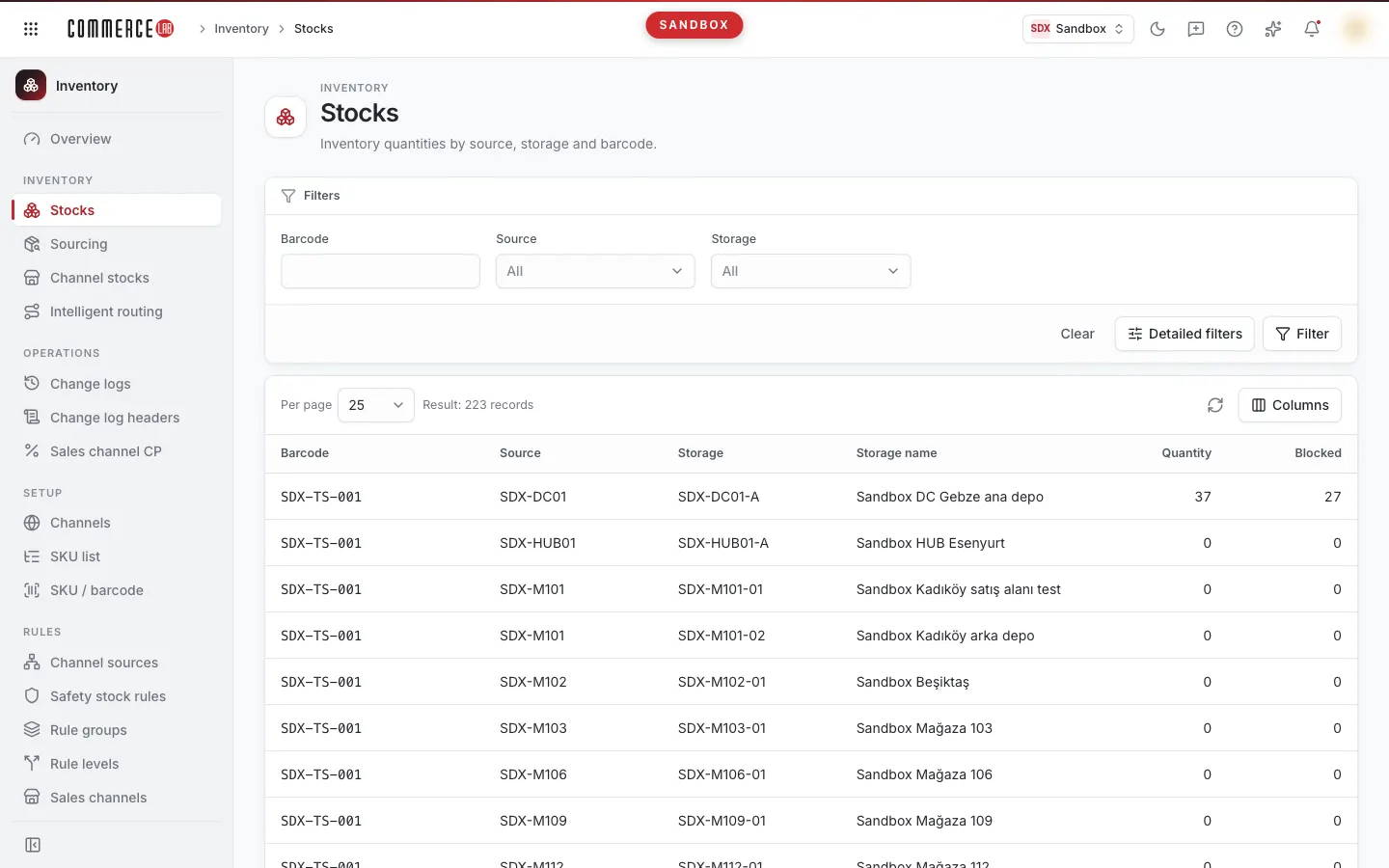
- The Inventory › Stocks screen shows the stock of a product by source and storage. The sellable stock sent to the site is calculated from the total of storages in the channel; safety stock is deducted in this calculation.
- A rule can be defined at three apply levels:
- Source / Storage: deducted separately from each storage (channel + rule group + source + storage).
- Source group: the total of the group is taken first, then deducted (channel + rule group).
- Channel: deducted from the total of all sources, i.e., cumulative total (channel only).
- Two conditions must be met for a rule to work: the rule must be Live and its level must be enabled on the Inventory › Apply level screen. This screen enables three levels separately: Source / storage level, Rule group level, Cumulative total level. If a level is disabled, rules at that level are saved but not applied. This setting affects all rules.
- If multiple rules apply to a product at the same level, the Level column in the list determines priority; the lower level wins.
Viewing rules
- Open the Inventory › Safety stock rules screen.
- The list shows each rule's Description, Apply level, Channel, Rule group, Source, Storage, SKU code, SKU group, Quantity to deduct, Range lower bound, Range upper bound, Level, and Status.
- In the Effect tab, select a channel to see how active rules collectively affect stock.
Adding a new rule
The wizard has four steps: 1. General, 2. Rule type, 3. Values, 4. Summary.
- Click New rule.
- In the General step, enter a Description and select the Apply level (Source / Storage, Source group, or Channel). Click Next.
- In the Rule type step, select the Channel. Depending on the level, rule group, source, and storage are also selected.
- If SKU code is left empty, the rule applies to all products in the channel; the rule is channel-based.
- If you enter an SKU, the rule applies only to that product; the rule is SKU-based.
- If SKU groups are defined, leave the SKU code empty to select an SKU group.
- In the Values step, enter the Quantity to deduct, e.g., 1 means one unit is deducted from the stock sent to the channel.
- Set the Range lower bound and Range upper bound (defaults are −999999 and 999999):
- If the remaining stock after deduction is equal to or below the lower bound, zero is sent to the channel. For example, if the lower bound is 2, the last two units are not sold on the site.
- When stock reaches the upper bound, the storage closes to the channel. Unless you have a special purpose, leave the upper bound at the default. The wizard warns you if you change the upper bound.
- The lower bound cannot be greater than the upper bound; quantities must be integers.
- If you do not check Activate after saving, the rule is saved as inactive and does not affect stock until activated from the list. If checked, the rule is applied immediately and channel stocks are recalculated.
- In the Summary step, review the values. The What happens? section predicts the rule's effect based on current active rules; for example, if the level is disabled, it says "Ineffective: this rule's layer is disabled; nothing will be applied even if saved."
- Click Save. In the Add rule? window, click Add rule. A "Rule added" notification appears.
Activating a rule
- Check the box in the Status column of the rule in the list; the row is marked as Changed.
- Click Save changes at the top. The Save rule statuses? window shows how many rules will be active and inactive; channel stocks are recalculated after each rule is saved.
- Click Save. The number of updated rules appears in a notification.
- To cancel, click Discard changes.
Deleting a rule
Click the Delete icon in the row and confirm in the Delete this rule? window. Deletion is irreversible; related channel stocks are recalculated. To temporarily stop a rule, make it inactive instead of deleting.
Checking the result
- In the Effect tab, select the channel to see the combined effect of the rules.
- Compare the quantity of the SKU sent to the channel on the Inventory › Channel stocks screen with the quantity in storages on the Inventory › Stocks screen.
Common issues
- Symptom: Rule is active but channel stock did not change. The rule's level is disabled on the Apply level screen. The wizard's What happens? section and the Effect tab show this as "layer disabled."
- Symptom: A storage sends no stock to the channel. The rule's Range upper bound is lower than the stock in the storage; when stock reaches the upper bound, the storage closes to the channel. Reset the upper bound to the default (999999).
- Symptom: Zero stock is sent to the channel for low-stock products. The remaining stock after deduction is equal to or below the Range lower bound; this is expected behavior.
- Symptom: New rule does not affect stock. The rule was saved inactive; check the Status box and click Save changes.
- Symptom: Two rules apply to the same product. The rule with the lower Level value at the same level wins; deductions are not cumulative.