Webhooks
Read-only monitoring of webhook subscriptions that send order events to external systems, call history, and the HTTP response of each attempt.
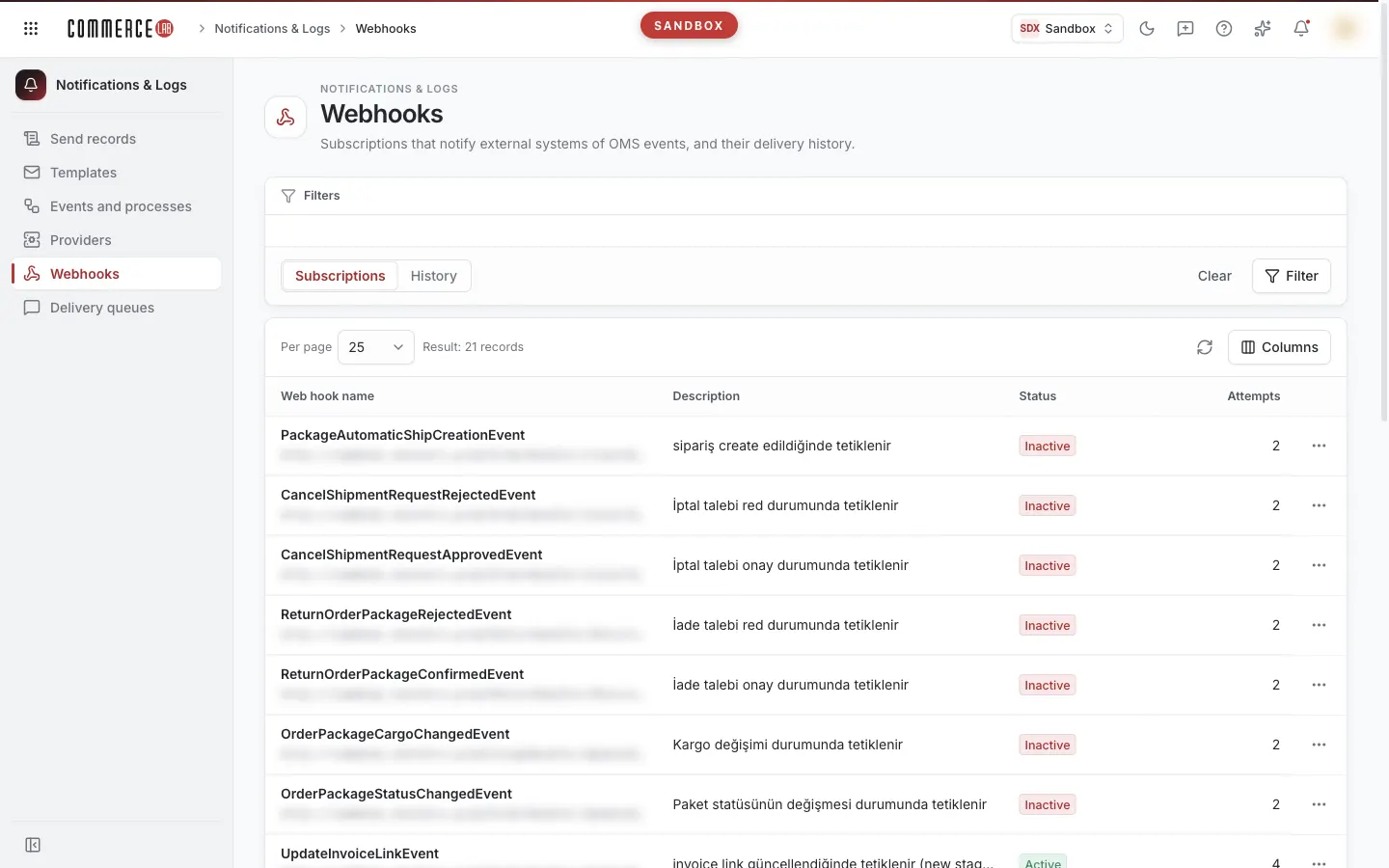
Webhooks screen shows the subscriptions where order management events (such as cancellation or return) are automatically notified to external systems and the sending history of these notifications. When an integration partner says "we did not receive the cancellation notification for this order," you check here whether the call was made, how many times it was attempted, and what response the external system gave. The screen is read-only: no subscription can be added, edited, or deleted, and calls cannot be resent from here.
Accessing the screen
Follow the menu path Notification & Log › Webhooks. If you do not see it in the menu, your account does not have permission for this screen.
Screen sections
The screen works on a single page with two views. Views are switched by the Subscriptions / History selector on the bottom row of the filter area.
- Title: Webhooks and a brief description below.
- Filter area: In the History view, filters for subscription, entity no, and selected detailed filters; bottom row contains the view selector, Clear, Detailed filters (only in History view), and Filter buttons.
- List: rows of the selected view. Above the list are the Per page selector, "Filter result: … records" counter, refresh button, and Columns menu.
- Note: a brief explanation below the list. In the Subscriptions view, it reminds that subscriptions are read-only and authentication details are not shown; in the History view, it reminds the entity no and default date range rule.
Subscriptions view
This view appears when the screen opens. Each row is a webhook subscription: it defines which event triggers a notification to which address. There is no filter in this view; all subscriptions are listed with pagination.
| Column | Meaning |
|---|---|
| Web hook name | The name of the event the subscription is linked to; below it the notification destination address (URL). This column cannot be hidden. |
| Description | Description written for the subscription. |
| Status | Live (green) or Frozen (red). |
| trial | Number of attempts defined in the subscription. |
| Authentication | Authentication method used to connect to the external system: Missing, API key, Username + password, or Token. Hidden by default. |
| Identity | Subscription number. Hidden by default. |
- Page size can be 25, 50, or 100; default is 25.
- Clicking column headers does not sort.
- Authentication details like API key, username, and password are never shown in any column; the Authentication column only indicates which method is defined.
- Clicking a row or selecting Show history from the three-dot menu at the end of the row opens the sending history of that subscription (see Operations).
History view
Each row is a notification call made to the external system for an event. If a call fails, it can be retried; the result of each attempt is shown in the attempts panel below the row.
Filtering and searching
| Field | Purpose | Tip |
|---|---|---|
| Subscription | Shows calls only for the selected subscription. Options are in the format "Name (#number)". | Default is All. If you come from the Subscriptions view, this field is prefilled with that subscription. |
| Entity no | Searches by the record number related to the notification. | For cancellation events enter item no, for return events enter package no. |
| Status (detailed filter) | Filters by call result: Successful or Failed. | Default is All. Calls with unknown result appear only when All is selected. |
| Date (detailed filter) | Filters by the day the call was created. | End day is inclusive. |
| Ran (detailed filter) | Filters by whether the call was processed: Yes or No. | Not visible initially; enable from Detailed filters menu. |
- If you do not select Subscription, Entity no, or start date, history is limited to the last 7 days: including today, the last 7 days; if only end date is selected, it includes that day and goes back 7 days. To search for older calls, fill one of these fields. This rule is reminded by the note below the list.
- Status and Date fields are visible initially; you can add or remove filters from the Detailed filters menu. Your selection is saved in your browser. Closing a filter clears its value.
- Filters are applied only after pressing the Filter button (or Enter in a field); if there are unapplied changes, the Filter button is highlighted. Clear resets all filters and immediately reloads the list.
List
| Column | Meaning |
|---|---|
| Event | Name of the event triggering the notification; below it the date and time the call was created. This column cannot be hidden. |
| Entity no | Number of the record related to the notification (item no for cancellation, package no for return). |
| Status | Result of the call (see Statuses). |
| trial | Number of attempts made for the call. |
| Ran | Whether the call was processed: Yes or No. Hidden by default. |
- Page size can be 25, 50, or 100; default is 25.
- Clicking a row opens the attempts below it; clicking again closes it.
- If no calls match the filters, "No records found" is shown.
Operations
Opening the history of a subscription
Used to examine notifications sent to a specific external system.
- Find the relevant subscription in the Subscriptions view.
- Click the row or select Show history from the three-dot menu at the end of the row.
- The screen switches to the History view; the Subscription filter is prefilled with that subscription.
When you enter this way, other filters (entity no, status, date) are cleared. The browser back button returns you to the Subscriptions view.
Changing the view
- Select Subscriptions or History from the selector on the bottom row of the filter area.
- Press the Filter button.
Until you press Filter after changing the view, the message "View changed" appears instead of the list; rows of the old view are not shown.
Examining attempts of a call
Used to understand why a notification failed.
- In the History view, click the relevant row or select Show attempts from the three-dot menu.
- A panel titled "<event name> — attempts" opens below the row.
- To close the panel, click the row again or select Hide attempts from the menu.
The panel table shows for each attempt:
| Column | Meaning |
|---|---|
| Date | Date and time of the attempt. |
| HTTP status | Response code returned by the external system, with a colored badge: 200–299 green (successful), 400–499 red (request rejected by the other side), 500–599 orange (error on external system), others blue. |
| Response | Response text returned by the external system. Long texts are scrollable inside a box. |
If there are no attempts for the call, the panel shows "No attempt records for this call." You can keep multiple rows' panels open simultaneously.
Statuses
| Status (text on screen) | Meaning | Next step |
|---|---|---|
| Live | Subscription is active; notifications are sent when the event occurs. | — |
| Frozen | Subscription is inactive; no notifications are sent for this event. | If a subscription expected to send notifications is frozen, notify your system administrator. |
| Successful | Call successfully reached the external system. | — |
| Failed! | Call failed. | Open attempts; HTTP status and Response columns show the error source. |
| Pending | Call result is not yet known. | Refresh the list after some time using the refresh button. |
Common situations
- I cannot find an old call in history. If you did not select subscription, entity no, or start date, the list is limited to 7 days. Enter item or package number in Entity no or select a start date in Date filter.
- I search by entity no but get no results. Cancellation events search by item no, return events by package no; order number may not yield results here. Also, one of the filters Subscription, Status, or Date may narrow the search; try Clear and search again.
- Instead of the list, "View changed" is displayed. You changed the view selector but did not press Filter. Press the button to load rows of the new view.
- "Pending" option is missing in the Status filter. The filter only offers Successful and Failed options. To see calls with unknown result, leave the filter as All.
- I need to see the API key or password of a subscription. Authentication details are not shown on this screen for security reasons; you cannot edit subscriptions here either. Contact your system administrator for these details.
- "Something went wrong" message appears. The list could not be loaded. Press the Retry button; if the problem persists, notify your system administrator.
Related screens
- Orders — to examine orders and items related to webhooks.
- Cancellation requests — source of cancellation events.
- Return requests — source of return events.
- Sending queues — to monitor email, SMS, and OTP sending.
- Using list screens — general explanation of filter, column, and pagination behavior.