Grouping Sources and Group Capabilities
Review the rule, exceptions, and capabilities (order picking, packing, delivery point) of source groups and learn how the system uses groups; step-by-step explanation and video.
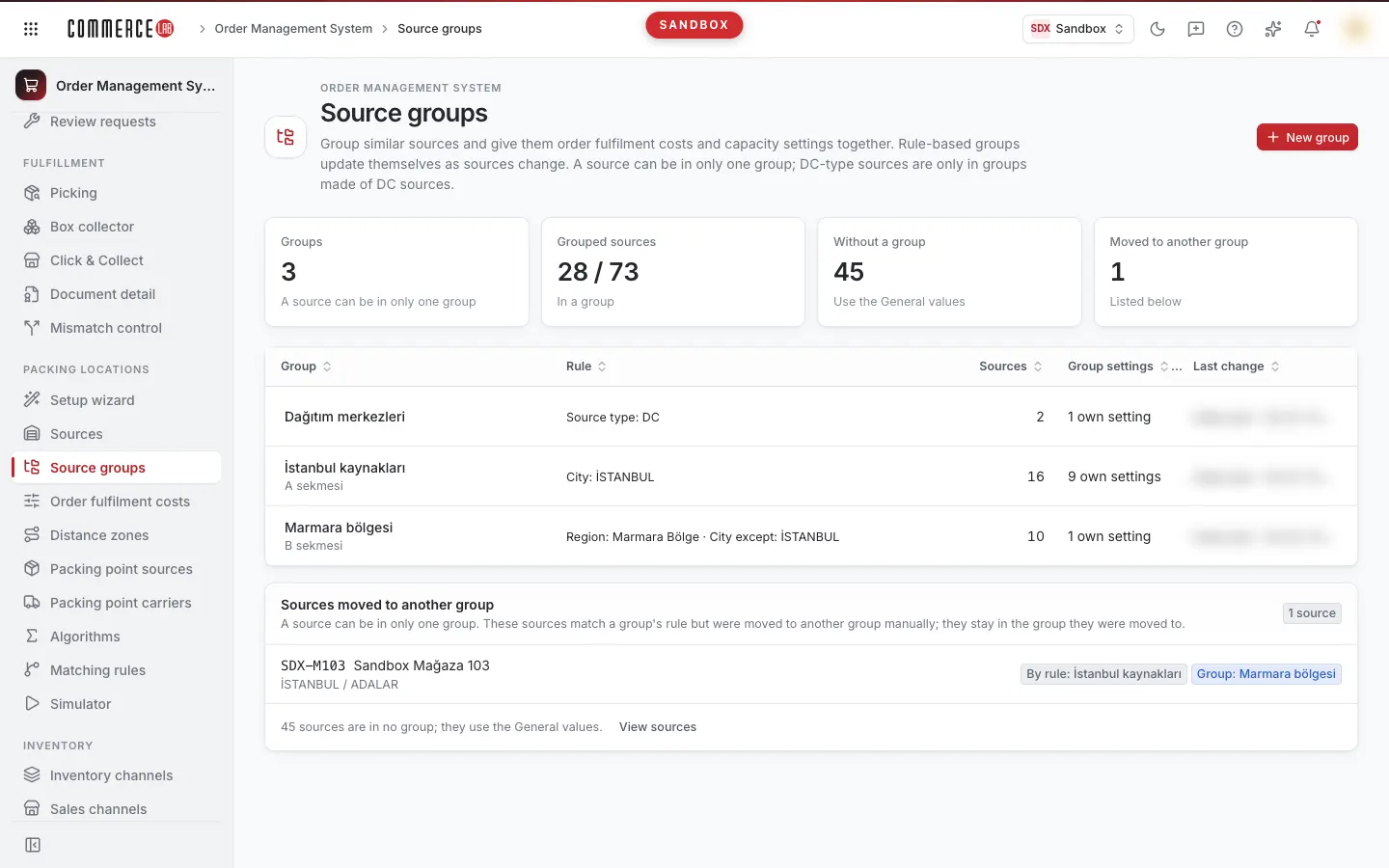
Source groups allow you to collectively assign cost and capacity settings to similar sources. This page explains the grouping logic on the Source groups screen, the group's rule and exceptions, the group's capabilities, and how the system uses this information; the same explanation is available in the video below.
<video controls preload="metadata" playsinline width="1920" height="1080" poster="https://files.docs.hebiar.com/videos/console/oms/location-groups/kaynak-gruplari.en.jpg" src="https://files.docs.hebiar.com/videos/console/oms/location-groups/kaynak-gruplari.en.mp4"><a href="https://files.docs.hebiar.com/videos/console/oms/location-groups/kaynak-gruplari.en.mp4">Open the video</a></video>
For all screen areas, group creation, and conflict rules, see the Source groups document. Cost and capacity values of groups are explained on the Entering layered preparation and shipping costs page.
Before you start
- Screen: Order Management System › Packing locations › Source groups.
- Groups are for assigning settings collectively: when the group's coefficient or cost changes, it reflects on all sources in the group.
- Grouping is entirely up to you: you can group geographically (e.g., Istanbul and Anatolia) or by the manager overseeing the region.
- One fixed rule: only DC-type sources belong to the distribution center group; DCs are only in a group consisting of DCs.
- A source can only be in one group. Sources without a group use General values.
- OwnerAdmin or TenantAdmin role is required to create and edit groups.
Reading the list
- Open Source groups in the Order Management System menu.
- Look at the numbers at the top: Group, Grouped sources (in a group / total), Without a group (uses General values), and Moved to another group.
- The Rule column summarizes each group's conditions; for example, by source type, city, or region ("Region: … · Except City: …").
- The Sources moved to another group card shows sources that match a group's rule but were manually moved to another group (By rule: … and Group: …). These sources remain in the group they were moved to.
Examining a group
- Click the group's name.
- Check the Which sources belong to the group? section's Rule. Each condition selects a field (City, District, Source type, Status, Storage role, Region) and either is one of or is not one of. Add new conditions with Add condition.
- The Members box on the right is Calculated live: it shows how many sources belong to the group and their type distribution. Groups defined by rule update automatically as sources change; a new source matching the rule will enter the group automatically.
- Exceptions:
- Always included in addition to the rule: you search and select sources to include even if they don't match the rule.
- Excluded even if the rule matches: sources that match the rule but are excluded.
- Sources not included because they are in another group: sources matching the rule but belonging to another group; you can take them with Move to this group.
- The Settings of this group box summarizes the group's capabilities and costs:
- Can pick orders: sources in the group can pick orders from the shelf.
- Can pack and ship itself and Sends to packing centers: both can be enabled simultaneously.
- Can be a store pickup point: selected separately.
- If it packs itself and sends to a packing point, preparation cost and daily target apply. For example, a group may have a preparation cost of 250 if it packs itself, 290 if it sends to a packing point, and a daily target of 50 units.
- To change these values, click Edit order fulfilment costs.
- To exit without changes, click Cancel.
How the system uses groups
When an order arrives, the system calculates all possible combinations (up to about one million) of which sources can fulfill the items. It then selects the most suitable one based on the costs and scores you provide. The cost and capacity values of groups are inputs to this calculation.
Checking the result
- Group creation and deletion do not write to tables. To apply values to tables, use Preview and apply on the Order fulfilment costs screen.
- The Last updated column in the list shows who and when modified the group.
Common situations
- A source matches the rule but is not in the group: it is in another group or on the Excluded even if the rule matches list.
- Cannot add a DC source to a group: DC-type sources can only be in the DC group; they appear faded in the list and cannot be selected.
- New group and edit buttons are not visible: you do not have OwnerAdmin or TenantAdmin role or write permission for the location; the screen is view-only.
- Saved the group but costs did not change: groups do not write to tables; preview and apply on the Order fulfilment costs screen.