Setting the sourcing algorithm: weights, multipliers, and draft
Understand the four weights and 1–2 multipliers on the Algorithms screen, edit the advanced formula, save changes as a draft and track from version history; step-by-step guide and video.
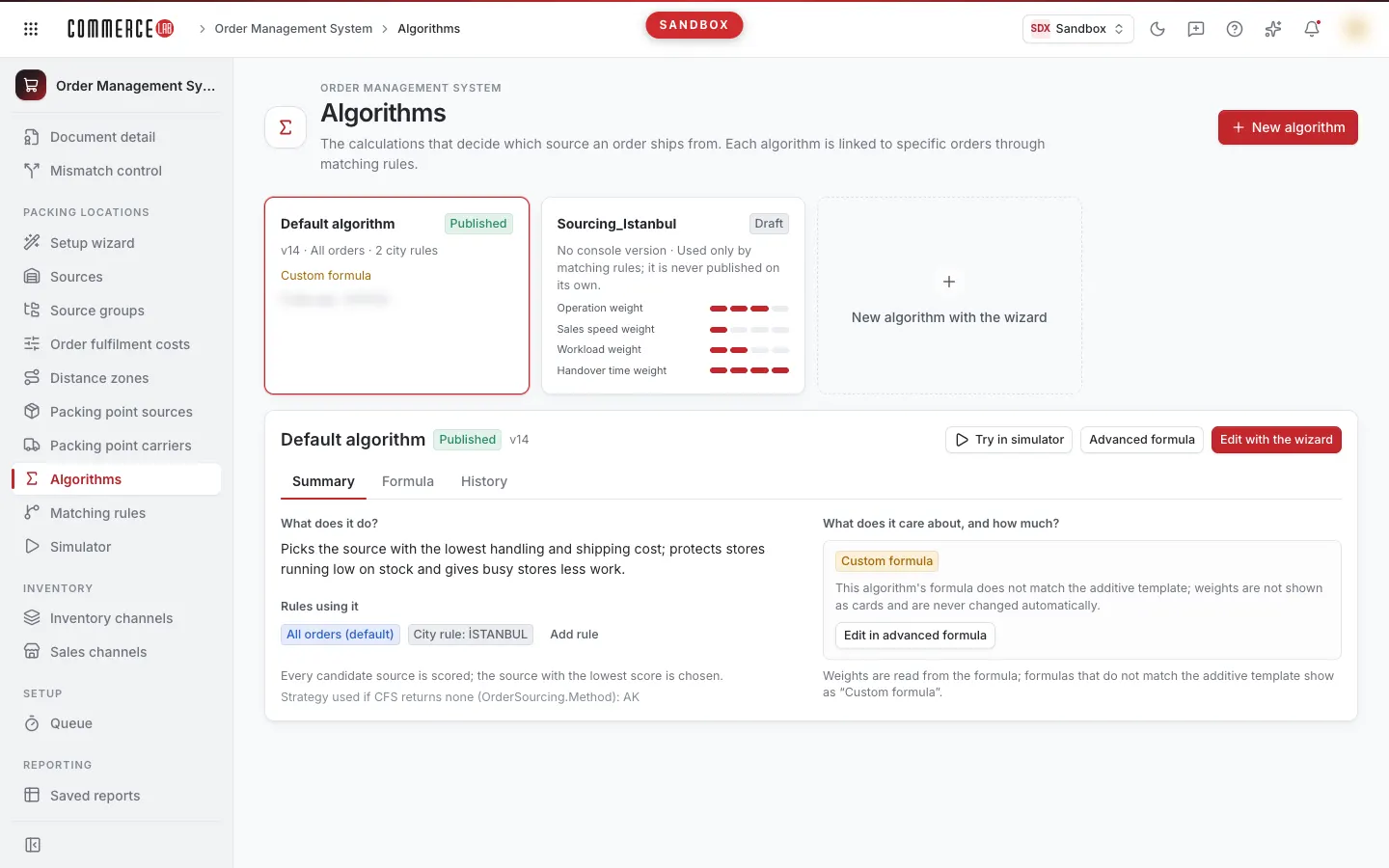
An algorithm is the calculation that decides from which source an order will be fulfilled. On the OMS – Order Management › Algorithms screen, you manage four weights, one to two multipliers producing values between one and two, and the advanced formula; changes are first saved as a draft and then tracked from version history. This page explains the screen step by step; the same explanation is available as a video below.
<video controls preload="metadata" playsinline width="1920" height="1080" poster="https://files.docs.hebiar.com/videos/console/oms/algorithms/algoritmalar.en.jpg" src="https://files.docs.hebiar.com/videos/console/oms/algorithms/algoritmalar.en.mp4"><a href="https://files.docs.hebiar.com/videos/console/oms/algorithms/algoritmalar.en.mp4">Open the video</a></video>
For all screen areas, see Algorithms. Which algorithm runs on which order is explained on the Matching rules page, and testing the draft on real orders is described on the Testing with Simulator page. For costs used by the algorithm, see Order fulfillment costs.
Before you start
- The algorithm determines how to combine the values you enter on the cost screens. Each candidate source is scored; the source with the lowest score is selected.
- The Default algorithm runs on all orders and is published.
- City-specific algorithms (e.g., prepared for a particular city) only work in matching rules; they are not published standalone. Their cards show Draft and No console version.
- Changes do not go live immediately: they are first saved as a draft, compared on sample orders, then published.
- Saving and publishing require administrator role; other users can only view the screen.
Reading and changing weights
On the Algorithms screen, click on an algorithm card. The Summary tab shows What does it do?, Rules using it, and on the right What does it care about, and how much? sections.
There are four weights:
- Operation weight: preparation and shipping cost.
- Sales speed weight
- Workload weight
- Handover time weight
Even algorithms using the same formula can set different priorities only with these four weights. For example, one algorithm may have a high operation weight and low sales speed impact.
Each part of the bar is a step (0.50 for sales speed, 0.25 for others). The Parameter values section below shows each weight's value (value = 2 − step × 0.25).
Read the direction from the note on the screen:
- For operation, workload, and handover time, as the step increases, the impact of that item on the score decreases.
- For sales speed, as the step increases, sources with excess stock relative to sales (slow-selling) come forward; fast-selling sources’ stock is preserved.
To change the step, click on a part of the bar. Clicking again on the last filled part decreases the step by one. Changes do not go live; an unsaved changes bar appears below.
Save draft saves the change as a draft; Cancel discards it. Publishing is done by comparing and publishing in the advanced formula editor.
Algorithms whose formula does not fit the additive template show Custom formula instead of weight bars; these algorithms are edited via Edit in advanced formula.
Multipliers
Multipliers produce values between one and two and are optional; you can include or exclude them in the formula.
- Inventory multiplier: if the source has a lot of that product, it approaches one; if only one or two remain, it approaches two. This protects stores with low stock. The value is one for distribution centers.
- Workload multiplier: looks at the currently assigned work relative to capacity. For example, if a store with a daily capacity of fifty has thirty assigned tasks, a store with twenty tasks is prioritized. Capacity is entered on the Order fulfillment costs screen.
- Handover time multiplier: calculated from accumulated delivery statistics; it increases as the delivery time to shipping lengthens.
- Sales speed: does not look at how fast a place sells; it looks at how many days the current stock will last at that sales speed. A source selling fast but with 1000 units is not evaluated the same as a slow-selling source with only ten units left.
Editing the advanced formula
- Select the algorithm and press Advanced formula.
- The formula is written at three levels: Line formula scores each item, Package formula scores each package, Order formula scores the entire order.
- Tapping ready parameters in the Insert variable section adds them where the cursor is. This way, you can write your own formula completely.
- Below, the score calculated with sample values is shown (Formula valid · score with sample values …). If the formula is invalid, a warning appears here.
- Writing rules are shown on screen: for condition use
IIF(condition; if true; if false); to ensure decimal result, start formula with1.0 *; use dot for decimals (0.8). - Back to published discards changes in the editor.
Saving a draft
- After making changes in the editor, press Save draft. A "Draft saved" notification appears.
- The published formula does not change; orders are still fulfilled with the published version.
- The algorithm card shows Has draft.
- The Publish button is disabled until the draft is compared on sample orders: enter open (unbilled) order numbers in the Order numbers box on the right Results on sample orders panel and press Compare.
- To discard the draft, press Delete draft in the editor and confirm. The saved draft is deleted; the published value remains unchanged.
Version history
- Open the algorithm's History tab. At the top is the unpublished draft (Not published), below are published versions.
- Each version shows what changed (e.g., Line formula changed), who made it and when, and the release note.
- Open draft opens the saved draft in the editor. Restore this version reopens an old version's formula in the editor; to publish, you compare and publish again.
Version numbers are not specific to the algorithm. This number is the version of the sourcing setting published in OMS: a new version is created when an algorithm or city rules are published. Therefore, the version may advance even if you do not modify an algorithm. City-specific algorithms do not have their own version.
Checking the result
- If a draft is saved, the card shows Has draft, and the draft row appears at the top of the History tab.
- You can see the draft's effect on real orders in the Simulator screen.
- Published values take effect on every server within 60 minutes at the latest.
Common situations
- Symptom: Publish button is disabled. The draft has not been compared on sample orders or is identical to the published value. Enter open order numbers in the right panel and press Compare.
- Symptom: "Custom formula" appears instead of weight bars. The formula does not fit the additive template; edit weights in the formula via Edit in advanced formula.
- Symptom: No Publish on city-specific algorithm. These algorithms are not published standalone; they take effect when city rules are published. See Matching rules.
- Symptom: Version number increased though I did not change this algorithm. Version number is system-wide; another publish (e.g., city rules) created a new version.
- Symptom: My saved change does not appear in orders. The change remains a draft; orders are fulfilled with the published version until published.