Bulk product update with Excel
Export products to Excel, edit fields such as name and description in the file, map columns automatically or manually in the Bulk product import screen and send; step-by-step guide and video.
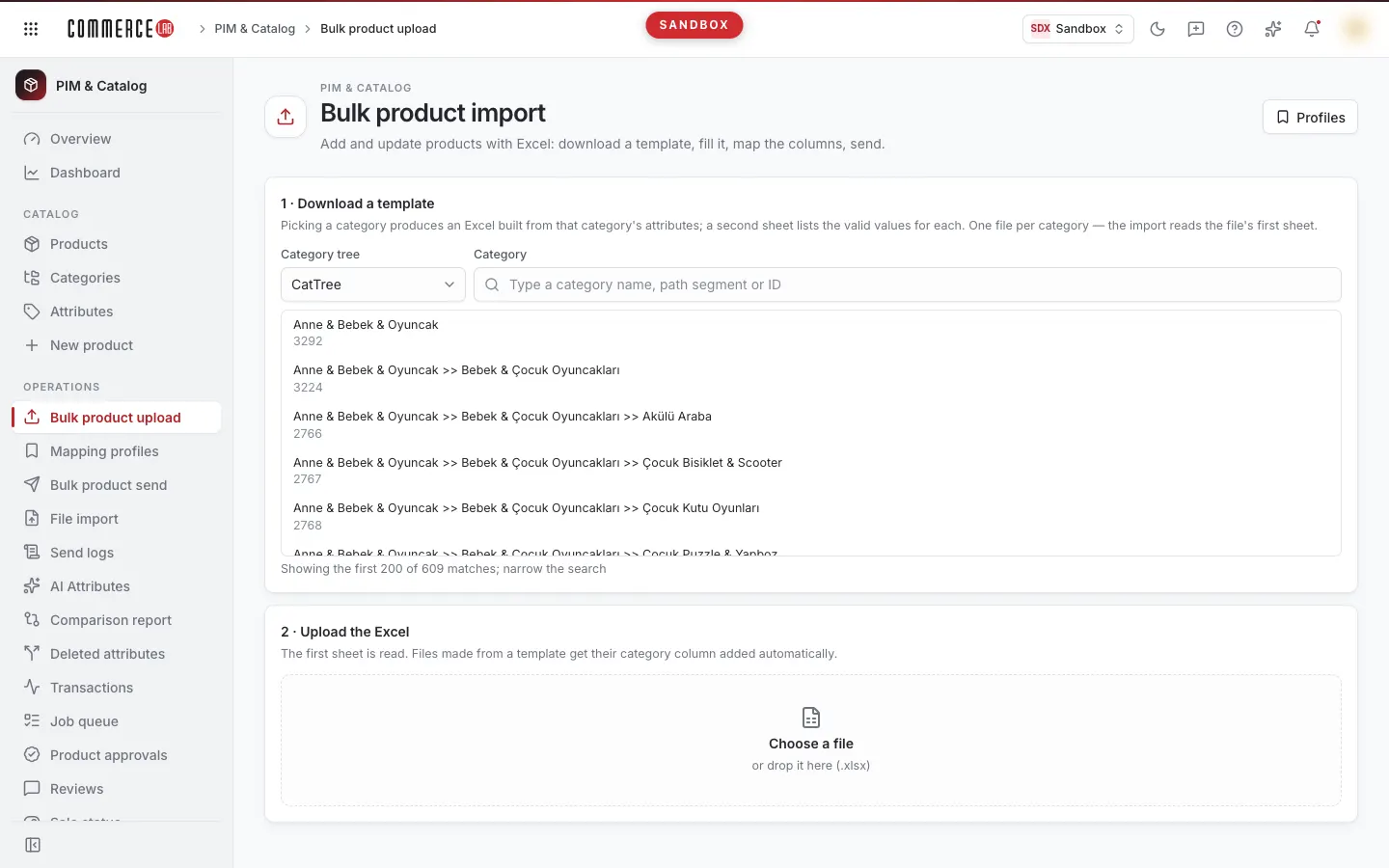
You can update the name, description, or attributes of multiple products with Excel without opening them one by one: export products from the Products screen to Excel, edit the file, then map columns and send in the Bulk product import screen. This page explains the process step-by-step; the video of the same explanation is below.
<video controls preload="metadata" playsinline width="1920" height="1080" poster="https://files.docs.hebiar.com/videos/console/pim/product-import/excel-ile-toplu-guncelleme.en.jpg" src="https://files.docs.hebiar.com/videos/console/pim/product-import/excel-ile-toplu-guncelleme.en.mp4"><a href="https://files.docs.hebiar.com/videos/console/pim/product-import/excel-ile-toplu-guncelleme.en.mp4">Open the video</a></video>
All screen areas and creating a new product are explained in Bulk product import. To edit a single product's content, see Update product content.
Before you start
- A column identifying the product is mandatory for update: SKU or Option code (OptionCode). You must map either only SKU, only option code, or all main fields.
- The column name does not matter; you specify which field each column corresponds to during the mapping step.
- Leave only the columns you want to change in the file. If you map a column like price that you do not modify, that field will be updated with the file's value.
- Only the first sheet of the file is read. If there are two columns with the same name, the file is rejected.
- You do not need to download a category template for updates; the template is used when creating new products.
Exporting products to Excel
- Open the PIM & Catalog › Products screen.
- Filter the products you want to update; for example, enter codes separated by commas in the Search all codes box and click Filter.
- Click Export to Excel. The export uses the filters on the screen; select which columns to export from the Columns list. Your selection is remembered in your browser.
- Click Download.
Editing the file
- Delete columns you will not change; keep the product-identifying SKU column.
- Enter the values you want to change; for example, correct names in the ProductName column.
- Add a column if you want to update a new field (e.g., short description or an attribute).
Uploading the file and mapping columns
- Open the PIM & Catalog › Bulk product import screen.
- In step 2 · Upload the Excel, select or drag and drop your file. The File preview shows the number of rows and columns.
- In step 3 · Column mapping, click Auto map. Columns with names matching a field are connected automatically (e.g., SKU → Main · SKU).
- Always check the automatic mapping; a column may be connected to a similarly named but incorrect field (e.g., ProductName mapped to Product list · ProductList). Manually select the Target field for incorrect or unmapped columns: for name use Content · Name, for short description use Content · ShortDescription. The List and Language fields in content default automatically.
- Map attribute columns from the Attribute group in the list.
- If you frequently use the same file format, save the mapping with Save profile; it will be applied automatically when a file with the same title is uploaded.
Computing the plan and sending
- Click Compute the plan. Nothing is saved at this step; the Send plan shows how many product objects and requests will be sent.
- The "Product list not mapped" warning is important when creating new products; it is not needed when updating existing products.
- Select the Company and click Send to. The Confirm send window shows what will be sent once more; after sending starts, it cannot be undone. Confirm by clicking Send to again.
Checking the result
- The 5 · Result section shows the status of the operation (e.g., SUCCESS) and the number of products/errors. Clicking the product count in the row opens the Product results window listing each product's result.
- Search the Products screen by the same codes to check the new names.
- When the product name changes, the product's site URL updates automatically; the old address redirects to the new one.
- Records are first written to PIM; they appear on the site when the scheduled transfer task runs. To send immediately, you can trigger the transfer task from the Tasks screen.
Common issues
- Symptom: "Map at least one column to continue" warning. No columns are mapped; at least SKU or Option code must be mapped.
- Symptom: Name not updated, something added to product list. The name column is mapped to ProductList; map it to Content · Name and resend.
- Symptom: "Duplicate column in file". The same header appears twice; rename one of the headers.
- Symptom: Send button is inactive. First click Compute the plan and select Company.
- Symptom: Prices changed unexpectedly. A price column remains in the file and is mapped; leave only the columns you want to change.