Updating Product Content and Generating Descriptions with AI
Update the product name, short and long descriptions, and languages from the Content tab in product details; generate descriptions with AI; step-by-step guide and video.
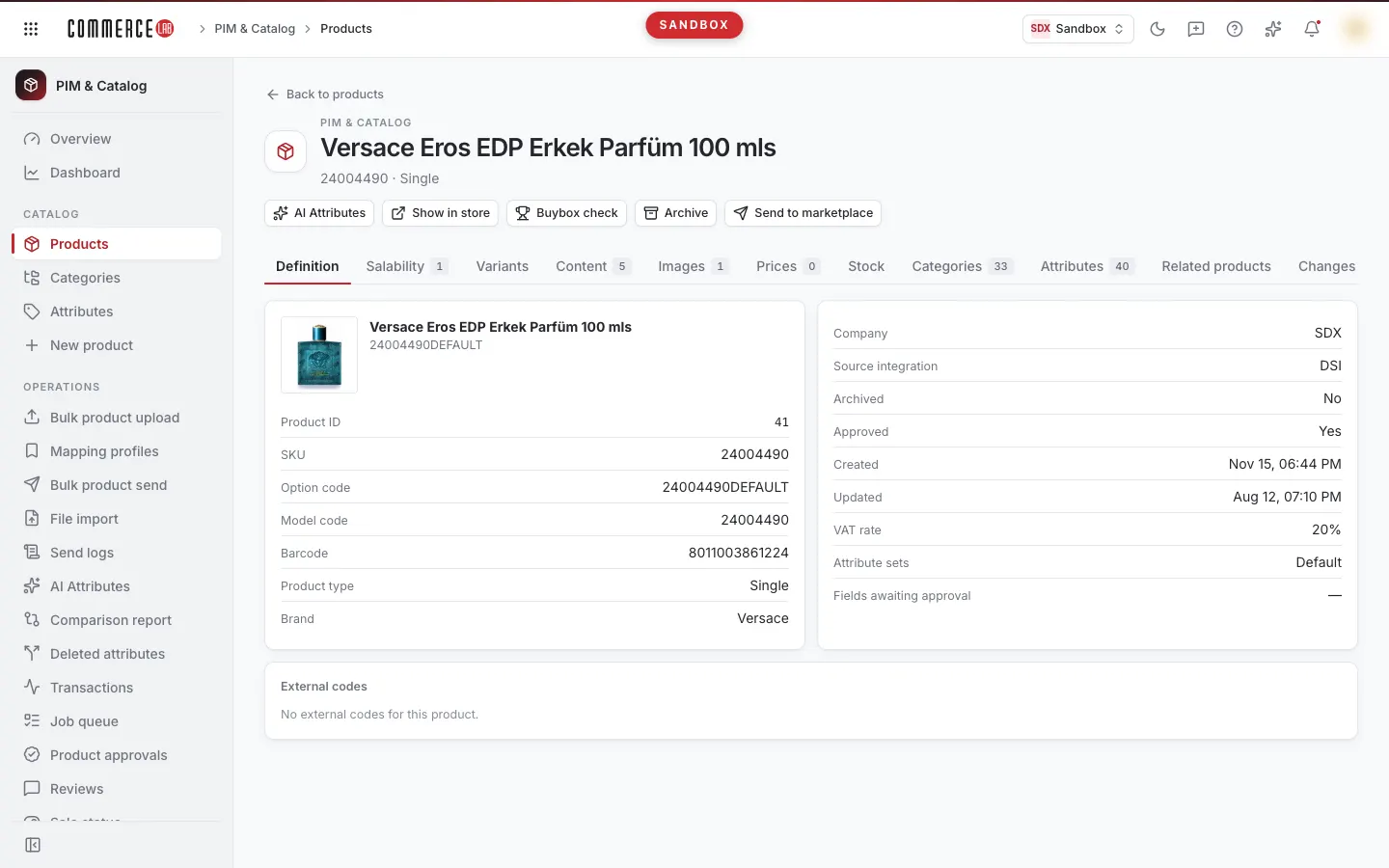
You update a product's name, short and long descriptions, and other content fields from the Content tab in the product details. Using the AI description button in the same tab, you can generate, improve, or translate the description with artificial intelligence. This page explains the process step-by-step; the video of the same explanation is below.
<video controls preload="metadata" playsinline width="1920" height="1080" poster="https://files.docs.hebiar.com/videos/console/pim/products/detail/urun-icerik-guncelleme.en.jpg" src="https://files.docs.hebiar.com/videos/console/pim/products/detail/urun-icerik-guncelleme.en.mp4"><a href="https://files.docs.hebiar.com/videos/console/pim/products/detail/urun-icerik-guncelleme.en.mp4">Open the video</a></video>
For other tabs and product detail fields, see Product detail. To update many products in bulk, see Bulk product update with Excel. For images, see Updating product photos.
Before you start
- The most commonly used fields are Product name, Short description, and Long description.
- The Source: line below the field shows the original value from ERP or warehouse entry. Manually entered values override the source.
- The orange No value tag indicates the field is empty; the red tag means the value exists only in the source.
- Clearing and saving a field deletes it.
- Content fields are dynamic: custom fields like return conditions, delivery text, warranty certificate can be added as needed and displayed anywhere on the site. Submit a support request for new fields.
- When you change and save the product name, the product’s URL on the site automatically changes; the old URL permanently redirects to the new one with a 301 status. Old links do not break.
Editing content fields
- In the PIM & Catalog › Products screen, find the product by entering SKU, barcode, model, or option code in the Search all codes box and click its name.
- Switch to the Content tab.
- Edit the Product name, Short description, or Long description fields. The Long description is a rich text field: you can add bold text, headings, and lists, or edit the HTML directly using the HTML source button on the right.
- Fill in additional fields below (e.g., return-conditions, custom-delivery-text) if needed.
- Click Save. A "Content saved." notification appears.
Adding content in another language
- Select the language from the Add language list at the bottom of the tab.
- The selected language opens with empty fields. No record is created in that language until you enter values and click Save.
Generating descriptions with AI
- In the Content tab, click AI description.
- Choose one mode:
- Generate: writes the description from scratch.
- Improve: enhances the existing long description. Does not work if the long description is empty.
- Translate to other languages: translates the description into the selected Target languages.
- In Generate mode, under Inputs to consider, select what the AI should use: Use photos, Use product name, Use attributes. Select at least one; if no information is provided, the model will fabricate the description.
- Click Run. The Generated description appears within seconds. You can edit the text here or rerun if unsatisfied.
- Click Apply. The text is written to the long description and a "Written to draft" notification appears.
- Click Save. Apply only writes to the draft; if you do not save, changes will be lost.
The description is generated in the language of the content list you are editing.
Checking the result
The record is first written to PIM; it appears on the site when the scheduled transfer task runs. To send immediately, you can trigger the transfer task from the Tasks screen. The table at the bottom of the tab shows each field’s source (Manual or From source); the Changes tab answers who changed what and when.
Common issues
- No AI description in product: You did not click Save after Apply. Apply again and save.
- Save button is dim: No fields have changed yet.
- Improve does not work: The long description is empty; use Generate first.
- AI description could not be generated: The service temporarily did not respond; try clicking Run again after a few seconds.
- Added language disappeared: No record is created if saved without entering values; enter values and save.
- Old name or description appears on site: The transfer task has not run yet; it will update when the task runs.