Vendors
Searching vendors on the marketplace, monitoring approval and auto product approval statuses, and registering new vendors.
The Vendors screen is where third-party vendors selling products on your marketplace are listed and new vendors are registered. It is the entry screen of Vendor management: you can find a vendor and open its record, see the approval status and whether their products are auto-approved at a glance. The screen is used by the team responsible for marketplace operations and vendor relations.
Accessing the screen
Select Vendor management › Vendors in the left menu. When you click directly on Vendor management in the menu, this list also opens; there is no separate summary page for the product.
The new vendor form opens with the New vendor button at the top right of the list. If you do not see it in the menu, your account does not have permission for this screen. The New vendor button only appears for accounts authorized to register vendors.
Screen sections
- Header — Vendors with the description Third-party sellers on the marketplace. below. On the right, the New vendor button.
- Filter card — Search field; below it, Clear, Detailed filters, and Filter buttons.
- List toolbar — Per page selection (25, 50, or 100), Filter result: N records info, refresh icon, and Columns menu.
- List — Each row is a vendor; pagination at the bottom.
Filtering and searching
Filters are applied by pressing the Filter button or Enter while in a field; typing does not change the list. If there are unapplied changes, the Filter button is highlighted. Pressing Filter without changes refreshes the list with current data. Clear empties all filters and reloads the list.
| Field | Purpose | Tip |
|---|---|---|
| Search | Finds vendor by company name, vendor code, or email address. | Typing part of a word is enough; case insensitive. Searching by tax number or phone is not supported. |
| Confirm | Lists only approved (Yes) or unapproved (No) vendors. | Available from the Detailed filters menu. Selecting All shows both together. |
Filters checked in the Detailed filters menu are remembered in your browser and will appear next time you enter the screen. Removing a filter from the menu also clears its value; press Filter to apply the change.
List
| Column | Meaning |
|---|---|
| Company | Vendor's company name; vendor code below. Clicking the company name opens the vendor detail page. This column cannot be hidden. |
| Confirm | Green Yes if the vendor account is approved, gray No if not. |
| Auto-approve products | Blue Yes if auto-approval for the vendor's products is enabled, gray No if disabled. |
| Segment | The segment name assigned to the vendor. |
| Performance score | Vendor's performance score; — if none. |
| Business model | Vendor's business model. Hidden by default; can be enabled from the Columns menu. |
| Created at | Date and time the vendor record was created. |
Empty values are shown as —. The list cannot be sorted by clicking column headers. Your hide/show choices in the Columns menu are saved in your browser. If no vendors match the filters, No records found is displayed.
Actions
Opening a vendor record
- Find the vendor in the list.
- Click the company name in the Company column.
The vendor detail page opens. For tabs, sub-records, and editing, see the Vendor detail document.
Registering a new vendor
Used when a new vendor joins the marketplace.
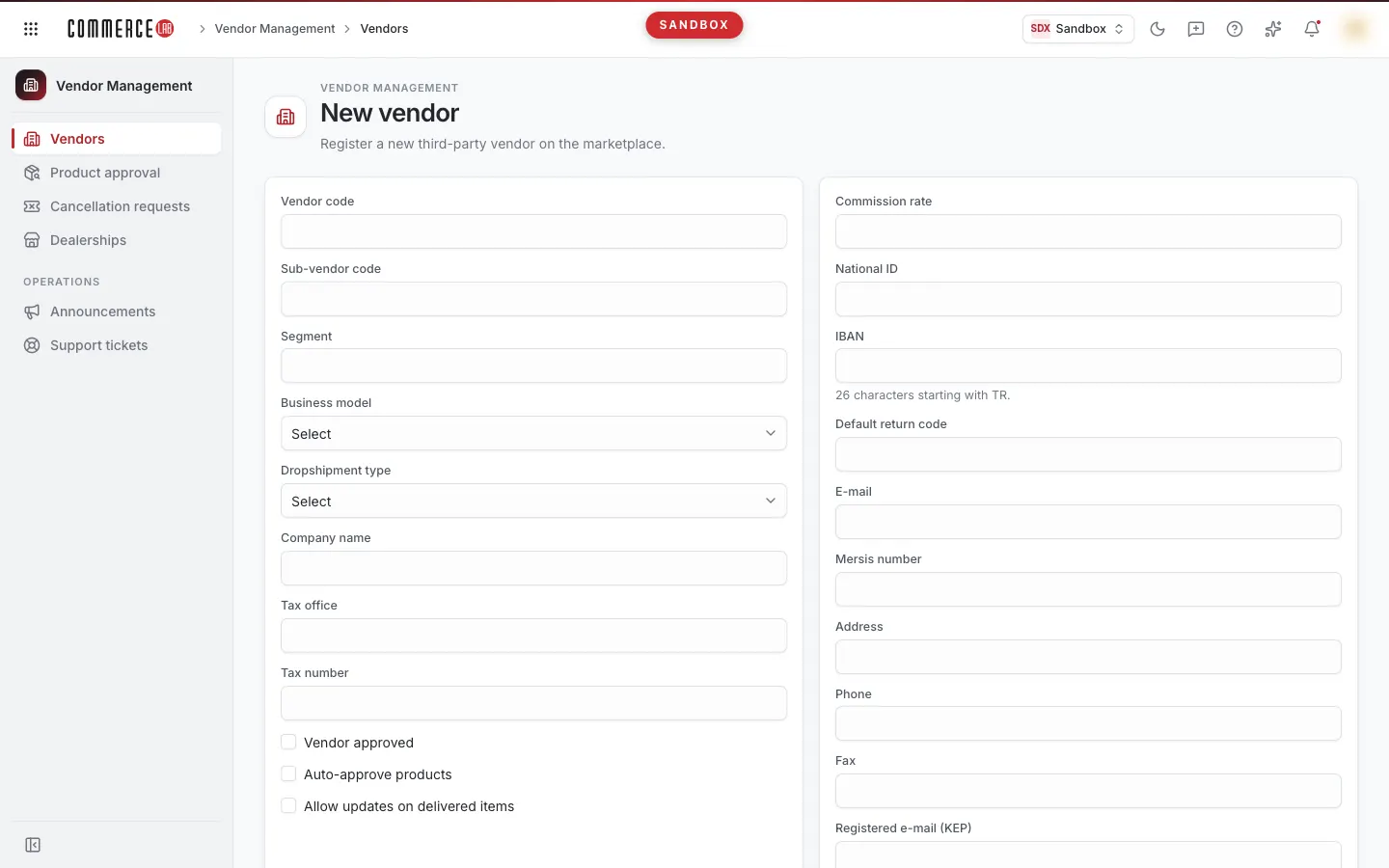
- Click the New vendor button. The New vendor page opens with the description: Register a new third-party vendor on the marketplace. The form appears after the Business model and Dropshipment type options load.
- Fill out the form (fields described in the table below).
- Click Save.
If successful, a Vendor created notification appears and the new vendor's detail page opens (if the record number cannot be obtained, it returns to the list). Here you complete setup by adding users, locations, and contacts. The Cancel button returns to the first unfiltered page without saving. Both buttons are disabled while saving.
The form is validated on the first Save press; missing or incorrect fields show red messages below and submission is blocked. Messages update as you type. If the server rejects the record, a Something went wrong notification appears with the Technical detail section; if the error relates to Vendor code, Business model, Dropshipment type, Tax number, National id, or IBAN, the message also appears below that field.
Form fields
| Field | Required | Description / rule |
|---|---|---|
| Vendor code | Yes | Code identifying the vendor. Max 80 characters; leading and trailing spaces are trimmed on save. |
| Sub-vendor code | No | Max 80 characters. |
| Segment | No | Free text, max 80 characters. Appears in the Segment column in the list. |
| Business model | Yes | Selected from list (Select). |
| Dropshipment type | Yes | Selected from list (Select). |
| Company name | No | Max 200 characters. Cannot be changed after creation; enter correctly initially. |
| Tax office | No | Max 100 characters. |
| Tax number | No | Digits only, max 11 characters. If filled, must be a 10-digit tax number or a valid 11-digit national ID (for sole proprietorships). |
| Vendor approved | No | Checkbox. If checked, vendor is considered approved; shows Yes in the Confirm column. |
| Auto-approve products | No | Checkbox. Enables auto-approval for the vendor's products; shown in the Auto-approve products column. |
| Allow updates on delivered items | No | Checkbox. |
| Commission rate | No | Number; up to two decimal places allowed. |
| National id | Yes | Digits only, 11 characters. First digit cannot be 0, last digit must be even. |
| IBAN | Yes | 26 characters starting with TR. Must be TR followed by 24 digits. Spaces allowed or not; letters auto-capitalized and saved in groups of four. |
| Default return code | No | Max 80 characters. |
| No | Max 200 characters. If filled, must be a valid email format; otherwise browser blocks saving with a warning. Searchable via the Search field. | |
| Mersis number | No | Max 16 characters. |
| Address | No | Max 500 characters. |
| Phone | No | Max 20 characters. |
| Fax | No | Max 20 characters. |
| Registered e-mail (KEP) | No | Max 200 characters. |
You cannot enter non-digit characters in the National id and Tax number fields; pasted spaces and symbols are automatically removed.
Form error messages:
- This field is required — required field is empty.
- National id must be 11 digits and valid.
- The IBAN must be 'TR' followed by 24 digits.
- The tax number must be 10 digits or a valid national ID.
Common situations
- The vendor I am looking for is not in the list. Check if the Confirm filter is enabled; clear all filters with Clear and search again. Search only works on company name, vendor code, and email.
- "Something went wrong" appears instead of the list. The list could not be retrieved. Press Retry; if the problem persists, report it to your system administrator with the text in the Technical detail section.
- The form does not open on the new vendor page, error appears. The Business model and Dropshipment type options could not be loaded. Press Retry.
- Pressing Save does not submit the record. There is a missing or incorrect field. Correct the fields with red messages and try again; the most common issues are with National id, IBAN, and Email format.
- I entered the company name incorrectly. The company name cannot be changed after creation. Verify before creating the record.
- I do not see the New vendor button. Your account does not have permission to register vendors; you can only view the list. Contact your system administrator for access.
Related screens
- Vendor detail — vendor's users, locations, shipping agreements, and settings.
- Product approval — approving or rejecting products submitted by vendors.
- Cancellation requests — monitoring cancellation requests from all vendors.
- Using list screens — common usage of filters, columns, and page settings.