Channel categories
Browse marketplaces' own category trees; view category names and channel IDs as read-only.
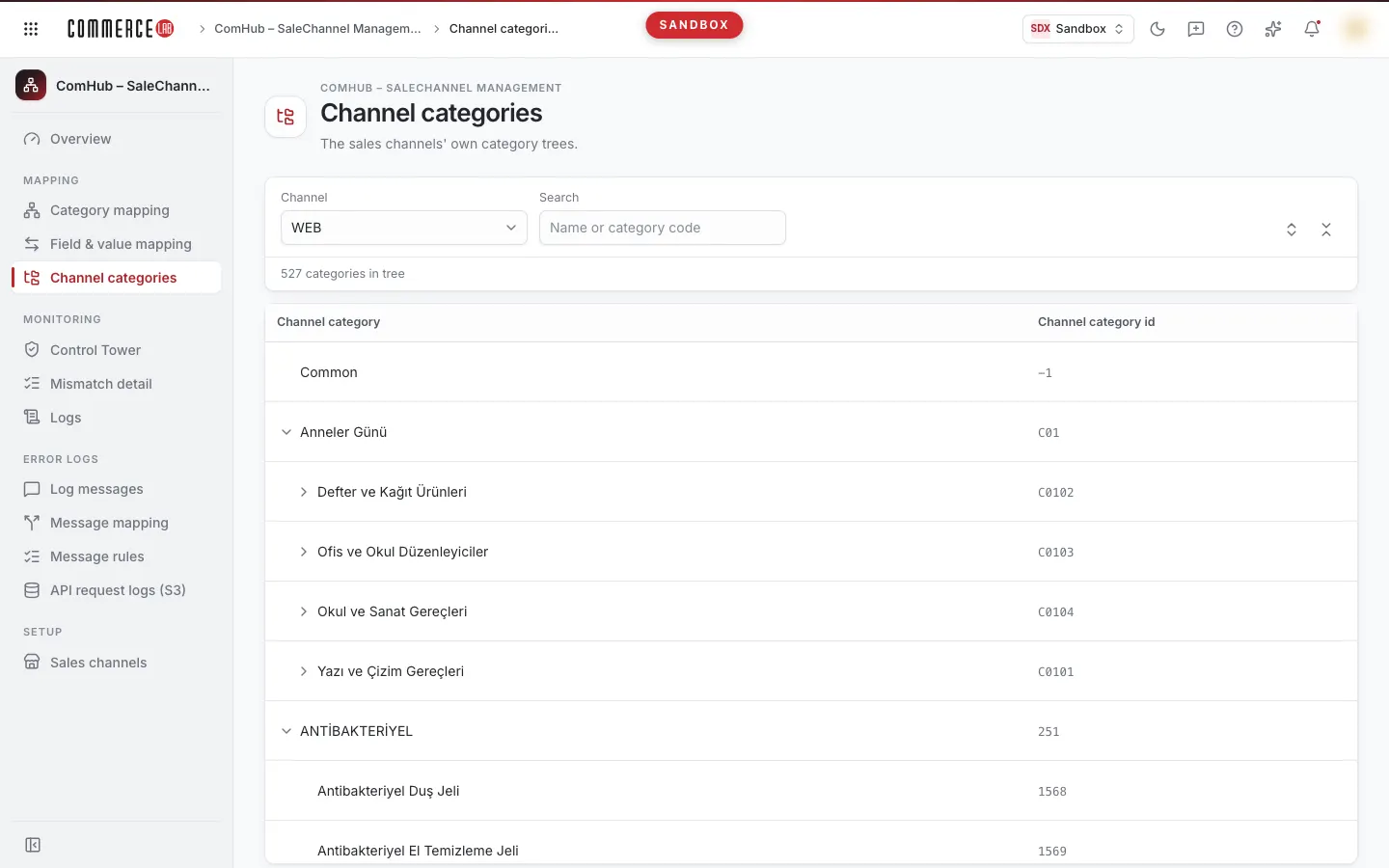
Channel categories screen allows you to browse the category trees of connected channels (marketplaces). You can see which categories a marketplace offers, under which parent category each category is listed, and the category's ID in the channel. The screen is read-only: it does not create mappings or change anything. It is used as a reference when planning category mappings or verifying that a mapping is made to the correct category.
Accessing the screen
Open the ComHub – Marketplace Integration › Mapping › Channel categories menu.
If you do not see the menu, your account does not have permission for this screen.
The selected channel and search term are stored in the page URL; when you refresh the page or share the link, it opens with the same channel and search.
Screen sections
- Title: Channel categories and the description "Marketplaces' own category trees."
- Selection area: Channel selection, search box, and buttons to expand or collapse the tree. Below it shows the number of categories in the tree.
- Category tree: Categories of the selected channel.
Filtering and searching
| Field | Purpose | Tip |
|---|---|---|
| Channel | The channel whose category tree is displayed. | When the list is empty, it shows Select; when channels load, the first channel in the list is selected. Changing the channel clears the search box and resets the tree to its initial view. |
| Search | Searches in category name or category code. | Applied as you type. The box shows "Name or category code." You can also search by exact channel category ID. Case insensitive. |
| Expand all / Collapse all | Opens or closes all branches of the tree. | These are the two icon buttons on the right. |
When you search, matching categories are highlighted (bold) and their parent categories are expanded to show the path; non-matching branches are hidden. Below the selection area it shows "Matching categories: {number}". When no search is active, it shows "Categories in tree: {number}."
List
At initial load, root categories are open; that is, roots and their immediate first-level children are visible, deeper branches are closed. You can open or close subcategories by clicking the arrow to the left of a category. After using Expand all or Collapse all, you can still open or close branches individually.
| Column | Meaning |
|---|---|
| Channel category | The category's name in the channel. Sublevels are shown indented. |
| Channel category id | The category's ID (code) in the channel. You can use this ID in support requests or when verifying mappings. |
Clicking a row does not initiate any action; there are no edit, delete, or export functions on this screen.
Where is mapping done?
This screen is for browsing only. You create category mappings on these screens:
- To link PIM categories to marketplace categories and map fields and values by category, see Category mapping.
- To manage channel counterparts of a single PIM category, use the Channel mappings tab in the category details (Categories — detail).
Common situations
- Tree is empty ("No records found"). No categories found for the selected channel. Make sure you selected the correct channel; if searching, clear the search.
- I cannot find the category I am looking for. Search is performed on category name and code; searching by parent category name does not bring subcategories. Try part of the name or the category ID.
- "PIM service not configured." message appears. The data source for this screen is not configured in this environment. Notify your system administrator.
- Error message appears ("Something went wrong"). Click the Retry button; if it persists, report to your system administrator with the text in the Technical detail section.