Field & value mapping
Manage the correspondences of product fields and values across all channels, channel mandatory fields, and category rules from a single screen.
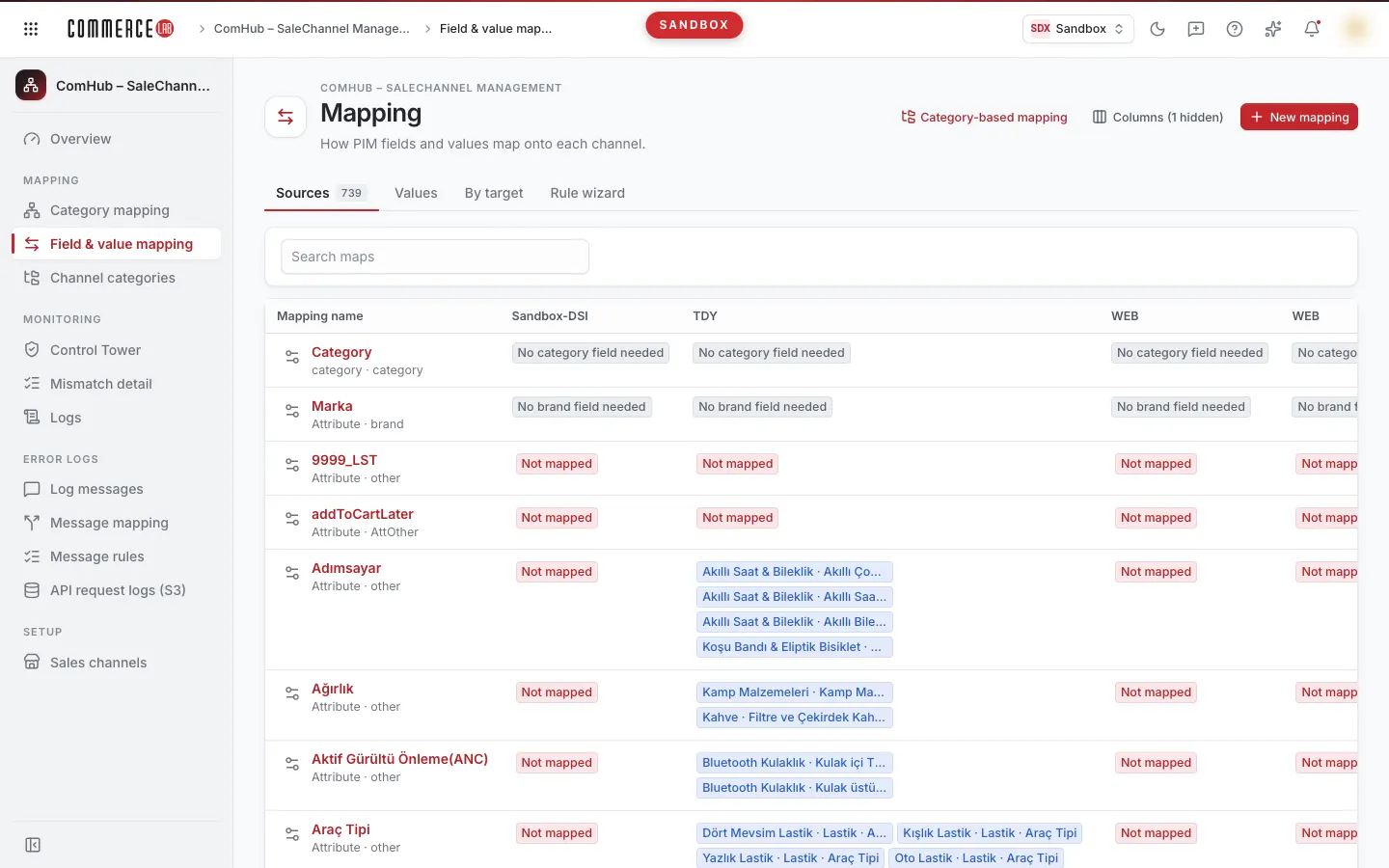
Field & value mapping screen is where you manage the correspondences of product fields (such as brand, category, color, size) and their values across all connected channels in one place. Each row represents a mapping (sometimes referred to as "map" in the interface); in each channel column, you see which field the mapping feeds in that channel or which value corresponds to which value in the channel. While Category mapping works on a single category and marketplace, this screen shows all channels side by side; it is used for cross-channel comparison, brand mapping, and rules to link products from the source system to categories.
Accessing the screen
- Open the ComHub – Marketplace Integration › Mapping › Field & value mapping menu.
- You can also open it from the shortcuts on the ComHub card on the homepage or from the Related screens section on the PIM & Catalog overview page.
If you do not see it in the menu, your account does not have permission for this screen. Users who can see the screen but do not have write permission can view mappings and open windows; however, write buttons such as New mapping, Save, Edit mappings, Assign category are not visible, and form fields are disabled.
The open tab, search terms, page numbers, and selected mapping are saved in the page URL; refreshing the page or sharing the link opens the same view.
Screen sections
- Title: Mapping and the description "Correspondences of PIM fields and values in channels." On the right, three items:
- Category-based mapping link: Opens the Category mapping screen.
- Columns button: Selects which channel columns are visible in the tables.
- New mapping button: Defines a new mapping (write permission required).
- Tabs: Sources, Values, By target, and (if there is a category-type mapping) Rule wizard. The total number of mappings is shown next to the Sources tab.
Column selection
The Columns button opens a list:
- The top group buttons (Marketplaces, Cargo, Sources) toggle all channel columns in that group with one click. If all channels in the group are open, the button is highlighted. If there are no channels in a group, its button does not appear.
- Below, each channel appears as a checkbox with its channel code and type; you can toggle individually. The Marketplaces group also includes website channels.
- Preferences are saved per channel: if the same channel is installed in multiple companies, all columns of that channel open or close together.
If there are hidden columns, the button shows "Columns ({count} hidden)". The PIM column is hidden by default on first open. Your preference is saved in this browser; on another computer or browser, the default view opens.
Sources tab
This tab shows which channel field (source) each mapping uses in each channel.
Search: The Search maps box searches in mapping name, ID, type, and source names; it applies as you type. If no results, it shows "No maps matching the search."
Sorting and paging: Category and brand-type mappings are at the top; others are sorted by name. The table shows 25 rows per page.
| Column | Meaning |
|---|---|
| Mapping name | Name of the mapping; below it, type and data type. Clicking the name opens the Values tab for that mapping. The settings icon left of the name opens the mapping settings window. |
| Channel columns (one per channel) | The source of the mapping in that channel. Blue badges show selected source fields (up to 6 badges; more are summarized as "+{count} more"). Red Not mapped badge indicates no source selected in that channel. Clicking the cell opens the source window. |
Some cells do not require source selection; these are shown with a gray badge and are not clickable:
| Badge | When it appears |
|---|---|
| No brand field needed | In mappings with data type brand when the channel does not support saving brand source. |
| No category field needed | In mappings with data type category. |
| Comes from channel lookup | In mappings with data type integrationLookup; values are selected from the channel's own list. |
Hovering over the badge shows the tooltip "No need to select this field for {channel}". The Common label in source tags indicates a source independent of category (applies to all categories).
Values tab
Shows the PIM values of the selected mapping and each value's correspondences in channels. If no mapping is selected, it shows "Select a mapping first"; click a mapping name in the Sources tab.
Top area
| Item | Purpose |
|---|---|
| Sources (back arrow) | Returns to the Sources tab. |
| Mapping name | Shows which mapping's values you are viewing. |
| Search value | Searches values; applies as you type and returns to the first page. |
| Breadcrumb nodes only | Visible only in category-type mappings and checked by default. Since marketplaces only send leaf (last-level) categories, others are hidden. |
In brand mappings, only channels that support brand search appear in the table; other channels receive the PIM brand as is. The PIM column is not shown in this tab.
| Column | Meaning |
|---|---|
| PIM value | Value in PIM. The settings icon left of it opens value settings (order and primary value). |
| Channel columns | Corresponding value in that channel. Blue badges are saved correspondences; "—" indicates no correspondence selected. Clicking the cell opens the value window. |
Some cells are not clickable:
- Gray badge with the PIM value itself: No mapping needed for that channel; the PIM value is sent as is.
- Source first: The mapping's source field is not selected for that channel. First select the source for that channel in the Sources tab.
The table shows 50 rows per page; use the page buttons below to navigate.
By target tab
This tab reverses the perspective: starting from a channel's mandatory field list, it shows which mappings feed each field. Useful to find missing mappings in a new marketplace.
- Select the channel from the Channel list. Only channels that publish mandatory field lists appear; each channel is shown with the company name.
- When the table appears, use the Search field, category or map box to search by field name, category name, or feeding mapping names.
| Column | Meaning |
|---|---|
| Channel name | Field name of the channel; below it, the channel category it belongs to. |
| Attribute | Required: the channel requires this field. Multi-category: the same name appears in multiple categories; mapping is differentiated by category. |
| Feeding mappings | Names of mappings feeding this field. Red Not mapped badge indicates no mapping feeds the field. |
| Actions | Values: read-only list of values accepted by the channel for this field. Edit mappings: changes mappings feeding the field. |
The table shows 10 rows per page; page buttons appear only if more than 10 fields exist. If no channel is selected, it shows "Select a channel first"; if the channel returns no mandatory fields, it shows "Channel did not return mandatory field list."
Rule wizard tab
This tab manages rules linking combinations of attribute values (e.g., brand / gender / product group) from the source system (Excel or ERP) to a PIM category. It appears only if there is a category-type mapping. The Rule wizard button in the category mapping settings window also opens this tab.
Rule columns card
- Labels show which columns form the rule. You can move columns left or right with arrows on each label or remove them with the cross. At least one column must remain.
- Clicking a column in the Removed: row adds it back. Columns with parentheses in their name are excluded from the rule on first open; you can add them here if desired.
- Hide columns / Show columns toggles the area size.
- Fetch button loads the list with selected columns. Because the list comes from a heavy query, it does not refresh automatically on column changes; press Fetch again after changes. The button is disabled if columns have not changed.
- After loading the list, the Search rule or category box appears.
- Company (if you have write permission): selects the company for which rules are written. The first company is selected on open.
If the list is not yet loaded, it shows "List not yet fetched."
| Column | Meaning |
|---|---|
| Rule columns | Value in each selected column in the combination. |
| Products | Number of products matching this combination. |
| Linked PIM categories | PIM categories linked to the combination. Orange Unlinked badge indicates no category assigned yet. One row can be linked to multiple rules and categories. |
| Actions | Assign category. |
The table shows 50 rows per page.
Actions
Adding a new mapping
- Press the New mapping button in the title.
- Fill the form:
| Field | Required | Description / rule |
|---|---|---|
| Mapping name | Yes | Name of the mapping to add. If left empty, a "Map name is required." warning appears. |
| Mapping type | Yes | Select from list. If empty, Required warning appears. |
| Data type | Yes | Meta type of the mapping (e.g., brand, category, integrationLookup). Select from list. |
| PIM field | No | Which field on the PIM side it is fed from; can be left empty. |
- Press Save.
Result: "Mapping created." notification appears and the mapping is added to the Sources table. If any required field is empty, the record is not saved and a warning appears below the field.
Selecting source for a channel
Determines which channel field a mapping feeds in a channel.
- In the Sources tab, click the cell for the channel in the mapping's row. The window title shows the mapping and channel name.
- Existing sources appear as tags above the Sources tab; if none, it shows No value entered. To remove a source, press the Remove icon on its tag.
- Add a new source:
- If the channel does not publish its field list, type the name in the Field name box and press Add (or Enter).
- For other channels, two steps: in the 1. Marketplace category section, navigate the channel's category tree and select a category (click to enter, press Pick this category to select the current level). Then find and click the field in the 2. {category} fields list (Search field box). Required fields are marked with the Required badge.
- If needed, change source settings in the Settings tab (see below).
- Press Save. The button is enabled only if you made a change.
Result: "Mapping saved." notification appears and the table refreshes. If the source is saved but settings are not, a warning "Source saved, settings not saved" appears; reopen the window and save settings again.
If the channel has no company info, Save remains disabled.
Source settings (Settings tab): checkboxes for Use PIM value, Use as option attribute, Keep accents. If no source record exists yet for the channel, it shows "No source record yet for this channel; settings will be saved with the source."
Selecting channel correspondence for a value
- In the Values tab, click the cell for the channel in the value's row.
- The window lists Saved mappings above; if none, it shows "No correspondence selected for this channel."
- The window description explains which selection method to use. The method depends on the mapping type and channel:
| Description | How to select |
|---|---|
| Search for brand in the marketplace and select a single correspondence. | Type the name in the Search brand box and press Enter or Search; select one from results. Search is done by button, not while typing. |
| Select a single correspondence from the marketplace's category tree. | Navigate the channel's category tree and select a category. You can select a non-leaf category with Pick this category. |
| This channel does not publish a value list; enter correspondences as free text. | Type in the Custom value box and press Add. You can add multiple values. |
| Mark correspondences from the channel's status list. | Select one or more statuses from the list; a second click removes the mark. |
| Select one or more correspondences from values accepted by the source field in the marketplace. | If the mapping has multiple sources, first select the Source field. Filter with Search value and click values from the list. If the list is outdated, press Refresh from marketplace; if waiting exceeds 3 seconds, it shows "Fetching data from marketplace, please wait." The list shows up to 300 values. |
In one-to-one paths (brand, category), selected values appear with a green New: {name} badge; in many-to-many paths, added values appear as tags in the Saved mappings row; the Remove icon on the tag removes the value from this list. If the mapping's source field is not selected for the channel, it shows "Source field must be selected first."
- Press Save. The button is enabled only if you made a selection or change.
Result: "Mapping saved." notification appears, the window closes, and the table refreshes.
Deleting a saved value mapping
- In the value window, under Delete a saved match, press the Delete button for the correspondence to delete.
- In the Delete the match? window, verify which value's correspondence in which channel will be deleted and press Delete.
Result: "Mapping removed." notification appears and the table refreshes. The value window remains open and the deleted correspondence may still appear in the list above; close and reopen the window to see the updated status. There is no undo button; if needed, reselect and save the correspondence.
Changing mapping settings
- In the Sources tab, press the settings icon left of the mapping name. The window title becomes "{name} — map settings."
- Edit fields. If no saved settings exist, it shows "No settings yet"; you can create by filling fields and saving.
- Press Save.
| Field | Type |
|---|---|
| Allow filtering | Checkbox |
| Show on product | Checkbox |
| Order | Number |
| Default value sorting | Checkbox |
| Same values across channels | Checkbox |
| Auto map | Checkbox |
| Value identifier type | Selection (auto, manual) |
| Case option | Text |
| Culture | Text |
| Skip new values from source | Checkbox |
Empty fields are not saved. Settings not in the form but previously saved are shown separately with the Additional saved setting description and preserved on save. Result: "Settings saved" notification appears. In category-type mappings, the Rule wizard button appears at the bottom left of the window.
Value settings: The settings icon left of a value in the Values tab opens a similar "{value} — value settings" window. Fields are Order (number) and Primary value (checkbox).
Editing mappings feeding a channel field
- In the By target tab, select a channel and press the Edit mappings button in the field's row.
- In the window, under the explanation "Mark which PIM maps feed this marketplace field," all mappings appear as a checkbox list. You can filter with Search maps.
- Check the mappings you want to feed the field and uncheck those you do not.
- Press Save.
Result: "Mapping saved." notification appears and the table refreshes. If the channel has no company info, the button is disabled.
Viewing values accepted by a channel
In the By target table, the Values button lists the values accepted by the marketplace for that field in a read-only window. You can filter with Search value and refresh the list with Refresh from marketplace. Up to 500 values are shown; if more exist, you are asked to narrow the search. No mapping is done from this window.
Assigning category to rule combination
- In the Rule wizard tab, edit columns and press Fetch.
- If you have write permission, select the company from the Company list.
- Press the Assign category button in the relevant row.
- In the Pick a PIM category window, find and select the category using the Search PIM category (name or path) box (up to 300 results shown).
- The window description shows which rule you are assigning ("Rule: {rule}"). Check the "Will be linked: {path}" text and press Assign category.
Result: "Rule linked to category" notification appears and the Linked PIM categories column in the row refreshes.
Assignment cannot be done in these cases; the reason is shown in a warning bar above the table and the Assign category button is disabled:
- "No category-type map found; assignment cannot be done."
- "EXCEL channel not installed; rules are written through this channel." (The selected company's EXCEL channel is searched)
- "Company must be selected."
Removing rule link
- Press the cross icon next to the category in the Linked PIM categories column.
- In the Remove the rule link? window, press Delete.
Result: "Mapping removed." notification appears. The action cannot be undone.
Common situations
- The value cell shows "Source first" and is not clickable. The mapping's source field is not selected for that channel. Select the source in the Sources tab by clicking the channel cell in the same mapping row.
- I cannot see a channel column. The column may be hidden. Open the channel from the Columns button. In brand mappings, only channels supporting brand search appear in the Values tab.
- "No channels available for mapping by target" is shown. This tab works only with channels that publish mandatory field lists; none of your installed channels publish this list.
- "Rule column not defined" is shown in the rule wizard. Your setup lacks column settings for category rule source. Contact your administrator for setup.
- The rule wizard list does not change. After changing columns, you must press Fetch; the list does not refresh automatically.
- The value I am looking for is not in the candidate list. The list may be outdated; refresh it with Refresh from marketplace. For category-specific fields, ensure you selected the correct channel category source.