Message mapping
Map integration error messages to explanations shown to users; add, edit, delete mappings and view related logs.
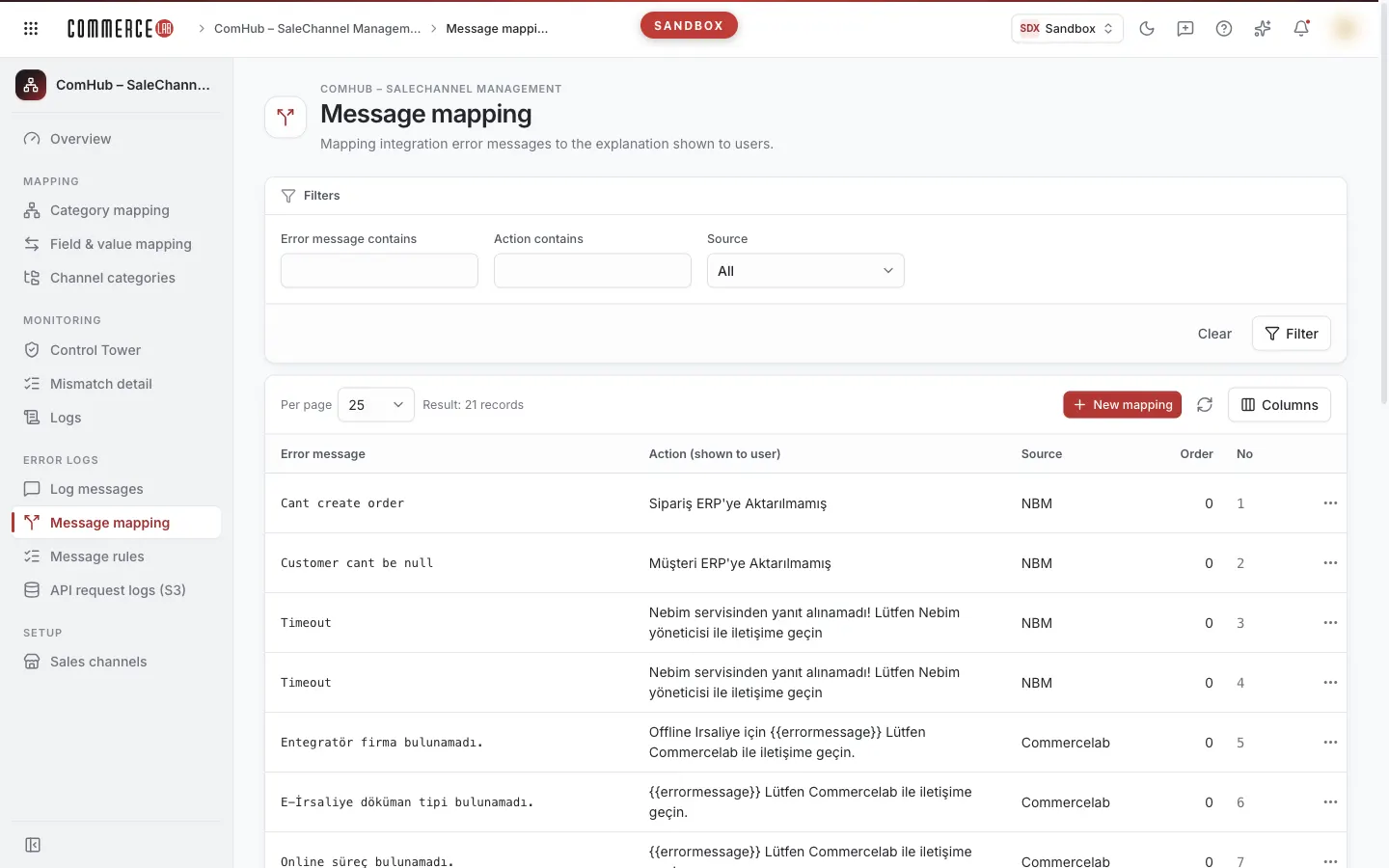
The message mapping screen is where you convert technical error messages returned from integrations (such as invoice, shipping, ERP) into explanations understandable by the user. When an integration process fails, if the error message and source match a mapping, the explanation in the mapping is shown to the user instead of the raw error. This screen is typically used by operations and support teams monitoring integration errors.
Accessing the screen
Follow the menu path ComHub – Marketplace Integration › Error logs › Message mapping.
You can also access mapping from the detail of a log record on the Log messages screen: there you can add a mapping for a message without one or edit an existing mapping. The popup is the same as on this screen.
If you do not see it in the menu, your account does not have permission for this screen.
Screen sections
- Warning strip (only if you cannot write mappings): At the top, explains why you cannot add or change mappings (see the "When it is disabled" section below for details).
- Title: Message mapping with the description "Mapping integration error messages to explanations shown to users."
- Filter area: fields Error message contains, Action contains, and Source; below are Clear and Filter buttons.
- List: At the top, Per page selection, "Filter result: … records" count, New mapping button, refresh icon, and Columns menu; below are the mappings and pagination.
- Note: Below the list, a brief explanation summarizing how mapping is applied.
How mapping is applied
Each mapping consists of four pieces of information: error message, source, action text shown to the user, and an optional order number.
- A mapping applies to a log message if the error message and source exactly match. Case is ignored; however, the rest of the text, including leading and trailing spaces, must be identical.
- If multiple mappings exist for the same message and source, the one with the smallest order number is applied.
- If you write
…in the action text, this placeholder is replaced with the actual error message when shown to the user. For example, if the action is "The shipping company returned this error: …", the user sees the error message inside the explanation.
Changes take effect immediately in the live environment. Adding or deleting a mapping instantly changes the explanation shown to users for orders with that error. This warning is also shown at confirmation.
Filtering and searching
| Field | Purpose | Tip |
|---|---|---|
| Error message contains | Lists mappings where the error message contains the text you enter. | You do not need to enter the full message; a distinctive part is enough. |
| Action contains | Lists mappings where the action text shown to the user contains the text you enter. | Use to find all mappings using a specific explanation. |
| Source | Lists mappings only for the selected source. Default is All. | Options come from saved sources; filtering is exact match. |
Values entered in fields are not applied immediately. Press the Filter button or Enter while in a field. Clear removes all filters and reloads the list.
List
| Column | Meaning |
|---|---|
| Error message | The error text returned from the integration to be mapped. Messages consisting only of spaces show visible symbols for spaces (· space, → tab, ↵ line end). This column cannot be hidden. |
| Action (shown to user) | Explanation shown to the user when an error occurs. |
| Source | The integration or system where the error originated. |
| Order | Determines which mapping applies if multiple exist for the same message; smaller order applies first. Displays "—" if empty. |
| No | The record number of the mapping. |
- Long texts in Error message and Action (shown to user) columns are truncated to two lines; hovering the cursor over the cell shows the full text.
- Default page size is 25; you can select 10, 50, or 100 from Per page.
- You can hide columns other than Error message from the Columns menu; your selection is saved in your browser.
- Sorting by clicking column headers is not supported.
- Clicking a row opens the Edit mapping popup. If you lack write permission, the popup still opens but Continue and Delete buttons are disabled; you can only view the record.
Actions
The three-dot menu (Row actions) at the far right of a row has three options: Edit (or View if write is disabled), Logs with this error, and Delete.
All write actions are two-step: first the form, then a confirmation dialog showing what will be written. No changes are saved without confirmation.
Adding a new mapping
Use this if a raw and unclear error is shown to the user and you want to define an explanation for it.
- Click the New mapping button above the list. The Add mapping popup opens with the note "Error message and source must exactly match the log message."
- Enter or paste the exact error text returned from the integration into the Error message field.
- Enter the explanation to be shown to the user in the Action (shown to user) field. To include the error message inside the explanation, write
…; a Preview section opens showing how it will look. - Enter the source of the error in the Source field. Registered sources are suggested as you type.
- Optionally enter an integer in the Order field.
- Click Continue. If any required or invalid fields exist, a red warning appears below and you cannot proceed.
- In the Save this mapping? confirmation, review the source, error message, action, and order, then click Save.
If successful, a "Mapping added" notification appears, the popup closes, and the list refreshes. Clicking Cancel at confirmation returns you to the form without losing entered data.
The easiest way is to add the mapping from the log detail on the Log messages screen; there the error message and source come prefilled, eliminating mismatches due to typing differences.
Editing a mapping
- Click a row or select Edit from the row menu. The Edit mapping popup opens with current values.
- Change fields and click Continue.
- In the Save this mapping? confirmation, review all details including the No, then click Save.
A "Mapping updated" notification appears, the popup closes, and the list refreshes. Closing the popup with Cancel discards changes.
Deleting a mapping
Use this to remove mappings that are no longer needed or incorrectly defined.
- Select Delete from the row menu or click Delete at the bottom left of the edit popup.
- In the Delete the mapping? confirmation, review the No, source, and error message.
- Click Delete.
A "Mapping deleted" notification appears and the list refreshes. Deletion is irreversible; if needed again, you must add it anew. Clicking Cancel in the confirmation closes the popup or returns to the form depending on how you accessed it.
Viewing logs with this error
To see which errors actually use a mapping, select Logs with this error from the row menu. The Log messages screen opens filtered to records exactly matching this error message and with the Source filter set to the mapping's source. At the top, the line "Only records exactly matching this message:" and a Remove filter button appear; this button removes only the message filter, keeping the Source selection.
The log messages screen’s own date rule applies: if no date is selected, it searches the last 10 days. To see older records, expand the date range there.
When it is disabled
New mapping, Delete in the row menu, and Continue, Delete, and Save buttons in the popup are disabled if:
- Your account lacks write permission for mappings: "Administrator rights and mapping write permission are required to add or change mappings."
- Mapping writing is disabled in this environment: "Mapping writing is disabled in this environment; records are view-only."
In this case, a warning explaining the reason appears at the top of the screen and inside the popup; hovering over the New mapping button shows the same reason. You can still open and review records and view related logs with Logs with this error.
Mapping popup fields
| Field | Required | Description / rule |
|---|---|---|
| Error message | Yes | Saved as-is; leading and trailing spaces are not trimmed. Messages consisting only of spaces are valid (used to map errors returning empty responses). |
| Action (shown to user) | Yes | Explanation shown to the user. The … placeholder is replaced with the error message. Leading/trailing spaces are trimmed on save. |
| Source | Yes | Up to 100 characters. Registered sources are suggested; you can enter a source not in the list. Leading/trailing spaces are trimmed. |
| Order | No | Must be an integer. If multiple mappings exist for the same message, the smallest order applies. |
Error warnings appear when you first click Continue: "Required field", "Maximum 100 characters", or "Must be an integer."
Two additional warnings may appear for the Error message field:
- If the message consists only of spaces: "Error message consists only of spaces. This can be intentionally used to map errors returning empty responses."
- If there are leading or trailing spaces: "Error message has leading or trailing spaces; it will be saved as-is."
These warnings do not block saving; they are informational. Because matching is space-sensitive, unintended spaces may cause mappings not to apply.
In the confirmation, spaces in the error message are shown with visible symbols (· space, → tab, ↵ line end) so you can see exactly what will be saved.
Common situations
- I added a mapping but the user still sees the raw error. The error message and source must exactly match the log record. Check leading/trailing spaces and source spelling. Adding the mapping from the log detail avoids such mismatches. If another mapping with a smaller order exists for the same message and source, that one applies.
- Buttons are dimmed, I cannot add mappings. Read the warning at the top of the screen. If writing is disabled in this environment, changes cannot be made; if you lack permission, ask your administrator.
- "Mapping could not be saved" notification appeared. No changes were made. The popup returns to the form with your inputs preserved; check the notification details and try again. If it says "Mapping writing is disabled in this environment…", writing is disabled here.
- "No mappings" is shown. No mappings match the filters. Use Clear to remove filters or add a new mapping.
- Filtered message not found. The Source filter requires exact match; a different source may be selected. Set Source to All and try again.
- "Something went wrong" appears instead of the list. Mappings could not be loaded at that moment. Click Retry; if the problem persists, notify your system administrator.