Message rules
Manage rules, methods, and message codes that link integration response messages to message codes and retry types by pattern.
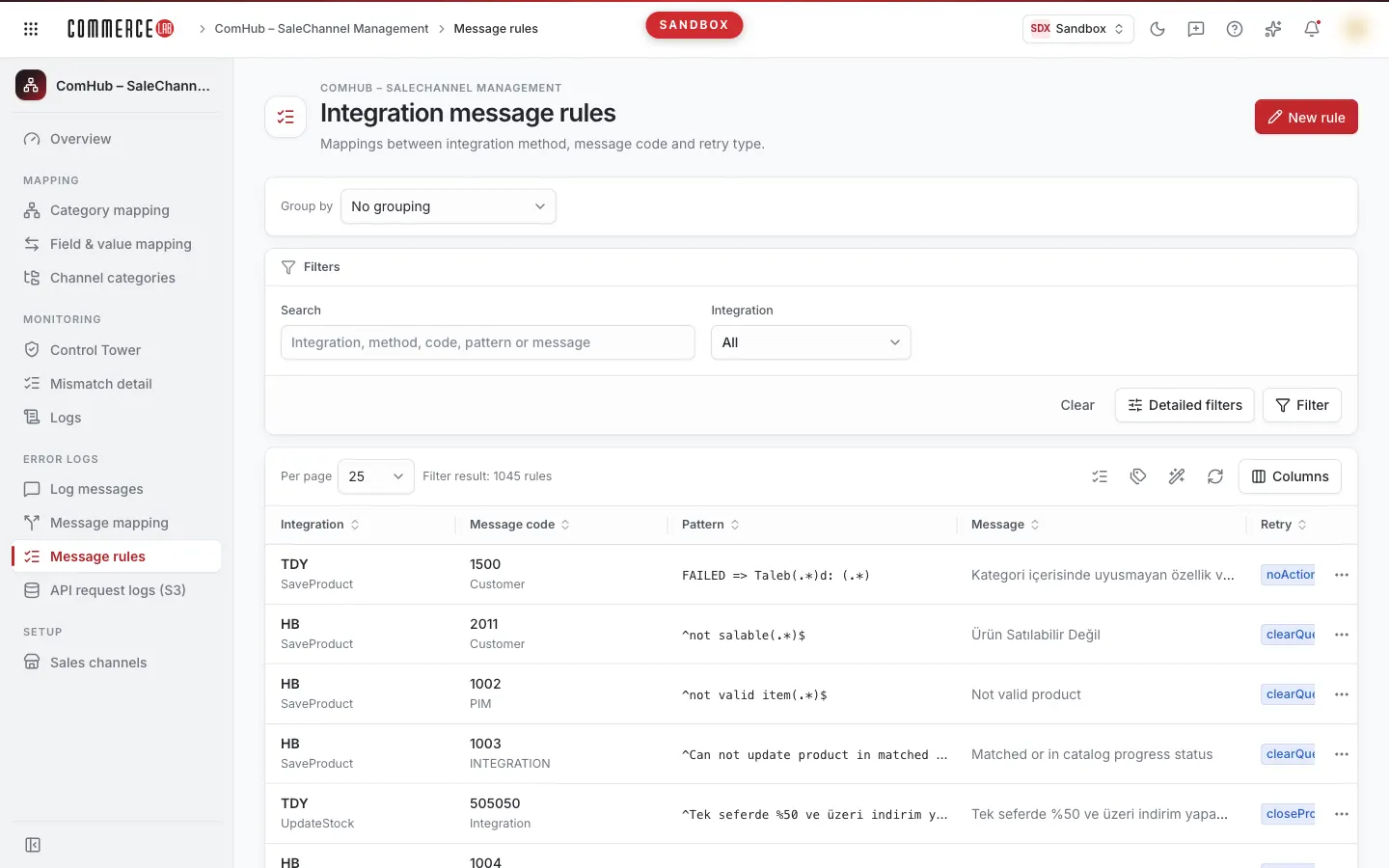
The Message rules screen is where you define how response messages returned from integrations that send products are classified. Each rule combines an integration and method with a pattern (regular expression) matching the response message, the message code corresponding to this message, and the retry type. This way, similar errors are grouped under a single code and the action for each is determined. The screen is used by catalog and operations teams managing integration errors.
Accessing the screen
Follow the menu path ComHub – Marketplace Integration › Error logs › Message rules. The screen title appears as Integration message rules.
If you do not see it in the menu, your account does not have permission for this screen. If you see the screen but not the New rule button, your account lacks rule writing permission; in this case, the screen opens as read-only.
Screen sections
- Title: Integration message rules, with the description "Integration method, message code, and retry type matches." below and the New rule button on the right (only with write permission).
- Filter area: Search box and Integration selection; below are Clear, Detailed filters, and Filter buttons.
- List toolbar: Per page selection, the count "Filter result: … rules", and icon buttons on the right: Integration methods, Message codes, and (only with write permission) Fill unmapped; followed by refresh icon and Columns menu. Hovering over icons shows their function.
- List: Rules and pagination.
Filtering and searching
| Field | Purpose | Tip |
|---|---|---|
| Search | Lists rules containing the text you enter in any of the integration, method, message code, pattern, message, source, or action fields. Case insensitive. | You can find the relevant rule by typing part of an error message. |
| Integration | Lists rules only for the selected integration. Default is All. | Always visible. |
| Method | Lists rules for the selected integration method. | Added from the Detailed filters menu. Options include methods from all integrations; not narrowed by Integration selection. |
| Message code | Lists rules for the selected message code. | Added from the Detailed filters menu. |
| Retry type | Lists rules with the selected retry type. | Added from the Detailed filters menu. |
- Values in selection lists filter by exact match.
- Filters checked in the Detailed filters menu are remembered by your browser and remain open when you return to the screen. Unchecking a filter clears its value.
- Values are applied only after pressing the Filter button or Enter in a field. Clear removes all filters and search.
List
| Column | Meaning |
|---|---|
| Integration | Integration to which the rule applies; integration method shown in small text below. This column cannot be hidden. |
| Message code | Code assigned to the message matching the pattern; message source shown in small text below. |
| Pattern | Regular expression compared to the response message. |
| Message | Message text linked to the rule. |
| Retries | Retry type of the rule, shown with a blue label. |
| Delay (min) | Retry delay in minutes. |
| Action | Action information linked to the rule. |
| Pending request type | Pending request type linked to the method. Hidden by default. |
| Order | Rule sort order. Hidden by default. |
| Created | Date and time the rule was created. Hidden by default. |
| Updated | Date and time the rule was last modified. Hidden by default. |
- Hidden columns can be enabled from the Columns menu; your selection is saved in your browser.
- You can resize column edges by dragging; useful for reading long patterns and messages.
- Clicking column headers does not sort.
- Cells without values show "—".
- Default page size is 25; you can select 50 or 100 from Per page.
- Clicking a row does not open anything. If you have write permission, the three-dot menu (Row actions) on the right offers Edit rule and Delete rule; if not, this menu is hidden.
Actions
Adding, editing, deleting rules, filling unmapped messages, and adding/editing/deleting methods and codes require write permission. Without it, these buttons are hidden; you can still open and review the Integration methods and Message codes panels.
Adding a new rule
Use when you want to classify a new type of error message.
- Click the New rule button on the right of the title. The New rule box opens.
- Select the integration from the Integration list.
- Select the method from the Integration method list. This list is disabled until an integration is selected and shows methods for the chosen integration.
- Enter or select the code in the Message code field.
- Check the Retry type; the first type in the list is selected by default, change if needed.
- Enter the regular expression matching the response message in the Pattern (regex) field.
- Optionally fill in Retry delay (minutes) and Sort order.
- Click Save. The button is disabled until required fields are filled.
If saved successfully, a "Rule saved" notification appears, the box closes, and the list refreshes. If saving fails, a "Something went wrong" notification with details appears and the box remains open; your inputs are preserved.
Editing a rule
- Select Edit rule from the three-dot menu on the right of the row.
- The Edit rule box opens with current values.
- Make changes and click Save.
Closing the box with Cancel discards changes. Values reload from the rule each time the box opens.
Deleting a rule
- Select Delete rule from the three-dot menu on the right of the row.
- The Delete this rule? box opens with the warning "Deleted rule cannot be undone; you must write a new rule for the same pattern." and shows the rule's pattern. Verify it is the correct rule.
- Click Delete.
A "Rule deleted" notification appears and the list refreshes. If deletion fails, a "Something went wrong" notification appears and the box remains open.
Filling unmapped
Use to create draft rules for integration messages not yet matched by any rule.
- Click the Fill unmapped icon in the list toolbar.
- The Create draft rules for unmapped messages? box opens. As described, unmatched integration messages are scanned and missing rules added; this may take several minutes.
- Click Fill unmapped. While processing, the button shows "Saving…".
When complete, a "Unmapped messages filled" notification appears, the box closes, and the list refreshes. Review and edit added rules if needed. If the process fails, a "Something went wrong" notification appears and the box remains open.
Managing integration methods
The Integration method list in the rule box comes from these records.
- Click the Integration methods icon in the list toolbar or the Manage methods button in the rule box. The Integration methods panel opens from the right.
- Narrow the list using the Integration selection and Search box (searches method, pending request type, or integration). If opened from the rule box, the Integration selection is prefilled with the selected integration.
- Click Add method for a new method. If an integration is selected in the panel, the form opens with that integration. Fill Integration, Integration method, and Pending request type fields and click Save. All three are required; "Required field" appears below empty fields.
- Click the pencil icon to edit a row, trash icon to delete. Integration cannot be changed during editing.
The panel list includes Integration, Integration method, and Pending request type columns.
Managing message codes
The Message code suggestions in the rule box come from these records.
- Click the Message codes icon in the list toolbar or the Manage message codes button in the rule box. The Message codes panel opens from the right.
- Use the Search box to search code, description, source, or action.
- Click Add code for a new code. Message code and Description are required; Source and Action are optional. Click Save.
- Click the pencil icon to edit a row, trash icon to delete.
The panel list includes Message code, Description, Source, and Action columns.
Common behavior in both panels:
- On successful save, a "Saved" notification appears and the form closes; on error, the message appears above the form and the form remains open. You can close the form with Cancel.
- Before deleting, the Delete the record? box warns "Rules using this record may be affected." and shows the record to be deleted; confirming shows a "Deleted" notification. If deletion fails, the box closes and a "Something went wrong" notification appears.
- If no records match the search, "No records found" is shown.
- Changes in panels refresh the rule list and options in the rule box.
Rule box fields
| Field | Required | Description / rule |
|---|---|---|
| Integration | Yes | Lists integrations that send products. Changing integration clears the selected method. |
| Integration method | Yes | Disabled until integration is selected; shows "Select integration first" below. Lists methods for the selected integration; if none exist for that integration, all methods are listed. |
| Message code | Yes | Up to 256 characters. You can select from suggestions or enter your own code. If you enter a code not in the list, a note "This code is not in the message code list; the rule will still be saved." appears below. |
| Retry type | Always selected | If not selected, the first type in the list is selected and the rule saved with that type; verify the correct type is selected before saving. |
| Pattern (regex) | Yes | Regular expression matching the integration response message. Leading/trailing spaces are trimmed on save. |
| Retry delay (minutes) | No | Enter an integer; non-integers are not sent. |
| Sort order | No | Enter an integer; non-integers are not sent. |
- When required fields are empty, "This field is required" appears below and the Save button is disabled. This note appears as soon as the box opens and disappears when the field is filled.
- The Manage methods and Manage message codes buttons open the respective panels; additions there update the lists in the box.
- The Message and Action columns shown in the list are not editable in this box.
Common situations
- I don't see the "New rule" button. Your account lacks rule writing permission; the screen opens read-only. Request permission from your administrator.
- Integration method list is disabled. Select Integration first; the method list opens according to the selected integration.
- The integration I want is not in the list. Only integrations that send products are shown in the rule box.
- The message code I want is not in suggestions. You can still enter the code; the rule will save. To have the code appear in the list, add it via Manage message codes.
- The list is empty. If "No records found" appears, no rules match the filters. Use Clear to remove filters and try again.
- "Reporting service not defined" message appears. The service linked to this screen is not defined in this setup; only this warning appears instead of the list. This is not an error; contact your administrator.