Delivery logs
Review the results of product, stock, and price requests sent to channels and the product logs received from ERP.
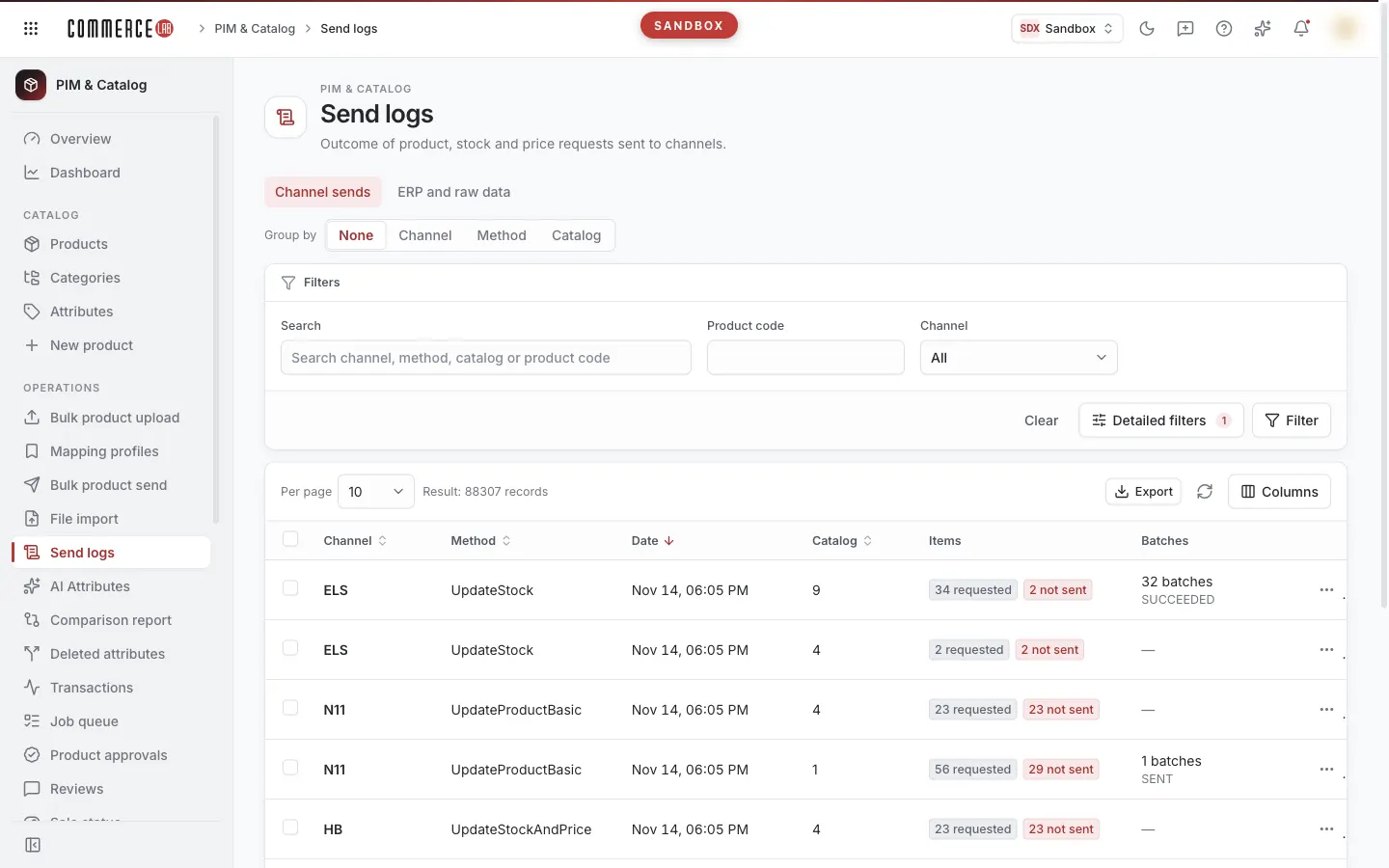
Delivery logs screen is where you monitor what happens to a product in integrations. It has two views. The Channel sends view shows product, stock, and price requests sent from PIM to sales channels and their results. The ERP and raw data view tracks the product's arrival from ERP to PIM: it shows processing logs of products received from ERP and the raw content sent by ERP. You answer questions like "Why didn't this product go to the channel?" or "When and with what information did ERP send this product?" on this screen. The screen is read-only; sending cannot be initiated here.
Accessing the screen
- Follow the path PIM & Catalog › Operations › Delivery logs in the left menu.
- In product details, the Actions tab's Integration logs (…) button opens this screen in the Channel sends view, filtered by the product's option code, showing 25 records per page. The button only appears if the product has an option code.
If you do not see it in the menu, your account does not have permission for this screen.
Screen sections
- Title: Delivery logs and description of the selected view.
- View tabs: Channel sends and ERP and raw data. Changing tabs immediately switches the view and resets the list to the first page.
- Grouping bar: Only in the Channel sends view, with Group by selection and group buttons.
- Filter card: Filter fields vary by view, with Clear, Detailed filters (only in channel view), and Filter buttons below. In the ERP and raw data view, source selection is also on this line.
- List card: Per page selection, "Filter result: … records" count, refresh icon, Columns menu, table, and pagination. The channel view also has an Export button.
Filters apply when pressing the Filter button or Enter in a field. If there are unapplied changes, Filter is highlighted. Clear empties all filters and search and reloads the list immediately. You can hide or show columns from the Columns menu; your selection is saved in your browser.
Channel sends
Each row in this view is a send record to a channel: which channel, by which method, from which catalog, how many products were requested, and which batches the request was sent with.
Filtering and search
| Field | Purpose | Tip |
|---|---|---|
| Search | Searches text in channel, method, or product code. If you enter only digits, the catalog with that number is also searched. | You can also search by code fragment. Characters other than letters, digits, spaces, -, and _ are ignored in the search. |
| Product code | Limits the list to records where the requested products include this option code. | Exact match search; enter the full code. Use Search field for partial matches. When coming from product details, it is prefilled. |
| Channel | Shows only records for the selected channel. Default is All. | Visible by default on the filter card. Each option shows the count of records for that channel. |
| Method | Shows only records for the selected send method. | Added via Detailed filters menu. |
| Catalog | Shows only sends from the selected catalog. | Added via Detailed filters menu. |
Channel, Method, and Catalog options come from all values in the system and show record counts. If options fail to load, these fields remain empty but the list continues working.
Fields checked in the Detailed filters menu are added to the filter card; this selection is saved in your browser. Unchecking a field removes its value from the filter.
Grouping bar
Use to quickly see how records are distributed by channel, method, or catalog.
- Select Channel, Method, or Catalog in the Group by field. Default is Missing.
- Buttons appear for each value of the selected field with record counts, calculated according to other applied filters.
- Clicking a button filters the list to that value and highlights the button.
- Clicking the same button again removes the filter.
Group buttons update the list immediately without waiting for the Filter button.
List
By default, 10 records are shown per page (options: 10, 25, 50, or 100), with the newest record on top. You can change sorting by clicking column headers Channel, Method, Date, and Catalog.
| Column | Meaning |
|---|---|
| Channel | The channel to which the send was made. |
| Method | The method used for sending. |
| Date | When the record was created. |
| Catalog | The catalog from which the send was made. |
| Items | Shows a "… requested" badge indicating the number of requested products. If any products failed to send, a red "… not sent" badge appears. |
| Batches | Number of batches the request was sent with ("… batches") and their statuses below. Shows "—" if no batches exist. |
Clicking a row or the Open detail option in the row's three-dot menu opens the send record box.
Send record box
The box header shows the channel and method. It has three tabs; record counts appear next to tab names.
The Batches tab lists which batches the request was sent to the channel with:
| Column | Meaning |
|---|---|
| Batch id | The ID of the batch sent to the channel. |
| Date | When the batch was requested. |
| Status | Status reported by the channel for the batch, as received. |
| Has result | Whether the channel reported a result for this batch (Yes / No). |
| Sent | Number of items actually sent in the batch. Clicking the number toggles a list of sent items below the table. If zero, it cannot be clicked. |
| Actions | The Fetch result button requests the batch result from the channel and shows it below the table. When open, the button changes to Hide. No button appears for rows without a batch ID. |
The result opens under the heading "… batch result." Table columns depend on data returned by the channel, with column headers as field names sent by the channel. If the channel returns plain text instead of a table, the text is shown as is. If no result is returned, it says "Channel did not return a result for this batch." If channel info is missing in the record, a No channel id warning appears and results cannot be requested. If an error occurs while fetching, Something went wrong and the error text appear.
The Requested items tab lists all product codes requested in this send.
The Not sent tab lists products that failed to send with Product and Reason columns. If all products were sent, it shows All sent.
Above the lists of requested items, not sent items, sent items in batches, and batch results is a search box (not in the Batches table). Text entered is searched case-insensitively in list values, showing "… / … matches" count. These lists show 10 rows per page; pagination appears if more rows exist. This search helps answer "Was the SKU I searched for in this batch?" If no matches, it shows No matching records.
Exporting
There are two ways to export send records with detailed content:
- Visible page: The Export button on the list card exports records visible on the current page.
- Selected records: Select records using checkboxes at the start of rows. A bar appears above the list showing "… records selected." Use Export selected to export only chosen records. Clear selection clears the selection. Selection resets automatically when filters or pages change.
The file downloads as pim-gonderim-loglari.csv. The delimiter is semicolon; the file opens directly with columns separated in Turkish Excel. The file contains all fields of each record. If no records to export, a "No records to export." warning appears.
ERP and raw data
This view is used to track a product's arrival from ERP to PIM by code. The list is empty until you enter a code and press Filter, showing a Enter a code warning.
Filtering
| Field | Purpose | Tip |
|---|---|---|
| Model code | Retrieves records for the model. | Codes are searched by exact match; enter the full code. |
| Option code | Retrieves records for the option (e.g., color). | Shares the same value as Product code in the channel view; code is preserved when switching views. |
| SKU | Retrieves records for a single SKU. | Narrowest search. |
| Source selection: ERP logs / Raw data | ERP logs lists processing logs of products from ERP; Raw data lists raw content sent by ERP. Default is ERP logs. | Located on the filter card's bottom line. |
At least one of the three codes must be filled. Changing the source does not immediately update the list; the table shows View changed. Press Filter to see results for the new source.
List
| Column | Meaning |
|---|---|
| Model code | Model code of the record. |
| Option code | Option code of the record. |
| SKU | SKU of the record. |
| Barcode | Barcode of the record. Hidden by default; can be shown from the Columns menu. |
| Description | Only in ERP logs source: description written during processing. |
| Channel | Only in Raw data source: channel associated with the content. |
| Date | Timestamp of the record (including year). |
Page size is shared with the channel view. Clicking a row or the Raw data option in the row menu opens the record's content.
Raw data box
The box header shows "Raw data: …" and the most distinctive code of the record (SKU, or if missing option code, or if missing model code), with source and date below. If content is structured data, it is formatted for readability. Otherwise, it is shown as is with the note "Payload is not JSON; shown as is." The Copy button copies content to clipboard and shows a Copied notification. If no content exists, it shows This row has no raw payload.
Common scenarios
- Product not visible in channel, where to check? In Channel sends view, enter the option code in Product code and press Filter. In records with a red "… not sent" badge, read the Reason column in the Not sent tab.
- "Enter a code" shown, list empty. The ERP and raw data view does not search without a code. Enter model code, option code, or SKU and press Filter.
- Entered code but "No records" shown. Codes are searched by exact match; ensure you enter the full code. The record may be in the other source; switch between ERP logs and Raw data and press Filter.
- "View changed" shown. You changed the source but have not applied it yet. Press Filter.
- Batch result not arriving. The channel may not have returned a result for that batch. Check the Has result column to see if the channel reported a result.
- Missing records in export. Export only exports the visible page. To export more records, increase the Per page value or select records and use Export selected.