Operations
Monitor the status of bulk product operations, the fields changed per product, and channel dispatch results.
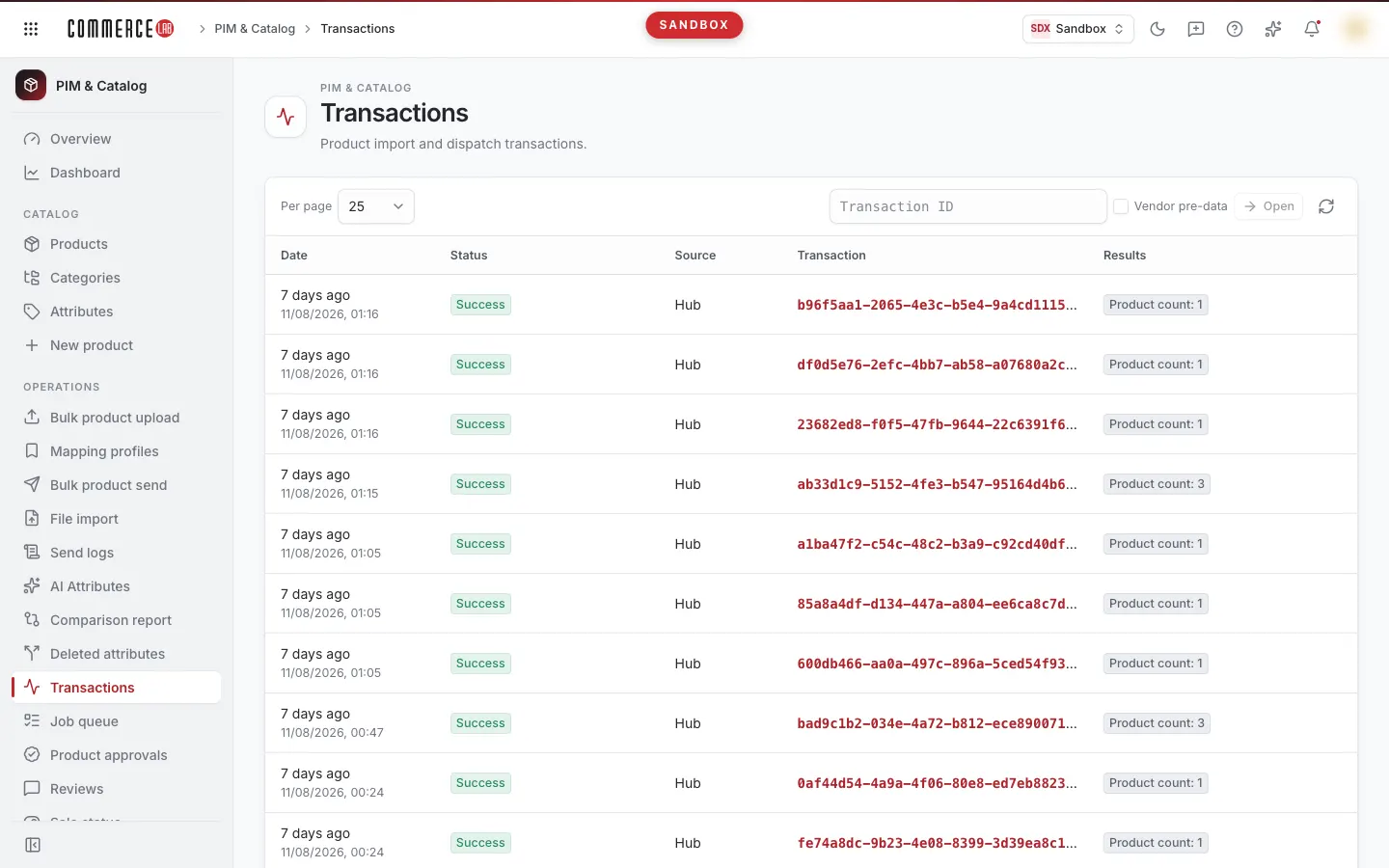
Operations screen keeps a log of bulk operations that modify products in PIM: product uploads from files, bulk operations from product lists, sales status changes, new product creation, and more. Each operation has a transaction id; with this id, you can track step-by-step which products were affected, which fields changed to what values on each product, and whether the changes were sent to channels.
The catalog and e-commerce teams use this screen especially to answer the question "Did the bulk change I made apply to the products and get sent to the channel?" The screen is read-only; no operations can be started or undone here.
Accessing the screen
- Follow the path PIM & Catalog › Operations › Operations in the left menu.
- You can also access the details directly from screens where you start an operation: the bulk operation result links on the Products and Sales status screens, the Transaction detail link on the result step of the New product wizard; the transaction id link on the Bulk product upload result (opens in a new tab).
If you do not see it in the menu, your account does not have permission for this screen.
Screen sections
- Title: Operations with the description "Log of product import and dispatch operations." below.
- Top row of the list card: selection for Applied / Vendor pre-data, Per page selection, Transaction id box with Open button and refresh icon (Retry).
- Operations table.
- Bottom row: displayed record range ("Records 1–25"), page number ("Page 1"), and previous/next page buttons.
There is no filter card on the screen; operations cannot be filtered by date, status, or source.
Pool selection and navigating to an operation
| Field | Purpose | Tip |
|---|---|---|
| Applied / Vendor pre-data | Selects which operation pool to list. Default is Applied: operations applied to PIM products. Vendor pre-data shows product operations sent by vendors that are still in pre-data stage. | Selection applies immediately and resets the list to the first page. If you cannot find the operation in one pool, switch to the other. |
| Transaction id | Directly opens the detail of the operation whose id you know. Paste the id and press Open or Enter. The button is disabled if the box is empty. | Since the list cannot be searched by id, this is the fastest way to find an operation. The operation opens in the currently selected pool; select the correct pool first. |
The pool and page remain in the URL; sharing the link opens the same view.
List
| Column | Meaning |
|---|---|
| Date | Time of the operation. Relative time ("3 hours ago") on top, date and time below; full time appears on hover. |
| Status | General status of the operation (see the Statuses table below). If present, the operation message is shown below; the full long message appears on hover. |
| Source | The origin of the operation, as recorded in the system. |
| Operation | Transaction id. Clicking opens the operation detail page. |
| Results | Summary of dispatch results to channels: a badge and product count for each result type (e.g., "Successful: 120"). Green badge indicates success, red indicates error. If no dispatch result yet, only the product count in the operation is shown. |
- Default page size is 25; you can select 25, 50, or 100 from Per page.
- The list does not show total record count. The Next page button is enabled if there is a next page; disabled on the last page. The Previous page button is disabled on the first page. Both buttons are disabled while the page is loading.
- Clicking a row does not open details; click the id in the Operation column for details.
- The list does not auto-refresh. Press the refresh icon to update the status of ongoing operations.
Statuses
Operation and product statuses are shown with the same labels. Unknown status codes appear as gray badges with the raw value shown on hover.
| Status (on screen) | Meaning | Next step |
|---|---|---|
| In queue | Operation is queued, not yet processed (yellow badge). | Refresh the list after some time. |
| Processing | Operation is currently being applied (yellow badge). | Wait for it to finish, then refresh the list. |
| Pending | Operation or product is not yet finalized (gray badge). | Monitor by refreshing the list. |
| Completed / Successful | Operation completed without errors (green badge). | Check channel dispatch in the Results column or the Dispatch results tab in details. |
| Partial | Some products in the operation succeeded, some failed (yellow badge). | Review products with filled Bug column in details. |
| Bug / Failed | Operation or product could not be applied (red badge). | Read the Bug column in details; correct the data and retry from the initiating screen. |
Detail page
Clicking a transaction id or opening via the Transaction id box opens the operation detail page.
Top of the page
- The Operations button top-left returns to the previous page.
- The title is the transaction id. Below, if in vendor pool, Vendor pre-data is shown; if present, the operation message and full date/time are displayed.
- The status badge is top-right.
- Below are three tabs: Items, Changed fields, Dispatch results. Record counts appear next to tab names.
Items tab
Lists products affected by the operation.
- By default, only products with changes are shown. The top line states "Showing … products with changes; … products hidden."
- Checking Show all (including unchanged) lists all products in the operation ("Showing all … products"). Unchanged products are those included in the operation but with no field changes.
| Column | Meaning |
|---|---|
| # | Row number. |
| Product | Product number. Clicking opens the product detail page; in vendor pre-data pool, opens the vendor product review page (Product approval). |
| Source name | Source of the product and its id if any. |
| Status | Product status in this operation and the status time. |
| Bug | If the product failed, the error type, related field, and error message (red). If no error, "—". |
| Changed fields | Number of fields changed on this product. |
| Dispatch results | Number of channel dispatch results for this product. |
| Actions | Changes button: selects the product and switches to the Changed fields tab. |
The selected product row is highlighted. If no product is selected, the other tabs show the first product in the list. The numbers next to Changed fields and Dispatch results tabs correspond to the selected product. If you uncheck the show all box and the selected product is hidden, the tabs revert to the first product in the list.
Changed fields tab
Shows fields changed on the selected product in this operation. The top line indicates "Product …" to specify which product is viewed.
| Column | Meaning |
|---|---|
| Process type | Type of change, system code: upsert (add or update, yellow) or delete (remove, red). |
| List | List where the change was made. This column is hidden in vendor pre-data pool. |
| Field | Changed field. Known fields are shown with Turkish names (Price, Sale price, Stock, On sale, etc.) and system field name below; custom fields show only system name. |
| New value | Field value after the operation. |
Only the new value is shown here; previous value is not displayed.
Dispatch results tab
Shows channel dispatch results for the selected product.
| Column | Meaning |
|---|---|
| Result | Dispatch result and time. Successful results appear with green badge, errors with red; if no result yet, Pending is shown. Long error messages are truncated; hover to see full text. |
| Integration | Channel integration where dispatch was made. |
| Request type | Type of request sent to the channel. |
| Product | Product number; clicking opens product page. |
| SKU | SKU of the variant sent. |
| Catalog | Catalog to which the dispatch belongs. |
Operations
Checking the result of an operation you started
- Click the Transaction detail link on the screen where you started the operation or copy the transaction id and paste it into the Transaction id box on this screen, then press Open.
- Check the status badge top-right. If it shows In queue or Processing, refresh the page after some time.
- In the Items tab, check if any product has a filled Bug column.
- To see what changed on a product, press the Changes button in its row.
Checking if the change was sent to the channel
- Open the operation detail.
- In the Items tab, press the Changes button on the relevant product row, then switch to the Dispatch results tab.
- Read the Result column for each channel integration. If it shows Pending, the dispatch is not finalized; hover over the red badge to read the error message.
Finding an operation from a vendor
- Select Vendor pre-data at the top of the list.
- Find the operation in the list or paste its id into the Transaction id box. Product links in this pool lead to the vendor product approval page.
Common situations
- The list says "No operations". There are no operations in the selected pool. Switch to the other pool (Applied or Vendor pre-data).
- "No operations on this page" is shown. The list may have shortened while you were paging. Go back to the previous page.
- Detail page says "Operation not found". The id is incorrect or the operation is in the other pool. Check the id; for vendor operations, select Vendor pre-data and reopen the id.
- "No products with changes" is shown. No fields changed on any product in the operation. Check Show all (including unchanged) to see these products.
- "No dispatch results" is shown. The product has not been sent to any channel yet or results are pending. Refresh after some time; you can also check channel dispatch history on the Dispatch logs screen.
- "Something went wrong" error appears. The list or detail failed to load. Retry with Retry; if the problem persists, send the message in the Technical detail section to your system administrator.
- Transaction id is not clickable after bulk product upload. If your account lacks permission for this screen, the id is shown as plain text; copy it and send it to an authorized team member.
Related screens
- Products — product list where bulk operations are started.
- Sales status — bulk sales status changes; provides Transaction detail link.
- Bulk product upload — product upload from file; provides transaction id.
- Dispatch logs — records of product dispatches to channels.
- Job queue — records waiting to be sent to channels and scheduled jobs.