Bulk product send
Manually resend the product, stock, or price information of the selected barcodes to sales channels.
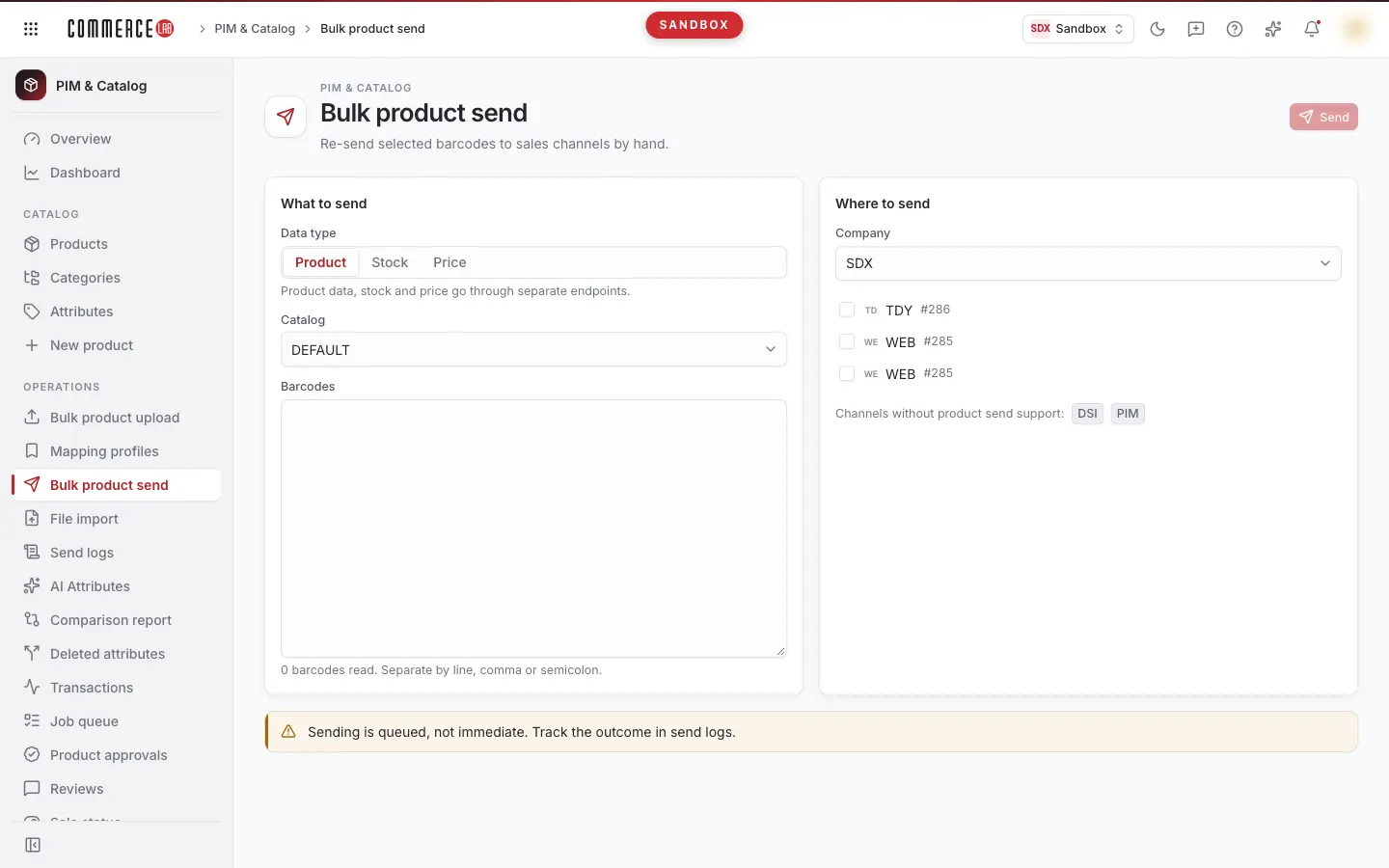
Bulk product send screen allows you to manually resend the product, stock, or price information of the selected barcodes to sales channels (marketplaces and other integrations). If product information appears missing or outdated on a channel, or stock or price is not reflected on the channel, you resend the related barcodes to that channel via this screen. The sending is not immediate; it is processed through a queue. This screen is typically used by e-commerce and operations teams dealing with marketplace and integration issues.
Accessing the screen
Follow the menu path PIM & Catalog › Operation › Bulk product send. If you do not see it in the menu, your account does not have permission for this screen.
If you can open the screen but do not have permission to send to the channel, a warning "You do not have permission to send to the channel …; you can see selections but cannot send." appears at the bottom of the page and the Send button is disabled.
Screen sections
- Title: Bulk product send and the description "Manually resend selected barcodes to sales channels."; Send button at the top right.
- What to send card (left): Data type, Catalog, and Barcodes.
- Where to send card (right): Company selection, list of channels available for sending, channels that do not support sending, and the last sending result per channel.
- Warnings (bottom): note "Sending is not immediate; it is processed through a queue. Monitor the result from sending logs." and permission warnings if any.
Fields
What to send
| Field | Required | Description / rule |
|---|---|---|
| Data type | Yes | Product, Stock, or Price. Default is Product. Product information, stock, and price are sent separately; each send carries only the selected data type. To send all three, perform separate sends for each type. |
| Catalog | Yes | The catalog from which the data to be sent is taken. By default, the first catalog is selected. |
| Barcodes | Yes | Barcodes of products to be sent. You can enter one barcode per line or separate them with commas or semicolons. |
Below the Barcodes field, the number of barcodes read is displayed instantly ("N barcodes read."). Leading and trailing spaces are trimmed, and if the same barcode is entered multiple times, it is counted once. You can copy a column from Excel and paste it directly.
Where to send
| Field | Required | Description / rule |
|---|---|---|
| Company | Yes | Company whose channels will be listed. By default, the first company is selected. Changing the company refreshes the channel list with that company's channels. |
| Channels | At least one | Company's channels capable of product sending, with checkboxes. |
Each row in the channel list shows the channel's logo, name if defined, and channel number with #. If the same integration has multiple stores (e.g., two stores on the same marketplace), distinguish them by name and number. When you change the company, channels checked for the previous company are not included in the send; only the channels visible and checked on the screen are sent.
If the company has no channels capable of product sending, the message "No channels capable of product sending for this company." is shown. Channels that do not support product sending are not listed; they appear as gray badges with integration codes under the card titled "Channels that do not support product sending:".
Procedures
Sending barcodes to channel
- Select Data type: Product, Stock, or Price.
- Check the Catalog.
- Paste barcodes into the Barcodes field; verify the count below matches the expected number of barcodes.
- Select Company and check the boxes of the channels you want to send to.
- Click the Send button at the top right. The button is disabled if you lack sending permission, no catalog is selected, no channel is checked, or no barcode is entered.
- In the Start sending? window, read the summary: "<Data type> data will be sent to M channels for N barcodes. Catalog: …". Selected channels are listed as badges below.
- Considering the warning "Sending writes live to sales channels and cannot be undone.", confirm by clicking Send. Cancel does not start sending.
Result:
- While sending, the top right button shows Sending…; the confirmation window cannot be closed until sending completes.
- Each channel is sent separately. If all succeed, a notification "Sending queued for N channels." appears.
- If one or more channels fail, a notification "Sending failed on N channels." appears with error messages.
- If the request cannot complete at all, a Something went wrong notification appears; no per-channel result row is shown.
- Under the Where to send card, a result row appears for each channel: a Sent (green) or Failed (red) badge, channel number, and error message if any.
Important: Sent indicates the request was queued; it does not mean the product was updated on the channel. Monitor the channel's actual response from the Sending logs screen.
Sending cannot be undone. If you sent incorrect data, correct it in PIM and resend the same barcodes.
Common situations
- Send button is disabled. No barcodes entered, no channel checked, or no catalog selected. If there is a permission warning at the bottom, your account lacks permission to send to the channel.
- Channel list is empty. No channels capable of product sending for the selected company. Select another company; company channel definitions are on the Companies screen.
- The marketplace I am looking for is not in the list but appears as a badge below. That channel does not support product sending; sending cannot be done from this screen.
- Barcode count is less than expected. Duplicate barcodes are counted once; empty lines are ignored.
- "Sent" is shown but product did not change on the channel. Sending is processed in a queue; the channel response may be delayed or return an error. Search the result by barcode on the Sending logs screen.
- "PIM service not configured." No product data source is defined in your setup; no action can be taken from this screen, notify your system administrator.
- "Something went wrong" is shown. Company, catalog, or channel list could not be loaded. Click Retry; if it persists, report to your system administrator with the text in the Technical detail section.
- A channel returned "Failed". Check the error message in the result row; you can retry sending selecting only the failed channel.