Enabling and Disabling Product Salability
Use the Salability tab in the product details to enable or disable the product for sale either globally or per sales channel and save; includes relation to stock, step-by-step instructions, and video.
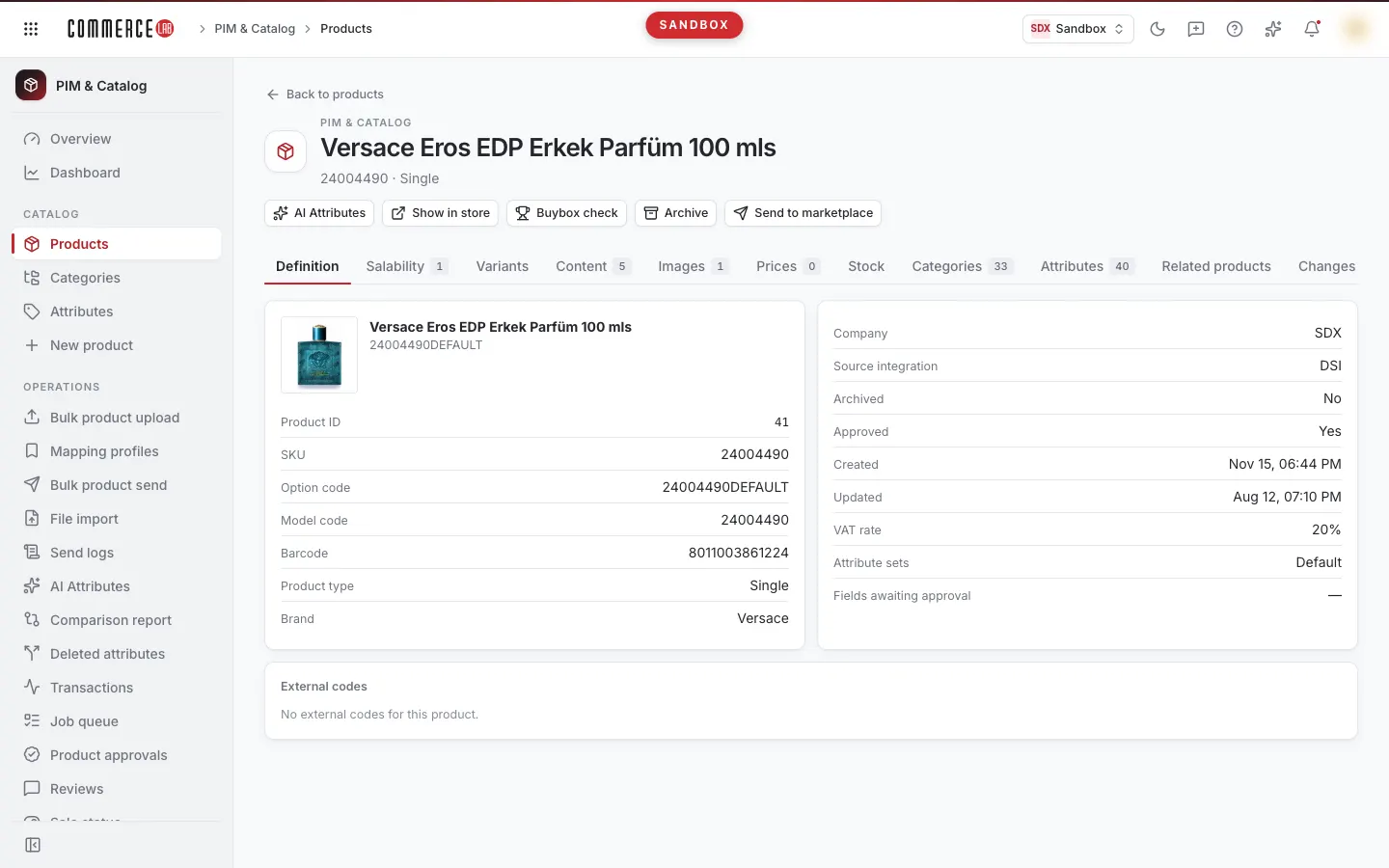
To enable or disable a product for sale, use the Salability tab in the product details. You can disable the product globally across all channels or enable/disable it only on a specific sales channel (for example, on your website or a marketplace). This page explains the process step-by-step; the same explanation is available as a video below.
<video controls preload="metadata" playsinline width="1920" height="1080" poster="https://files.docs.hebiar.com/videos/console/pim/products/detail/satilabilirlik.en.jpg" src="https://files.docs.hebiar.com/videos/console/pim/products/detail/satilabilirlik.en.mp4"><a href="https://files.docs.hebiar.com/videos/console/pim/products/detail/satilabilirlik.en.mp4">Open the video</a></video>
For other areas of the tab, see Product details. To enable or disable many products in bulk, see Sale state. To find a product, see Searching and filtering in the product list.
Before you start
Salability has two levels:
- General status: independent of channels, applies to the entire product. If the general status is off, the product will not be sold in any channel even if channel keys are on.
- Per sales channel: each sales channel has its own key (for example, your Web site, a marketplace channel). The product can be on sale on the site but off on the marketplace. When a new channel is defined, it appears as its own row here.
Relation to stock:
- If stock is zero, the product cannot be purchased anyway.
- Salability is independent of stock: a closed product will not be sold even if stock is available.
The status next to the keys reads: On sale or Off sale.
Enabling the product
- On the PIM & Catalog › Products screen, find the product using the Search all codes box. Badges in the Sale column show the product's general status and channel statuses.
- Click the product name and go to the Salability tab.
- In the List field, the product's salability list is selected by default; values belong to this list.
Disabling or enabling sale on a single channel
- In the Per sales channel section, click the key for the relevant channel (for example, Web). The text next to it changes to Off sale.
- The Save button becomes active; Cancel appears next to it. If you do not click Save, the change will not take effect.
- Click Save. A "Salability queued" notification appears. The product will not be sold on that channel; other channels continue with their own settings.
Disabling the product on all channels
- Turn off the General status key.
- Click Save. Even if channel keys appear on, the product will not be sold on any channel.
To enable, turn on the same keys and click Save. For the product to be sold, both General status and the relevant channel key must be on.
Checking the result
- When you refresh the page, keys appear in the saved state. Since saving is queued, changes may appear after a few seconds.
- Badges in the Sale column and the Active / salable filter in the Products list update according to this setting.
- The save is first written to PIM; it appears on the site when the scheduled transfer task runs. If you want to send immediately, you can trigger the transfer task from the Tasks screen.
Common situations
- Save button inactive: no keys have been changed or List is not selected.
- I left the page, changes lost: Save was not clicked.
- Channel is on but product is not selling: General status is off or the product has no stock.
- Old status still appears on site: transfer task has not run yet; it will reflect once the task runs.
- "No record found" appears on the tab: there is no salability record or defined channel for this product.
- I need to disable many products: instead of doing one by one, perform bulk operations per channel immediately or scheduled for a future date from the Sale state screen.