Using Search and Filters in the Product List
Search all codes in the Products list, select filters with Detailed filters, combine filters to find missing products, paste code lists, and export to Excel; step-by-step guide and video.
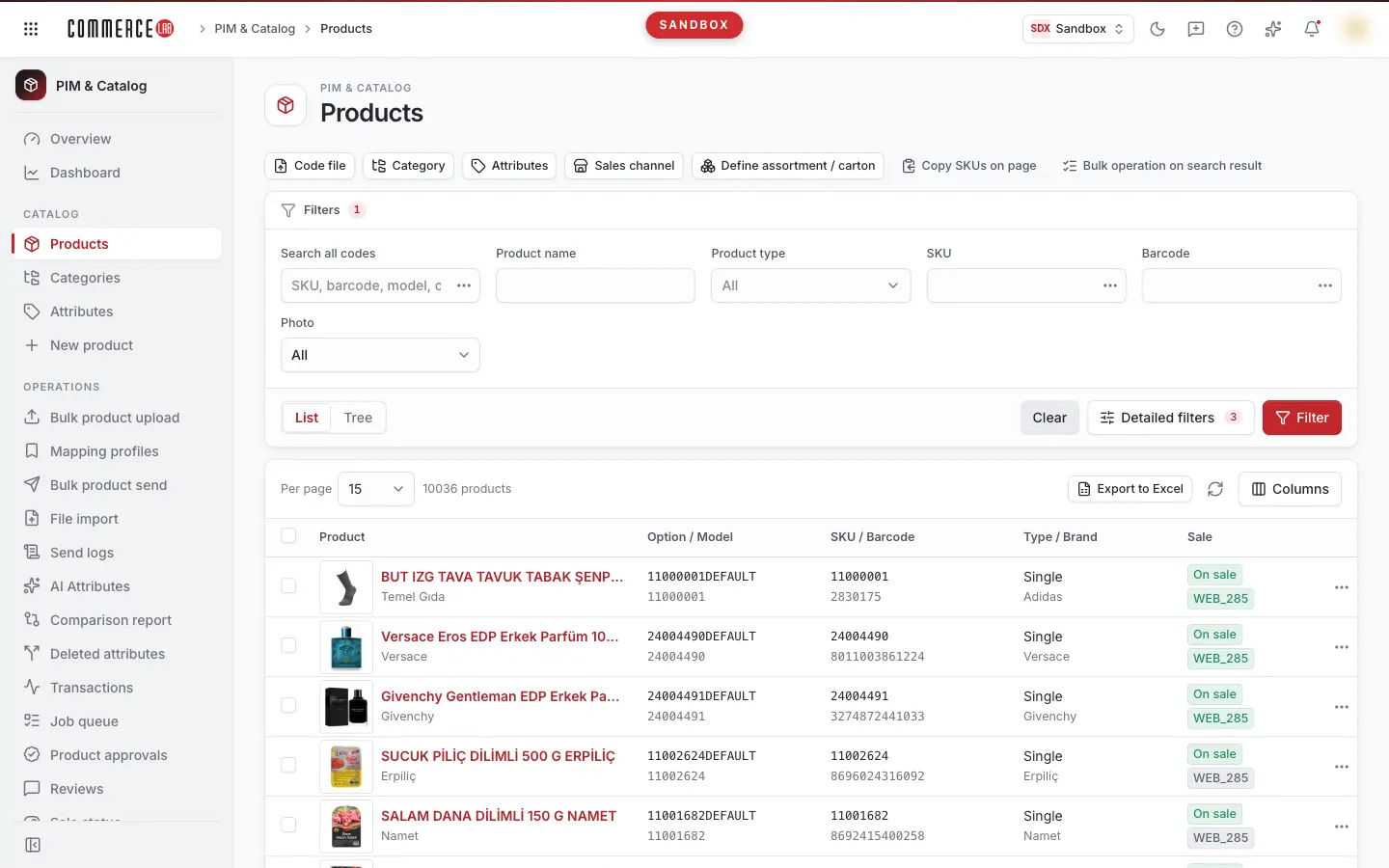
Products screen allows you to find a product by its code, add the filters you need, and combine filters to list missing products (such as those without photos or categories). This page explains step-by-step how to search, select filters, search with a code list, choose columns, and export to Excel; the same explanation is available in the video below.
<video controls preload="metadata" playsinline width="1920" height="1080" poster="https://files.docs.hebiar.com/videos/console/pim/products/urun-listesi-suzgecler.en.jpg" src="https://files.docs.hebiar.com/videos/console/pim/products/urun-listesi-suzgecler.en.mp4"><a href="https://files.docs.hebiar.com/videos/console/pim/products/urun-listesi-suzgecler.en.mp4">Open the video</a></video>
For all screen areas, see the Products document. To enable or disable product salability, see Enabling and Disabling Product Salability. To complete products missing photos, see Updating Product Photo.
Before You Start
- Model is a grouping entity. Each color (or pattern, figure) is a separate Option; it is managed like a separate product with its own name, photo, and content.
- The Search all codes box searches in SKU, barcode, model, option, and supplier codes; typing part of the code is sufficient. It does not search product names; use the Product name box for that.
- Values entered in filter fields are applied when you press Filter or Enter.
- Your filter selections in Detailed filters and your Columns preferences are saved in your browser: they persist after page refresh and do not affect other users.
Searching by Code and Viewing Colors under a Model
- Open the PIM & Catalog › Products screen.
- Enter the code in the Search all codes box and press Filter.
- If you enter a model code, all color options of that model will be listed.
Selecting Product Type
- Open the Product type field. Types such as Model, Option, Sku/Variant, Single, Bundle, Combine, Assortment, Carton are listed.
- By default, single-option standard products appear as Single. If you want to see variants like sizes in the list, select Sku/Variant.
Selecting Visible Filters
- Click Detailed filters.
- Check the filters you want to see; for example, Stock, Category, Active / salable, Photo. The selected filters appear on the filter card.
Combining Filters to Find Missing Products
Each of the Photo, Stock, Category, Active / salable filters can be set to All, Exists, or Missing and work together.
- For example, select Stock as Exists and Photo as Missing: products that are in stock but have no photo will appear.
- Or select Active / salable as Exists and Category as Missing: products that are active for sale but not assigned to any category will appear. Products without a category do not appear on the site.
- Press Filter. The number of results is shown as "N products" at the top of the list.
The Active / salable filter filters according to the Salability setting in the product details.
Searching with a Code List
- Reset filters with Clear.
- Click the three dots (Enter multiple values) to the right of the Search all codes box.
- Paste the codes into the opened window, one code per line; columns copied from Excel paste as is. The number of entered values is shown at the bottom of the window.
- Click Apply, then Filter. The list will show only products matching these codes.
If you have many codes, you can upload a CSV or TXT file containing option codes using the Code file button above.
Selecting Columns
- Click Columns.
- Check the columns you want to see; for example, Stock.
Exporting to Excel
- First filter the list as desired; the export uses the filters on the screen.
- Click Export to Excel.
- Select the columns to export in the Columns area and click Download. The file will be saved to your browser's download folder.
Checking the Result
- The "N products" count at the top of the list shows the result of the applied filters.
- The number next to the Filters heading shows how many filters are filled; the number next to Detailed filters shows how many filters are visible.
Common Issues
- I entered a value but the list did not change: You did not press Filter or Enter.
- No results when entering product name: Search all codes does not search names; use the Product name box.
- Sizes do not appear in the list: Sku/Variant is not selected in Product type.
- Filter box does not appear: That filter is not selected in Detailed filters. Selection is browser-specific; you need to select again on another computer.
- "No records found" message: No products match the selected filter combination or a leftover value from a previous search remains; reset with Clear and try again.