Sale state
View the status of products in the selected sales channel and open or close sales immediately or scheduled by date with bulk operations.
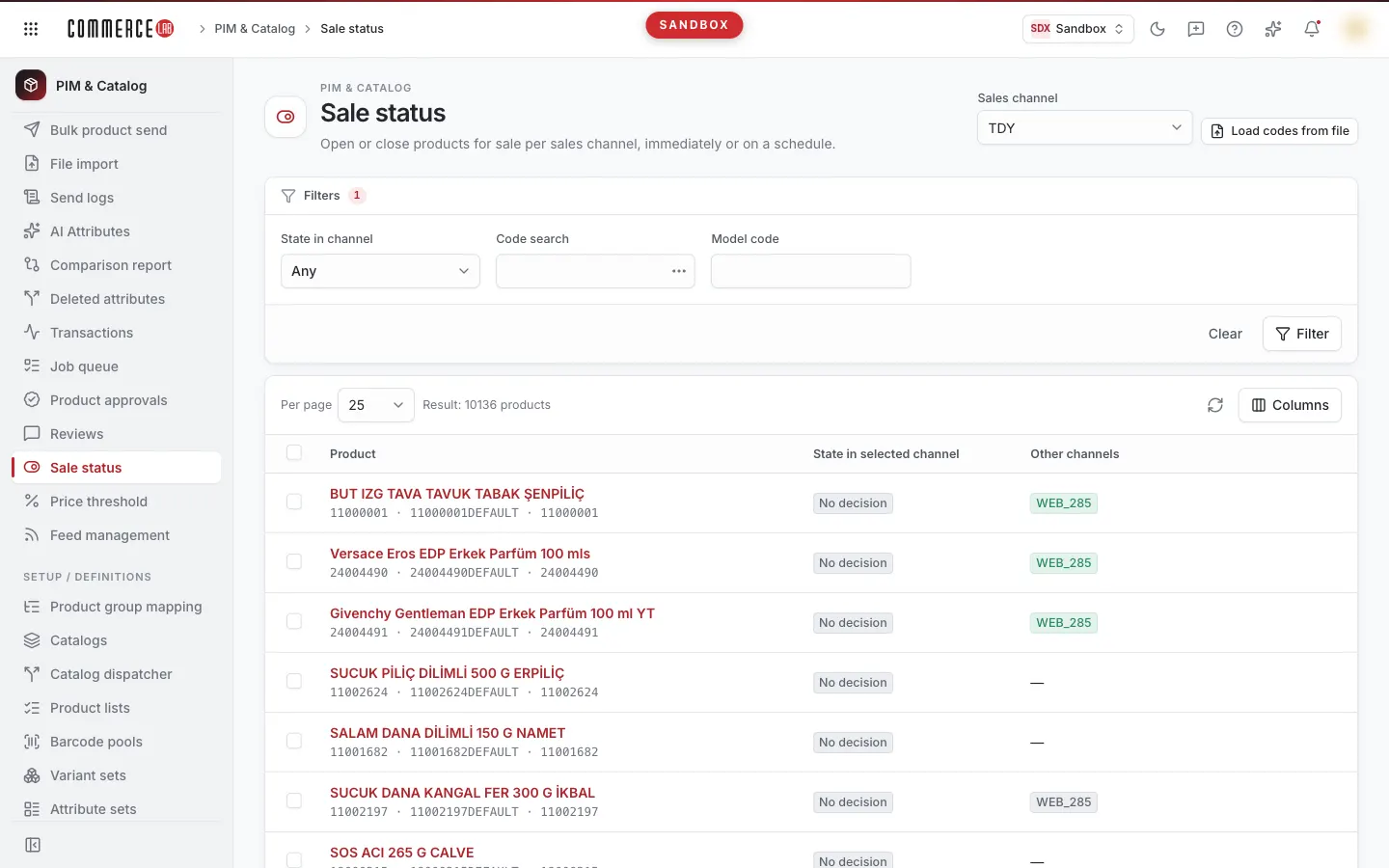
The Sale state screen allows you to see whether products are on sale or off sale in a sales channel and to change this status in bulk. In the Products screen, the channel is only a filter; here it is the focus of the screen: it answers the question "Which products are closed in this channel?" on a single screen, and you can open or close the selected products for sale immediately or scheduled by date. This screen is typically used by catalog and e-commerce operations teams.
Accessing the screen
Follow the menu path PIM & Catalog › Operation › Sale state. If you do not see it in the menu, your account does not have permission for this screen. When opening the screen, product viewing permission is also checked; if you see the menu but cannot open it, your account lacks permission to view products.
Screen sections
- Page title Sale state, with a brief description below; on the right, the Sales channel selector and the Load codes from file button when a channel is selected.
- Filter card: State in channel, Code search, and Model code fields; below them, Clear and Filter buttons.
- List card: Per page selector, "Filter result: … records" count, refresh icon, Columns menu, product table, and pagination. When you select products, a bulk operation bar appears above the table.
- Below the list, an information note: opening/closing is done as a bulk operation and appears in the product history with an operation ID.
Sales channel selection
The screen always works according to a single sales channel. On first opening, the first sales channel in the list is automatically selected and written to the address bar; anyone you share the link with will see the same channel.
- When you select another channel from the Sales channel selector, the list refreshes from the first page for that channel immediately; you do not need to press Filter.
- The State in selected channel column and State in channel filter always operate according to this channel.
- Channels appear by name in the channel list.
- If no channel is selected, instead of the list, the message Pick a sales channel first appears and the Load codes from file button is hidden.
Filtering and searching
| Field | Purpose | Tip |
|---|---|---|
| State in channel | Filters products by their status in the selected channel: Any, On sale, Off sale, Closed by default. | Default is Any; no status filter is applied and all products are shown. |
| Code search | Searches by product code. You can enter multiple codes. | The three-dot button (Enter multiple values) to the right opens the Multiple values box; paste one code per line, press Apply, then Filter. Pasting multiple lines directly into the field also joins codes with commas. |
| Model code | Filters by model code. |
Changes in filter fields are applied when you press Filter or press Enter in a field. If there are unapplied changes, Filter is highlighted. Clear empties all filters and refreshes the list immediately; the selected sales channel does not change.
Loading codes from file
Use this to see the status in the channel of a list of codes you have (e.g., products to be closed for sale) or to bulk change these products. The button is visible only when a sales channel is selected.
- Press the Load codes from file button in the header.
- Select a .xlsx, .csv, or .txt file with product codes in the first column.
- When the file is read, a notification "… codes written to filter" appears with the file name; codes are written into the Code search field and the list immediately narrows and refreshes (no need to press Filter). The "Entire search result" target in bulk operations is also limited to these codes.
Rules:
- At most 500 codes can be loaded from one file.
- The file can be at most 2 MB.
- While reading the file, the button shows Loading and is disabled.
- On rule violation, a red notification explains the reason: Supported formats: .xlsx, .csv, .txt, The file could not be read; it must be .xlsx, .csv or .txt., No codes found in the first column of the file., At most 500 codes can be loaded from one file., or The file can be at most 2 MB.
List
| Column | Meaning |
|---|---|
| Product | Product name on the top row, SKU, option code, and model code on the bottom row. Clicking the product name opens the product detail page. This column cannot be hidden. |
| State in selected channel | The product's sale state in the selected channel: Light (green), Off (red), or Undecided (gray). |
| Other channels | Other sales channels with decisions made for the product. Channels where the product is on sale appear with a green badge, off sale channels with a gray badge; channels without a decision are not listed. Up to four channels are shown; additional ones are counted as "+…". If no other channel has a decision, "—" is shown. |
- You can show 25, 50, or 100 products per page with the Per page selector. Default is 25.
- Sorting by column headers is not available in this list.
- You can hide or show the State in selected channel and Other channels columns from the Columns menu; your preference is saved in your browser.
- If you have permission to modify products, each row has a checkbox at the start. Changing filters, page, or channel resets the selection; you can also clear it with Clear selection in the bar.
- Clicking a row does not open details; access product details via the link in the product name.
States
| State (on screen text) | Meaning | Next step |
|---|---|---|
| Light | Product is on sale in the selected channel. | To close, select the product and apply Close for sale in bulk operation. |
| Off | Product is off sale in the selected channel. | To open, apply Open for sale in bulk operation. |
| Undecided | No open or closed decision has been made for the product in this channel yet. It is not the same as "Off." | If it should be sold in the channel, mark it as open or closed via bulk operation. |
Operations
Changing sale state
Use this to open or close one or more products for sale in one or more channels. The operation is visible only to accounts with permission to modify products; without permission, checkboxes and bulk operation buttons do not appear.
- Filter the list and check the boxes for the products you want to change.
- You will see "… records selected" in the bar above the table. Click Change sale status.
- The Bulk operation window opens. In the first step:
- The Selected products section lists the chosen products. When opened from this screen, products appear by system IDs instead of names. You can remove a product from the list with the Remove from selection icon on its row or restore the last removed with Undo.
- The Operation field defaults to Update sale status.
- In the Target field, select either "Selected … products" or "Entire search result (…)". The latter applies to all products matching the Code search and Model code filters on screen, regardless of selection; if the selected channel state filter is not Any, it is also considered. The number in parentheses is the total record count in the list.
- Select the list to write changes to from the Entity list field. If no suitable list exists, click the New list icon next to it, enter a name (up to 200 characters) in New list name, and click Create; the list is created and selected automatically.
- Choose the language in the Language field.
- In the Sale channels section, select Open for sale or Close for sale for each channel from the selector next to it. Channels left as Leave as is remain unchanged. All defined sales channels are listed here, not only the selected one on screen.
- Optionally, set the change to be scheduled by date and time with the from and to fields. The to date cannot be before from; if so, a warning "End date cannot be before publish date" appears below the field.
- Click Next. Next remains disabled until an entity list, language, and at least one channel with open or close decision are selected and dates are valid. Click Cancel to abort.
- In the Summary step, review the line "The "Update sale status" operation will be performed for … products." and the changes per channel (e.g., "Channel name: Close for sale"). The first company is selected by default; change if needed.
- If you selected the entire search result as target, check the box "I understand that … products will be updated." You cannot proceed without checking this.
- Click the "Apply to … products" button. If you want to change anything, use Back to return to the first step. While sending, the button shows Saving….
Result:
- When accepted, the window closes and a green notification "Sale state update started." appears. The operation ID is shown below the notification; the same ID appears in the Actions tab on the detail page of affected products. The list refreshes.
- Since the operation is queued, changes may take some time to reflect in the list; refresh after a while.
- If sending fails, a red Something went wrong notification appears with the error explanation; the window remains open so you can correct and retry.
The operation is not automatically undone. To fix a wrong change, apply a new bulk operation in the opposite direction to the same products.
The Operation field also includes other bulk operations such as Add attribute, Remove attribute, Add to category, Remove from category, 3rd price campaign, and AI attribute suggestion (and Assign products to vendor if enabled in your setup). These are the same as bulk operations on the Products screen; see the Products document for details. When AI attribute suggestion is started, the window closes and you are taken to the AI Attribute Extraction screen.
Common situations
- I cannot see the selection checkboxes or the Change sale status button. Your account lacks permission to modify products; you can only view the list.
- The Change sale status button does not appear. The button appears only in the bar when at least one product is selected. Select rows first.
- Next is disabled in the bulk operation window. You must select an entity list, language, and at least one channel with Open for sale or Close for sale. If to is before from, the warning "End date cannot be before publish date" appears and Next remains disabled. If you removed all products from the Selected products list, restore them with Undo.
- I applied the operation but the list did not change. Bulk operations are processed sequentially in a queue. Wait a while and refresh; you can check if the operation reached the product by searching the operation ID in the product detail's Actions tab.
- I loaded codes from a file but got an error. The file must be .xlsx, .csv, or .txt, not exceed 2 MB and 500 codes, and codes must be in the first column. The notification message explains which rule was violated.
- I do not see the Load codes from file button. The button is visible only when a sales channel is selected; select a channel first from the Sales channel selector.
- A product shows "Undecided" but is not sold on the site. "Undecided" means no open decision has been made for the product in this channel; it is not the same as off sale. Use bulk operation to apply Open for sale.
- Instead of the list, I see a "Something went wrong" message. Click Retry. If the error occurs when selecting the State in channel filter, set the filter to Any to open the list; if the problem persists, report it to your system administrator with the Technical detail text.