Order detail
Summary, items, packages, payment, notes, and history information of a single order; cancellation, return request, package, address, and shipping operations.
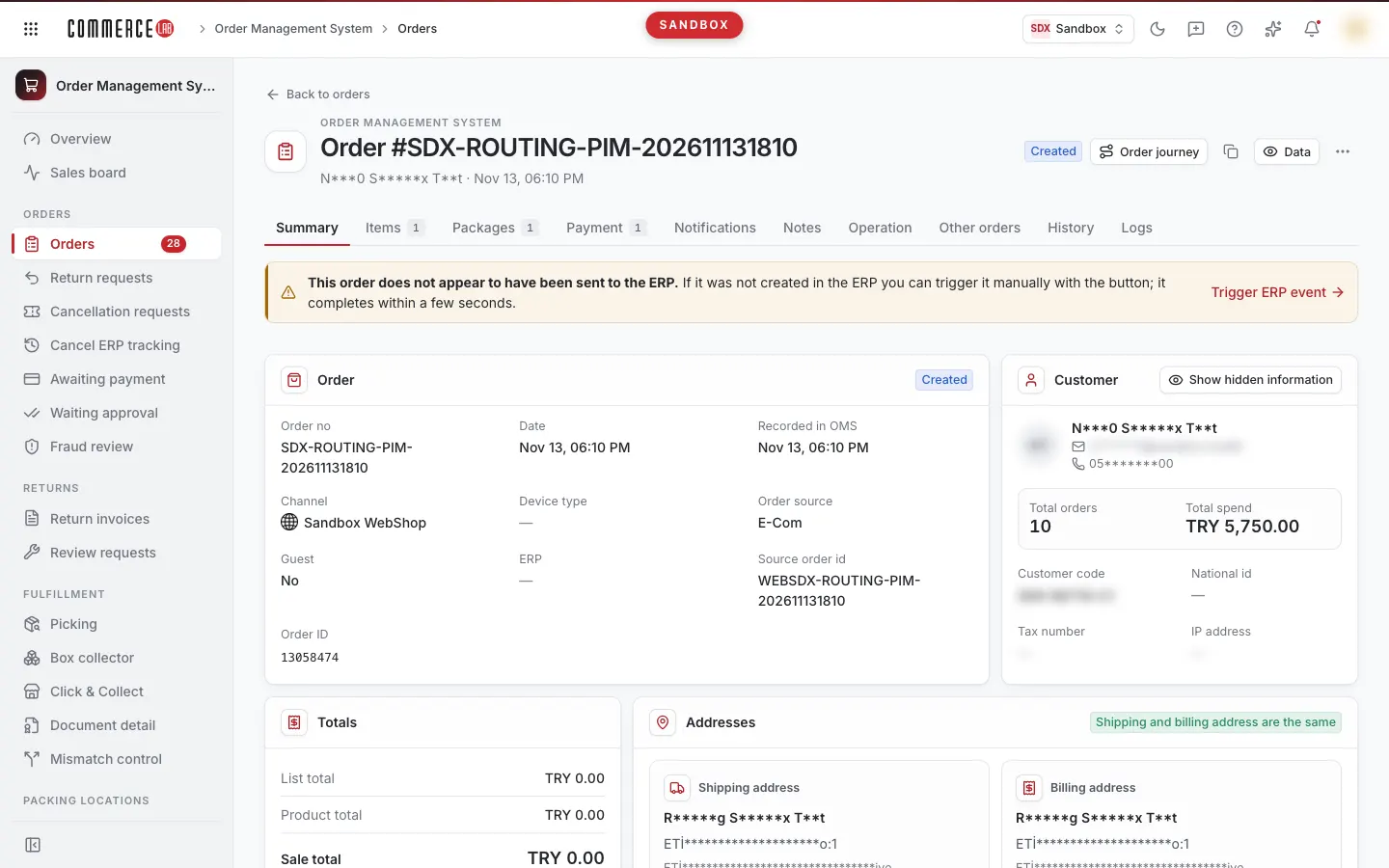
Order detail consolidates everything related to a single order on one page: customer and totals, items and their fulfillment warehouses, shipping packages, payments, notes, notifications, and history. Customer service answers questions from here; the operations team performs actions such as cancellation, return requests, package rejection, address, and shipping changes from here. For the list and search of orders, see the Orders document.
Accessing the screen
- Click the order number in Order Management System › Orders › Orders list; in package-based view, Detail, and in order-based view, the row menu's Open order open the same page.
- The Note badge in the list opens the detail directly in the Notes tab.
- From the Other orders tab in detail, you can switch to another order of the customer.
The Back to orders button at the top of the page returns you to the previous page with the filters and page you left. The open tab is written to the page URL; sharing the link opens the same tab.
Screen sections
- Header — "Order #…", below the masked customer name and order date. On the right, the order status badge, Data menu, and three-dot Actions menu for authorized accounts.
- ERP warning bar — if the order appears not transferred to ERP, a warning "This order appears not transferred to ERP." appears above the tabs. Authorized accounts have the Trigger ERP event button on the bar.
- Tabs — see the table below. Some tabs show record counts.
Data menu
- Show hidden details — reveals the customer's personal information (see below). After opening, the menu shows Information visible.
- Product details — shows products and quantities in the order; marks canceled/returned or pending request items with badges, shows Rejection reason and Description for rejected returns.
- History — switches to the History tab.
Viewing personal information
The customer's name, phone, email, national ID, and addresses are masked when the page opens (e.g., only the first and last letters of the name are visible). To view:
- Click Show hidden details in the Customer card or Data menu.
- Confirm "Show hidden details?" with Yes, continue.
The opening is recorded. Information remains visible only for this order and this page visit; switching orders or reloading masks again. The All data tab and notification Content are available only when information is visible.
Tabs
| Tab | Content | When visible |
|---|---|---|
| Summary | Order, customer, totals, and address information. | Always. |
| Items | Items, statuses, prices, source/warehouse, and product tools. | Always. |
| Packages | Shipping packages and package operations. | Always. |
| Payment | Payments, line payments, refund payments, line discounts. | Always. |
| Notifications | Email and SMS records sent to the customer. | If enabled in your setup. |
| Notes | Internal notes written on the order. | Always. |
| Operations | Picking records and sourcing tools. | Authorized accounts. |
| Other orders | Other orders of the same customer. | Authorized accounts. |
| History | Status changes of packages. | Always. |
| Logs | System logs during the order process. | Authorized accounts. |
| All data | All fields of the order. | Authorized accounts and when hidden details are visible. |
Summary tab
Order info card: Order no, Date, Recorded in OMS, Order status, Channel, Store, Device type, Order source, Guest, ERP (ERP order number), ERP created, Source order id, Order id, Capture id, Click & Collect, App / browser, and Vendor. Optional rows without values are hidden.
If the order's items have different statuses, the Order status row shows separate badges and counts for each status (e.g., "Shipped: 2", "Cancelled: 1"). If the order is under Fraud review, authorized accounts see an Approve button next to it.
Customer card: Customer, Email, Phone, Customer code, Customer ERP code, National id, Tax number, IP address, Total orders, and Total spend (customer history; answers "is this customer new?").
Totals card: List total, Product total, Sale total, and if any, Discounts (with discount name and coupon code).
Shipping address and Billing address cards: Name, Company, Address, Region, Postal code, Phone, Tax details.
Addresses in the Summary tab belong to the first package of the order. For multi-package orders, view each package's address with the Addresses button on the package card in the Packages tab.
If a gift note exists on an item in web and store channel orders, the Gift note card appears. The note can be edited in authorized accounts while the item is in Created, Invoiced, or Shipped status: modify the text, click Update note, and confirm.
Items tab
View
Switch between two lists with the Appearance selector; your choice is remembered in your browser:
- Default listing: each product (item) is one row. Status is the combination of the item's units; if units differ, shows Mixed.
- Line listing: each unit is a separate row. Since cancellation, return, and warehouse info are at unit level, this is the main working view.
Columns
| Column | Meaning |
|---|---|
| Product details | Photo (links to store page), product name (opens product record in catalog), and SKU, Vendor SKU, Model code, Option code, Color, Size, Weight, Gender. |
| Barcode | Shown only if at least one row has a barcode. |
| Qty | Item or unit quantity. |
| Order status | In line listing, clicking the badge opens Status history. Canceled units show Cancelled. |
| Return status | Shown only if units are returned. Clicking the Refunded badge opens Return status history. |
| Discount code / Discount amount | Shown only if the row is discounted. The info icon next to discount amount opens Line payment (card, POS, installments, approval code, amounts). If no discount column, the same window opens via Line payment button in Actions column. |
| Product price, List price, Discounted unit price, Total | Prices and row total. |
| Source / Storage | Unit's Collect status, Source, Storage, Send location, Send storage, or only Inventory storage. Units without assigned storage show No storage assigned warning. |
| Actions | Product tools (below). |
| Gift note | In authorized accounts, for web and store channel orders. Gift icon opens a window with Note (required, max 1000 characters) and Live fields; if no note, shows Add gift note, else Edit gift note. If editing is no longer allowed, the window states so and sends record as inactive. |
Below the table, Product price, List price, Total, and the sum of canceled/returned units (Cancelled/Returned) are shown. On narrow screens, the table appears as product cards.
The Status history window has two tabs: OMS (timeline of statuses; current status marked with Current, user who performed the action) and Source (statuses in the source system like marketplace: Source, Order status, Time, Message, User).
Product tools
- Collect history — unit picking records: Line Id, Time, Order status, Collected, Cancelled, Qty, Source / Storage, ERP info, External status.
- Stock — product's Current stock and Stock history. You can select source from All sources list and uncheck In stock only (default checked, shows only current stock). Both views show Source, Storage, Qty, and Blocked; current stock also shows Sourcing and Not sourcing amounts; history shows Process type, Order no, and User. If quantity changed in history, old and new values are shown side by side with an arrow.
- Stock movements — Stock movement detail: stock shipment records to sales channels since the order date for this barcode; shows counts of successful and failed records. Visible only for items with barcode. Use Integration id and Search, Per page for page size; each record's Request log and Response log can be opened. New quantity zero is shown in red.
- Re-source — in authorized accounts, in line listing. Recalculates which warehouse fulfills the unit; confirmation asked.
- Manual sourcing — in authorized accounts. Manually assigns a unit to a source/storage (see Actions).
Packages tab
Each package appears as a card. Packages with status Unpacked are hidden by default; if hidden packages exist, a Show all packages checkbox and count appear above.
Card header: package number, status badge, Frozen if inactive, badge with order number if pending cancellation/return request exists. On the right, Invoice (opens Invoice preview window; if not visible, Open in a new tab), Tracking link, Shipping label (label image; if PDF, Open in a new tab), and three-dot menu for authorized accounts.
Card info: Package Id, Date, Last modified, Due, Delivery method, Items in package, Package total, Carrier, Tracking no, Cargo key, Invoice no, and if any, Waybill number, Cargo receipt, Send location, Click & Collect, Vendor.
Card buttons:
- Package notes — package-specific notes; authorized accounts fill Title and Note and add with Save.
- Source status — select an Item unit to view source system status records.
- Attributes — package attributes (name/value).
- Items in package — Product info, Qty, Brand, SKU, Color, Size, Due; items with pending cancellation requests show Cancellation requested.
- Addresses — delivery and billing addresses of this package. For Click & Collect packages, the pickup store is also shown; delivery address cannot be changed for this package.
- Address history — address changes of the package; marked as Up to date and History.
Below the card, if any, Parcels (parcel barcode, tracking no, cargo key), Package attributes, and Package history (status timeline with user who performed the action) are listed.
Payment tab
Each payment is a card: POS, Bank, Card, Installments, Total, Paid at, Fraud score, Authorization id, Capture id, and if any, IBAN. In authorized accounts, clicking the fraud score opens Fraud detail: each check's Score and Raw response.
Below, if data exists:
- Line payments, Loyalty point payments, Gift card payments — payment distribution per unit and section total; if multiple sections, Grand total.
- Refund payments — refund amounts, statuses, and Refund id.
- Line discounts — discounts per unit, coupon, and amounts.
Other tabs
- Notifications — Subject, Phone / email, Created, Sent, and status (Completed, Sent, Pending; with retry count). Each row has Logs, History, Content (when hidden details visible; Preview / Raw), and Detail buttons.
- Notes — saved notes with date and user. In authorized accounts, fill Title and Note (both required) in the Add note card and click Save; "Note saved" notification appears. Package-specific notes are in the Packages tab.
- Operations — Product info, Collect, and History tables: dates, Packing center, Collect center, Transfer, and status. Above are Sourcing simulation and Trigger sourcing buttons.
- Other orders — other orders found by customer code or email; Per page 5, 15, 50, or 100 (default 50). If neither exists in the order, shows "Customer code or email missing; other orders cannot be queried." Clicking an order number switches to that order.
- History — Package Id, Id, Order status, User, Time.
- Logs — 10 records per page; select 20, 30, 50, or 100 with Per page. Records with external system errors are marked with red badge and error message; Content opens the record body.
- All data — all fields of the order; copied to clipboard with Copy.
Actions
The following actions are visible only in authorized accounts. If an action does not appear in the menu, it means it cannot be performed in the current order or package status.
Actions are of two types:
- Direct actions (transfer to TMS, trigger ERP event and reset counter, trigger sourcing, activate/deactivate package, send package to TMS, fetch invoice from ERP, re-source, recall shipment, fraud approval): confirmation is asked first (Yes, continue / Cancel).
- Window-opening actions (cancel, create return request, take into processing, update package status, change carrier and address, reject package, manual sourcing): no additional confirmation; clicking send in the window submits the action.
Results are notified (mostly "Action sent") and the page reloads. No undo on screen; errors appear in notification or window.
Cancel / Create return request
Started in two ways:
- Check boxes next to units eligible for action in the Items tab and click "Cancel selected (…)" or "Return selected (…)". Rows without checkboxes (faded) are not eligible.
- Select Cancel or Create return request from the Actions menu in the header.
The opened window queries units currently cancellable/returnable and lists only them; each row is one unit sent singly. In Default listing, checking an item selects all eligible units of that item.
- Check units (preselected if from list).
- Select Reason — required.
- Optionally enter Description — max 200 characters.
- If enabled in your setup, enter Return amount for each selected unit in the return window; default is paid amount, must be >0 and not exceed paid amount.
- Click Cancel or Create return request.
Result is notification "Cancellation request sent" or "Return request created". If no eligible units, window says "No cancellable units in this order." / "No units available for return request in this order." If no defined reasons, action cannot be sent.
Order actions (Actions menu)
- Transfer order to TMS — re-transfers the order to the transport management system.
- Trigger ERP event — restarts ERP transfer. Visible only when triggerable.
- Reset ERP retry count — resets ERP transfer retry counter.
- Trigger sourcing — reruns order source assignment. Hidden if order is Delivered, Cancelled, Shipped, Returned, or Package Ready.
- Sourcing simulation — calculates which source fulfills the order without changing it. Select Mode (Default / Alternative) and Max results (1–100, default 10), then click Run. Results show probabilities → package → item level costs; Raw view also available.
Fraud approval
If order is under Fraud review, click Approve in the Order status row on the Summary tab and confirm. Notification "Order approved" appears.
Package actions
Three-dot menu on package card; each action visible only if package status allows:
| Action | What it does | Visible in statuses |
|---|---|---|
| Activate / Deactivate | Deactivates or reactivates the package. | Created, Collected, Packed |
| Send package to TMS | Sends package to transport system. | Created, Collected, Invoiced |
| Take into processing | Takes package items into picking. | Created |
| Update package status | Manually processes delivery info from carrier. | Collected, Packed, Package Ready, Invoiced, Shipped, Delivery Failed, Delivery Failed, Returned, Click & Collect Received |
| Change carrier | Changes package carrier. | Created, Collected, Packed; hidden if package carrier code is excise tax (ÖTV) |
| Change delivery address | Edits package delivery address. | Created, Invoiced, Shipped, Delivery Failed, Delivery Failed, Returned; hidden for Click & Collect packages |
| Change billing address | Edits order billing address. | Only before ERP transfer |
| Reject package | Rejects package items with reason. | Created, Collected, Packed; hidden for vendor packages |
| Recall shipment | Recalls shipment from carrier if shipped but not delivered. | Shipped, Delivery Failed (if cargo key exists) |
| Fetch invoice from ERP | Retrieves invoice for package with waybill from ERP. | If waybill exists, no invoice, and order has ERP number |
- Take into processing: package items are preselected; enter quantity (1 to package quantity) for each and click Take into processing. Notification "Package taken into processing" appears. If pending cancellation requests exist, window warns; check requests first.
- Update package status: select Delivered or Not delivered and click Save. Delivered requires package to have a cargo code.
- Change carrier: current carrier shown; New carrier list shows only other carriers suitable for this package. Click Change. If no other carrier, message "No other carrier for this package." appears and button is disabled.
- Reject package: select items with Select, enter Qty for each, select Reason (required), optionally enter max 200-character Description, and click Reject. Items with Pending request column Yes already have cancellation requests.
- Recall shipment: after confirmation, result window shows Successful / Failed per shipment; partial failure shows header Partially successful.
Address change
Delivery address is linked to the package, billing address to the order; edited separately. Form opens prefilled with current address. Changing city resets district and neighborhood; select them in order.
| Field | Required | Rule |
|---|---|---|
| Name / Surname | Yes | Cannot be empty. |
| City / District / Neighborhood | Yes | Selected from list; district and neighborhood update based on previous selection. |
| Postal code | Yes | Cannot be empty. |
| Address line 1 | Yes | Minimum 15 characters. |
| Address line 2 | No | |
| Building code | No | |
| Phone | No | If entered, must be 10 digits; leading 0 or 90 and spaces are removed automatically. |
Warnings appear below invalid fields (e.g., "Address must be at least 15 characters", "Phone must be 10 digits"). Submit with Save.
Manual sourcing
To manually assign a unit to a specific source and warehouse, use Manual sourcing in the Items tab:
- If multiple units in an item, select Item unit.
- Mark a source/storage row in the stock table with Select. Only rows with sourcing-available quantity are listed.
- Select Packing source; list filters by sales channel, source, and warehouse match.
- Click Manual plan.
Common situations
- Customer info appears masked. Personal info is masked; reveal with Show hidden details. Opening is recorded.
- No products in cancel/return window. No units are currently cancellable or returnable (e.g., already canceled or shipped). Check row statuses in Items tab.
- Expected action missing in package menu. Actions depend on package status; check the table. No menu means your account lacks permission.
- A package is missing from the list. Packages with status Unpacked are hidden; check Show all packages.
- "No storage assigned" shown. No warehouse assigned yet for the unit. Check stock status with Stock and Stock movements tools; assign with Manual sourcing if authorized.
- Invoice preview is blank. Invoice provider may refuse to display in iframe; use Open in a new tab.