Attribute detail
View and edit the definition, settings, value list, and channel mappings of an attribute.
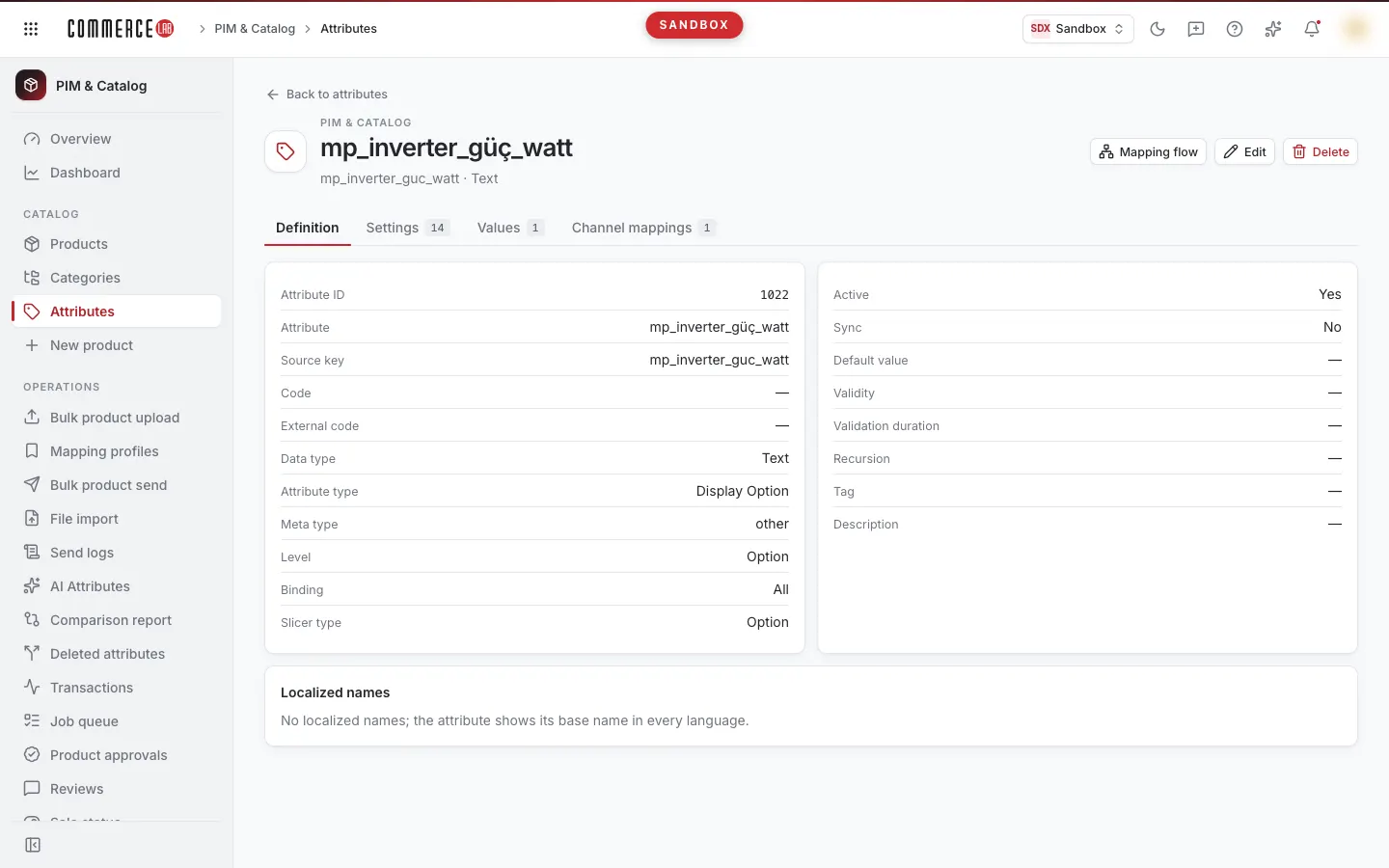
The attribute detail page is where you manage all information of a single attribute: its definition (data type, level, binding, validity), settings that determine product transfer and search behavior, the selectable value list, and how this attribute is mapped with marketplace channels. It is intended for teams that build the catalog structure, edit value lists, and monitor channel transfers.
There is no single Save button on the page. Definition, settings, value order, individual values, and channel settings are saved independently; each tab has its own save step.
Accessing the screen
- Follow the menu path PIM & Catalog › Catalog › Attributes.
- Click on the attribute name in the list or select Open detail from the three-dot menu at the end of the row.
This page also opens automatically when you save a new attribute. The Back to attributes button at the top left returns to the previous page in the browser.
Edit, Delete, Add value, the order arrows, value edit and delete icons, Save in the Settings tab, and channel setting checkboxes are visible or active only for accounts authorized to modify attributes. Without permission, you can only view the page.
Screen sections
- Header: The attribute name; below it the source key and data type. If the attribute is not active, a gray Frozen badge appears on the right.
- Top buttons: Mapping flow (visible to all regardless of permission), Edit, and Delete. When editing the definition, Edit and Delete are hidden.
- Tabs: Definition, Settings, Values, Channel mappings. Numbers next to tab names indicate the count of settings, values, and values with channel counterparts respectively.
Definition tab
The page opens with this tab. The attribute's definition information is shown in two cards, with localized names below.
| Field | Meaning |
|---|---|
| Attribute ID | The attribute's system identifier. |
| Attribute | The attribute's name. |
| Source key | Key generated from the name when creating the attribute. Cannot be changed. |
| Data type | Defines the input format of values. |
| Attribute type | The type of attribute. |
| Meta type | The attribute's meta type (display only). |
| Level | The attribute's level. |
| Binding | Type of binding. |
| Slicer type | Type of slicer. |
| Live | Yes / No. |
| Default value | Default value selected from the value list. |
| Validity | Start → end date. |
| Validation duration | Duration and unit. |
| Recursion | Validation repetition. |
| Tag | Tag assigned to the attribute. |
| Description | Free text description. |
| Localized names | The attribute's names in other languages; shown with language code badges. If none, it says "No localization; the attribute appears with its name in all languages." |
Empty fields show "—".
Editing the definition
- Click the Edit button at the top. If you are on another tab, the page switches to the Definition tab and opens the form.
- Modify fields in the Basics, Classification, Validity and validation, and Localized names cards.
- Click Save. To cancel, click Cancel; changes are discarded.
The form is identical to the new attribute form (see Attributes for field rules). Differences:
- Source key is not in the form and cannot be changed.
- The Classification card additionally has the Default value field. Options come from the attribute's value list. If there are more than 20 values, a Search values box appears above the list; values containing the typed text are listed, and the selected value always remains in the list.
- Attribute name, Data type, Attribute type, Level, and Binding are mandatory. Missing fields are marked red and saving is blocked.
If saving is successful, a "Attribute saved." notification appears and the page returns to view mode. If an error occurs, an error message and a red "Something went wrong" notification appear above the form; the form remains open.
Config type attributes: For attributes with type
Config, a warning "Config type attributes cannot be edited from the console…" appears above the Definition tab and the Edit button is disabled. Values and settings of these attributes can still be edited.
Settings tab
"These settings determine the attribute's product, search, and transfer behavior." Defined settings are listed in two columns. Input type varies by setting: checkbox, number, dropdown, or text. The table below lists settings in screen order.
| Setting | Input | Note |
|---|---|---|
| Filterable | Checkbox | Enabled by default for new attributes. |
| Auto-create with localized values | Checkbox | |
| Brand ID list | Text | |
| Text case | Dropdown | sameAsData, titlecase, lowercase, uppsercase, camelcase. |
| Language | Text | |
| Default value sorting | Checkbox | |
| Auto mapping | Checkbox | |
| Comparable | Checkbox | Disabled by default for new attributes. |
| Same values | Checkbox | |
| Searchable | Checkbox | Disabled by default for new attributes. |
| Slicer option type | Dropdown | photo, text, color, dropdown. |
| Sort order | Number | Must be a number. |
| Search boost | Number | Minimum 1; default 1 for new attributes. |
| Search by non-normalized value | Checkbox | |
| Search priority (1-10) | Number | Integer between 1 and 10; default 1 for new attributes. |
| Search query type | Dropdown | must, filter, should; default should for new attributes. |
| Show in product description | Checkbox | Enabled by default for new attributes. |
| Send with product | Checkbox | Enabled by default for new attributes. |
| Skip new values from source | Checkbox | |
| Slicer type | Dropdown | Variant, Option. |
| Value separator | Text | Default ; for new attributes. |
| ID type | Dropdown | auto, manuel. |
If the console receives an unknown setting, it is shown as a text field with its own name; the value is preserved.
Editing a setting:
- Change values. If you clear a text, number, or dropdown setting (set to Not set), the setting is removed on save. Checkbox settings cannot be cleared; unchecking disables the setting.
- Click Save at the top right. The button activates only if you made changes and there are no range errors.
If you enter an out-of-range value, a warning appears above the card: "Search priority must be an integer between 1 and 10.", "Search boost must be at least 1.", or "Sort order must be a number." If saving succeeds, a "Settings saved." notification appears; if an error occurs, an error message appears above the card.
Changes remain only on screen until you click Save. If you leave the page without saving, changes are lost without warning. Also, if you save another tab (definition, value, order) on the same page, the page reloads and unsaved setting changes are lost. Save settings first.
Values tab
The selectable value list of the attribute (e.g., Red, Blue for a Color attribute). At the top are a search box and a "shown / total values" counter, with Save order (only active if order changed) and Add value buttons on the right. The list shows 25 values per page.
The Search value or localization box filters as you type: it searches in value text, localizations, or value ID (exact match).
| Column | Meaning |
|---|---|
| Value | The value text. Below it is an example localization (first in console language, else standard, else first) and a button showing the number of languages; the button opens a box showing all Localized names by language. If different texts come from different sources for the same language, source names are shown as badges. |
| Live | Green Yes or gray No. |
| Order | The saved order number of the value. |
| Binding | The binding type of the value. |
| Validity | Start → end date. |
| Detail | Codes of languages with detailed info entered (blue badges). |
| Value ID | The value's identifier. |
| (icons) | Value mapping flow, Move up, Move down, Edit, Delete. |
If there are no values, it says "No records found" and "This attribute carries free values; no defined value list." If no values match the search, it says "No values match the search."
Adding and editing values
- Click Add value for a new value or the pencil (Edit) icon in a row for an existing value. The New value or Edit value window opens.
- Fill in the Value field. Input type depends on the attribute's data type: checkbox for yes/no type (Yes / No), date-time picker for date type, number field for number and money types, text for others.
- Fill other fields and sections if needed (below).
- Click Save.
| Field | Required | Explanation / rule |
|---|---|---|
| Value | Yes | Warning "Value cannot be empty." if empty or not a number for number type. |
| Live | No | Checked by default for new values. |
| Binding | No | Selected from list. |
| Valid from / Valid to | No | Date and time. |
| Duration / Duration unit | No | Validation duration. |
| Recursion | No | Free text. |
Detail section: Some data types have additional language-specific info next to the value. If the data type has a field template, tabs appear under Detail for each language ("These fields come from the data type schema and are stored separately per language."). The number next to the tab name shows the count of filled fields; empty tabs say "No value entered for this language yet." Fields can be checkboxes, numbers, single or multi-select, multi-line text, date, file URL, subfield groups, or rows added/removed with Add row / Remove row. Fields marked with * are mandatory in the template. Clearing a field removes it from the record. If no template is defined and detail exists, it says "No schema defined for this data type; saved configuration is shown as is." and detail is read-only. If detail cannot be read, it says "Configuration unreadable (invalid JSON); preserved as is on save."
Value settings section: "Order used in storefront, primary value, icon, and SEO name."
| Field | Explanation / rule |
|---|---|
| Order | Must be empty, zero, or a positive integer; otherwise warning "Order must be an integer." appears and saving is blocked. |
| Primary value | Checkbox. |
| Icon | Text. |
| Icon text | Text. |
| SEO name | "If left empty, setting is removed." |
Value settings are saved only if you make changes in this section; for new values, they are written immediately after creation. If settings cannot be read, a warning "Value settings unreadable; only entered fields will be saved if saved." appears.
Localized names section: The value's texts in other languages. A value may have multiple localizations from different sources for the same language. The console edits only its own source rows ("This source (…) rows are editable."); rows from other sources are read-only with gray source badges ("Localizations from other sources are read-only."). Add localization selects the first unused language in the console's own rows; if all languages are used, it warns "This language is already in the list."
If saving succeeds, a "Value saved." notification appears, the window closes, and the list refreshes. If an error occurs, a message appears at the top of the window and it remains open.
If you get an error on new value: If value settings cannot be written after saving the value, the window stays open with an error message; the value may have been created. Before pressing Save again, close the window and check if the value is in the list; if not, the same value may be created twice. If the value is listed, enter settings by editing that value.
Changing value order
- Ensure the search box is empty. Order arrows are disabled during search.
- Use the Move up / Move down arrows in rows to arrange values as desired. Each press moves the value one step; the up arrow is disabled on the first value, down arrow on the last.
- Click the Save order button that appears at the top.
If saving succeeds, a "Order saved." notification appears and the list refreshes. If you leave the page without saving or save another record (value, setting, definition), the new order is lost.
Deleting a value
- Click the trash (Delete) icon in the row.
- The Delete value window warns that the value named in quotes will be deleted and that deletion will be rejected if the value is linked to a product. Click Delete.
If successful, a "Value deleted." notification appears. If the value is linked to a product, deletion is rejected and the reason appears in the error message. Deletion cannot be undone.
Channel mappings tab
This tab shows the attribute and its values' counterparts in marketplace channels.
Target channel settings: "Settings valid for each channel fed by this attribute. Changes affect all products sent to that channel."
| Column | Meaning |
|---|---|
| Channel | Channel code (blue badge) and name. |
| Channel counterpart | Depending on channel type, either the attribute's channel counterpart values or "N category field links". |
| Use as option attribute | Checkbox. |
| Use PIM value | Checkbox. |
Clicking a checkbox does not immediately change the setting: the Change channel setting? window asks which channel the setting will be enabled or disabled for. Confirm with Save or cancel with Cancel. If successful, a "Channel setting saved" notification appears; if error, a red "Something went wrong" notification appears and the window remains open. If the attribute is not mapped as a target to any channel, it says "No target channel" and "This attribute is not yet mapped as a target to any channel."
Value counterparts table: For each value with a channel counterpart, Value and Channel values (channel badge and values in that channel) are listed. If none, it says "No records found" and "No marketplace mapping defined for this attribute's values."
Mapping flow
Use to see at a glance which channel the attribute comes from and which channels it feeds.
- Click the Mapping flow button at the top. A window opens titled "Mapping flow:" and the attribute's name.
- The window shows three columns from left to right: Source channels → PIM → Target channels. Each card shows the channel badge and attribute name in that channel; if present, lines "Key: …", "Channel category: …", and "PIM category: …" are added. Empty columns say "No connection."
- Connections without a specified role are listed below under Links without a role.
- To change mapping, click the Edit channel mapping link in the window; the field and value mapping screen opens with this attribute selected.
If the attribute is not linked to any channel, the window says "No mapping found" and "This record is not yet linked to any channel." In this case, the edit link is also hidden.
For the flow of a single value, click the Value mapping flow icon in the row on the Values tab. The window shows the value's source and target channel counterparts by category; counterparts not linked to a category appear as "Channel category: All categories." The Edit value mapping link opens the mapping screen in values view with the value searched. If no connections exist, it says "No mapping found."
Deleting the attribute
- Click the Delete button at the top.
- In the Delete attribute window, read the warning "The … attribute and all its dependent values will be deleted. This action cannot be undone." and click Delete.
If successful, a "Attribute deleted." notification appears and you return to the Attributes list. If an error occurs, a red "Something went wrong" notification appears.
Common situations
- Edit button disabled. The attribute is of type
Configor form options have not yet loaded. Definitions ofConfigattributes cannot be changed from the console; settings and values can be edited. If options do not load, Add value and the value edit icon remain disabled. - Order arrows disabled. Order cannot be changed while searching. Clear the search box.
- Save in settings not enabled. You have not made any changes or a setting is out of allowed range; read the warning above the card.
- Setting or order change lost. Saving another tab (definition, value, order) reloads the page and discards unsaved setting and order changes. Save each tab's changes immediately with its own Save button.
- Value cannot be deleted. The value is linked to a product. Remove its usage in products first.
- Some localized names cannot be edited. These rows come from another source and are read-only; the console edits only its own source rows.
- Page shows error. If the attribute cannot be loaded, an error box and Retry button appear. If the problem persists, contact your system administrator with the Technical detail text.