Stocks
Filter and examine stock and blocked quantities by barcode, source, and storage.
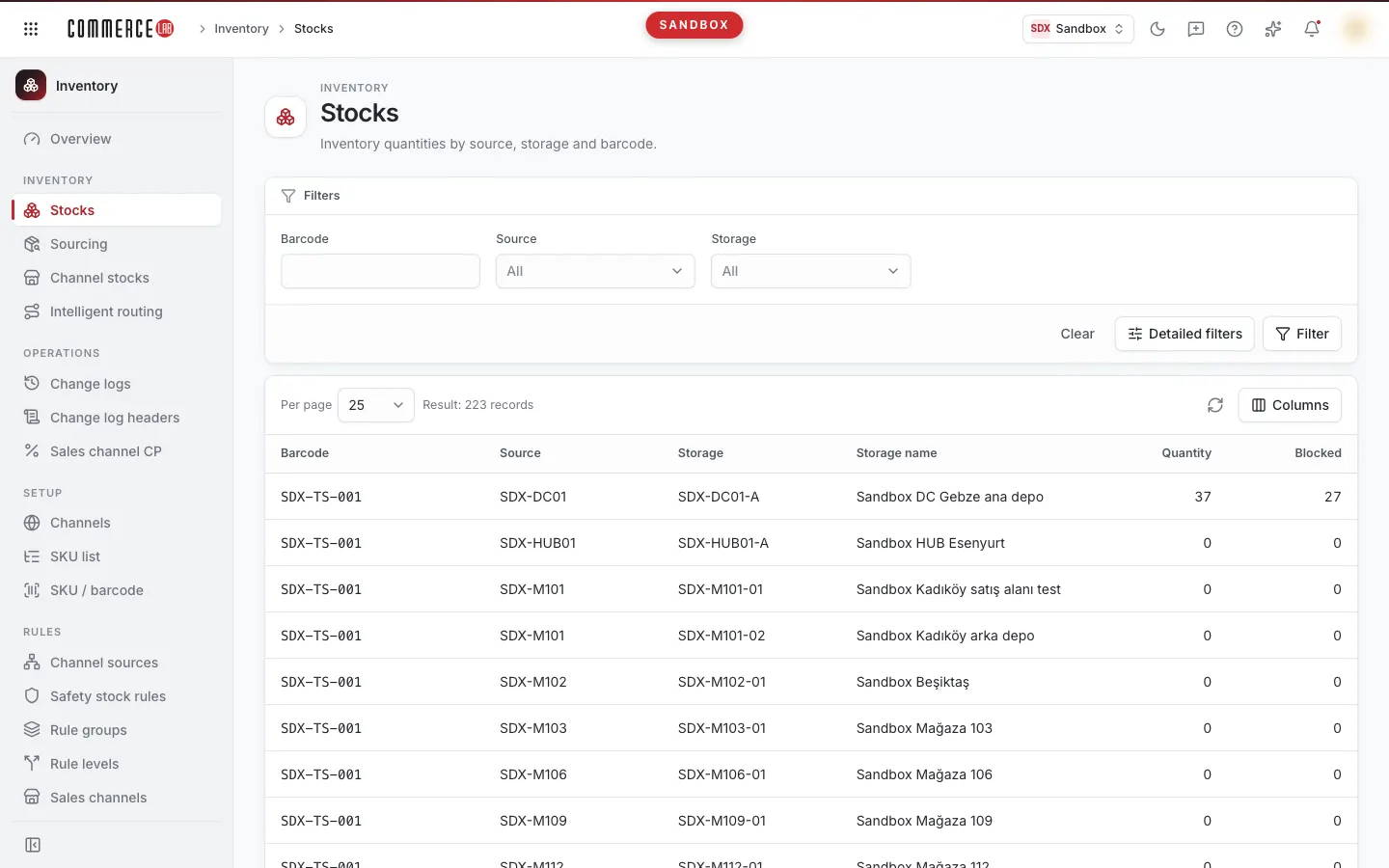
Stocks screen lists inventory stock quantities broken down by barcode, source, and storage. The source is the store or warehouse point holding the stock; storages are stock areas under a source. Here you find the answer to the question "How many units of this barcode are available at which point and storage, and how many are blocked?" The screen is read-only: you view stock quantities but cannot change them here.
Accessing the screen
- Follow the path Inventory › Inventory › Stocks in the left menu.
- The Stocks shortcut is available under the Inventory card in the All products section on the homepage and product launcher.
- You can also open it by clicking the Stocks card on the Overview page of Inventory.
If you do not see it in the menu, your account does not have permission for this screen. If you open the screen via a link and see the You don't have access to this screen page, contact your administrator for permission setup.
If your account does not have permission to view the stock list but has permission to view safety stock rules, opening a link to the Stocks screen (e.g., a bookmark) will automatically redirect you to the Safety stock rules screen. Safety stock rules used to be a tab on this screen; now they are a separate screen under the Rules group. If you open an old bookmark for that tab, you will be redirected directly to the new screen.
Screen sections
- Title: Stocks with the description "Lists inventory quantities by source, storage, and barcode." below.
- Filter card: Barcode, Source, and Storage fields are always visible. At the bottom row of the card are the Clear, Detailed filters, and Filter buttons.
- List card: Top row contains the Per page selector, total record count matching the filter ("Filter result: … records"), refresh icon, and Columns menu. Below are the stock table and pagination.
Filtering and searching
| Field | Purpose | Tip |
|---|---|---|
| Barcode | Limits the list to stock records of the barcode you enter. | If you only have the SKU code, find the barcode first on the SKU / barcode screen; this screen works based on barcode. Leading and trailing spaces are ignored. |
| Source | Shows stock only for the selected source. Default is All. | Options are listed in "code — name" format, sorted by code. |
| Storage | Shows stock only for the selected storage. Default is All. | If you select a source first, the storage list narrows to storages of that source only. Changing the source clears the previous storage selection. |
| Min quantity | Sets a lower limit for Quantity. | Added via the Detailed filters menu. Enter only numbers; non-numeric values are ignored. |
| Max quantity | Sets an upper limit for Quantity. | Added via the Detailed filters menu. Use together with Min quantity to define a range. |
Filters apply when you press the Filter button or press Enter while in a field. Values you type or select do not affect the list until applied. When there are unapplied changes, the Filter button is highlighted. Clear empties all filter fields and immediately reloads the list without filters.
In the Detailed filters menu, you add extra fields to the filter card by checking them. Your selection is saved in your browser; the same fields remain open when you return. The number above the Detailed filters button shows how many extra fields you have added. Unchecking a field removes it from the card and clears its value. Press Filter to apply changes to the list.
Applied filters are written to the page URL. Sharing the filtered list URL with a colleague shows the same results; detailed filter fields with values appear open on the card.
List
| Column | Meaning |
|---|---|
| Barcode | Product barcode of the stock record. This column cannot be hidden. |
| Source | Code of the source where the stock is located. |
| Storage | Code of the storage where the stock is located. |
| Storage name | Description of the storage. |
| Quantity | Stock quantity of this barcode at the source and storage. |
| Blocked | Blocked portion of the quantity in the same record. |
- Each row is a combination of barcode, source, and storage. If the same barcode stock is held at multiple points, it appears in multiple rows.
- Quantity columns are right-aligned and use thousand separators. Cells without values show "—".
- Clicking column headers does not sort.
- Default page size is 25; you can select 25, 50, 100, or 200 from Per page. Page size and page changes apply immediately without pressing Filter; changing page size resets to the first page.
- By default, no columns are hidden. You can hide or show columns except Barcode from the Columns menu; your selection is saved in your browser.
- Clicking rows does not open a detail page; there are no row actions.
Actions
Viewing stock distribution of a barcode
Use when you want to check how much stock of a product is available at which points.
- Enter the product's barcode in the Barcode field.
- Optionally narrow results to a single point by selecting Source and Storage.
- Press Filter or Enter.
- Read the Quantity and Blocked values for each source and storage in each row.
Finding stocks within a quantity range
Use to filter records with depleted or very high stock.
- Open the Detailed filters menu and check Min quantity and Max quantity fields.
- Enter the lower and upper limits as numbers. You can enter only one limit.
- Optionally select Source or Storage and press Filter.
Refreshing the list
The refresh icon (rotating arrows) at the top of the list card reloads the current page with updated data. Pressing Filter without changing filters also reloads and resets to the first page.
Editing columns
- Open the Columns menu.
- Uncheck columns you do not want to see; check to show again.
Common situations
- The list says "No records found." No stock records match the selected filters. Ensure the barcode is correct, set Source/Storage to All, or clear all filters with Clear and try again.
- The storage I am looking for is not in the list. If a source is selected, the storage list shows only storages of that source. Set source to All or select the correct source.
- A newly added source or storage does not appear in filters. Source, storage, and channel options are cached and refreshed approximately every 10 minutes; new records may appear after this delay. You can check source and storage definitions on the Sources screen.
- Source or Storage options are empty. If option lists fail to load, only All remains in fields; the list still works. You can search by Barcode and quantity filters and try reopening the page later.
- Quantity filter does not change results. Enter only numbers in Min quantity and Max quantity; values with letters or symbols are ignored. Make sure to press Filter after entering values.
- "Something went wrong" error appears. Stock data could not be retrieved. Retry with Retry; if the problem persists, copy the text in the Technical detail section and send it to your system administrator.
- Stock quantity differs from expectations. This screen shows the current state. To see when and by which operation the quantity changed, use the Change records screen.
Related screens
- Supplies — Quantities orderable and not orderable by SKU.
- Channel stocks — Stock quantities allocated to sales channels.
- SKU / barcode — SKU code to barcode matches.
- Change records — Old and new values of stock movements.
- Safety stock rules — Safety quantities deducted from stock sent to channels.