SKU / Barcode
Find SKU code and barcode matches: see the SKU corresponding to a barcode or the barcodes of a SKU.
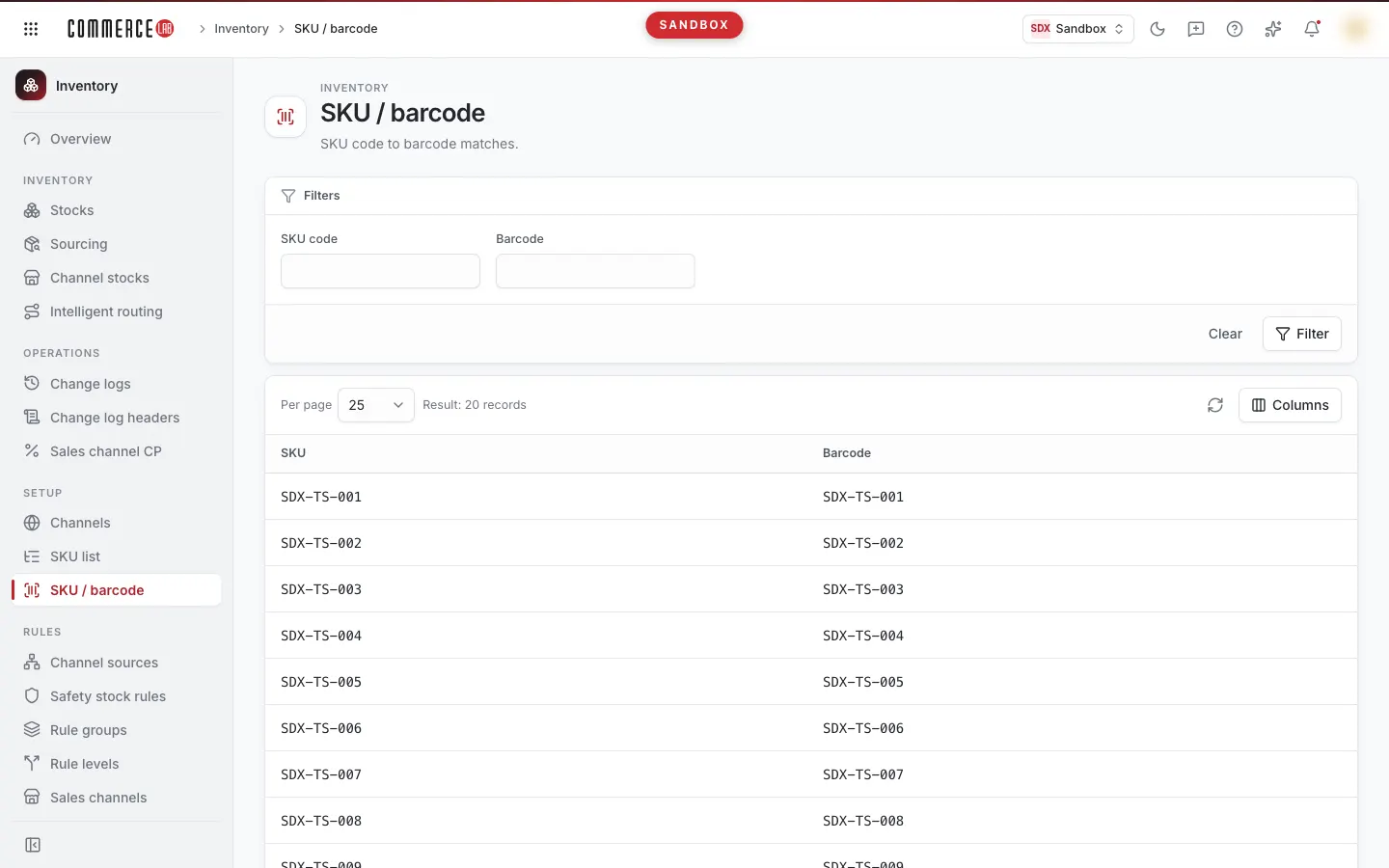
The SKU / Barcode screen lists the matches between SKU codes and barcodes in the inventory. Some inventory screens operate based on barcode, others on SKU code: for example, the Stocks screen searches by barcode, while the Sourcing and Channel stocks screens search by SKU code. Use this screen to find the counterpart of the value you have. The screen is read-only; matches cannot be added or changed.
Accessing the screen
Follow the path Inventory › Setup › SKU / Barcode from the left menu. If you do not see it in the menu, your account does not have permission for this screen.
Screen sections
- Header: SKU / Barcode with the description "Matches between SKU code and barcode." below.
- Filter card: SKU code and Barcode fields, with Clear and Filter buttons below.
- List card: Per page selection, result count ("Filter result: … records"), refresh icon, Columns menu, table, and page navigation buttons.
Filtering and searching
| Field | Purpose | Tip |
|---|---|---|
| SKU code | Lists barcodes linked to the entered SKU. | Each barcode linked to the SKU appears on a separate row. |
| Barcode | Finds which SKU a barcode belongs to. | You can copy and paste the barcode from another screen. |
Both fields are always visible; there is no Detailed filters menu on this screen.
Filters are applied by clicking the Filter button or pressing Enter while in a field. If there are unapplied changes, the Filter button is highlighted. Clear empties the fields and immediately reloads the list without filters. Applied filters are written to the page URL; you can share the URL to show the same result to others.
List
| Column | Meaning |
|---|---|
| SKU | SKU code in the inventory. This column cannot be hidden. |
| Barcode | Barcode linked to the SKU. |
- Page size: 25, 50, 100, or 200; default is 25. Changes apply immediately.
- Sorting: Clicking column headers does not sort.
- Column hiding: You can hide or show the Barcode column from the Columns menu; your choice is saved in your browser.
- Refresh: The refresh icon (Retry) reloads the list with the same filters.
- Clicking a row does not open a detail page.
Operations
Finding the SKU corresponding to a barcode
Use this to find which SKU a barcode seen in the Stocks screen belongs to.
- Enter the barcode in the Barcode field.
- Press Enter or click the Filter button.
- Copy the code in the SKU column; you can use this code to search in the Sourcing or Channel stocks screens.
Finding the barcodes of a SKU
If you want to see the quantity of a SKU in warehouses on the Stocks screen, you first need to find its barcode.
- Enter the code in the SKU code field.
- Click Filter.
- Use the listed barcode in the Barcode filter on the Stocks screen.
Common situations
- The list is empty, No records found is shown. There is no match for the entered SKU or barcode. Check the value; ensure there are no extra characters at the start or end. If both fields are filled, clear one and try again.
- I see multiple rows for one SKU. The list consists of SKU-barcode pairs; if the same SKU appears on multiple rows, it has multiple barcodes.
- I entered a value but the list did not change. Filters apply only when you click the Filter button or press Enter.
- Something went wrong warning appears. Data could not be retrieved. Retry with Retry; if the problem persists, send the Technical detail text to your system administrator.