Overview
ComHub's entry page: Control Tower status summary, shortcut to logs, and an introduction section explaining the product's scope.
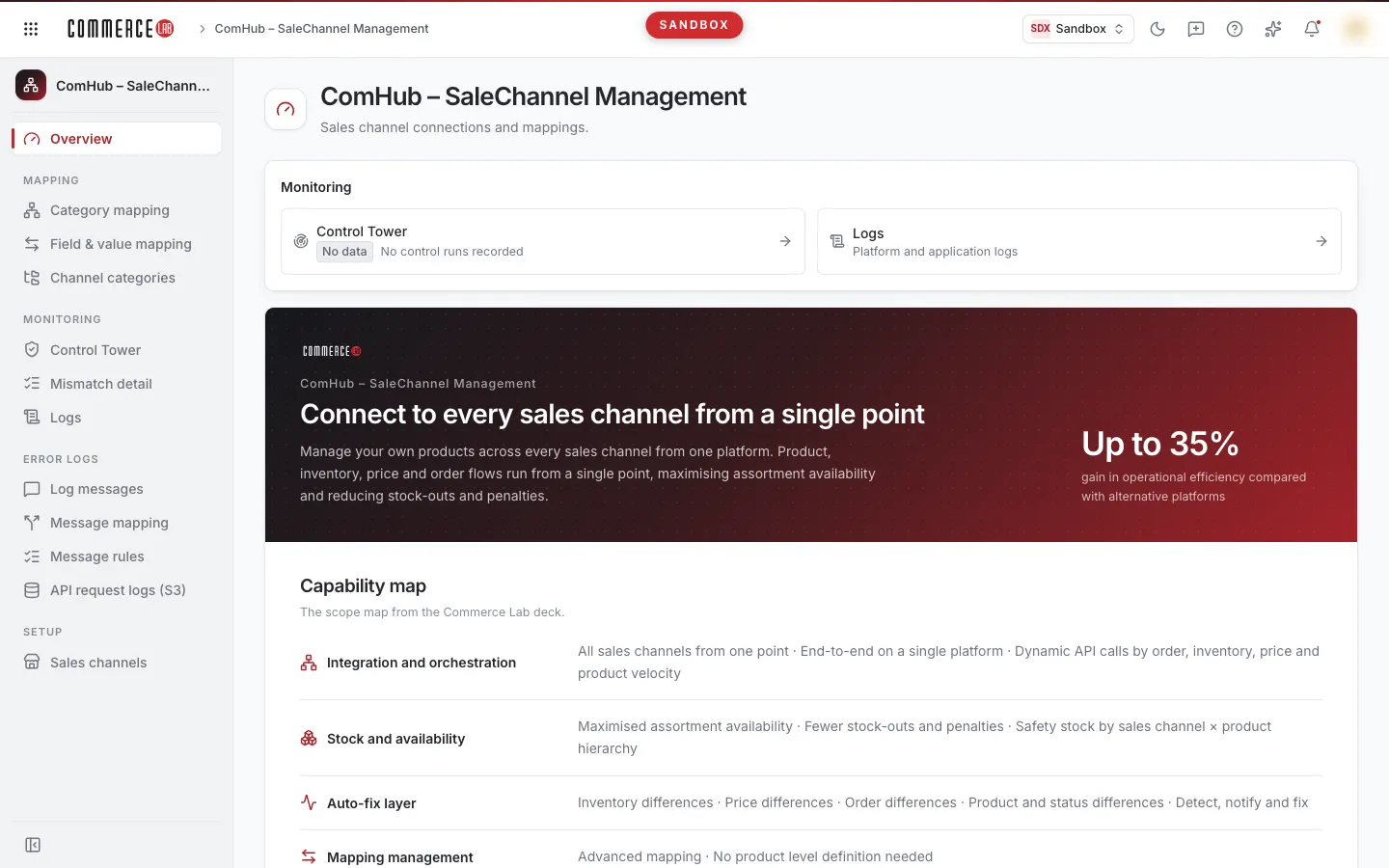
ComHub – Marketplace Integration is the product that manages the commerce of your products, stocks, prices, and orders with marketplaces. The Overview page is the entry page of this product: at the top, there is the Visibility card showing in a single line whether there is any issue in integrations, and below it, an introduction section explaining the product's scope. There are no lists, filters, or editable fields on the page; for detailed tasks, use the screens in the left menu.
Accessing the screen
- Click the ComHub – Marketplace Integration card in the product cards on the homepage or in the product launcher (under the Integration & Orchestration family).
- While inside ComHub, select the top Overview item in the left menu.
Under the ComHub card on the homepage, there are shortcuts to the three most frequently used screens: Category mapping, Field & value mapping, and Control Tower. You can go directly to these screens without visiting the overview.
If you do not see it in the menu, your account does not have permission for this screen. If you open the page via a link and see a permissions page, contact your administrator; if your ComHub account license does not include it, an introduction page indicating the product is not licensed will open instead.
Sections of the screen
- Title: ComHub – Marketplace Integration with the description "Marketplace connections and mappings." below.
- Visibility card: Control Tower status summary and shortcut to logs. Visible only if you have permission to see at least one of the Control Tower or log screens.
- Product introduction: Section describing what ComHub does, its capability map, and detailed capabilities.
Visibility card
The card consists of two clickable boxes. Each box opens the related screen. Which boxes appear depends on your permissions: if you have permission for only one screen, a single box appears.
Control Tower box
Shows the aggregated status of stock, order, price, and product mismatches across all channels in marketplace integrations. Clicking the box opens the Control Tower screen.
| Displayed | Meaning |
|---|---|
| Severity badge + Total {number} mismatches | There are open mismatches. The badge shows the highest severity among the records. |
| Clean (green) + No issues | Controls have run and there are no open mismatches. |
| No data (gray) + No control runs recorded | There are no records of successful or failed control runs and no open mismatches. This does not mean "clean"; controls may not have run yet. |
| Faulty control: {number} (red text) | Appears alongside one of the above statuses: this number of controls failed in the last run. See which controls failed in the Control Tower screen. |
| Status could not be read; see the screen for details. | Summary could not be obtained. Open the Control Tower screen to see error details. |
Severity badges are shown from highest to lowest as follows: Fatal and Fatal (legacy) in red, Critical warning and Alert (legacy) in orange, Alerts in blue. Severities labeled "(legacy)" are records opened with names previously used by controls; they are shown separately because they are still open.
The card does not refresh automatically. Refresh the page or open the Control Tower screen to see the current status.
Logs box
Appears with the description "Platform and application logs." Clicking it opens the Logs screen with platform logs selected and the newest record at the top.
Product introduction
The introduction section explains ComHub's scope; the texts here are the same for all customers and do not show your account's data.
- Entry strip: Title "Connect to all marketplaces from a single point," a short product description, and measured business impact (up to 35% operational efficiency increase compared to alternative platforms).
- Capability map: Six areas: Integration and orchestration, Stock and availability, Auto-fix layer, Mapping management, Reconciliation, and Platform. Each area lists the capabilities it covers.
- Why is it different?: Summary of the approach that distinguishes the product from other solutions.
- Capabilities in detail: One-sentence explanations of each capability under the headings Single platform, Stock, Data consistency, and Reconciliation.
- Source: Link to the commercelab.com.tr page from which the text is taken. The link opens in a new tab.
Not every capability in the introduction has a separate screen in the console. Screens you can use today are listed in the left menu.
ComHub screens
The left menu is grouped. You can find which screen to open for which task in the table below.
| Group | Screen | Purpose |
|---|---|---|
| Mapping | Category mapping | Linking PIM categories to marketplace categories; field and value mapping by category. |
| Mapping | Field & value mapping | Managing the correspondence of product fields (brand, color, size, etc.) and their values across all channels in a single table. |
| Mapping | Channel categories | Browsing marketplaces' own category trees (read-only). |
| Visibility | Control Tower | Mismatch checks per channel: what was found, did the control run. |
| Visibility | Mismatch detail | Breakdown by severity and cause; clicking the counter opens mismatch records. |
| Visibility | Logs | Platform and application logs. |
| Error logs | Log messages | Error messages of integration processes (invoice, shipping, ERP) and their user-facing equivalents. |
| Error logs | Message mapping | Mapping integration error messages to user-facing explanations. |
| Error logs | Message rules | Integration method, message code, and retry type mappings. |
| Error logs | API request logs (S3) | Records of requests for product, category, and attribute operations: who, when, what operation. |
| Setup | Marketplaces | This screen has not yet been moved to the console. It appears in the menu, but when opened, an info page indicating the screen will be moved and a button to return to ComHub appear. |
Only screens you have permission for appear in the menu; therefore, two users may see a different number of menu items.
Common situations
- Visibility card does not appear at all. The card is shown only to users with permission to view Control Tower or log screens. If you need these screens, ask your administrator for permission.
- The card says "No data" but I know there is an issue in Control Tower. "No data" means no control run records were found. Check in the Control Tower screen whether controls have run.
- There is a "Faulty control" warning. Some controls have failed. Before trusting the mismatch count shown in the area covered by a faulty control, check which controls failed in the Control Tower screen.
- Numbers do not look up to date. The card does not refresh automatically while open. Refresh the page.
- Marketplaces screen does not open. The opened page says "This product's screens will be moved after the first phase." The marketplace connection setup screen is not yet in the console. You can return to the overview with the ComHub – Marketplace Integration button on the page.
- I cannot find a capability from the introduction in the menu. The introduction section explains the entire product scope; not every capability has a separate screen in the console.